
Most WordPress errors fall into a handful of categories — server errors (like 500, 502, 503, 504), connection errors (the ERR_CONNECTION family), WordPress-specific failures (the critical error, the white screen, database connection), and SSL/HTTPS errors. Almost all of them are fixable, and the fastest way to solve any of them is to start by reading your error logs to find the real cause. This guide organizes the most common errors by type, explains what each means, and links to a complete step-by-step fix for every one.
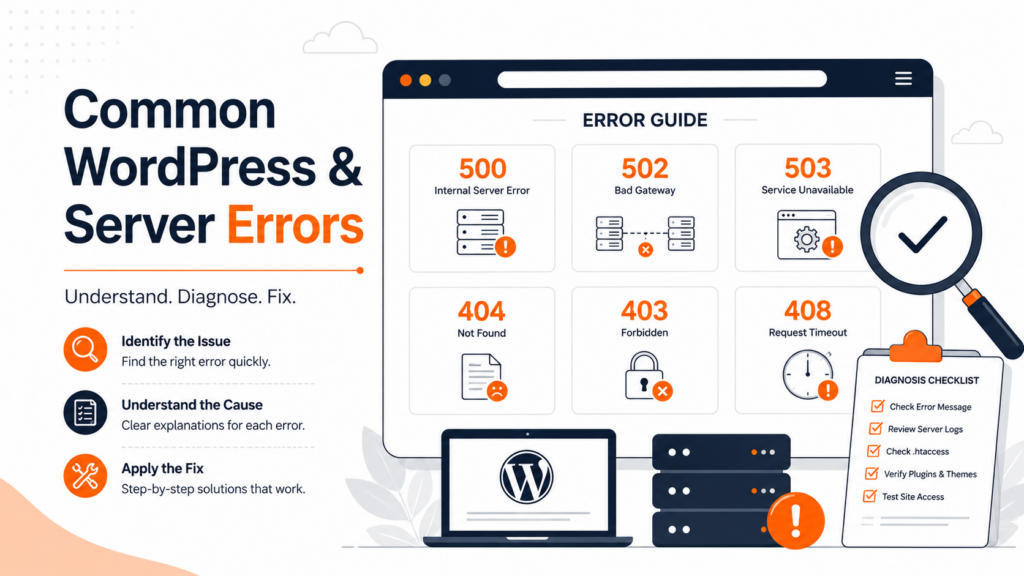
If your WordPress site is showing an error, you’re in the right place. Rather than a giant unsorted list, this guide groups the most common errors the way they actually occur — by where the problem lives — so you can quickly find yours and jump to the detailed fix. We’ll also start with the one skill that makes every other error easier to solve: reading your logs.
Start here: diagnose before you fix
Before working through fixes, it pays to find out what actually broke. The error on screen is usually vague (“there has been a critical error,” a blank page, a status code), but your server records the real cause.
The single most useful troubleshooting skill in WordPress is reading your error logs — they name the exact plugin, theme, or file behind most failures. If you do nothing else first, do this: see our full guide on how to enable and read WordPress error logs. With logging on, most of the errors below turn from a guessing game into a specific, fixable cause.
If your changes simply aren’t appearing, the cause is often cache, not an error — see how to clear your WordPress cache.
Server errors (5xx)
These appear when the server — or something behind it — fails to fulfill the request. They’re the most common errors on dynamic sites and almost always server-side.
500 Internal Server Error. The catch-all server error: something failed but the server can’t say what. On WordPress it’s usually a corrupted .htaccess, a PHP memory limit, or a plugin conflict. Full fix: HTTP error 500 in WordPress, and the Nginx 500 internal server error specifically.
502 Bad Gateway. A gateway (like Nginx) got an invalid response from the backend it proxies to — often a stopped PHP-FPM. Full fix: 502 Bad Gateway in Nginx.
503 Service Unavailable. The server is up but temporarily refusing requests — overloaded, in maintenance, or a backend is down. On WordPress, a stuck .maintenance file is a classic cause. Full fix: 503 Service Unavailable.
504 Gateway Timeout. A gateway reached the backend, but it took too long to respond — a timeout between servers. Full fix: 504 Gateway Timeout error.
400 Bad Request. The server couldn’t understand the request, often due to a malformed request, oversized cookies, or a bad URL. Full fix: 400 Bad Request.
Connection errors (browser-side)
These show up in the browser before the page even loads, usually as an ERR_ code. They can be the site’s server, the network in between, or something local.
ERR_CONNECTION_REFUSED. The server actively refused the connection — it may be down, the service stopped, or a firewall is blocking it. Full fix: ERR_CONNECTION_REFUSED.
ERR_CONNECTION_TIMED_OUT. The connection attempt took too long with no answer — often an overloaded server or a network issue. Full fix: ERR_CONNECTION_TIMED_OUT.
ERR_CONNECTION_RESET. The connection was cut mid-transfer, frequently a network, firewall, or server-configuration issue. Full fix: ERR_CONNECTION_RESET.
WordPress-specific errors
These are failures inside WordPress itself — usually a plugin, theme, PHP, or the database.
“There has been a critical error on this website.” WordPress’s modern catch-all for a PHP fatal error. Since version 5.2, it pauses the site and emails a recovery link instead of showing a blank page. Full fix: the WordPress critical error.
The White Screen of Death. A completely blank page with no message — what the critical error looked like before WordPress 5.2, usually caused by PHP memory exhaustion. Full fix: the WordPress white screen of death.
Error establishing a database connection. WordPress can’t reach its database — usually wrong credentials in wp-config.php, a down database server, or a corrupted database. Full fix: error establishing a database connection.
Can’t log in to wp-admin. Login problems aren’t a single error but a family of access issues — a redirect loop that bounces you back to the login screen, a lockout from too many attempts, a 404 on the login URL, or the “cookies are blocked” message. Full fix: WordPress login problems: wp-admin access, redirect loops, and lockouts.
A plugin isn’t working. Often a plugin conflict, an outdated plugin, or a PHP version mismatch. Full guide: WordPress plugin not working.
PHP limit errors
The uploaded file exceeds upload_max_filesize. A PHP upload-limit error when a file is larger than the server allows — not a WordPress setting. Full fix: the upload_max_filesize error.
Maximum execution time exceeded. A PHP script ran longer than the server allows. Full fix: the max_execution_time error.
Allowed memory size exhausted. A PHP script ran out of memory. Full fix: the memory limit error.
Cannot modify header information – headers already sent. Stray output before the HTTP headers, usually whitespace in a PHP file. Full fix: the headers already sent error.
SSL and HTTPS errors
These appear when something is wrong with the site’s certificate or its secure connection.
ERR_SSL_PROTOCOL_ERROR. The browser couldn’t establish a secure SSL/TLS connection — often an expired or misconfigured certificate, an outdated protocol, or a server setting. Full fix: ERR_SSL_PROTOCOL_ERROR.
How to prevent WordPress errors
When the problem is your hosting
It’s worth being honest about a pattern in the list above: a large share of WordPress errors trace back to the server environment — PHP memory limits, PHP versions, resource caps, server configuration, and how easily you can reach your logs and files. On cheap, overcrowded shared plans, low limits and overloaded servers cause far more 500s, 502s, and 503s, and you often can’t fix them yourself.
Good hosting prevents many of these errors at the source: adequate PHP memory and current PHP versions, resources that absorb traffic spikes, a properly configured server stack, easy access to error logs and a file manager, one-click backups to roll back fast, and staging to test updates before they reach your live site — plus responsive support for the cases that need server access. For a site that needs to stay online, that foundation is what keeps most of these errors from ever appearing.
Frequently Asked Questions
Adequate PHP memory, current versions, resources that absorb spikes, easy log access, and one-click backups — Copahost gives your site the foundation that prevents most of these errors before they happen.
See web hosting plansConclusion
Most WordPress errors are far less scary once you know which category they fall into and where to look. Start by enabling your error logs to find the real cause, identify whether you’re dealing with a server error, a connection error, a WordPress-specific failure, or an SSL issue, then follow the dedicated guide for your exact error. And since so many of these come down to the server environment, running your site on solid, well-resourced hosting is the simplest way to prevent most of them in the first place.
