
A 503 Service Unavailable error means the server is up and running but temporarily unable to handle the request — usually because it’s overloaded, in maintenance mode, or a backend service it depends on has stopped. Unlike a “broken” error, a 503 is the server’s way of saying “I’m here, just not available right now.” It’s almost always temporary and server-side, and most cases are fixed by relieving load, finishing maintenance, or restarting the failed service.
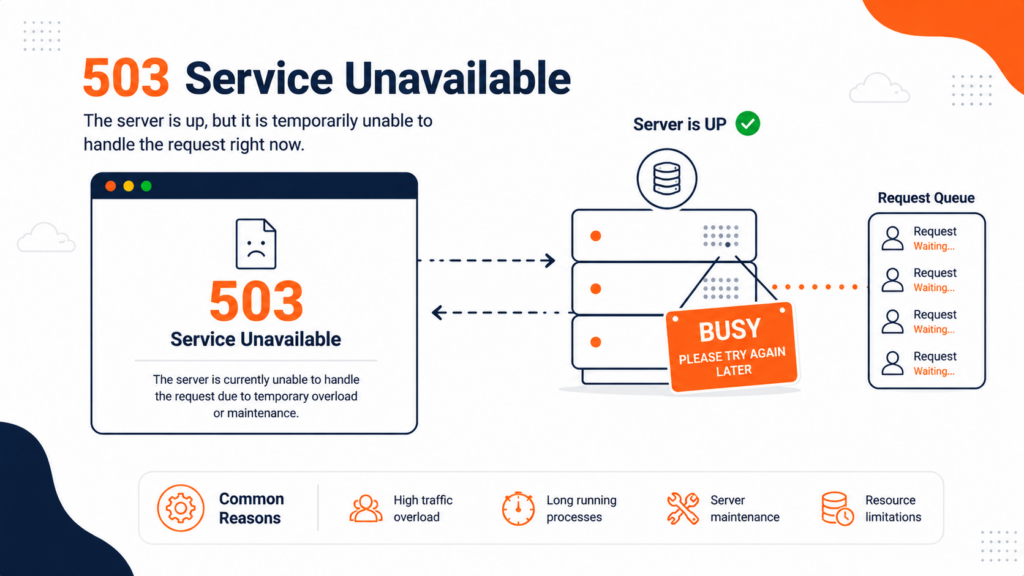
The 503 is one of the more misunderstood HTTP errors, because it doesn’t mean something is broken — it means the server is deliberately (or involuntarily) refusing to serve the request for now. If you’re a visitor, there’s little you can do but wait. If you own the site, the 503 is pointing at a temporary capacity or availability problem you can usually resolve quickly.
This guide covers both sides, and how the 503 differs from its cousins, the 502 and 504. The 50X is one of several server and WordPress errors — see our complete guide to common WordPress errors for the full map.
Table of Contents
What does “503 Service Unavailable” mean?
When a server returns a 503, it’s telling the client: the request was received, but I can’t complete it right now. The crucial word is temporarily. The server isn’t broken (that would be a 500) and didn’t send a bad response (that’s a 502). It’s up — it just can’t, or won’t, serve the request at this moment.
This happens for one of a few reasons: the server is overloaded (out of CPU, memory, or available connections), it’s in maintenance mode (intentionally returning 503 while updates run), or a backend service it relies on has stopped. In all cases, the condition is meant to be short-lived — which is why a well-behaved 503 response often includes a Retry-After header telling clients when to try again, and why 503 responses shouldn’t be cached (a cached 503 could keep showing the error after the fix is live).
This makes the 503 genuinely useful for planned maintenance. If you need to take your site offline for an update or migration, returning a proper 503 with a Retry-After header is the correct, intentional way to do it — it tells browsers and search-engine crawlers “I’m temporarily down, come back in X” rather than looking like a broken site. Many maintenance-mode plugins and server configurations do this for you.
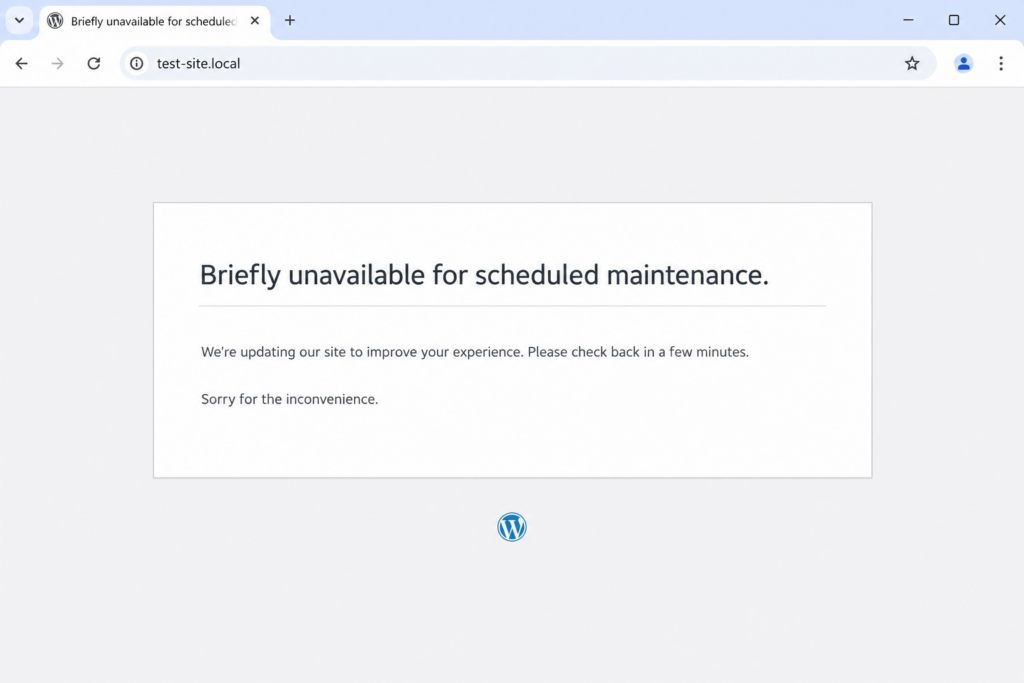
You might see it worded as “503 Service Unavailable”, “HTTP Error 503”, “503 Service Temporarily Unavailable”, “Error 503”, or, on a WordPress site mid-update, “Briefly unavailable for scheduled maintenance.”
503 vs 500, 502 and 504
These server errors get confused constantly. Here’s the distinction:
In short: 503 means the server is up but refusing requests right now (overload or maintenance); 502 means it got an invalid response from a backend; 504 means a backend took too long; and 500 is a generic internal failure. This article is about the 503.
A note on 503 vs 429: if requests are being refused specifically because a client sent too many requests (rate limiting), the correct status code is 429 Too Many Requests, not 503. A 503 is about the server’s overall availability, not throttling one client.
If you’re a visitor: what you can do
A 503 is almost always the website’s problem, not yours — but a few quick checks don’t hurt:
- Wait a moment and reload. Because a 503 is temporary, refreshing after a minute often works once the load drops or maintenance finishes. (One caution: if you saw the 503 during a payment, don’t keep refreshing — you could submit the payment twice.)
- Clear your browser cache. Occasionally a cached error page lingers; clearing it forces a fresh request.
- Check if it’s down for everyone. A tool like DownDetector confirms whether the outage is global or just you.
- Come back later. If it’s overload or maintenance, the site will recover on its own once the cause passes.
If it persists, only the site owner can fix it.
If you own the site: how to fix a 503
Work through these from most to least common.
1. Check whether it’s scheduled maintenance
The simplest cause first: is the site intentionally in maintenance? WordPress automatically returns a 503 while applying updates, showing “Briefly unavailable for scheduled maintenance.” Normally this clears in seconds — but if an update was interrupted, WordPress can get stuck in maintenance mode because a hidden .maintenance file was left behind in the site’s root folder. Delete that file via FTP or your file manager, and the site comes back immediately.
2. Look at server load and resources
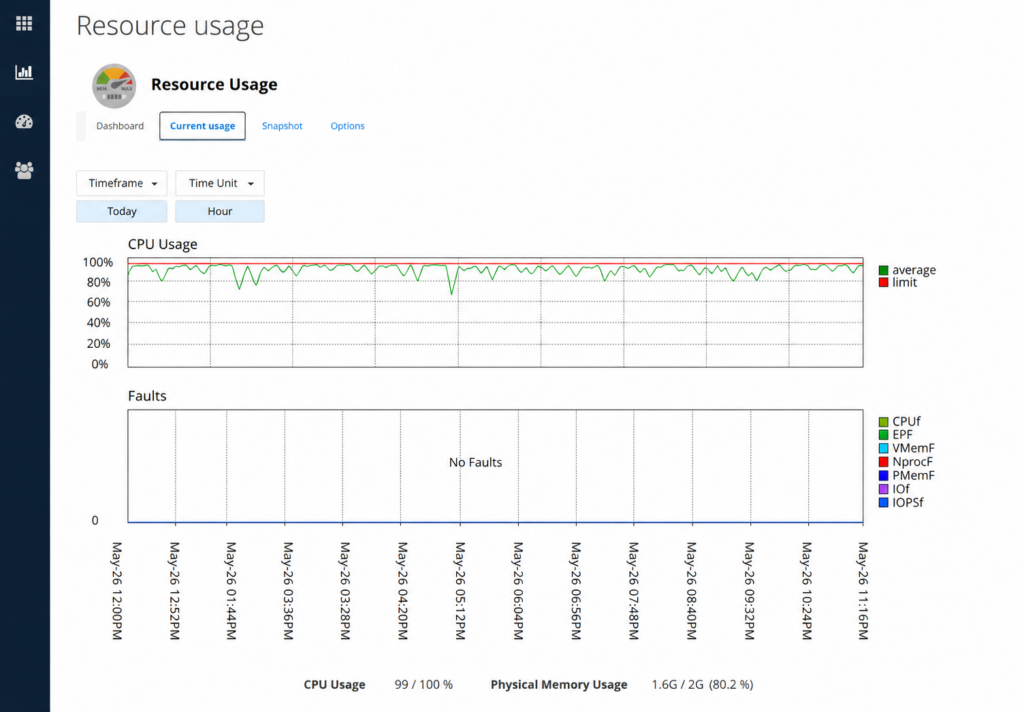
The most common unintentional cause is overload. A traffic spike, a resource-heavy process, or simply a plan that’s run out of CPU, memory, or available connections makes the server start refusing requests with a 503. Check your resource usage in your hosting control panel. If you’re maxed out, you’ll need to reduce the load (caching, optimizing) or add resources.
One specific form of overload worth naming: a DDoS attack (a flood of malicious traffic) exhausts server resources the same way a legitimate spike does, producing 503s. If your traffic suddenly spiked without an obvious cause, check whether it’s an attack — a CDN or WAF with rate limiting (and DDoS protection) is the main defense.
Don’t overlook the database. Even when CPU and memory look fine, a database that has hit its connection limit, run out of memory, or is locked by a slow long-running query can stall the application until it returns a 503. Slow queries are one of the most common hidden causes — check your slowest queries (many panels offer a slow-query log), add indexes, and use caching to take pressure off the database on every page load.
3. Restart the backend service
If Nginx or Apache is acting as a reverse proxy and the backend application behind it — PHP-FPM, Node.js, Gunicorn — has crashed or stopped, the web server returns a 503 for every request. Restarting the backend service usually brings it back:
sudo systemctl restart php-fpm
sudo systemctl restart nginxphp8.2-fpm, gunicorn, or your Node process).If the service won’t stay up, check the logs (next step) for why it’s crashing. (These commands need server/root access — on shared hosting, see the shared-hosting section.)
4. Check for PHP-FPM pool exhaustion (the #1 cause on WordPress)
On WordPress hosting, the single most common cause of a 503 is PHP-FPM pool exhaustion. PHP-FPM keeps a pool of worker processes, and each request that needs PHP occupies one worker until it finishes. When traffic is high — or when slow plugins run long database queries on every page load — all the workers stay busy, the pool fills up, and new requests get rejected with a 503. The tell-tale sign in the Nginx error log is:
connect() to unix:/run/php-fpm/www.sock failed
(11: Resource temporarily unavailable)
There are two sides to fixing it. Reduce the load so fewer workers are needed: enable caching (so most requests never hit PHP), block aggressive bots, and optimize or remove heavy plugins and slow queries. And raise the pool size if your server has the memory for it, by increasing pm.max_children in your PHP-FPM pool configuration. Tune it to match your available RAM — setting it too high can exhaust memory and cause new problems. On shared hosting you usually can’t change pm.max_children yourself, which is why reducing load (caching, lighter plugins) is the practical fix there.
If your stack uses Apache instead of PHP-FPM, the equivalent limit is MaxRequestWorkers. When every Apache worker is busy, new requests are queued or rejected, and the error log shows “server reached MaxRequestWorkers setting.” The fix mirrors the above: reduce load, and raise MaxRequestWorkers (and ServerLimit on the prefork MPM) if you have the memory.
5. Deactivate a problematic plugin or theme (WordPress)
On WordPress, a poorly coded or incompatible plugin or theme is a frequent 503 trigger — especially right after an install or update. Deactivate all plugins (if you can’t reach the dashboard, rename the wp-content/plugins folder via FTP), then reload. If the 503 clears, reactivate them one by one to find the culprit. If plugins aren’t it, switch to a default theme. If a recent code deploy caused it, roll it back to the last working version.
6. Check your CDN and firewall
If your site sits behind a CDN like Cloudflare, a problem at the CDN layer can surface as a 503 — temporarily pausing the CDN tells you whether it’s the source. Likewise, a firewall or WAF (web application firewall) can return 503s on false positives, blocking legitimate traffic it mistakes for an attack. Review the rules and logs if you suspect either.
One Cloudflare quirk to know: if your origin server returns a 503, visitors behind Cloudflare may instead see a 521 error (“Web server is down”), because Cloudflare reports that it couldn’t get a healthy response from your origin. If you see a 521, treat it as an origin-side 503 and diagnose the origin.
7. Read the logs to find the real cause
When the cause isn’t obvious, the logs reveal it. Check your server’s error log and, for WordPress/PHP, the application log — see our guide on WordPress error logs for how to enable and read them. The entries around the time of the 503 usually point straight to the overloaded resource, crashed service, or failing plugin. If the site shows a generic critical error instead, the cause is more likely a PHP fatal error than a capacity issue.
Fixing a 503 on shared hosting (no root access)
As with other server errors, most WordPress owners are on shared hosting and can’t restart services or edit server configs. Your realistic options:
- Check for stuck maintenance: delete a leftover
.maintenancefile in your site’s root via the file manager — a common, easy fix you can do yourself. - Reduce the load: enable caching and disable resource-hungry plugins, so your account stops hitting its resource limits.
- Undo recent changes: a plugin/theme update right before the error is the prime suspect — roll it back.
- Check the panel logs, then contact support. Since overload and backend restarts need server-level access, a good host will diagnose and resolve it quickly.
Recurring 503s on shared hosting usually mean your site is outgrowing an overcrowded, under-resourced plan — and that better-resourced hosting would prevent them.
How hosting affects 503 errors
A 503 is fundamentally about capacity and availability — which makes it one of the most hosting-dependent errors there is. On cheap, overcrowded shared servers, tight resource limits mean even a modest traffic bump can push your site over the edge into 503s, and you’re left waiting on support to restart a backend you can’t touch. Quality hosting prevents most of them at the source: enough CPU, memory, and connection capacity to absorb spikes, server-side caching to reduce load, a stable backend stack, and responsive support for the cases that do need server access. For a site that needs to stay reachable, that headroom is exactly what keeps the “service unavailable” page from ever appearing.
How to prevent 503 errors
Frequently asked questions
Most 503s come from servers without enough headroom. Copahost gives your site the resources, caching, and support to stay available — even under traffic spikes.
See web hosting plansConclusion
A 503 Service Unavailable means the server is up but temporarily can’t serve the request — overloaded, in maintenance, or waiting on a stopped backend. As a visitor, waiting and reloading is usually all you can do. As a site owner, the fix is methodical: rule out stuck maintenance (that leftover .maintenance file on WordPress), check server load, restart a crashed backend, test plugins and themes, and read the logs for the real cause. Because a 503 is almost always about capacity, the most reliable long-term fix is hosting with enough headroom to absorb load — so your server never has to tell visitors it’s unavailable.
