
HTTP Error 500 in WordPress is a generic server-side error that means something went wrong on the server while loading your site, but the server can’t say exactly what. It shows no useful detail by design — which is why fixing it is really a process of elimination.
If your site shows a database message instead of a generic 500 — “Error establishing a database connection” — that’s a different fault with its own fix; see our guide to the Error establishing a database connection in WordPress.
If your WordPress site is suddenly showing a blank page or an “HTTP ERROR 500” message, don’t panic. It’s one of the most common WordPress errors, and the vast majority of cases come down to a handful of causes: a plugin or theme conflict, a corrupted .htaccess file, an exhausted PHP memory limit, or a server-side issue. This guide walks you through every known cause and every fix, in the exact order you should try them — from the 30-second checks that solve most cases to the deeper server-level diagnostics.
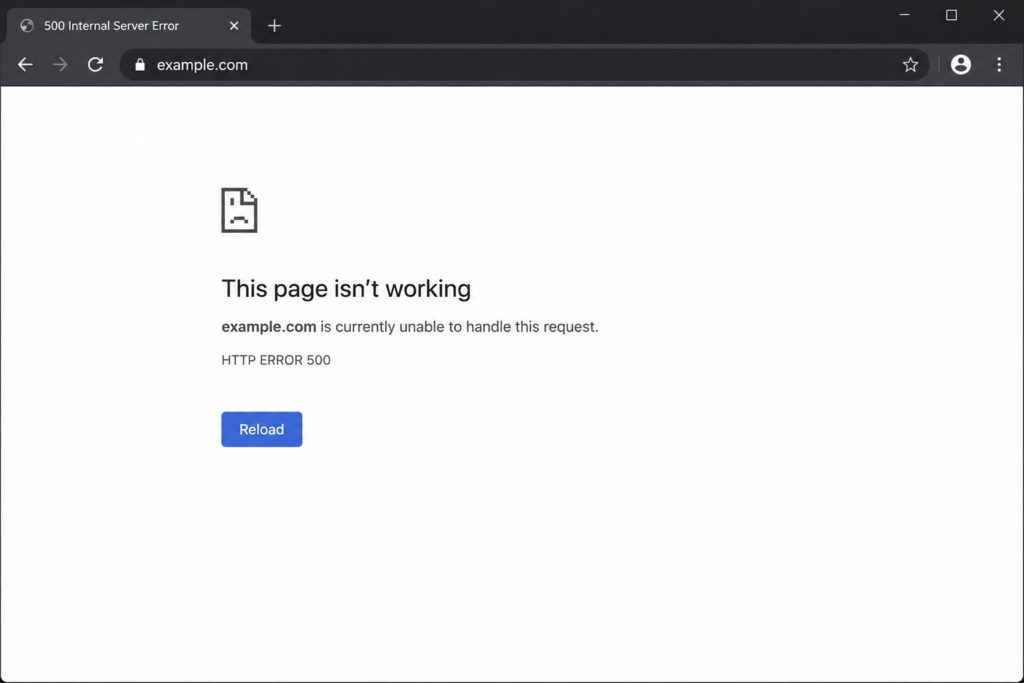
Table of Contents
What is HTTP Error 500 in WordPress?
The HTTP 500 Internal Server Error is a standard HTTP status code that any website can return, not just WordPress. (For the broader, non-WordPress-specific picture, see our guide on how to fix the 500 internal server error.)
It signals that the web server encountered an unexpected condition that stopped it from fulfilling the request. The keyword is unexpected: unlike a 404 (page not found) or a 403 (forbidden), the 500 error doesn’t identify the problem — it only reports that one exists.
Because the error happens on the server side, it affects both the front end (what visitors see) and the back end (your wp-admin dashboard). In some cases the dashboard stays accessible while the front end is down, or vice versa — and that difference is itself a useful diagnostic clue, as we’ll see.
The different faces of the 500 error
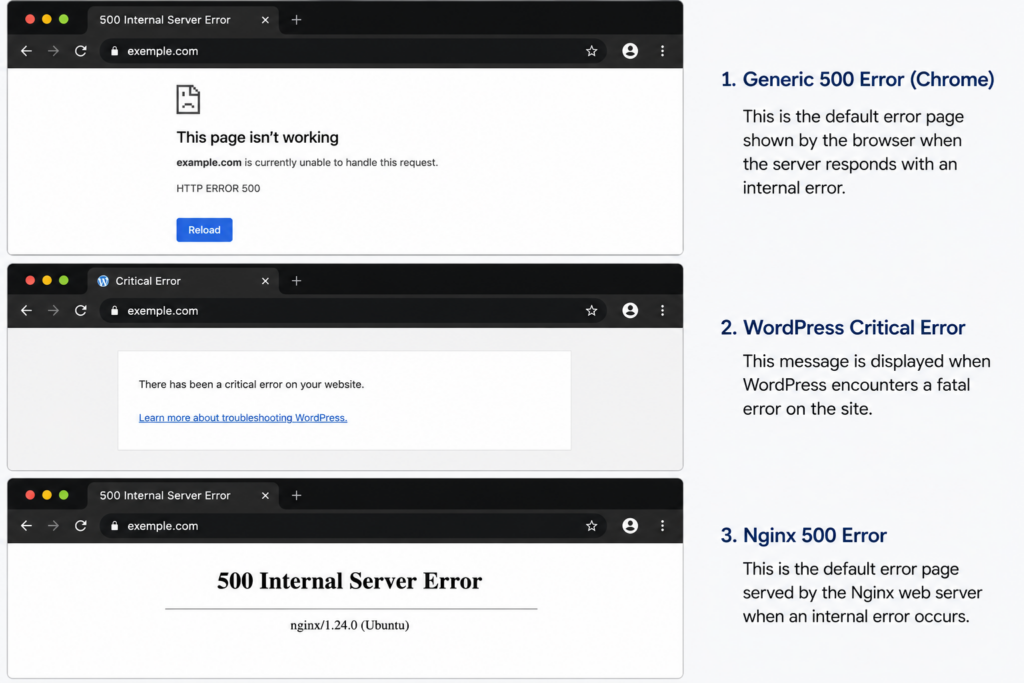
The same underlying error can appear in several ways depending on your browser, server software, and WordPress configuration. You might see any of these:
A plain white screen (often called the “White Screen of Death”). A message reading “HTTP ERROR 500”. A box saying “Is currently unable to handle this request. HTTP ERROR 500”. The text “500 Internal Server Error” with a reference to Nginx or Apache. Or, if WordPress debugging is on, a message like “There has been a critical error on this website.”
All of these point to the same family of problem. The fixes below apply regardless of which variation you’re seeing.
What causes HTTP Error 500 in WordPress?
Before jumping into fixes, it helps to understand the usual suspects. Most of the time, this error occurs due to one of a small number of reasons, and most 500 errors are caused by plugin or theme conflicts. Here are the main causes, roughly from most to least common:
A plugin or theme conflict — by far the most frequent trigger, especially right after installing or updating something. A corrupted .htaccess file, which is one of the most frequent causes of the HTTP 500 error because it controls redirects, permalinks, and security rules. An exhausted PHP memory limit, when your site needs more memory than the server allows. A PHP version incompatibility, since WordPress has minimum PHP version requirements, and plugins often have their own. Corrupted core WordPress files. Incorrect file permissions. And finally, genuine server-side problems on your host’s end.
The table below maps each cause to its telltale signs, so you can often guess the culprit before you start.
How to fix HTTP Error 500 in WordPress (step by step)
Work through these solutions in order. They’re arranged from quickest and lowest-risk to most technical, which is the smartest way to troubleshoot a vague error — you rule out the simple causes before touching server files.
First, narrow it down: where does the error appear?
Before working through the fixes, take ten seconds to check where the 500 error shows up. This single observation often points straight to the cause and can save you several steps.
Try loading two things: your public site (the front end) and your dashboard login at /wp-admin. Whether each one works, errors out, or loads partially tells you a lot.
The reason this works: plugins and themes load on the front end, so a conflict there often leaves wp-admin reachable — which is lucky, because it lets you fix the problem from the dashboard. When both sides are down, the cause is usually deeper and shared by the whole site: the .htaccess file, the PHP memory limit, a PHP version mismatch, corrupted core files, or a server-side issue. And when the error appears only in wp-admin, the admin area’s higher memory needs or a corrupted file in the /wp-admin/ folder are the usual suspects.
Keep what you find in mind as you go through the steps below — it tells you which ones to try first.
Important: back up your site first. Before changing any files or settings, make a full backup of your WordPress site (files and database). If your host offers one-click backups, use that; otherwise, download your files via FTP and export your database. A backup means any step below is reversible.
The diagram below shows the overall troubleshooting flow you’ll follow.
Work top to bottom — each step rules out a cause before moving to the next.
1. Reload the page and clear your browser cache
Sometimes the 500 error is a momentary glitch that’s already gone. This often happens after an update, with a brief timeout, and frequently the problem fixes itself with a page refresh. Wait a minute, then reload.
If reloading doesn’t help, clear your browser cache — your browser may be serving a stored copy of the error page. Clearing your browser cache is the easiest and often the most effective step to “fix” the 500 error, since you’re refreshing your own browser so you can access the site without the cached error. Also try a different browser or an incognito window to confirm whether the problem is on your end.
2. Clear your WordPress and server cache
If you use a caching plugin (WP Rocket, W3 Total Cache, LiteSpeed Cache) or your host has server-side caching, clear all of it. Clearing all types of cache — browser, caching plugins, and server cache — resolves the error in a large share of cases, because many 500 errors come from temporary or caching problems. If you can’t reach the dashboard, clear the cache from your hosting control panel instead.
3. Deactivate all plugins
Since plugin conflicts are the number-one cause, this is the highest-value real fix. The approach: deactivate every plugin at once, check if the error clears, then reactivate them one by one until the error returns — the last one you reactivated is the culprit.
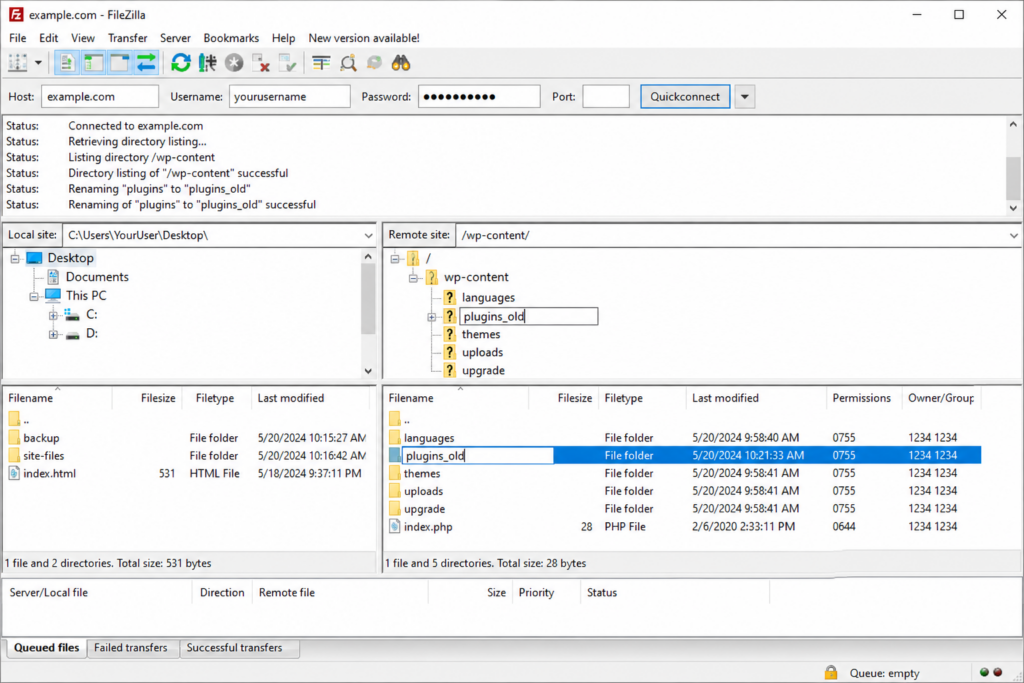
If you can access your dashboard, go to Plugins, select all, and choose “Deactivate” from the bulk actions menu. If you can’t access wp-admin, do it via FTP: connect to your site, open the /wp-content/ folder, and rename the plugins folder to something like plugins_old. This deactivates all plugins at once. Reload your site; if it works, rename the folder back to plugins and then deactivate plugins individually to find the offender.
4. Switch to a default theme
If plugins aren’t the cause, your active theme might be. Plugins and themes can conflict with each other or with WordPress itself, causing the 500 error. Switch to a default WordPress theme (like Twenty Twenty-Four) to test.
From the dashboard, go to Appearance → Themes and activate a default theme. If you can’t log in, use FTP: navigate to /wp-content/themes/ and rename your active theme’s folder. WordPress will automatically fall back to a default theme. Reload your site to see if the error clears. If a theme is the cause, simply change to a new theme or one of the default options.
5. Regenerate the .htaccess file
A corrupted .htaccess file is a classic cause. The fix is to force WordPress to generate a fresh one.
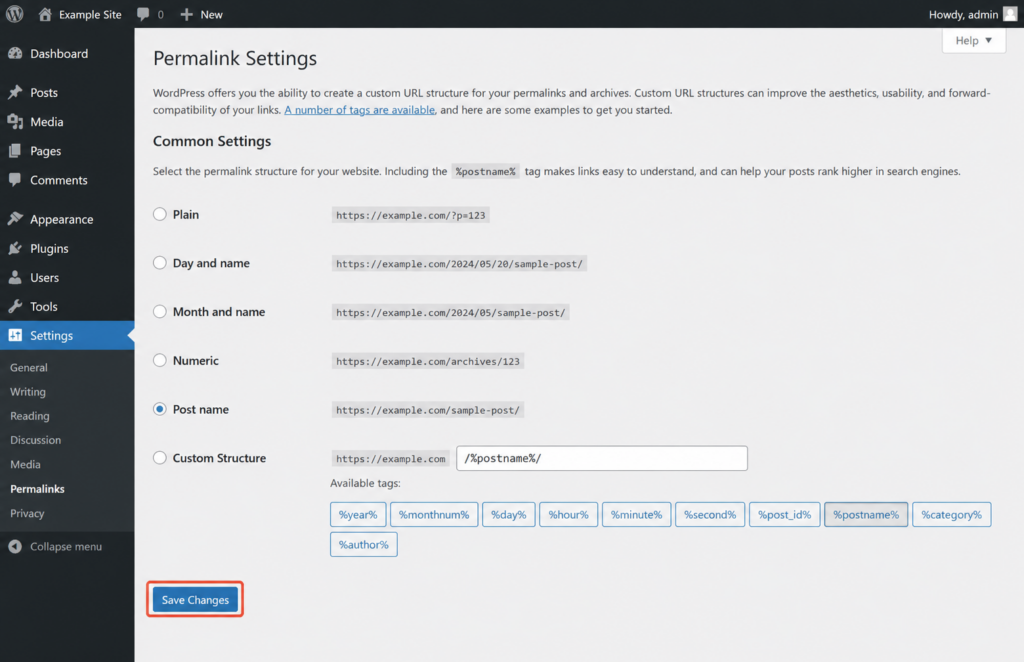
Connect via FTP, find the .htaccess file in your site’s root folder (the same folder as wp-config.php), and rename it to .htaccess_old. Reload your site to see if the error has cleared; if it has, you know the .htaccess file was the cause. Then regenerate a clean file by going to your WordPress dashboard, Settings → Permalinks, and simply clicking “Save Changes” without changing anything — this is done via Settings → Permalinks and WordPress writes a fresh .htaccess.
6. Increase the PHP memory limit
If your site is running out of memory, raising the limit can fix the error. If the 500 error is caused by too little memory, you’ll want to increase the memory limit.
Edit your wp-config.php file (via FTP, in the root folder) and add this line just above the line that says /* That's all, stop editing! */:
define('WP_MEMORY_LIMIT', '256M');Code language: JavaScript (javascript)Save and reload. The wp-config.php method above works on most setups, but if it doesn’t take effect — some hosts ignore it — you have two other ways to raise the memory limit.
If you can edit php.ini, set the limit there:
memory_limit = 256MOr, on Apache servers, add this line to your .htaccess file (note that some hosts block this method):
php_value memory_limit 256MIf none of these stick, the limit is almost certainly capped at the server level. This is common on shared plans, where memory is kept tight on purpose — in that case, your hosting provider can raise it for you.
7. Increase the PHP timeout and upload limits
If the 500 error shows up during a specific heavy task — importing content, running a backup, uploading a large file, or updating many items at once — the cause is often a PHP limit being hit, not a broken file. The two limits that matter most here are max_execution_time (how long a script is allowed to run before the server kills it) and upload_max_filesize (the largest file PHP will accept). When a script runs past the time limit, the server cuts it off mid-process, which can surface as an HTTP 500.
There are a few ways to raise these limits, depending on what your host allows.
The cleanest method is through your hosting control panel. Many hosts expose these settings under “PHP version”, “MultiPHP INI Editor” (cPanel), or “PHP settings”, where you can raise max_execution_time (try 300, meaning 300 seconds) and upload_max_filesize and post_max_size (for example, 64M) directly.
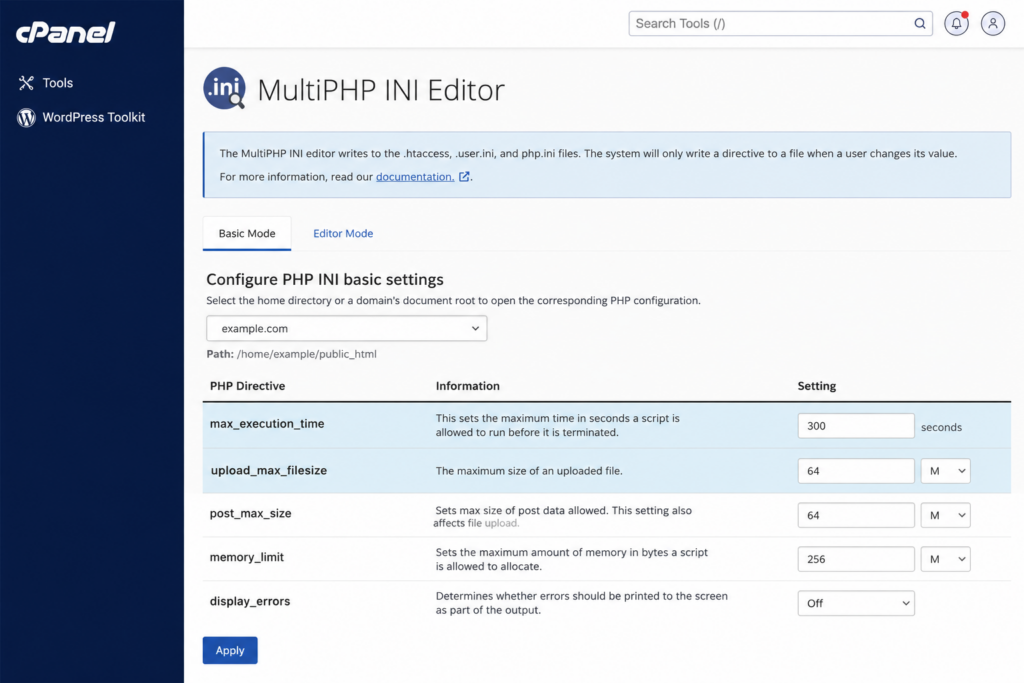
If you can edit php.ini, add or adjust these lines:
max_execution_time = 300
upload_max_filesize = 64M
post_max_size = 64M
Alternatively, you can try setting them in your .htaccess file (on Apache servers), though some hosts block this:
php_value max_execution_time 300
php_value upload_max_filesize 64M
php_value post_max_size 64M
After changing any of these, retry the action that triggered the error. If you don’t have access to these settings, or the limits are locked at the server level, your host can raise them for you — this is common on shared plans, where limits are kept tight on purpose.
8. Check your PHP version
An outdated or incompatible PHP version can trigger 500 errors, especially after a host upgrade or a plugin update. If your host recently upgraded PHP or you changed it manually, incompatibilities can cause 500 errors.
Check which PHP version your site runs (in your hosting panel, usually under “PHP version” or “MultiPHP Manager”) and make sure it meets WordPress’s current recommended version. If you recently changed it, try switching back, or move to a newer supported version if you were on an old one.
9. Check wp-config.php and the database connection
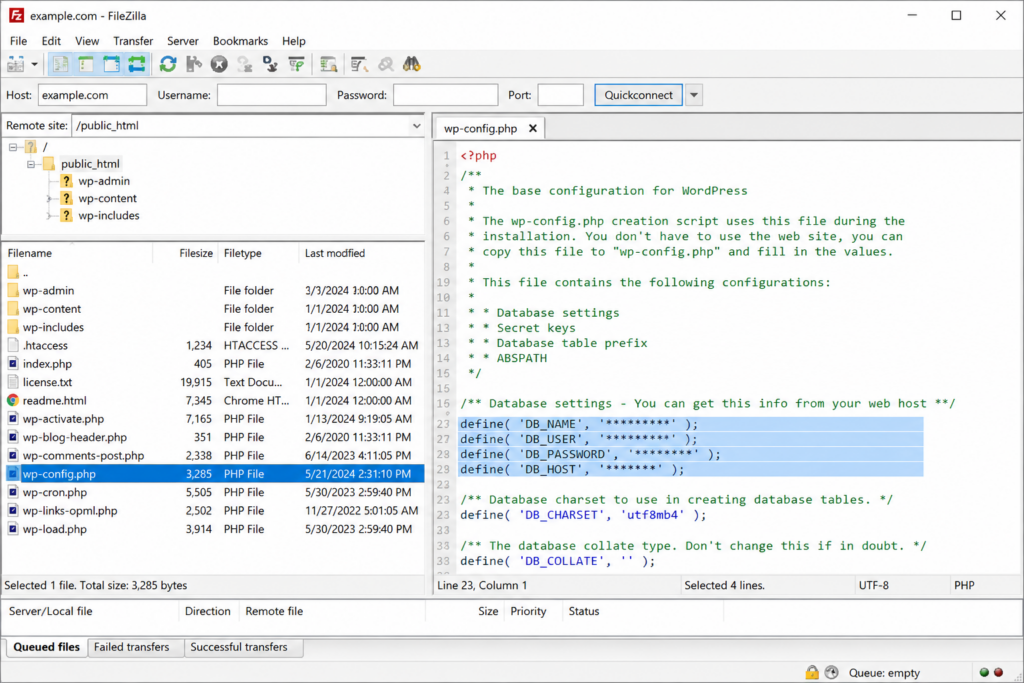
Your wp-config.php file holds the credentials WordPress uses to connect to its database. If those credentials are wrong, or the file itself was corrupted during an edit or migration, WordPress can fail to load — sometimes showing the familiar “Error establishing a database connection”, but other times surfacing as a generic HTTP 500.
Connect via FTP and open wp-config.php in your site’s root folder. Check the four database lines for typos or blank values:
define('DB_NAME', 'your_database_name');
define('DB_USER', 'your_database_user');
define('DB_PASSWORD', 'your_database_password');
define('DB_HOST', 'localhost');Code language: JavaScript (javascript)
Confirm that these match the database details in your hosting control panel exactly — a single wrong character in the password or database name is enough to break the connection. Also check DB_HOST: it’s usually localhost, but some hosts require a specific server name instead, which you’ll find in your panel.
While you’re in the file, look for signs of corruption: a stray space or blank line before the opening <?php tag, or after the closing ?> tag, can trigger a 500. The safest fix is to remove the closing ?> entirely — WordPress doesn’t need it, and dropping it eliminates a common source of “headers already sent” errors.
If everything in wp-config.php looks correct but the connection still fails, the database server itself may be down or overloaded. In that case, the problem is on the hosting side — contact your provider (see the final step).
10. Re-upload core WordPress files
If core files are corrupted, replacing them can help. Re-uploading fresh WordPress files can fix the issue.
Download a fresh copy of WordPress from wordpress.org, unzip it, and delete the wp-content folder and the wp-config.php file from the fresh copy (so you don’t overwrite your content and settings). Then upload the remaining files — mainly wp-admin and wp-includes — to your site via FTP, overwriting the existing ones. This replaces the core without touching your data.
11. Check file permissions
Incorrect permissions can block the server from running WordPress files. Servers rely on file permissions to determine who can access or modify files; if permissions are configured incorrectly, the server may block WordPress from executing certain files.
The standard, safe values are 755 for folders and 644 for files. You can set these via FTP (right-click → File Permissions) or through your hosting file manager. Never set permissions to 777, which is a security risk.
12. Enable WordPress debugging to find the real cause
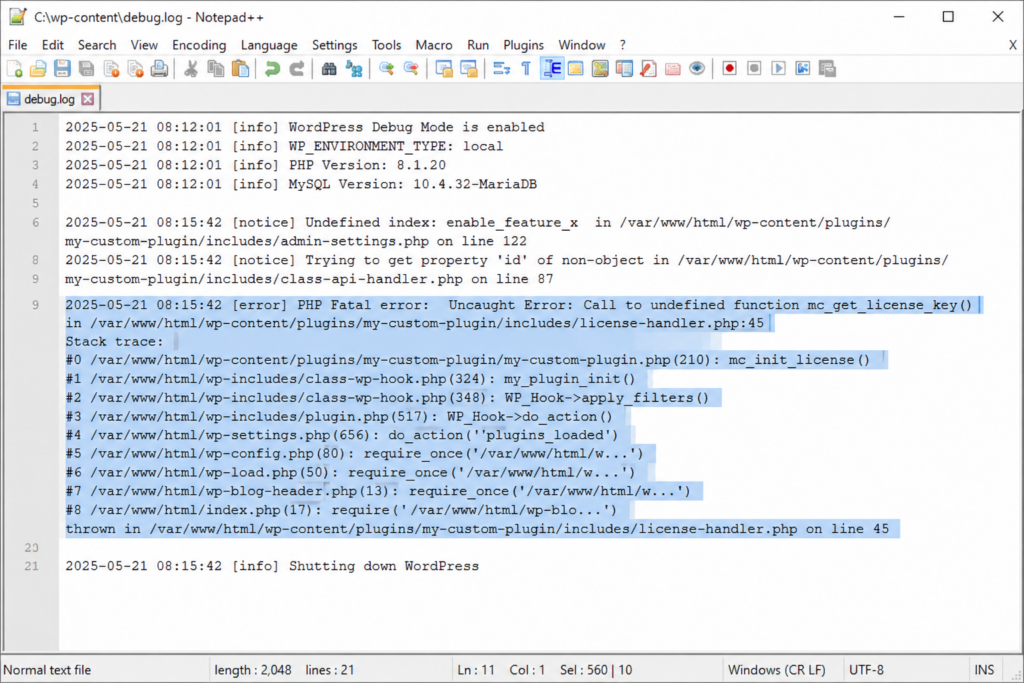
If you’ve reached this point, turn on debugging to get an actual error message instead of a blank screen. The debug log is a built-in WordPress tool that records detailed information about errors; it should contain details about the 500 error and point you to its source. By default it’s off.
Edit wp-config.php and replace the line define('WP_DEBUG', false); with:
define('WP_DEBUG', true);
define('WP_DEBUG_LOG', true);
define('WP_DEBUG_DISPLAY', false);Code language: JavaScript (javascript)
Reload your site to reproduce the error, then find the results in the debug.log file located in the /wp-content/ directory. Open it and look for the most recent entries — they’ll usually name the exact file, plugin, or function causing the crash. Once you’ve fixed the issue, set these values back to false so you don’t expose information to visitors.
13. Check the server error logs
Your server keeps its own error logs, separate from WordPress. These are especially useful when the WordPress debug log isn’t revealing enough. In your hosting control panel (cPanel, Plesk, or your host’s custom panel), look for “Error Log” or “Logs”. The most recent entries logged at the time of the crash often pinpoint the problem — a PHP fatal error, a memory exhaustion message, or a permissions denial.
If your site isn’t on WordPress, or you want the platform-agnostic angle, our general guide to the 500 internal server error covers server-level causes in more depth.
14. Contact your hosting provider
If none of the above works, the problem is likely on the server side, beyond your control. Reach out to your hosting support with the details you’ve gathered (what you’ve already tried, and any lines from the debug or server logs). A good host can check server-level configuration, resource limits, and logs you can’t see, and often resolve it quickly.
How to prevent HTTP Error 500 in the future
Once your site is back online, a few habits dramatically reduce the chance of seeing this error again.
Always back up before updating plugins, themes, or WordPress core, so you can roll back instantly if something breaks. Update one plugin at a time rather than all at once, which makes it obvious which update caused a problem. Test major updates on a staging site before applying them to your live site.
Keep your PHP version current and supported. Remove plugins and themes you no longer use, since inactive code can still cause conflicts. And choose quality hosting with adequate resources and good support — many 500 errors trace back to tight server limits on cheap, overcrowded plans.
Tired of server errors breaking your WordPress site?
Many HTTP 500 errors trace back to tight server limits and outdated PHP on overcrowded plans. Copahost’s WordPress hosting gives your site the resources, current PHP, and responsive support it needs to stay online — and get the rare issue fixed fast.
See Copahost WordPress hostingFrequently asked questions about HTTP Error 500 in WordPress
What is HTTP Error 500 in WordPress?
HTTP Error 500 is a generic server-side error meaning the server hit an unexpected condition that stopped it from loading your site, but it cannot say exactly what went wrong. Because it gives no detail, fixing it is a process of elimination — ruling out plugins, the theme, the .htaccess file, memory, and server settings in turn.
What causes the 500 internal server error in WordPress?
The most common cause is a plugin or theme conflict, especially right after an install or update. Other frequent causes are a corrupted .htaccess file, an exhausted PHP memory limit, a PHP version incompatibility, corrupted core files, incorrect file permissions, and genuine server-side problems on your host’s end.
How do I fix HTTP Error 500 in WordPress quickly?
Start with the quick wins: reload the page, then clear your browser cache, your caching plugin, and any server cache. Many 500 errors are temporary or caching-related and clear at this stage. If the error remains, deactivate all plugins, then test with a default theme — together these resolve the large majority of cases.
Why did I get a 500 error right after updating a plugin?
An updated plugin can conflict with another plugin, your theme, or your PHP version, causing a fatal error that shows as a 500. Deactivate the plugin you just updated. If you can’t reach the dashboard, deactivate it via FTP by renaming its folder inside wp-content/plugins, then reload your site.
How do I fix a 500 error when I can’t access wp-admin?
Use an FTP client like FileZilla. To rule out plugins, rename the wp-content/plugins folder to plugins_old, which deactivates them all at once. To rule out the theme, rename your active theme’s folder so WordPress falls back to a default. To rule out .htaccess, rename the .htaccess file in the root folder. Reload after each change.
Is the HTTP 500 error my fault or the hosting provider’s?
It can be either. If the error started right after you changed something — a plugin, theme, or setting — the cause is likely on your side. If nothing changed on your end, or other sites on the same server are also affected, it points to a server-side issue. Enabling debugging and checking the server error logs helps tell them apart.
How do I deactivate all plugins without dashboard access?
Connect to your site via FTP, open the wp-content folder, and rename the plugins folder to something like plugins_old. This deactivates every plugin at once. Reload your site; if the error clears, rename the folder back to plugins and reactivate them one by one to find the one causing the problem.
How do I increase the PHP memory limit in WordPress?
Edit wp-config.php via FTP and add the line define('WP_MEMORY_LIMIT', '256M'); just above the line that reads “That’s all, stop editing”. Save and reload. If the error continues, the limit may be capped at the server level, in which case you’ll need to adjust php.ini or ask your hosting provider to raise it.
What’s the difference between a 500 error and the White Screen of Death?
They often share the same causes, such as a plugin conflict or memory exhaustion. The White Screen of Death is a blank white page with no message, while the 500 error may show an explicit “HTTP ERROR 500” message. The troubleshooting steps are essentially the same for both.
How do I find the real cause of the 500 error?
Enable WordPress debugging. In wp-config.php, set WP_DEBUG and WP_DEBUG_LOG to true and WP_DEBUG_DISPLAY to false. Reload the site to reproduce the error, then open the debug.log file inside the wp-content folder. The most recent entries usually name the exact plugin, file, or function causing the crash. You can also check your server’s error logs in your hosting panel.
Does an HTTP 500 error hurt my SEO?
A brief 500 error is unlikely to harm rankings. But if it persists, search engine crawlers can’t access your pages, which over time can hurt indexing and rankings. Search engines may also reduce crawl frequency for a site that repeatedly returns server errors, so a recurring 500 should be fixed promptly.
How do I prevent the 500 error from happening again?
Always back up before updating plugins, themes, or core. Update one plugin at a time so it’s clear which change caused a problem, and test major updates on a staging site first. Keep your PHP version current, remove plugins and themes you no longer use, and choose hosting with adequate resources and good support, since many 500 errors come from tight limits on overcrowded servers.
Conclusion
The HTTP Error 500 looks alarming because it tells you so little, but it’s both common and fixable. The key is method: start with the quick wins (reload, clear cache), then rule out plugins and the theme, then work through .htaccess, memory, PHP, core files, and permissions — and if you’re still stuck, turn on debugging to make the error name itself. Nine times out of ten, you’ll find the cause well before reaching the server logs.
If the error turns out to be server-side, that’s a sign your hosting may be holding your site back. Reliable hosting with proper resources, current PHP, and responsive support prevents most 500 errors from ever appearing — and gets the rare one fixed fast.
