
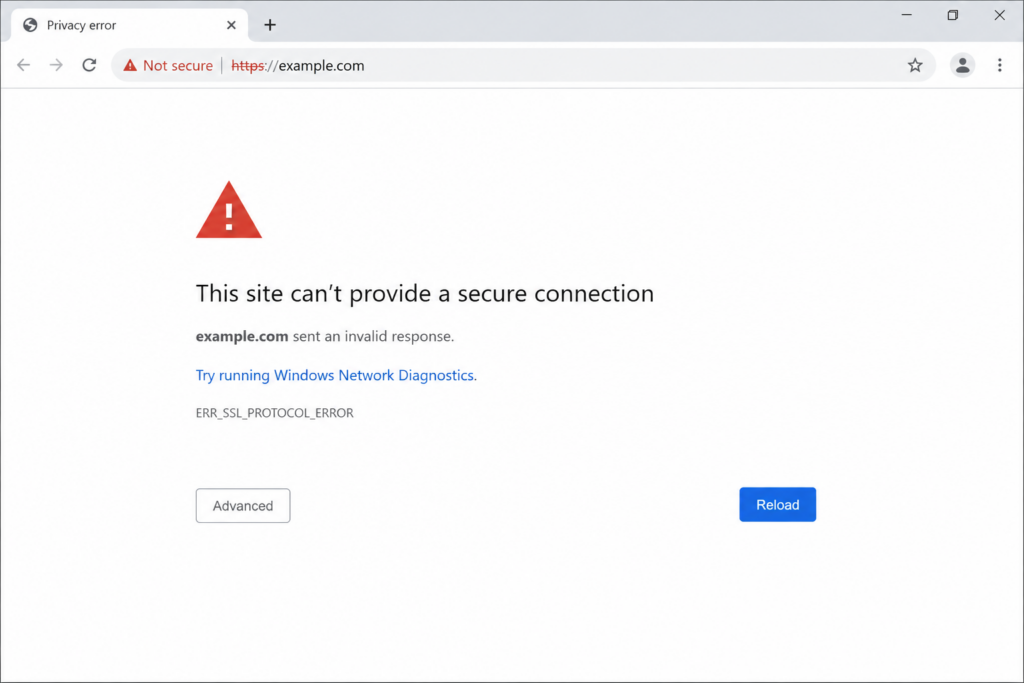
ERR_SSL_PROTOCOL_ERROR is a Google Chrome error that means the browser couldn’t establish a secure, encrypted connection to a website because the SSL/TLS handshake failed. It’s Chrome’s way of saying “I can’t verify this connection is safe, so I’m stopping.” The cause can sit on your device, in your browser, or on the website’s server.
If you’re seeing “This site can’t provide a secure connection” with the code ERR_SSL_PROTOCOL_ERROR, this guide covers every cause and every fix — first the quick browser-side checks that solve most cases for visitors, then the server-side fixes for site owners. By the end, you’ll know not just how to fix it, but whether the problem is even yours to fix.
For a business, this error is more than an annoyance: when visitors hit a security warning, they lose trust instantly. Many will leave without buying, abandon a full cart, or simply assume the site isn’t safe — so on a live site, fixing ERR_SSL_PROTOCOL_ERROR quickly isn’t just technical housekeeping, it’s protecting your traffic, your sales, and your reputation.
Table of Contents
What is ERR_SSL_PROTOCOL_ERROR?
When you visit a site over HTTPS, your browser and the server perform an SSL/TLS handshake: a quick negotiation where they agree on an encryption method and the browser verifies the site’s security certificate. This handshake checks if the browser and server agree on encryption and certificate details before loading a site. If anything in that negotiation fails, Chrome aborts the connection and shows ERR_SSL_PROTOCOL_ERROR.
Although the message says “SSL,” modern HTTPS connections actually use TLS, the successor to SSL. The browser reached the website, but the TLS or SSL handshake did not complete the way Chrome expected. The wording stuck for familiarity, but the underlying technology is TLS.
The important takeaway: this is a connection error, not a “page not found.” The site exists and the browser reached it — the two sides just couldn’t agree on a secure channel. It usually points to a configuration mismatch rather than one single bug. For connection-level failures where the secure handshake never even begins, see our guides to ERR_CONNECTION_RESET, ERR_CONNECTION_REFUSED, and ERR_CONNECTION_TIMED_OUT.
Other names and variations of this error
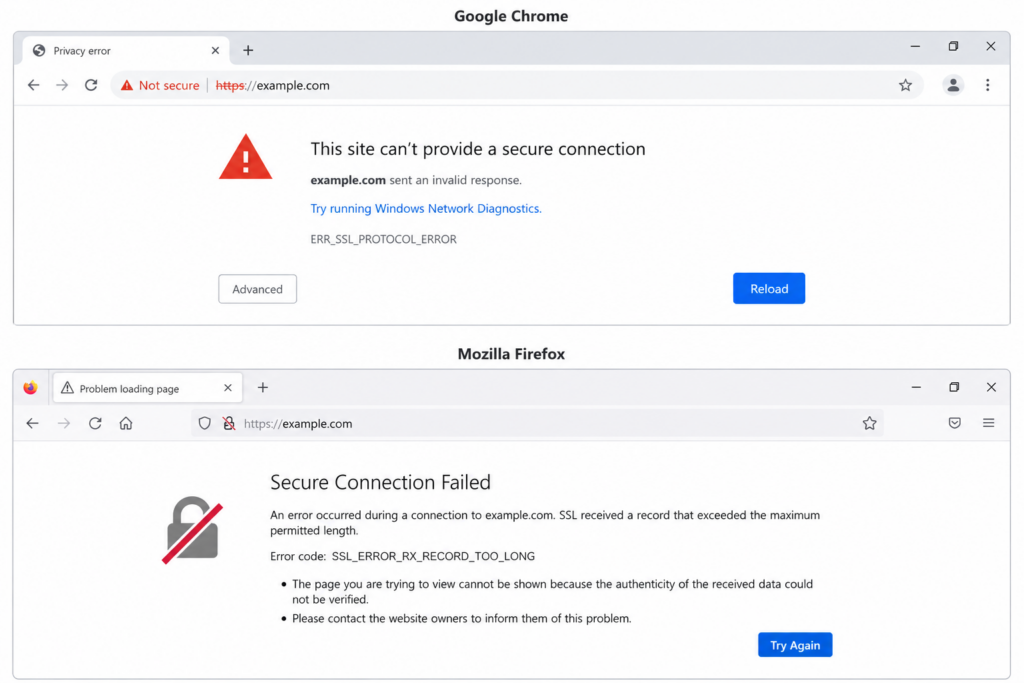
Depending on your browser and the exact failure, you might see this same problem under different names. In Chrome and Chromium-based browsers (Edge, Opera, Brave) it’s ERR_SSL_PROTOCOL_ERROR. You might also see “This site can’t provide a secure connection”, “SSL connection error”, or related codes like ERR_SSL_VERSION_OR_CIPHER_MISMATCH and SSL_ERROR_NO_CYPHER_OVERLAP (Firefox). They’re all symptoms of the same root issue: a failed secure handshake.
What causes ERR_SSL_PROTOCOL_ERROR?
The causes split cleanly into two groups, and knowing which group you’re in saves enormous time. The error may arise due to server-related problems, problems with SSL configurations, or the settings of the user device.
On the visitor’s side (your device or browser): an incorrect system date and time, corrupted browser cache or cookies, a stale SSL state, an outdated browser or operating system that doesn’t support modern TLS, an antivirus or firewall intercepting HTTPS, a browser extension conflict, or the QUIC protocol clashing with the connection.
On the website’s side (the server): an expired SSL certificate, a certificate that doesn’t match the domain, a missing intermediate certificate in the chain, an unsupported or outdated TLS version on the server, or a redirect loop caused by a CDN or proxy. The most common server causes are an expired certificate, a domain mismatch, a missing intermediate certificate, conflicting redirects, or browser-side cached data that still references an old certificate.
The table below maps each cause to where it lives and how to recognize it.
First: is the problem yours or the website’s?
Before trying fixes, run one quick test that tells you which half of this guide to follow. The fastest way to fix it is to identify whether the problem lives in Chrome or on the server.
Try opening the same site on a different device and a different network — for example, your phone on mobile data instead of your computer on Wi-Fi. Also try an incognito window.
If the site loads fine elsewhere, the problem is on your device or browser — follow the visitor-side fixes below. If the site fails for everyone, on every device and network, the problem is on the website’s server — skip to the server-side section (and if it’s not your site, the owner needs to fix it).
One quick test tells you which half of the guide to follow.
How to fix ERR_SSL_PROTOCOL_ERROR (visitor side)
If the error is on your end, work through these in order — they’re sorted from the most common fix to the least.
1. Check your computer’s date and time
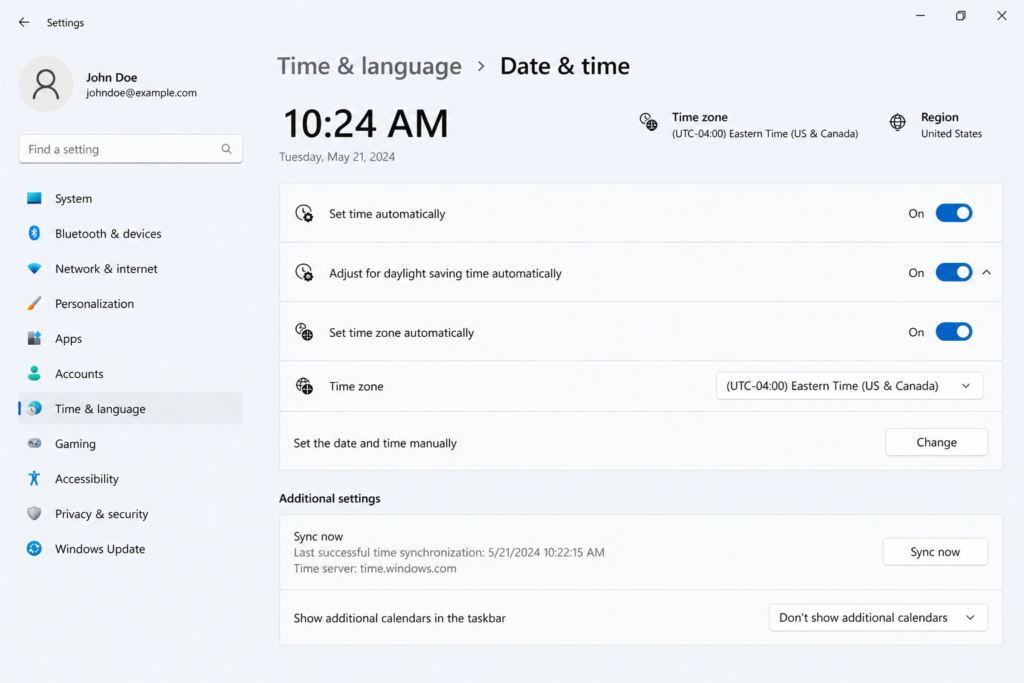
This is the single most common fix, and it surprises people. SSL certificates are valid only within a specific date range, so if your clock is wrong, the browser thinks the certificate is invalid. If your device has the wrong time or date, SSL certificates become invalid, and Chrome will show this error.
Set your clock to update automatically. On Windows, go to Settings → Time & Language → Date & Time and turn on “Set time automatically”. On Mac, go to System Settings → General → Date & Time and enable “Set date and time automatically”. Then reload the page.
2. Clear your browser cache and cookies
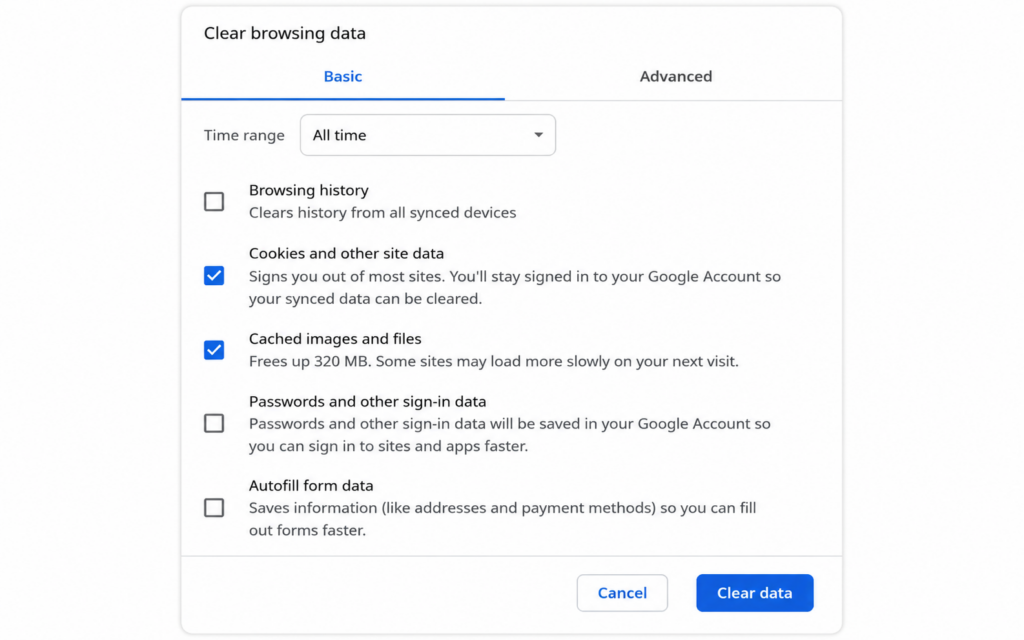
Cached data can reference an old certificate or a previous version of the site, breaking the handshake. Cached data and cookies can interfere with the SSL protocols, especially if a much older version of the site is still in your cache.
In Chrome, press Ctrl + Shift + Delete (or Cmd + Shift + Delete on Mac), choose “All time“, select cached images/files and cookies, and clear. Reload the site afterward.
3. Clear the SSL state
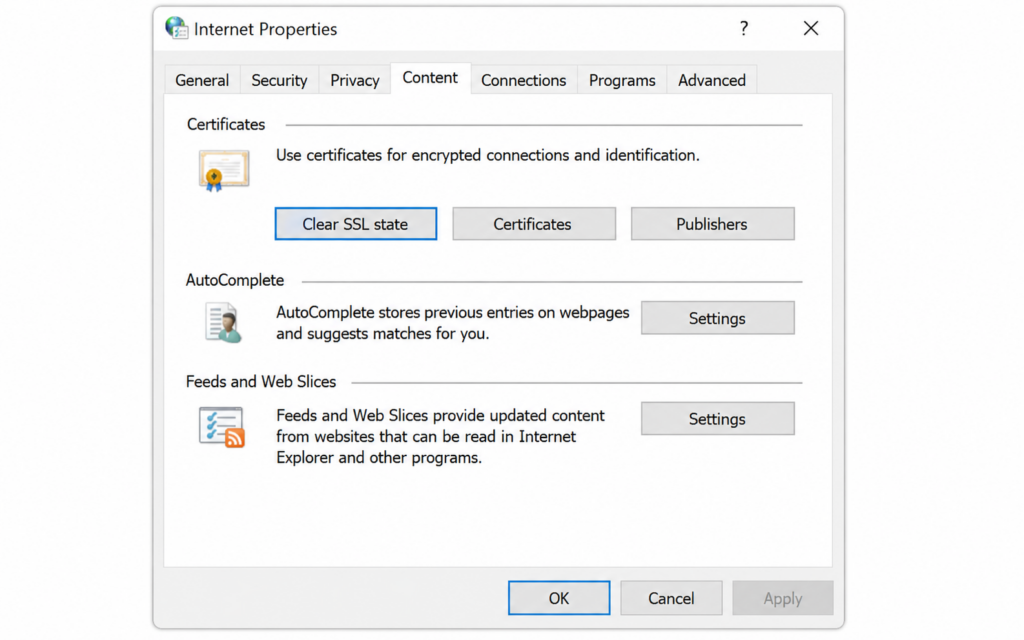
Chrome keeps its own store of SSL certificates it has seen, and clearing it forces a fresh handshake. Open Chrome settings, search for “certificates” or go to your system’s internet settings, find the option to clear the SSL state (on Windows: Internet Options → Content → “Clear SSL state“), then restart Chrome.
4. Flush your DNS cache and restart the browser
Your computer stores a local DNS cache that maps domain names to IP addresses. If that cache holds a stale entry — pointing to an old server that served a different certificate — the secure handshake can fail. Clearing it forces a fresh lookup.
On Windows, open Command Prompt and run ipconfig /flushdns. On Mac, open Terminal and run sudo dscacheutil -flushcache; sudo killall -HUP mDNSResponder. For a full walkthrough and the commands for other systems, see our guide on how to fix slow DNS lookups.
While you’re at it, give Chrome a clean restart by typing chrome://restart in the address bar — this fully relaunches the browser and clears temporary network state that a normal close might leave behind. Then reload the site.
One related note: if the site recently moved servers or changed its certificate, the issue may be DNS propagation — the change simply hasn’t reached you yet, and it can take up to 24–48 hours. Our article on DNS propagation explains how that works and how to check it.
5. Try incognito mode and disable extensions
A browser extension — especially ad blockers, VPNs, or security add-ons — can interfere with HTTPS. Open an incognito window (which runs without extensions) to test. If the site works there, disable your add-ons one by one, refreshing the page after each change until the error goes away. When you find the culprit, remove or update it.
6. Update your browser and operating system
Older software may not support the TLS versions modern sites require. Older versions of Chrome and operating systems do not support newer TLS standards; today, Chrome needs TLS 1.2 or higher. Update Chrome (Settings → About Chrome) and install any pending OS updates, then try again.
7. Temporarily disable antivirus or firewall
Some security software scans HTTPS traffic and can break the handshake in the process. It might mistake secure connections for dangerous ones and block them, leading to the error. Temporarily disable the SSL/HTTPS scanning feature (or the software itself) to test. If that’s the cause, add an exception for your browser rather than leaving protection off. Whitelisting the browser fixes the issue in these cases. Remember to re-enable your security software afterward.
8. Disable the QUIC protocol
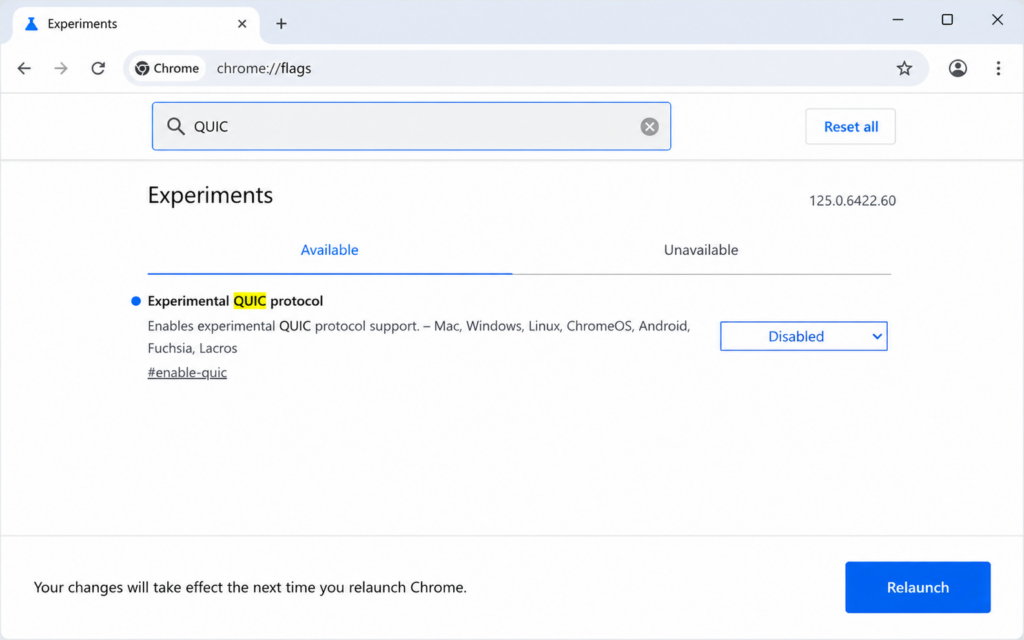
QUIC is an experimental Chrome protocol that can occasionally clash with secure connections. Turning off QUIC for a while can help you see if it’s causing the problem. Type chrome://flags in the address bar, search for “QUIC”, set “Experimental QUIC protocol” to Disabled, and restart Chrome.
9. Check the HSTS settings
While HSTS improves security, old or incorrect HSTS settings can sometimes cause the ERR_SSL_PROTOCOL_ERROR. Advanced users can review and delete a specific domain’s HSTS entry by typing chrome://net-internals/#hsts into the address bar and using the “delete domain security policies” field at the bottom.
10. Fixing it in Microsoft Edge and Firefox
The error isn’t exclusive to Chrome. Because Microsoft Edge is built on the same Chromium engine, every fix above applies to it directly — and since Edge shares Windows’ system settings, clearing the SSL state and adjusting security levels is done through the same Internet Options panel (search “Internet Options” in the Start menu → Content tab → “Clear SSL state”, and the Advanced tab to confirm TLS 1.2 and 1.3 are enabled). In Edge, the message often reads “Can’t connect securely to this page” instead of the Chrome wording, but the cause and fixes are identical.
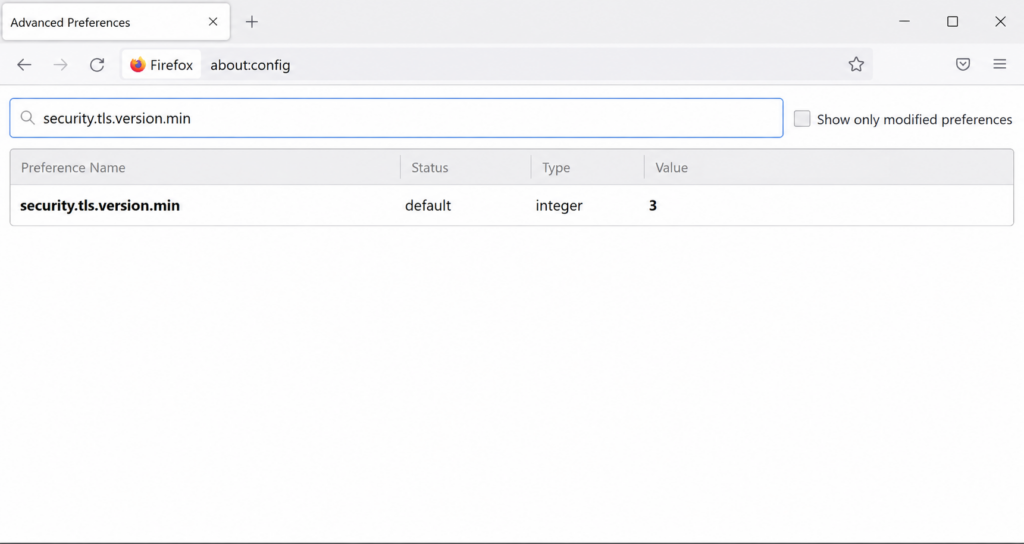
Mozilla Firefox uses its own engine and certificate store, so it shows the error differently — usually as “Secure Connection Failed” with a code like SSL_ERROR_NO_CYPHER_OVERLAP. The browser-side fixes still apply (check the clock, clear the cache, disable extensions), but Firefox has its own TLS settings. To review them, type about:config in the address bar, accept the warning, and search for security.tls.version.min. The value should be 3 (TLS 1.2) or higher — if someone lowered it, that can cause the error. Firefox also keeps its own cache and certificate exceptions under Settings → Privacy & Security, which is worth clearing if the error is specific to Firefox.
If the error appears in every browser — Chrome, Edge, and Firefox alike — that’s a strong sign the problem isn’t browser-specific at all: look at your system date and time, your antivirus or firewall, or the website’s server.
How to fix ERR_SSL_PROTOCOL_ERROR (website / server side)
If the error happens for everyone, the fix is on the server. This is the half most competing articles skip — and it’s exactly what site owners need.
Check that your SSL certificate is valid and not expired
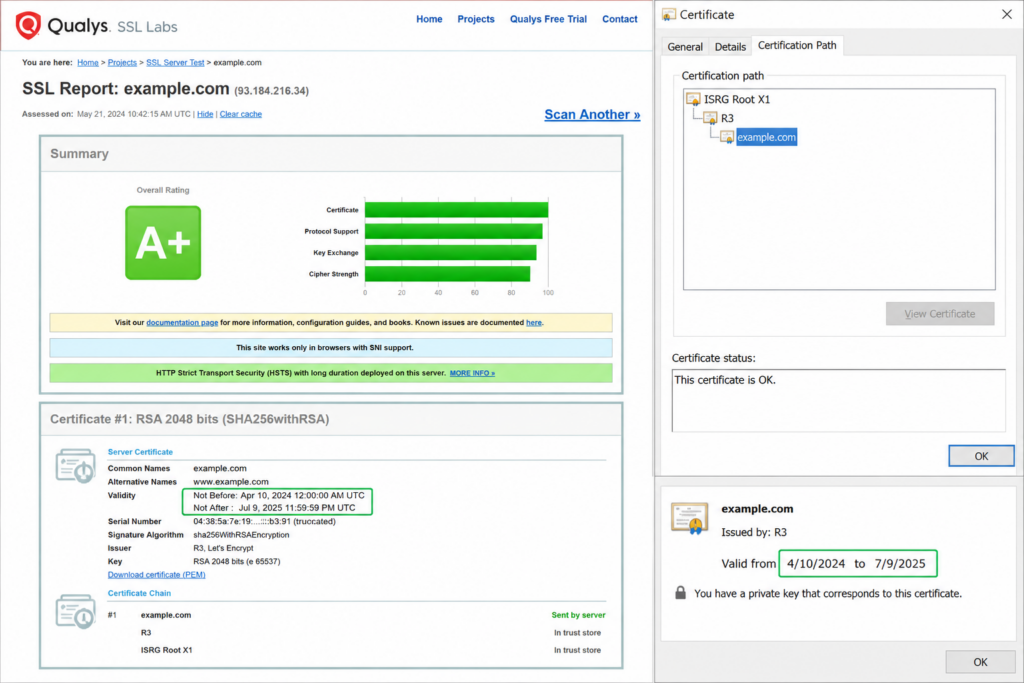
An expired certificate is one of the most common server-side causes. Check your certificate’s expiry date (in the browser, click the padlock or the “Not secure” warning → certificate details), or use an online SSL checker. If it’s expired, renew or reissue it. If you use Let’s Encrypt, confirm that auto-renewal is actually running.
Verify the domain matches the certificate
The certificate must cover the exact domain being visited, including the www or non-www version and any subdomains. A certificate issued for example.com won’t cover shop.example.com unless it’s a wildcard or includes that name. A certificate missing the right Subject Alternative Names will trigger the error. Reissue the certificate to include every hostname you serve.
Replace a self-signed or untrusted certificate
A self-signed certificate is one you generate yourself instead of getting it from a recognized Certificate Authority (CA). Browsers don’t trust it, because nothing vouches for it — so they can refuse the connection and trigger an SSL error. This is common on development and staging environments, internal dashboards, and local servers, where a self-signed certificate is quick to create but was never meant for public traffic.
If a public-facing site is serving a self-signed certificate, the fix is to replace it with one issued by a trusted CA. A free option like Let’s Encrypt works for most sites, and many hosting providers issue and install a trusted certificate automatically. Reserve self-signed certificates for testing only, never for a site real visitors use.
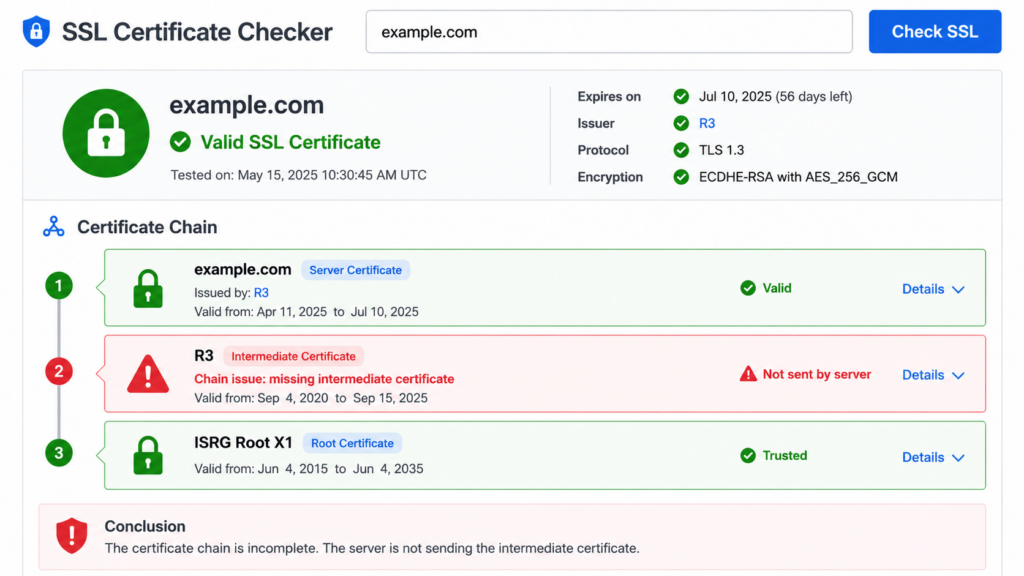
Install the missing intermediate certificate
A very common but easy-to-miss cause: the certificate chain is incomplete. Certificates installed without intermediate certificates do not match what Chrome needs. Your server must send not just your certificate but the intermediate certificate(s) linking it to a trusted root. Re-install the full chain (your CA provides a “full chain” or “bundle” file), then restart your web server. An SSL checker will flag a broken chain explicitly.
A tool like the SSL Labs SSL Server Test will flag a broken chain explicitly, showing exactly which intermediate certificate is missing.
Update the server’s TLS version
Today, Chrome needs TLS 1.2 or higher. If your server only offers old protocols like TLS 1.0/1.1 or SSL 3.0, modern browsers will refuse the handshake. In your server configuration (Apache, Nginx) or hosting panel, enable TLS 1.2 and TLS 1.3 and disable the deprecated versions.
Fix redirect loops from a CDN or proxy
If your site sits behind a CDN like Cloudflare, the encryption settings there can conflict with your origin server’s redirects. Redirect loops can happen when origin redirects conflict with encryption mode settings or “Always Use HTTPS”. Make sure the CDN’s SSL mode (for example, “Full” or “Full strict” on Cloudflare) matches how your origin is configured, so the two aren’t fighting over HTTP/HTTPS redirects.
For the underlying redirect mechanics behind these loops, see our guide to the HTTP 301 redirect.
Contact your hosting provider
If the certificate, chain, and TLS settings all look correct but the error persists for everyone, your host can check server-level SSL configuration you may not have access to. A good provider can diagnose and fix certificate installation and TLS issues quickly.
How to prevent ERR_SSL_PROTOCOL_ERROR
A few habits keep this error from coming back. Enable auto-renewal for your SSL certificates so they never lapse. Always install the full certificate chain, not just the leaf certificate. Keep your server’s TLS configuration current (TLS 1.2 and 1.3 enabled, old versions off). If you use a CDN, set its SSL mode to match your origin. And as a visitor, keep your browser and OS updated and your system clock set automatically.
Stop SSL errors before your visitors see them
Most server-side SSL errors come down to certificate installation, renewal, or outdated TLS. Copahost hosting includes free SSL with automatic renewal, a complete certificate chain, and modern TLS — so your site stays secure and your visitors never hit ERR_SSL_PROTOCOL_ERROR.
Get hosting with free SSLConclusion
ERR_SSL_PROTOCOL_ERROR looks intimidating, but it almost always comes down to one of a handful of causes — and the single most useful step is figuring out which side it’s on. If the site loads elsewhere, it’s your device: check the clock, clear the cache and SSL state, and rule out extensions or security software. If it fails for everyone, it’s the server: check the certificate’s validity, domain match, chain, and TLS version. Work methodically from the most common cause down, and you’ll clear it.
For site owners, most server-side SSL errors trace back to certificate installation or renewal. Reliable hosting with proper SSL support — automatic certificate management, a complete chain, and modern TLS — prevents these errors before your visitors ever see them.
Frequently asked questions about ERR_SSL_PROTOCOL_ERROR
What is ERR_SSL_PROTOCOL_ERROR?
ERR_SSL_PROTOCOL_ERROR is a Google Chrome error meaning the browser couldn’t establish a secure, encrypted HTTPS connection to a website because the SSL/TLS handshake failed. The site exists and the browser reached it, but the two sides couldn’t agree on a secure channel. The cause can be on your device, in your browser, or on the website’s server.
What are the different names and variants of this error?
It appears differently across browsers and situations. In Chrome, Edge, Opera, and Brave you’ll see ERR_SSL_PROTOCOL_ERROR or “This site can’t provide a secure connection”. Related codes include ERR_SSL_VERSION_OR_CIPHER_MISMATCH and ERR_SSL_VERSION_INTERFERENCE. In Firefox the same problem shows as “Secure Connection Failed”, SSL_ERROR_NO_CYPHER_OVERLAP, or PR_END_OF_FILE_ERROR. They all point to a failed secure handshake.
Is ERR_SSL_PROTOCOL_ERROR my fault or the website’s?
Run one quick test: open the same site on a different device and network, such as your phone on mobile data. If it loads there, the problem is on your device or browser — check your clock, clear the cache and SSL state, and disable extensions or antivirus. If it fails everywhere, the problem is on the website’s server, usually an expired certificate, a broken chain, or an outdated TLS version.
How do I fix ERR_SSL_PROTOCOL_ERROR quickly?
Start with the most common fixes: make sure your computer’s date and time are correct and set to update automatically, then clear your browser cache and cookies, and clear the SSL state. Next, try an incognito window to rule out extensions, and temporarily disable any antivirus that scans HTTPS. These steps resolve most cases on the visitor’s side.
Why does ERR_SSL_PROTOCOL_ERROR happen on only one website?
If every other HTTPS site works and only one fails, the problem is almost certainly that site’s server, not your device — most often an expired or misconfigured SSL certificate, a missing intermediate certificate, or an outdated TLS version. If it’s your own site, check the certificate; if it’s someone else’s, the owner needs to fix it.
How do I fix ERR_SSL_PROTOCOL_ERROR on Android?
On Android, first check that the date and time are set automatically, under Settings › System › Date & time. Then clear Chrome’s cache: Settings › Apps › Chrome › Storage › Clear cache. Also try disabling any VPN and updating the Chrome app from the Play Store. If the site still fails on other devices too, the problem is on the website’s server.
How do I fix ERR_SSL_PROTOCOL_ERROR on iPhone?
On iPhone, confirm the date and time are automatic under Settings › General › Date & Time. Clear Safari’s data under Settings › Safari › Clear History and Website Data, disable any active VPN, and make sure iOS is up to date. If the same site fails on other devices, the cause is the website’s server rather than your phone.
I just installed an SSL certificate and now I get this error. Why?
This usually means the installation is incomplete or mismatched. The most common reasons are a missing intermediate certificate (the chain isn’t complete), a certificate that doesn’t cover the exact domain you’re visiting, including www, or the web server not fully restarted after installation. Re-install the full certificate chain, confirm the domain names, restart the server, and verify with an online SSL checker.
Can the wrong date and time really cause this error?
Yes, and it’s one of the most common causes. SSL certificates are only valid within a specific date range, so if your device’s clock is wrong, the browser concludes the certificate isn’t valid yet or has expired, and blocks the connection. Setting your clock to update automatically fixes it in many cases.
Can antivirus, a firewall, or a VPN cause ERR_SSL_PROTOCOL_ERROR?
Yes. Security software that scans HTTPS traffic can interfere with the handshake, and VPNs or proxies can disrupt the secure connection. To test, temporarily disable the HTTPS-scanning feature or the VPN and reload the page. If that’s the cause, add an exception for your browser instead of leaving protection off, and re-enable everything afterward.
Is it safe to continue if I see ERR_SSL_PROTOCOL_ERROR?
The error is a safety mechanism: Chrome blocks the connection because it can’t confirm it’s secure. If the cause is on your end, such as a wrong clock or a cache issue, fixing it is safe. But if a site genuinely can’t establish encryption, you shouldn’t send sensitive data to it. Never enter passwords or payment details on a site you can’t reach securely.
What’s the difference between ERR_SSL_PROTOCOL_ERROR and ERR_SSL_VERSION_OR_CIPHER_MISMATCH?
Both are SSL/TLS handshake failures, but they’re slightly different. ERR_SSL_PROTOCOL_ERROR is the general “the secure connection failed” message with many possible causes. ERR_SSL_VERSION_OR_CIPHER_MISMATCH is more specific: the browser and server share no common TLS version or cipher, usually because the server only offers outdated protocols the browser has dropped. The fix for the latter is almost always enabling modern TLS 1.2 and 1.3 on the server.
