
You click a link, the page tries to load, and instead you get “This site can’t be reached” with the code ERR_CONNECTION_REFUSED. Unlike a slow page or a “not found” message, this one is blunt: the connection wasn’t lost or timed out — it was actively refused. Something said “no” before the page could even start loading.
This guide explains exactly what that means, helps you tell in under a minute whether the problem is on your side or the website’s, and then walks through every fix that works — for everyday visitors on Windows, macOS, Android, and iOS, and for website owners and developers who need to chase it down to the server.
Quick answer: ERR_CONNECTION_REFUSED means your browser reached the server (or something on the path to it) and the connection was deliberately rejected — usually because the web service is down, a firewall is blocking the port, or a setting on your own device (proxy, VPN, DNS, antivirus) is getting in the way.
Table of Contents
What ERR_CONNECTION_REFUSED actually means
When you open a website, your browser tries to open a TCP connection to the server on a specific port (usually 443 for HTTPS or 80 for HTTP). Normally the server accepts and the page loads. ERR_CONNECTION_REFUSED (older builds called it Error 102) appears when that connection attempt is actively rejected instead of accepted.
The key is the word refused. There’s a meaningful difference between the three “site can’t be reached” errors:
- Refused — something is there and it said “no.” A service rejected the connection, or a firewall blocked the port.
- Timed out — nobody answered at all. The request went out and got silence (slow or unreachable server).
- Reset — the connection opened, then was cut mid-transfer.
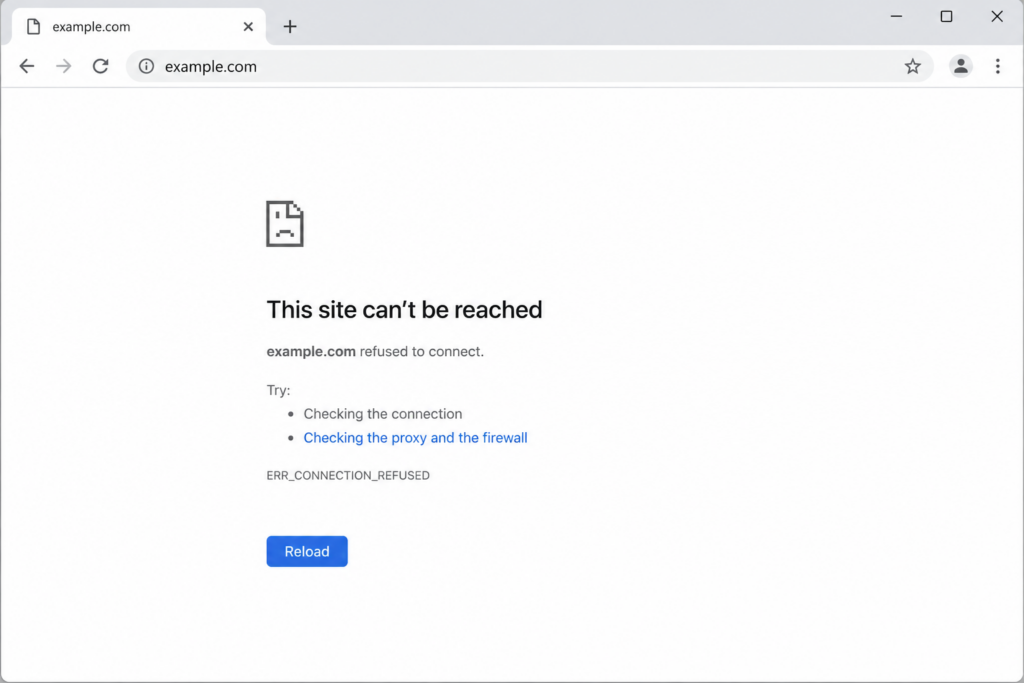
So the troubleshooting question is simple: why is the connection being rejected? And the answer is on one of two sides — your device, or the server.
And if you’re seeing this on localhost, the diagnosis is different enough to deserve its own section — jump to it below. None of the usual advice applies there, because no DNS and no network are involved.
First: is it you or the website? (60-second triage)
Before changing any settings, find out which side the problem is on. This one step saves most people a lot of wasted effort.
- Open the site on another device or network. Switch from Wi-Fi to mobile data, or try another computer. If it loads elsewhere, the problem is almost certainly on your device or network — go to the client-side fixes. If it fails everywhere, it’s likely the server.
- Check whether the site is down for everyone. Use a service such as Down for Everyone or Just Me or Is It Down Right Now, which test the site from multiple locations. If it’s down globally, there’s nothing to fix on your end — only the site owner or host can resolve it.
- Try another browser. If it fails in Chrome but works in Firefox or Edge, the cause is browser-specific (an extension, cache, or profile) rather than your network or the server.
- On a work, school, or public network, the ISP or network admin may block the site outright — try mobile data to rule this out.
If the site is behind Cloudflare, the same refusal shows up as error 521 instead. Once you know which side you’re on, work through the matching section below.
Read the address in the error message
Chrome’s error names the address that refused you: “This site can’t be reached — [address] refused to connect.” That address alone often tells you the cause, before any troubleshooting.
localhost or 127.0.0.1 — the refusal is coming from your own machine. You’re reaching for a local dev server that isn’t running or is on another port. Skip to the localhost section.
192.168.x.x or 10.x.x.x — a device on your own network, usually your router’s admin page. Common causes: the address isn’t your router’s (run ipconfig on Windows and read Default Gateway), the admin page only answers over https:// or on another port such as 8080, or admin access is disabled from Wi-Fi or guest networks.
An ad or tracking domain — doubleclick.net, googlesyndication.com, taboola.com, outbrain.com. ⚠️ This is almost certainly a blocker on your side, and it’s working as intended. DNS filters, hosts-file blocklists and some security suites point ad domains at your own machine, where nothing answers. The page you were reading usually still works — only the ad slot failed. There’s nothing to fix.
An API or CDN address — api.something.com failing while the page itself loads. A script on the page couldn’t reach its backend: an extension or blocker is interfering, or that service is down. It’s rarely your network.
A normal website — then it’s the classic case, and the triage above applies.
ERR_CONNECTION_REFUSED on localhost
If you’re hitting this on localhost or 127.0.0.1 while developing, none of the usual advice applies — clearing your browser cache, flushing DNS or changing resolvers does nothing, because no DNS and no network are involved. The meaning is simpler and more literal: nothing is listening on the port you asked for.
Four causes, in order of frequency.
The server isn’t running. The most common by far. A dev server that crashed, a terminal that was closed, a docker compose that exited. Check it’s actually up before anything else.
Wrong port. You typed :3000 and the server is on :8000. Frameworks pick different defaults — Node commonly 3000, Django 8000, Laravel 8000, Rails 3000, Vite 5173, XAMPP 80. The startup output names the real one; read it rather than assume.
Bound to the wrong interface. A server listening on 127.0.0.1 accepts connections only from the same machine. One listening on 0.0.0.0 accepts from anywhere. If you’re trying to reach a dev server from your phone on the same Wi-Fi, or from inside a container, 127.0.0.1 will refuse — the fix is binding to 0.0.0.0.
A container or WSL boundary. Inside Docker, localhost means the container, not your machine. To reach the host from a container, use host.docker.internal. And a container port is only reachable if it was published with -p 3000:3000.
The command that answers it in one line
Instead of guessing, ask the system what’s listening:
Linux / macOS:sudo ss -tlnp — or lsof -i :3000 for a specific port
Windows:netstat -ano | findstr :3000
If your port isn’t in the output, nothing is listening — which is the entire explanation for the error. If something is listening, check the address column: 127.0.0.1:3000 and 0.0.0.0:3000 behave differently, as above.
And to test without a browser:curl -v http://localhost:3000
curl reports Connection refused plainly, without browser cache, extensions or proxy settings in the way. It’s the cleanest test available and takes a second.
In the browser console: “Failed to load resource”
Failed to load resource: net::ERR_CONNECTION_REFUSED in DevTools means the page loaded, but a request it made did not — usually a call to your API or backend. Check the URL next to the error: it tells you which service is down.
⚠️ The classic production bug: the site works on your machine and fails for everyone else, with the console showing requests to http://localhost:8000. The API address was hardcoded during development. On a visitor’s computer, localhost means their machine — where nothing is listening. Move the API URL into an environment variable and set the real address in the production build.
Client-side fixes (for visitors)
These are ordered from quickest and most common to more advanced. Re-test the site after each step.
1. Check your connection and restart your router
Start with the obvious: confirm other sites load. A weak or unstable connection can cause refused connections. Unplug your router (and modem) for at least 30 seconds, plug it back in, let it fully reconnect, and try again.
2. Run the network troubleshooter
Before digging into individual settings, let your system’s built-in network diagnostics take a pass — they catch and fix common connection problems automatically. On Windows, go to Settings → Network & internet → Advanced network settings → Network troubleshooter (or Network reset to rebuild adapters from scratch). On macOS, run Apple Diagnostics: shut down, then power on while holding D, and follow the prompts. Apply any suggested fix and reload the site.
3. Clear your browser cache and cookies
Corrupted cached data can break the connection setup. In Chrome: three-dot menu → Delete browsing data (or Ctrl+Shift+Delete / Cmd+Shift+Delete) → set range to All time → tick Cookies and Cached images and files → Delete data. The same shortcut works in Edge and Firefox.
4. Flush the DNS cache
A stale or corrupted DNS cache can point your browser at the wrong place and get the connection refused.
- Windows: open Command Prompt and run
ipconfig /flushdns. - macOS: run
sudo dscacheutil -flushcache; sudo killall -HUP mDNSResponderin Terminal. - Chrome’s own cache: visit
chrome://net-internals/#dnsand click Clear host cache.
5. Change your DNS servers
If your ISP’s DNS is unreliable, switch to a public resolver — Google (8.8.8.8 / 8.8.4.4) or Cloudflare (1.1.1.1 / 1.0.0.1). On Windows: adapter properties → Internet Protocol Version 4 (TCP/IPv4) → Use the following DNS server addresses. On Mac: System Settings → Network → Details → DNS. (If you already use a public resolver, try switching back to your ISP’s default.)
6. Disable your proxy
A misconfigured proxy is a classic cause. Windows: Settings → Network & internet → Proxy → turn off Automatically detect settings and any manual proxy. macOS: System Settings → Network → Details → Proxies → uncheck all protocols.
7. Turn off your VPN temporarily
VPNs reroute traffic and can get connections refused. Disconnect it and retry; if that’s the cause, switch its protocol or server.
8. Temporarily disable firewall and antivirus (then re-enable)
Security software sometimes blocks a legitimate connection. As a test only, briefly disable your third-party antivirus and the system firewall, then load the site. If that fixes it, don’t leave protection off — add the site to the allow-list instead and turn protection back on.
9. Disable browser extensions
Ad blockers, privacy tools, and VPN add-ons can refuse connections. Open an Incognito window (extensions are off by default); if the site works there, go to chrome://extensions, disable all, and re-enable one at a time to find the culprit.
10. Reset or reinstall your browser
If the error follows you across sites but only in one browser, its profile or settings may be corrupted. First, reset Chrome to defaults: Settings → Reset settings → Restore settings to their original defaults (this clears misconfigurations and disables extensions without deleting bookmarks or passwords). If that doesn’t help, reinstall the browser entirely — uninstall it, download a fresh copy from the official site, and reinstall.
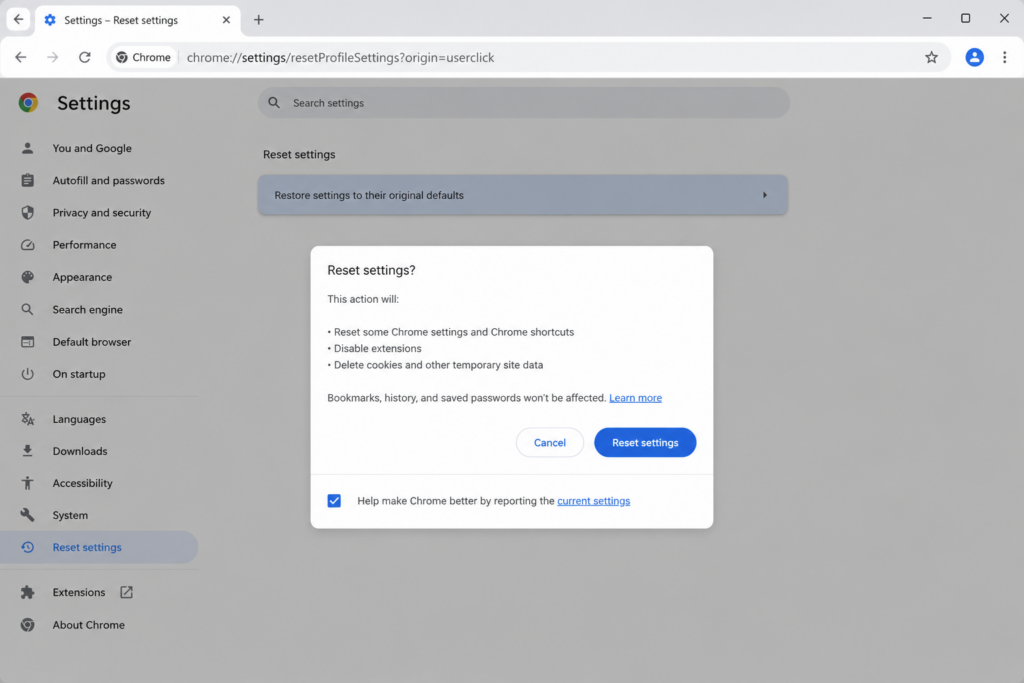
On Microsoft Edge, the same fixes apply — Edge runs on the same engine as Chrome and shows the same error code. Reset it at edge://settings/reset, manage extensions at edge://extensions, and clear its DNS cache at edge://net-internals/#dns.
11. Check your hosts file
A leftover or malicious entry in your hosts file can block a domain. On Windows it’s at C:\Windows\System32\drivers\etc\hosts; on macOS/Linux at /etc/hosts. Open it as administrator and remove any line pointing the site’s domain to 127.0.0.1 or another address.
12. Reset the TCP/IP stack (Windows 10 and 11)
If it still fails, rebuild the network stack. Open Command Prompt as administrator and run, one at a time:
netsh winsock reset
netsh int ip reset
ipconfig /release
ipconfig /renew
ipconfig /flushdns
Restart and retest. This clears a large share of stubborn cases on Windows.
Server-side fixes (for website owners and hosting clients)
If the error shows up for your visitors — or for everyone, everywhere — the problem is on the server, and no amount of cache-clearing on a visitor’s end will help. This is where the real fix often lives, and it’s the part most guides skip. If the problem is on the site’s side, checking your WordPress error logs helps pinpoint the cause.
1. Confirm the web service is actually running
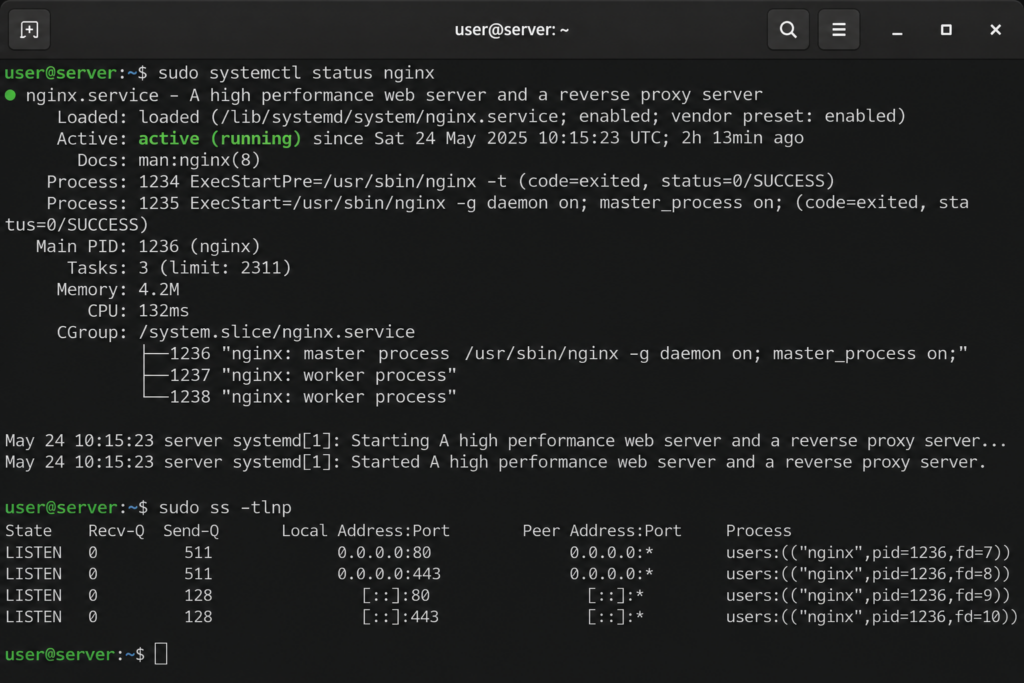
A refused connection almost always means nothing is listening on the port. The web server (Apache, Nginx, LiteSpeed) may have crashed or stopped. On a server you manage, check and restart it — for example sudo systemctl status nginx then sudo systemctl restart nginx (or apache2). On shared or managed hosting you can’t do this directly; contact support to confirm the service is up.
2. Check the right port is open and listening
The service must be listening on the correct port (80 for HTTP, 443 for HTTPS) and that port must be reachable. A service bound to the wrong port, or a port closed at the firewall, produces a refused connection. On a VPS, sudo ss -tlnp (or netstat -tlnp) shows what’s listening on which port.
To test from outside, run from your own computer:
telnet yourdomain.com 443If it’s refused immediately, nothing is listening on that port — or a firewall is actively rejecting. If it hangs with no response, the firewall is silently dropping packets, which produces a timeout in the browser rather than a refusal.
3. Review the server firewall and security rules
Server-level security commonly refuses connections it wrongly flags:
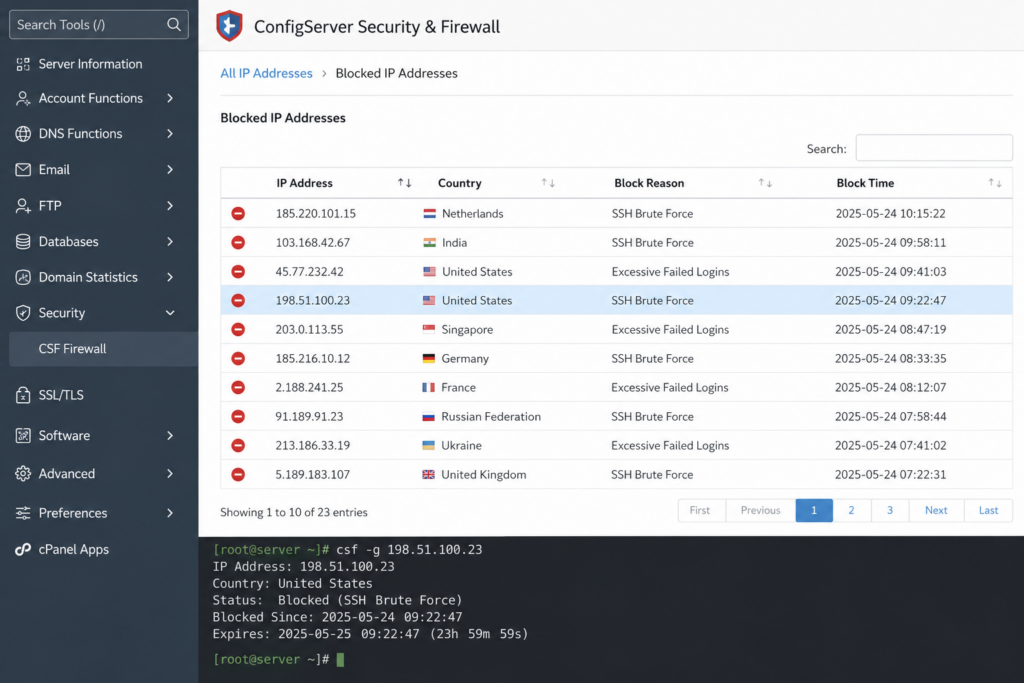
- CSF/LFD or fail2ban may have banned a visitor’s IP after misreading activity as suspicious — check and whitelist it.
- ModSecurity (WAF) or a cloud firewall may block requests or whole IP ranges.
- A misconfigured
iptables/ufwrule can close the web port entirely.
If only some visitors are refused, an IP ban is the usual cause; if everyone is, suspect the service or the port.
4. Check server load and resources
A server out of CPU, RAM, or available connections can start refusing new ones. Review your hosting metrics for spikes, runaway processes, or a plan you’ve outgrown. If the site has genuinely outgrown shared hosting, moving to a VPS or cloud plan with real headroom is the durable fix.
5. WordPress-specific checks
On WordPress, a refused or failed connection can trace to a plugin conflict, a broken theme, or a PHP timeout. Disable plugins (rename the plugins folder via FTP), switch to a default theme, and check your error logs. If the database is the real culprit, you may instead be looking at an error establishing a database connection rather than a refused connection.
6. Read your server logs
Your access and error logs are the ground truth. Look for the service failing to start, port binding errors, or firewall bans, and correlate timestamps with the failures. Logs usually point straight at the offending service.
Error 10061 and “actively refused it”: the same error outside the browser
ERR_CONNECTION_REFUSED is Chrome’s name for it. Windows calls the same event error 10061, and applications report it in their own words:
- Windows / .NET apps: “No connection could be made because the target machine actively refused it”
- Corporate proxies: “Error Code 10061: Connection refused” — the wording comes from Microsoft’s ISA Server, a proxy product long since discontinued but still behind some older company networks
- Java and Minecraft: “Connection refused: no further information”
- Linux tools and curl: “Connection refused” or
ECONNREFUSED
The meaning never changes: the address was reachable, and nothing accepted a connection on that port. So the checklist is the same as for the browser — is the service running, is it on the port you’re calling, is a firewall rejecting it.
⚠️ For Minecraft specifically: the server isn’t running, you’re connecting to the wrong port (the default is 25565), or the host’s firewall doesn’t allow that port.
ERR_CONNECTION_REFUSED vs. similar errors
Chrome’s connection errors look alike but mean different things — and knowing the difference points you to the right fix.
For the full breakdown of the cut-mid-transfer case, see our guide to ERR_CONNECTION_RESET. When the server never answers at all rather than refusing, see our guide to the ERR_CONNECTION_TIMED_OUT error.
For a server-side PHP failure that shows a WordPress error page, see our guide on the WordPress critical error.
If nothing works: next steps
Worked through both checklists and still stuck? A few final moves usually settle it — and, just as important, point you to who can actually fix it.
Rule out the basics one more time:
- Try a different browser and device. If it fails everywhere, the problem isn’t your browser — move on to the support contacts below.
- Restart the computer. A full reboot clears temporary system and network glitches that individual fixes can miss.
- Update your browser and operating system. Outdated software causes connectivity bugs and TLS incompatibilities; install pending updates and retry.
- Test on another network. Switch to mobile data or a different Wi-Fi. If the site loads elsewhere, your original network — or its ISP — is blocking it.
Then contact the right party — matching the symptom to who can solve it saves hours:
- If many sites are affected → your internet provider (ISP). The block or routing problem is on their end, or on your local network’s admin (common on work, school, or public Wi-Fi).
- If only one site you don’t own is affected → the website’s owner. Their server or firewall is refusing connections and only they can adjust it.
- If it’s your own website → your hosting provider. They have server-level access to confirm the web service is running, the port is open, and no firewall rule is banning visitors — the things you can’t always see from outside.
Most refused-connection cases are resolved well before this point. When they aren’t, it’s almost always because the fix lives somewhere only the network operator or host can reach — which is exactly why a host with responsive, log-level support matters.
How to prevent ERR_CONNECTION_REFUSED
For visitors: keep your browser and OS updated, be selective with extensions and VPN apps, restart your router periodically, and add trusted sites to your antivirus exceptions instead of fighting repeated blocks.
For website owners: monitor that your web service stays up and set alerts before you hit resource limits; tune your WAF and firewall (CSF, fail2ban, ModSecurity) to minimize false-positive IP bans; keep the correct ports open; and choose a host with the headroom and log visibility to catch a stopped service before your visitors do. Most chronic, site-wide refused-connection problems trace back to a crashed service, a firewall rule, or resource exhaustion — all preventable with the right hosting setup.
Frequently asked questions
What does ERR_CONNECTION_REFUSED mean?
It means your browser tried to open a connection to the website’s server and the connection was actively rejected — not lost, not timed out, but refused. Usually because the web service is down, the port is closed, a firewall is blocking it, or a setting on your own device (proxy, VPN, DNS, hosts file) is interfering.
Is it a problem with my computer or the website?
It can be either, and one test settles it. Open the site on another device or network — mobile data works well. If it loads elsewhere, the problem is on your side: firewall, proxy, VPN, DNS, or a browser extension. If it fails everywhere, it’s the server, and only the site owner or host can fix it.
Does this happen on multiple browsers or devices?
That’s the question that tells you where to look. If it fails in every browser on one device, the cause is that device — firewall, proxy, VPN, or hosts file. If it fails on every device on your network, it’s the network or the server. And if it fails from another network too, the server is refusing connections and only its owner can resolve it.
How do I fix ERR_CONNECTION_REFUSED quickly?
Restart your router, clear your browser cache, flush the DNS cache (ipconfig /flushdns on Windows), disable any proxy or VPN, and try another browser. On Windows, resetting the network stack with netsh winsock reset clears many stubborn cases. Test in an Incognito window first — it rules out extensions in one step.
Why does an ad domain like doubleclick.net show “refused to connect”?
Because a blocker on your side is working. DNS filters, hosts-file blocklists and some security suites point ad and tracking domains at your own machine, where nothing answers. The page you were reading usually still works — only the ad failed to load, and there’s nothing to fix.
Why do I get ERR_CONNECTION_REFUSED on localhost?
Because nothing is listening on the port you requested. Either the dev server isn’t running, it’s on a different port than the one you typed, or it’s bound to 127.0.0.1 when you need 0.0.0.0. Browser cache and DNS fixes don’t apply here, since no DNS is involved. Run sudo ss -tlnp — or netstat -ano | findstr :3000 on Windows — to see what’s actually listening.
Why does localhost work but my phone can’t reach my dev server?
Because the server is bound to 127.0.0.1, which accepts connections only from the same machine. To reach it from another device on the same network, bind to 0.0.0.0 instead, then use your computer’s local IP rather than localhost. The same applies inside Docker, where localhost means the container — use host.docker.internal to reach the host.
What does “Failed to load resource: net::ERR_CONNECTION_REFUSED” mean?
The page loaded, but a request it made — usually to an API or backend — was refused. The URL next to the error tells you which service is down. If it points to localhost on a live site, the API address was hardcoded during development: on a visitor’s computer, localhost is their own machine. Move the URL into an environment variable.
What’s the difference between connection refused and timed out?
Refused means something is there and actively rejected the connection — a service or firewall said “no.” Timed out means nothing answered at all: the request went out and got silence, usually a slow, overloaded or unreachable server. Refused points at a stopped service or a closed port; timed out points at load or packets being dropped.
I’m the site owner — why are visitors getting it?
Usually the web service (Apache, Nginx, LiteSpeed) has stopped, the port is closed or wrong, or a server firewall — CSF, fail2ban, ModSecurity — has banned IPs. If only some visitors are refused, suspect an IP ban. If everyone is, check that the service is running and the port is open. On shared hosting you’ll need support to confirm both.
How do I check whether the port is actually open?
On a server you manage, sudo ss -tlnp lists every listening port and the process behind it. From outside, telnet yourdomain.com 443 or curl -v https://yourdomain.com reports the refusal plainly, without browser cache or extensions in the way. If the port isn’t in the ss output, nothing is listening — which is the whole explanation for the error.
Can antivirus or a VPN cause it?
Yes, and both are common. A VPN can get connections refused depending on its server or protocol, and security software sometimes blocks safe traffic. Test by disconnecting the VPN and briefly turning off the firewall — if that fixes it, switch VPN server or add the site to your security exceptions rather than leaving protection off.
Could my hosts file be causing this?
It’s worth checking, especially if a single domain fails while everything else works. A leftover entry — from local development, an old tool, or malware — can point a domain at 127.0.0.1, where nothing is listening. The file is at C:\Windows\System32\drivers\etc\hosts on Windows and /etc/hosts on macOS and Linux.
What is error 10061?
It’s the Windows code for the same refusal. Applications report it as “No connection could be made because the target machine actively refused it”, and older corporate proxies as “Error Code 10061: Connection refused”. The meaning is identical to ERR_CONNECTION_REFUSED: the address was reachable, but nothing accepted a connection on that port — so check that the service is running, on the right port, and not blocked by a firewall.
Is ERR_CONNECTION_REFUSED the same as error 521?
They describe the same refusal from different vantage points. ERR_CONNECTION_REFUSED is what your browser reports when it’s talking directly to the server. Error 521 is what Cloudflare shows when it gets refused by your origin — so the site is behind Cloudflare and the origin server is rejecting the CDN’s connections. The server-side causes are identical.
A crashed service, a closed port, or an over-eager firewall can take your site offline. Copahost gives you the resources, firewall control, and support that reads your server logs and keeps your site accepting visitors.
Explore Copahost hostingConclusion
ERR_CONNECTION_REFUSED is blunt but rarely mysterious once you know the method: first work out whether the rejection is coming from your side or the website’s, then work the matching checklist. For visitors, the wins usually come from flushing DNS, disabling a proxy/VPN or extension, checking the hosts file, or resetting the Windows network stack. For site owners, they come from restarting the web service, opening the right port, and clearing an over-eager firewall ban.
This error is one of several common WordPress and server errors — for the full picture, see our complete guide to common WordPress errors.
If you run a site and these refusals keep coming back, the underlying issue is usually the hosting environment — a service that crashes under load, a firewall you can’t fully control, or a plan without enough resources. A reliable host with proper headroom, sane firewall defaults, and transparent logs removes most of these at the root.
