
You click a link, the page starts to load, and then everything stops with a blunt message: “This site can’t be reached — the connection was reset” and the code ERR_CONNECTION_RESET. It is one of the most common — and most frustrating — connection errors on the web, precisely because it can come from almost anywhere: your browser, your computer, your network, or the website’s own server.
This guide is built to be the most complete reference on the topic. We will explain exactly what the error is at a technical level, help you figure out in under a minute whether the problem is on your side or the website’s side, and then walk through every fix that actually works — for everyday visitors on Windows, macOS, Android, and iOS, and for website owners and developers who need to chase the problem down to the server.
Table of Contents
What ERR_CONNECTION_RESET actually means
ERR_CONNECTION_RESET (you may also see it written as NET::ERR_CONNECTION_RESET or, in older builds, Error 101) appears when the connection between your browser and a web server is established but then abruptly terminated before the data transfer can finish.
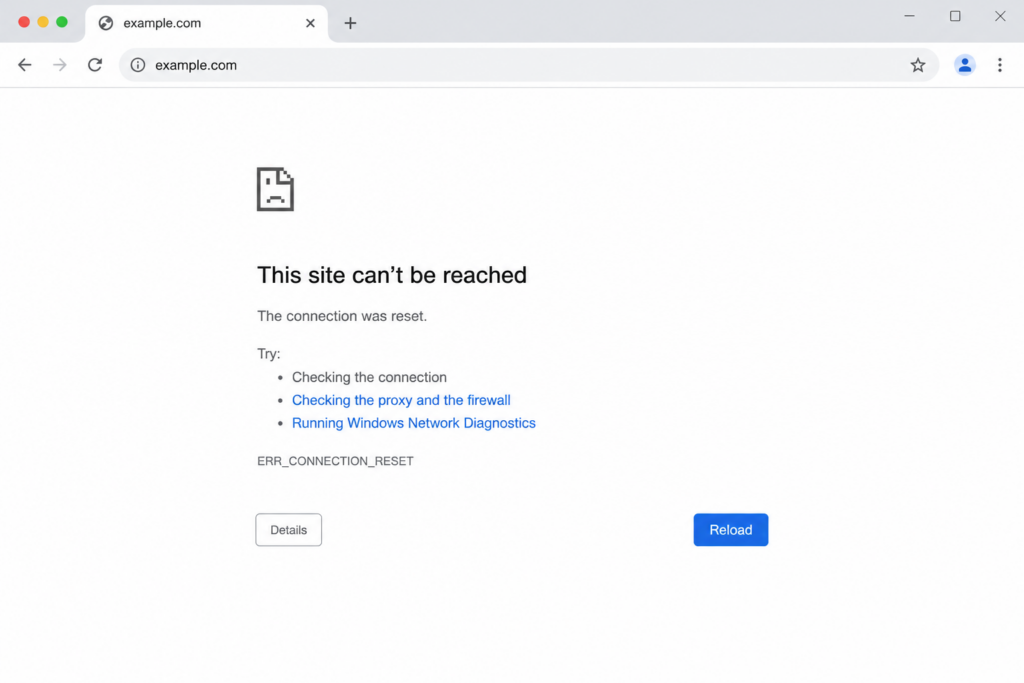
To understand why, it helps to know a little about how web connections work. When you open a website, your browser and the web server perform a TCP handshake — a short exchange that opens a reliable channel for data. Once that channel is open, the server sends the page. ERR_CONNECTION_RESET happens when something sends a TCP RST (“reset”) packet in the middle of that process, slamming the channel shut. The connection was half-built, then dropped, so your browser gives up and shows the error.
The channel is opened, then a reset packet from a firewall, security filter, or the server tears it down mid-transfer.
The key takeaway: this is a connectivity/transport problem, not a “page not found” problem. The server (or something between you and the server) was reachable enough to start a conversation, but the conversation was cut off. That distinction is what makes the error tricky — the culprit can be your antivirus, a VPN, a corrupted network setting, an overloaded server, an expired SSL certificate, or a firewall rule, among others.
Common causes at a glance
First: is it you or the website? (60-second triage)
Before changing a single setting, find out which side the problem is on. This one step saves most people a lot of wasted effort.
Go to the client-side fixes (cache, extensions, VPN, TCP/IP reset).
- Open the same site on another network or device. Switch from Wi-Fi to mobile data on your phone, or try a different computer. If the site loads elsewhere, the problem is almost certainly on your device or network — jump to the client-side fixes. If it fails everywhere, the problem is likely the website’s server.
- Check whether the site is down for everyone. Use a service such as Down for Everyone or Just Me or Is It Down Right Now, which test the site from multiple locations. If it reports the site as down globally, there is nothing to fix on your end — the issue is the server, and only the site owner or host can resolve it.
- Try one other browser. If the error appears in Chrome but not in Firefox or Edge, the cause is browser-specific (extensions, cache, or profile) rather than a network or server fault.
Once you know which side you are on, work through the relevant section below.
Client-side fixes (for visitors)
These are ordered from the quickest and most common to the more advanced. Work down the list and re-test the site after each step.
1. Reload and check your connection
Start with the obvious. Reload the page (Ctrl+R / Cmd+R). Then confirm your internet is actually working by opening a couple of unrelated sites. If everything is failing, the issue is your connectivity, not the site.
2. Restart your router and modem
A surprising number of connection resets come from a router that has been running for weeks with a cluttered memory or a stale session. Unplug the router (and modem, if separate) from power, wait at least 30 seconds so any residual charge clears and the memory empties, then plug it back in. Let it fully reconnect and try again. If you can, connect via Ethernet cable instead of Wi-Fi to rule out wireless instability.
3. Clear your browser cache and cookies
Your browser stores cached files and cookies to load sites faster. When that stored data becomes outdated or corrupted — the same kind of cache trouble behind the ERR_CACHE_MISS error — it can break the connection setup and trigger ERR_CONNECTION_RESET.
In Chrome: open the three-dot menu → Delete browsing data (or press Ctrl+Shift+Delete on Windows / Cmd+Shift+Delete on macOS). Set the time range to All time, tick Cookies and other site data and Cached images and files, then click Delete data. Restart the browser and retry.
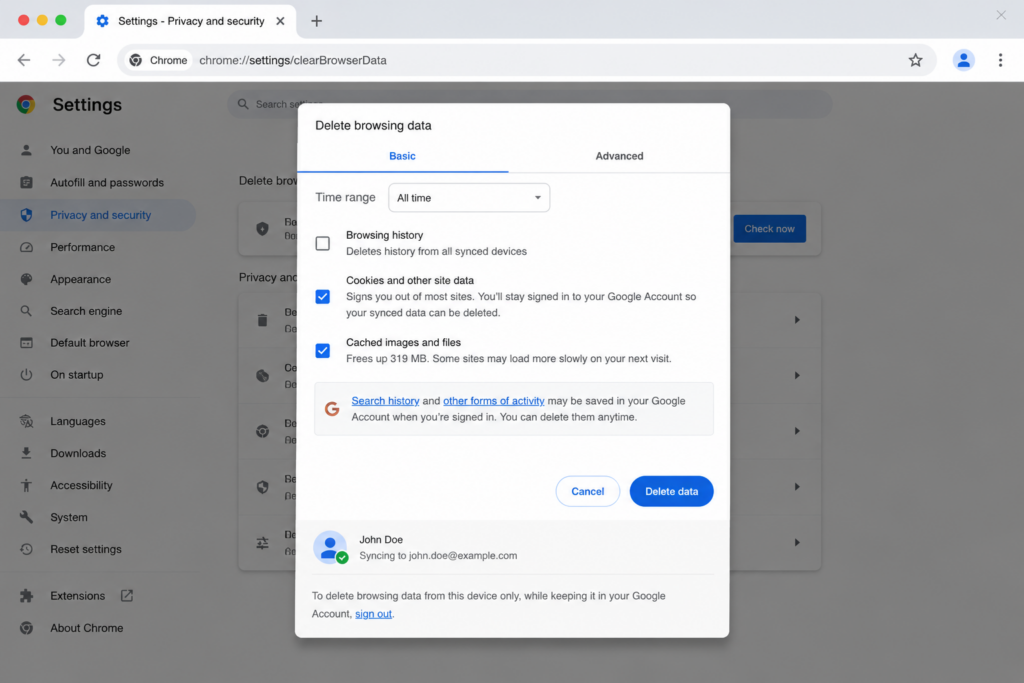
The same shortcut works in Edge, Firefox, and most other browsers.
4. Flush the DNS cache (browser and operating system)
Chrome keeps its own internal DNS cache separate from your operating system, so clear both.
- In Chrome, type
chrome://net-internals/#dnsin the address bar, press Enter, and click Clear host cache. - On Windows, open Command Prompt and run
ipconfig /flushdns. - On macOS, run
sudo dscacheutil -flushcache; sudo killall -HUP mDNSResponderin Terminal.
5. Test in Incognito mode and disable extensions
Browser extensions — especially ad blockers, privacy tools, and VPN add-ons — are among the most frequent triggers. Open an Incognito/Private window (where extensions are disabled by default) and load the site. If it works there, an extension is the culprit.
To find which one, go to chrome://extensions, turn them all off, then re-enable them one at a time, testing the site after each, until the offender reveals itself.
6. Disable your VPN or proxy
VPNs and proxies reroute your traffic and can cause resets, particularly with certain protocols or on certain operating systems. Temporarily disconnect your VPN and try again. If you use a VPN regularly, switching its protocol (for example, from one tunneling mode to another) often resolves the issue without disabling it entirely.
To check system proxy settings on Windows: open Settings → Network & internet → Proxy and turn off Automatically detect settings, plus any manual proxy. You can also open Internet Properties (run inetcpl.cpl) → Connections tab → LAN settings, and make sure every box is unchecked.
7. Temporarily disable antivirus and firewall (then re-enable)
Security software sometimes mistakes legitimate traffic for a threat and resets the connection. As a test only, briefly disable your third-party antivirus and the system firewall, then load the site.
- Windows firewall: Settings → Privacy & Security → Windows Security → Firewall & network protection, and turn it off for the active profile.
If the site loads with protection off, do not leave it off. Re-enable your security software and instead add the website to its list of exceptions/allowed sites.
8. Update or reset your browser
An outdated browser can carry connection bugs. In Chrome, go to the three-dot menu → Help → About Google Chrome; it will check for and install updates automatically. Restart afterward.
If updates do not help, reset Chrome to its defaults: Settings → Reset settings → Restore settings to their original defaults. This clears misconfigurations and disables extensions without deleting your bookmarks or passwords.
9. Reset the TCP/IP stack and Winsock (Windows)
If the error persists, your Windows network stack may be corrupted at a level individual settings cannot reach. Resetting it rebuilds the Winsock catalog (the API layer Windows uses for all network communication) and restores TCP/IP to defaults.
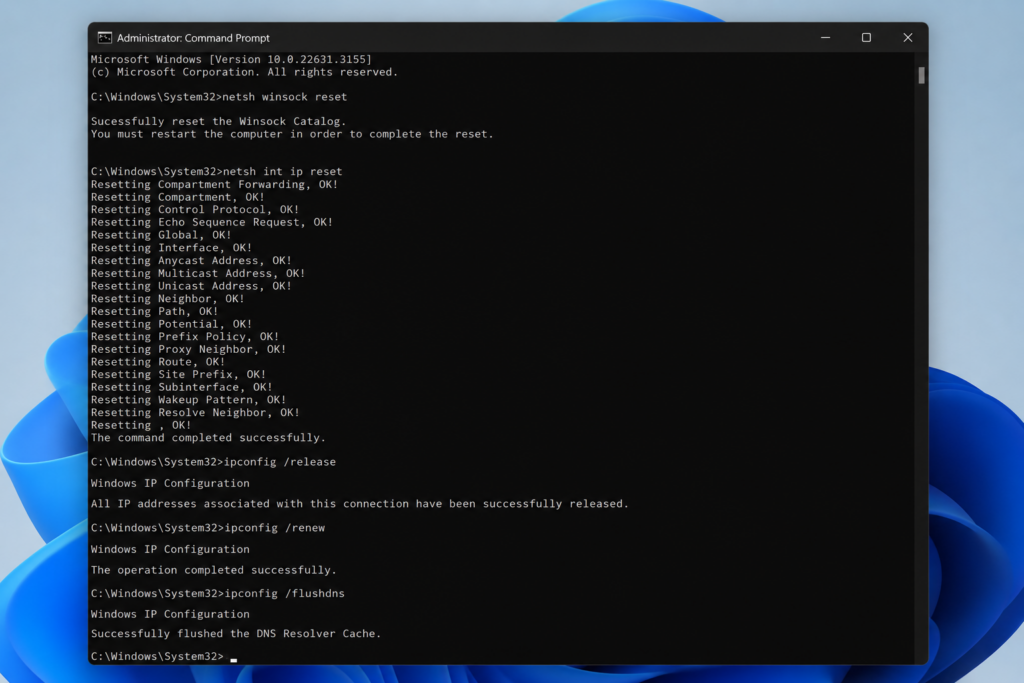
Open Command Prompt as administrator (right-click → Run as administrator) and run these commands one at a time, pressing Enter after each:
netsh winsock reset
netsh int ip reset
ipconfig /release
ipconfig /renew
ipconfig /flushdns
Restart your computer and test the site. This single sequence resolves a large share of stubborn ERR_CONNECTION_RESET cases on Windows.
10. Change your DNS servers
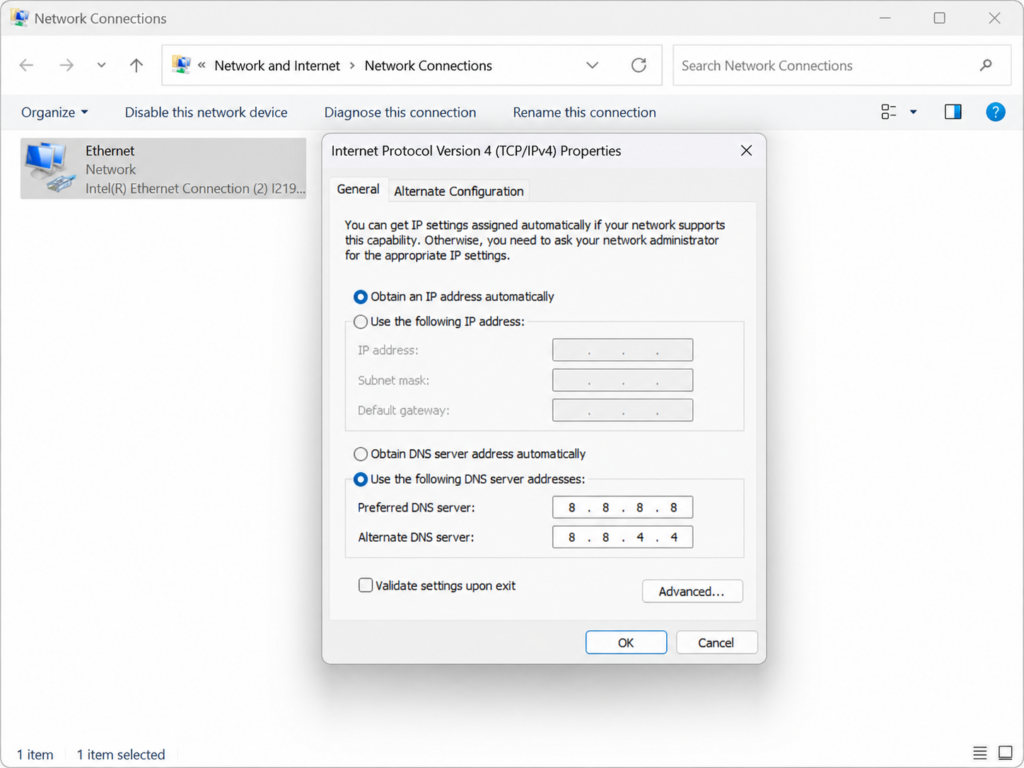
Your ISP’s default DNS can be slow or unreliable. Switching to a public resolver such as Google (8.8.8.8 / 8.8.4.4) or Cloudflare (1.1.1.1 / 1.0.0.1) often clears connection issues.
On Windows: Network adapter properties → Internet Protocol Version 4 (TCP/IPv4) → Use the following DNS server addresses → enter the values above → OK.
If you recently changed your site’s own DNS records, remember those edits also need to propagate across the internet before they take effect everywhere.
11. Adjust the MTU size
The MTU (Maximum Transmission Unit) is the largest packet size your connection sends at once. If it is set too high for your network, packets get fragmented or dropped, which can cause resets — a classic culprit on some VPNs and routers.
To find your optimal value on Windows, run ping example.com -f -l 1472, lowering the 1472 by 10 each time until the ping succeeds without “Packet needs to be fragmented.” Add 28 to that number for your ideal MTU, then set it on your router or adapter.
12. Update your network adapter drivers
Outdated drivers cause packet corruption and failed TCP handshakes. On Windows, open Device Manager → Network adapters, right-click your adapter, and choose Update driver. This is especially worth doing after a major Windows feature update that may have broken driver compatibility.
13. macOS-specific steps
On a Mac, in addition to flushing DNS (step 4): open System Settings → Network, select your active connection, and renew the DHCP lease (Details → TCP/IP → Renew DHCP Lease). If problems continue, remove the network service and add it back, or create a fresh network Location (System Settings → Network → the location menu → Edit Locations).
14. Mobile (Android and iOS)
On phones and tablets, the error usually traces to the network or the browser:
- Toggle Airplane mode on and off to refresh the cellular/Wi-Fi connection.
- Switch between Wi-Fi and mobile data to isolate the network.
- Clear the browser app’s cache (Android: App info → Storage → Clear cache).
- On Android, Reset network settings (Settings → System → Reset → Reset Wi-Fi, mobile & Bluetooth).
- On iOS, Settings → General → Transfer or Reset iPhone → Reset → Reset Network Settings.
- Disable any mobile VPN or content-blocker app.
15. Windows Network Reset (last resort)
If nothing else works and the problem is confined to one PC, use Windows’ full network reset, which removes and reinstalls every network adapter: Settings → Network & internet → Advanced network settings → Network reset → Reset now. Your computer will restart and you will need to reconnect to your Wi-Fi afterward.
Server-side fixes (for website owners, developers, and hosting clients)
If the error shows up for your visitors — or for everyone, everywhere — the problem is on the server, and no amount of cache-clearing on a visitor’s end will help. This is the part most guides skip, and it is where the real fix often lives.
1. Confirm the outage and its scope
Use a multi-location uptime checker to confirm the site is unreachable globally, not just from one region. If only some regions fail, suspect a CDN edge, a geographically applied firewall rule, or a routing problem rather than the origin server itself.
2. Check server load and resource limits
A server that is out of CPU, RAM, or available connections will start resetting new connections instead of serving them. Review your hosting metrics. Sudden traffic spikes, a runaway process, a backup job, or a plugin gone wrong can exhaust resources.If your site has genuinely outgrown its plan, scaling up your hosting (more RAM, more CPU, or moving from shared to a VPS/cloud plan) is the durable fix rather than a temporary patch.
3. Fix SSL/TLS certificate and protocol issues
This is one of the sneakiest causes, because it can affect only some visitors while working fine for you.
- Expired certificate: renew it. With Let’s Encrypt, confirm auto-renewal is actually running.
- Broken certificate chain: a missing intermediate certificate makes some clients reset the connection while others tolerate it. Validate the full chain with an online SSL checker (such as SSL Labs).
- Outdated TLS version: modern browsers refuse and reset connections to servers that only offer old protocols. Make sure your server supports TLS 1.2 and TLS 1.3 and has disabled obsolete versions.
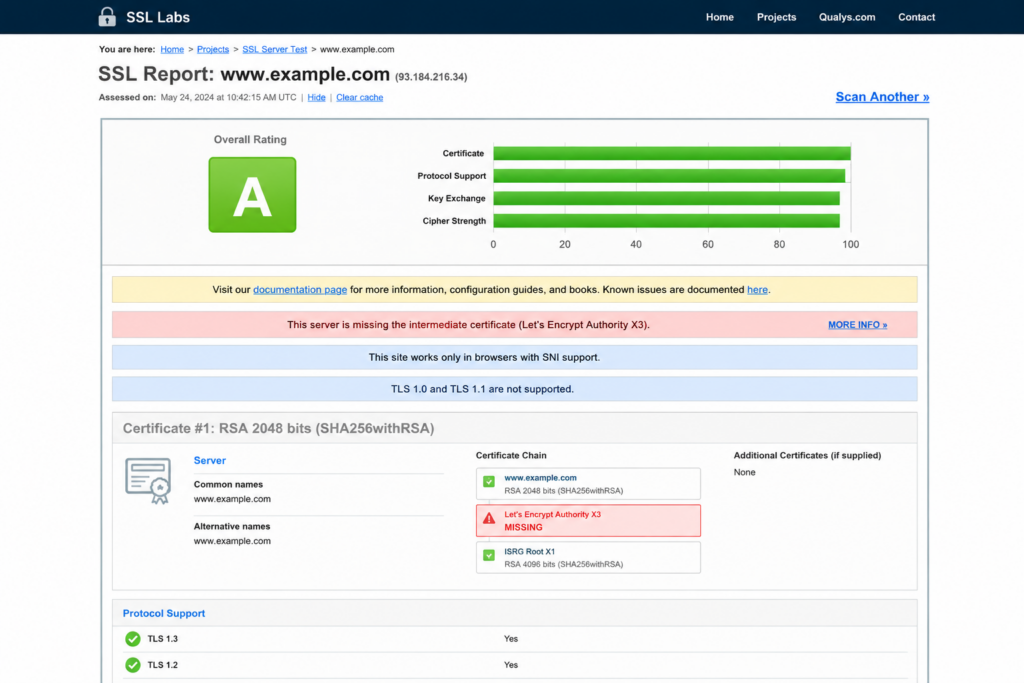
For a full walkthrough of this specific error, see our guide to ERR_SSL_PROTOCOL_ERROR.
4. Review your server firewall and security rules
Server-level security tools can reset connections from visitors they wrongly flag.
- ModSecurity (WAF) false positives can block legitimate requests — review the audit log and whitelist the rule or IP.
- CSF/LFD or fail2ban may have banned a visitor’s IP after misread “suspicious” activity.
- In cPanel or Plesk, check the firewall and security modules to ensure they are not blocking real users.
5. Inspect reverse proxy, load balancer, and CDN settings
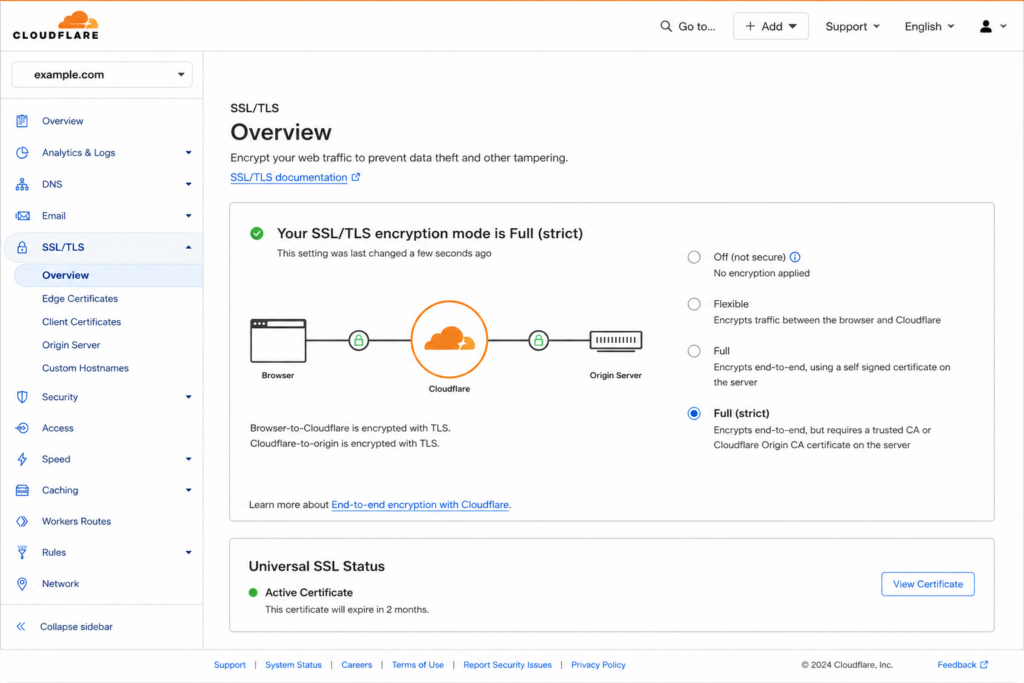
If you sit behind Cloudflare, another CDN, a reverse proxy (Nginx), or a load balancer, a mismatch there is a common reset source. For Cloudflare specifically, an incorrect SSL/TLS encryption mode (for example, “Full (strict)” pointing at an origin without a valid certificate) produces exactly this kind of failure. Verify that proxy SSL settings and origin certificates line up.
6. Read your server logs
Your access and error logs are the ground truth. Look for entries mentioning connection reset, timeout, or repeated dropped requests, and correlate their timestamps with the failures. Logs frequently point straight to the offending service — PHP-FPM, the web server, a database, or the firewall — the same culprits behind a 500 Internal Server Error.
7. Local development gotcha (IIS Express)
Developers running local servers under IIS Express sometimes hit ERR_CONNECTION_RESET because of self-signed certificate problems. The fix is to reinstall the development certificate with the proper command-line tools rather than deleting it manually from the certificate store.
ERR_CONNECTION_RESET vs. similar connection errors
Chrome’s connection errors look alike but mean different things. Knowing the difference points you to the right fix.
Remember: reset = channel forcibly torn down · refused = never accepted · timed out = never answered.
The pattern to remember: reset means the channel was forcibly torn down, refused means it was never accepted, and timed out means it was never answered. If a connection is refused outright rather than reset mid-transfer, see our full guide to the ERR_CONNECTION_REFUSED error — and when the server simply never answers, the ERR_CONNECTION_TIMED_OUT guide covers that case.
How to prevent ERR_CONNECTION_RESET
For everyday users: keep your browser and operating system updated, be selective with extensions and VPN apps, restart your router periodically, and add trusted sites to your antivirus exceptions instead of fighting repeated blocks.
For website owners: monitor server resources and set up alerts before you hit limits; automate SSL renewal and verify the full certificate chain; keep TLS configuration modern; tune your WAF and firewall to minimize false positives; and choose a host that gives you room to scale and visibility into your logs. Most chronic, site-wide reset problems trace back to resource exhaustion or SSL misconfiguration — both entirely preventable with the right hosting setup.
Most chronic ERR_CONNECTION_RESET problems come down to the hosting: not enough resources, misconfigured SSL, or a firewall you can’t control. Copahost gives you room to scale, SSL included, and support that actually reads your server logs.
Explore Copahost hostingConclusion
ERR_CONNECTION_RESET is unsettling because it is vague, but it is rarely mysterious once you know the method: first determine whether the problem is on your side or the website’s, then work the matching checklist from simple to advanced. For visitors, the wins usually come from clearing cache, disabling an extension or VPN, or resetting the Windows network stack. For website owners, they come from fixing SSL, easing server load, and tuning firewall rules.
If you run a website and these resets keep coming back, the underlying issue is often the hosting environment itself — not enough resources, misconfigured SSL, or a firewall you cannot fully control. A reliable host with proper resource headroom, automated SSL, and transparent server logs removes most of these problems at the root.
Frequently Asked Questions
Quick answers to the most common questions about the ERR_CONNECTION_RESET error.
?What does ERR_CONNECTION_RESET mean?
?How do I fix ERR_CONNECTION_RESET quickly?
netsh winsock reset and netsh int ip reset, then restart. Most cases clear up within these steps.