
You click a link, the page sits there loading, and after about 30 seconds your browser gives up: “This site can’t be reached” with the code ERR_CONNECTION_TIMED_OUT. Unlike a refused or reset connection, nothing actively said “no” — the request went out and simply never got an answer in time. The browser waited, heard nothing, and stopped waiting.
This guide explains exactly what that means, helps you tell in under a minute whether the problem is on your side or the website’s, and walks through every fix that works — for everyday visitors on Windows, macOS, Android, and iOS, and for website owners and WordPress admins who need to chase it down to the server.
Quick answer: ERR_CONNECTION_TIMED_OUT means your browser sent a request and the server didn’t respond within the time limit (around 30 seconds), so the connection timed out. The cause is usually a slow or unstable network, a firewall silently dropping packets, a DNS problem on your side — or, on the website’s side, an overloaded server or a WordPress script that runs longer than the server allows.
Table of Contents
What ERR_CONNECTION_TIMED_OUT actually means
When you open a website, your browser sends a request and starts a countdown — usually about 30 seconds. If the server hasn’t answered by the time that countdown runs out, the browser stops waiting and shows ERR_CONNECTION_TIMED_OUT.
The key word is timed out. There’s a meaningful difference between the three “site can’t be reached” errors:
- Timed out — nobody answered at all. The request went out and got silence (a slow, overloaded, or unreachable server, or packets dropped along the way).
- Refused — something is there and it said “no.” A service rejected the connection or a firewall blocked the port.
- Reset — the connection opened, then was cut mid-transfer.
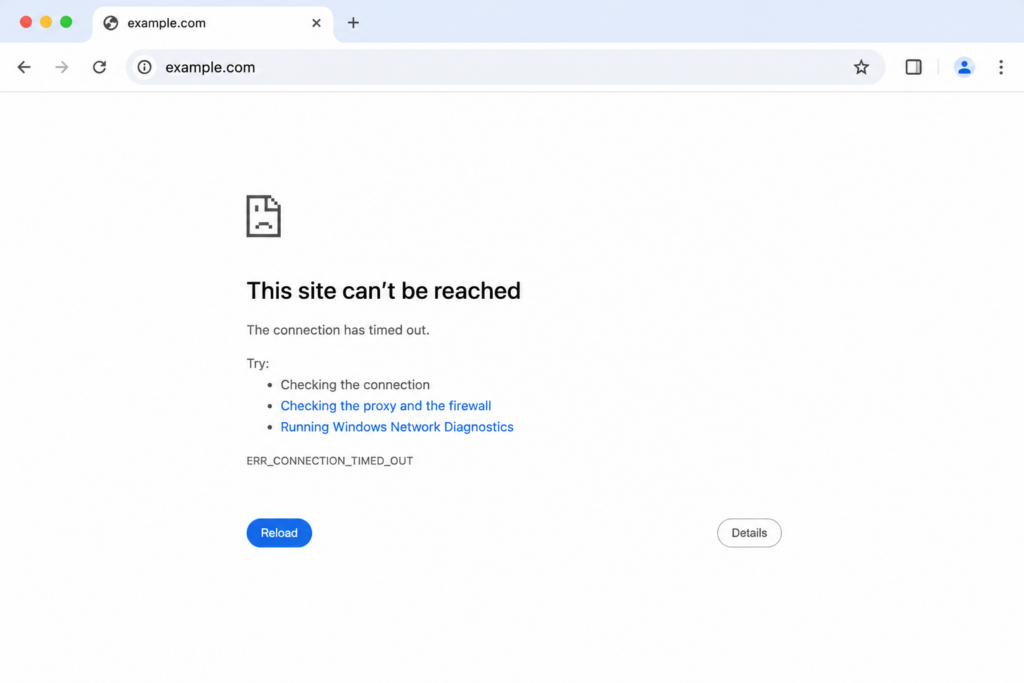
So the troubleshooting question is: why is there no answer in time? The silence comes from one of two places — your side (network, DNS, firewall) or the server’s side (overload, resource limits, a firewall dropping packets). Timeouts lean toward the server more often than the other two errors, which is why this one matters most to site owners.
First: is it you or the website? (60-second triage)
Before changing any settings, find out which side the problem is on. This one step saves most people a lot of wasted effort.
- Open the site on another device or network. Switch from Wi-Fi to mobile data, or try another computer. If it loads elsewhere, the problem is almost certainly on your device or network — go to the client-side fixes. If it fails everywhere, it’s likely the server.
- Check whether the site is down for everyone. Use a service such as Down for Everyone or Just Me or Is It Down Right Now, which test the site from multiple locations. If it’s down globally, there’s nothing to fix on your end — only the site owner or host can resolve it.
- Try another browser. If it fails in Chrome but works in Firefox or Edge, the cause is browser-specific (an extension, cache, or profile) rather than your network or the server.
Once you know which side you’re on, work through the matching section below.
Client-side fixes (for visitors)
These are ordered from quickest and most common to more advanced. Re-test the site after each step.
1. Check your connection and restart your router
Start with the obvious: confirm other sites load. A slow or unstable connection is the most common cause of a timeout. Unplug your router (and modem) for at least 30 seconds, plug it back in, let it fully reconnect, and try again. If you can, switch to an Ethernet cable to rule out Wi-Fi instability.
2. Disable your VPN or proxy
VPNs and proxies reroute your traffic through extra hops, which can slow responses past the timeout limit. Disconnect your VPN and retry; if you use one regularly, switching its server or protocol often helps. To check proxy settings on Windows: Settings → Network & internet → Proxy → turn off Automatically detect settings and any manual proxy. On macOS: System Settings → Network → Details → Proxies → uncheck all protocols.
3. Flush the DNS cache
A stale or corrupted DNS cache can send your browser chasing an address that never answers.
- Windows: open Command Prompt and run
ipconfig /flushdns. - macOS: run
sudo dscacheutil -flushcache; sudo killall -HUP mDNSResponderin Terminal. - Chrome’s own cache: visit
chrome://net-internals/#dnsand click Clear host cache.
4. Change your DNS servers
If your ISP’s DNS is slow or unreliable, switch to a public resolver — Google (8.8.8.8 / 8.8.4.4) or Cloudflare (1.1.1.1 / 1.0.0.1). On Windows: adapter properties → Internet Protocol Version 4 (TCP/IPv4) → Use the following DNS server addresses. On Mac: System Settings → Network → Details → DNS.
5. Clear your browser cache and cookies
Outdated cached data can cause loading problems that end in a timeout. In Chrome: three-dot menu → Delete browsing data (or Ctrl+Shift+Delete / Cmd+Shift+Delete) → set range to All time → tick Cookies and Cached images and files → Delete data. The same shortcut works in Edge and Firefox.
6. Check your hosts file
A leftover or malicious entry in your hosts file can point a domain at a dead address that never responds. On Windows it’s at C:\Windows\System32\drivers\etc\hosts; on macOS/Linux at /etc/hosts. Open it as administrator and remove any line pointing the site’s domain to an unexpected address.
7. Temporarily disable firewall and antivirus (then re-enable)
A firewall can silently drop the packets your browser is waiting for, producing a timeout with no other symptom. As a test only, briefly disable your third-party antivirus and the system firewall, then load the site. If that fixes it, don’t leave protection off — add the site to the allow-list instead and turn protection back on.
8. Disable browser extensions
Ad blockers, privacy tools, and VPN add-ons can stall requests. Open an Incognito window (extensions are off by default); if the site works there, go to chrome://extensions, disable all, and re-enable one at a time to find the culprit.
9. Reset the TCP/IP stack (Windows)
If it still fails, rebuild the network stack. Open Command Prompt as administrator and run, one at a time:
netsh winsock reset
netsh int ip reset
ipconfig /release
ipconfig /renew
ipconfig /flushdns
Restart and retest. This clears a large share of stubborn timeout cases on Windows.
10. Renew the DHCP lease (macOS)
On a Mac, open System Settings → Network, select your active connection, click Details → TCP/IP, and choose Renew DHCP Lease. This releases and renews your IP address and often clears timeout problems caused by a stale lease.
Server-side fixes (for website owners and WordPress admins)
Because a timeout means the server never answered, this error leans toward the server more than its siblings — and that’s where WordPress site owners and hosting clients usually find the real fix. No amount of cache-clearing on a visitor’s end will help if the server is too slow, out of resources, or hitting a script limit.
1. Check server load and resources
A server out of CPU, RAM, or available connections gets slow enough that requests time out. Review your hosting metrics for spikes, runaway processes, a backup job, or a plugin gone wrong. Shared hosting with limited memory is a frequent cause — when a site genuinely outgrows its plan, moving to a VPS or cloud plan with real headroom is the durable fix rather than a temporary patch.
2. Increase PHP max_execution_time
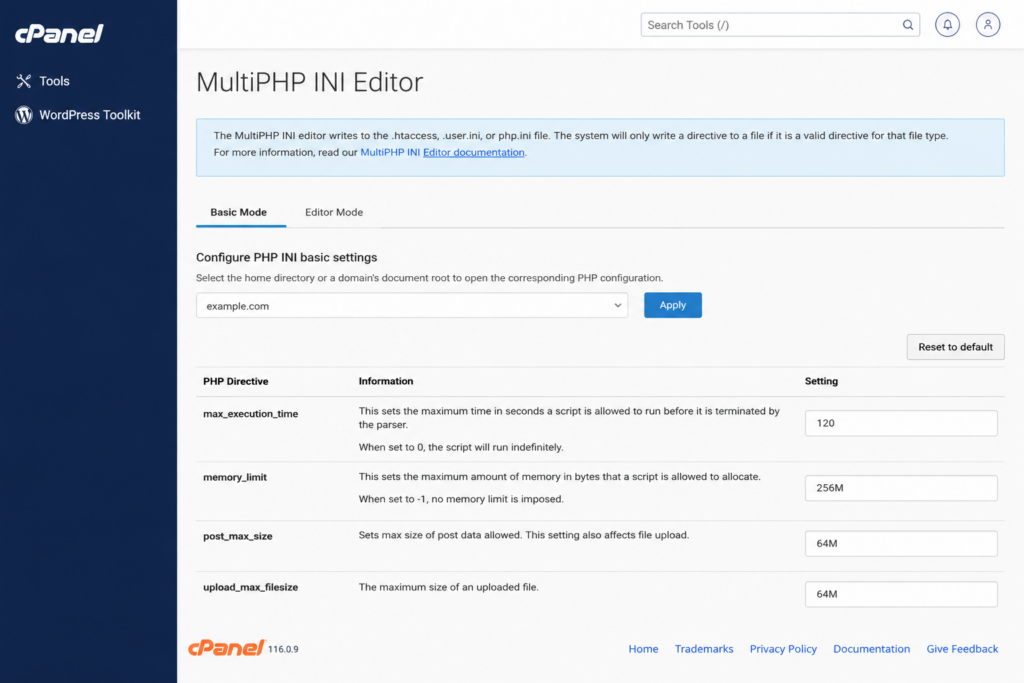
This is the single most common WordPress-specific cause. max_execution_time is how long a PHP script is allowed to run — often 30 seconds by default. If a script (an import, a heavy plugin, a slow query) runs longer, the server cuts it off and the browser times out. Raise it in php.ini (max_execution_time = 120), via .htaccess (php_value max_execution_time 120), or in your hosting control panel. Many hosts will also adjust it on request.
max_execution_time (e.g. to 120s) and memory_limit (e.g. to 256M) fixes the majority of them — your host can do this in seconds if you can’t.3. Increase the PHP memory limit
A script that needs more memory than it’s allowed will stall and time out. Raise memory_limit (for example to 256M) in php.ini, wp-config.php (define('WP_MEMORY_LIMIT', '256M');), or your control panel — staying within the total your plan allocates.
4. Disable plugins and switch to a default theme
On WordPress, a single bad or conflicting plugin can make pages hang until they time out. Disable all plugins (rename the plugins folder via FTP if you can’t reach the dashboard), and if the site recovers, re-enable them one at a time to find the culprit. Switch temporarily to a default theme (such as Twenty Twenty-Four) to rule out a theme problem. If you suspect the database instead, you may be looking at an error establishing a database connection.
5. Check DNS records point to the right server
If your domain’s A record points at an old or wrong IP — common after migrating hosts — requests get sent to a server that never answers. Confirm the A record points to your current host’s IP. After any DNS change, remember it takes time to propagate across the internet before everyone sees the correct server.
6. Review the server firewall and security rules
A server firewall that silently drops packets (rather than rejecting them outright) produces a timeout with no error returned to the visitor. Check whether CSF/LFD, fail2ban, or ModSecurity has banned a visitor’s IP or is dropping traffic, and whitelist legitimate users. A misconfigured iptables/ufw rule that drops the web port has the same effect.
7. Read your server logs
Your access and error logs are the ground truth. Look for slow requests, PHP fatal errors about execution time or memory, timeouts, or firewall drops, and correlate timestamps with the failures. Logs usually point straight at the bottleneck — a slow query, an exhausted resource, or a blocked request. If you also see HTTP 500s, our guide to the 500 internal server error covers that overlap.
ERR_CONNECTION_TIMED_OUT vs. similar errors
Chrome’s connection errors look alike but mean different things — and knowing the difference points you to the right fix.
For the two siblings, see our guides to ERR_CONNECTION_REFUSED (the connection was rejected) and ERR_CONNECTION_RESET (the connection was cut mid-transfer).
If nothing works: next steps
Worked through both checklists and still stuck? A few final moves usually settle it — and point you to who can actually fix it.
- Try a different browser and device, and restart the computer to clear temporary glitches.
- Update your browser and operating system — outdated software causes connectivity bugs.
- Test on another network (mobile data or different Wi-Fi). If the site loads elsewhere, your original network or its ISP is the bottleneck.
Then contact the right party: your ISP if many sites time out; the website owner if it’s only one site you don’t own; your hosting provider if it’s your own site, since they can see server load, PHP limits, and firewall rules you can’t reach from outside.
How to prevent ERR_CONNECTION_TIMED_OUT
For visitors: keep your browser and OS updated, use a stable connection (Ethernet where possible), be selective with VPNs and extensions, and add trusted sites to your antivirus exceptions.
For website owners: monitor server resources and set alerts before you hit limits; keep PHP max_execution_time and memory_limit sensible for your workload; audit plugins and queries that run long; confirm DNS records stay correct after migrations; and choose a host with the headroom and log visibility to catch a slow or overloaded server before your visitors do. Most chronic, site-wide timeouts trace back to resource exhaustion or a PHP limit — both preventable with the right hosting setup.
Conclusion
ERR_CONNECTION_TIMED_OUT is the “no answer” error: the request went out and nothing came back in time. The method to fix it is the same as for its siblings — first work out whether the silence is coming from your side or the website’s, then work the matching checklist. For visitors, the wins usually come from restarting the router, switching DNS, disabling a VPN, or resetting the Windows network stack. For site owners, they come from easing server load, raising PHP execution-time and memory limits, auditing plugins, and confirming DNS points to the right server.
If you run a site and these timeouts keep coming back, the underlying issue is usually the hosting environment — not enough resources, PHP limits set too low, or an overloaded server. A reliable host with proper headroom, sensible PHP defaults, and transparent logs removes most of these at the root.
Tired of timeouts slowing your site down? Explore Copahost’s hosting — with the resources, generous PHP limits, and support that reads your server logs and keeps your site responding fast.
