
“There has been a critical error on this website” is WordPress’s way of telling you that a fatal PHP error stopped your site from loading. It usually comes from a plugin or theme conflict, a PHP memory limit being exceeded, an outdated PHP version, or corrupted core files. In most cases it’s fixable in minutes — without rebuilding anything — by identifying the faulty component and disabling or updating it.
Few messages are as alarming as seeing your site replaced by “There has been a critical error on this website. Please check your site’s administration email inbox for instructions.” The page is vague on purpose, and often it locks you out of your own dashboard too. The good news: this is almost always recoverable, and your content is safe in the database. This guide explains what the error means, then walks you through fixing it — starting with the fastest, safest steps and moving to more advanced ones only if needed.
Table of Contents
What does “there has been a critical error on this website” mean?
This message appears when WordPress hits a PHP fatal error — a problem serious enough that the script powering your page cannot finish running. Rather than show a blank page or expose sensitive technical details to visitors, WordPress displays this generic, protective message instead.

It’s worth knowing the history: before WordPress 5.2 (released in May 2019), this same situation produced the infamous “white screen of death” — a completely blank page with no clue as to what went wrong. If you get a pure blank page with no message at all, see our guide on the white screen of death, which is usually a memory issue.
WordPress 5.2 introduced fatal error protection and recovery mode, which is why you now get a message (and usually an email) instead of a blank screen. So while the message looks scary, it’s actually WordPress helping you — it caught a fatal error and paused the site to prevent further damage.
Two reassuring points before we start: this is not a sign of hacking in most cases, and it is not irreversible. Your posts, pages, and settings live in the database and are typically untouched. You’re fixing a code/configuration problem, not rebuilding your site.
One frequent cause is a syntax error in the theme’s functions.php file; check any recent edits there first.
Critical error vs. white screen vs. 500 error
These three are often confused. A quick distinction:
In short, they overlap: a critical error and a 500 internal server error are often the same underlying PHP failure shown in different ways, and the white screen of death is what the critical error looked like before WordPress 5.2. For the gateway version of a server error, see 502 Bad Gateway.
What causes the critical error?
A WordPress critical error almost always traces back to one of these:
The single most common culprit is a plugin or theme conflict — usually right after an update, a new install, or a code edit. That’s why the fixes below start there. If a plugin triggered the error, our guide on fixing a WordPress plugin that isn’t working walks through isolating and fixing it.
How to fix the critical error (step by step)
Work through these in order — from the fastest and safest to the more advanced. Stop as soon as your site comes back.
Step 1 — Check the admin email (recovery mode)
This is the fastest fix and the one most people miss. When WordPress catches a fatal error, it emails your site’s admin address with the subject line similar to “Your Site is Experiencing a Technical Issue.” Check that inbox (and the spam folder).
That email often tells you exactly what broke — the specific plugin or theme — and includes a special recovery mode link. Clicking it lets you log into wp-admin even though the public site is down, so you can deactivate the faulty plugin or theme with a couple of clicks. If you have access to this email, you may not need any of the steps below.
No email? You can still try recovery mode directly. If the email never arrives (more on why below), you can attempt to enter recovery mode manually by visiting https://yoursite.com/wp-login.php?action=enter_recovery_mode in your browser. If WordPress generated a valid recovery session, this opens the login screen in recovery mode, letting you reach the dashboard and disable the faulty plugin or theme. If it doesn’t work, move on to the manual steps below.
Why the email often doesn’t arrive: many sites can’t send email reliably — there’s no SMTP configured, the sending domain isn’t authenticated (SPF/DKIM), or the message lands in spam. Since the critical error itself can break parts of the site, the notification sometimes never goes out. So if you waited and nothing came, don’t get stuck here — go straight to the manual steps below (debug log, plugins, theme), which don’t depend on that email at all.
Step 2 — Enable debugging to find the real error
If there’s no helpful email, get the actual error message. WordPress has a built-in debug log. Connect to your site via FTP or your hosting file manager, open wp-config.php in the root folder, and just above the line that says /* That's all, stop editing! */ add:
define( 'WP_DEBUG', true );
define( 'WP_DEBUG_LOG', true );
define( 'WP_DEBUG_DISPLAY', false );wp-content/debug.log without showing them to visitors.Then reload the broken page and open wp-content/debug.log. For a full walkthrough of enabling and reading logs, see our guide on WordPress error logs. Enabling WordPress debug mode reveals the exact PHP error and file behind the critical error message.
Look for the most recent line marked PHP Fatal error — it usually names the exact plugin, theme, or file causing the crash. This points you straight at the problem instead of guessing.
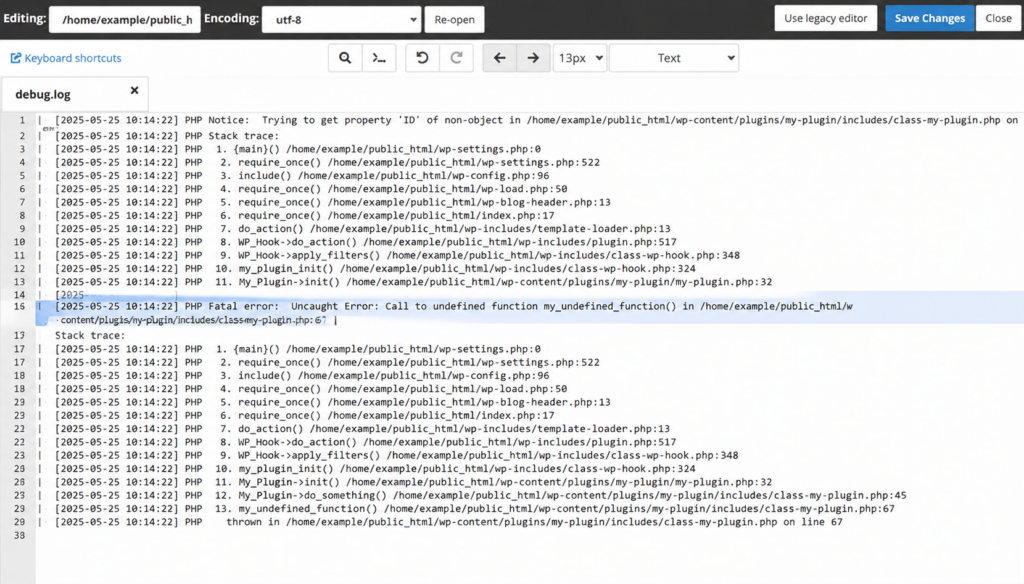
Reading your error logs is the single most useful debugging skill in WordPress — it turns a vague “critical error” into a specific, fixable cause.
Important: once you’ve fixed the issue, setWP_DEBUGback tofalse(or remove the lines), so errors aren’t logged or shown in production.Step 3 — Deactivate all plugins
If you can’t reach wp-admin, deactivate plugins manually. Connect via FTP or file manager, go to the wp-content folder, and rename the plugins folder to something like plugins.deactivated. WordPress can no longer find your plugins, so it deactivates all of them at once.
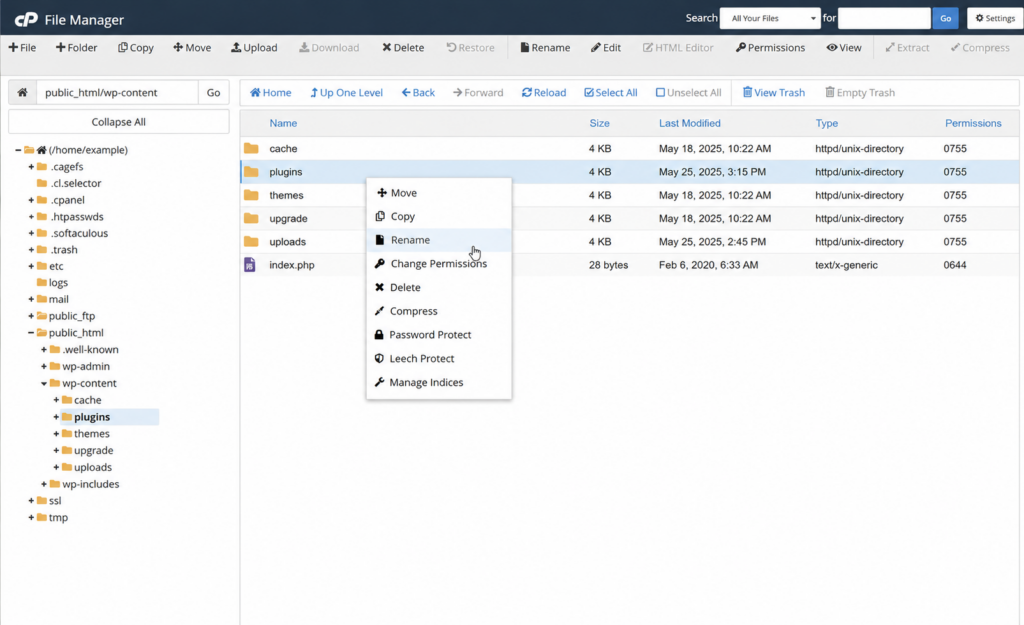
Now reload your site. If it works, a plugin was the cause. Rename the folder back to plugins (this reactivates nothing on its own — your plugins stay inactive until you enable them), then re-enable plugins one by one from the dashboard, reloading the site after each, until the culprit reappears. Delete or replace that plugin.
If the error appeared right after updating a specific plugin, the new version is likely incompatible. Instead of deleting it, you can roll it back to the previous working version with a tool like the WP Rollback plugin, then wait for a fixed update before upgrading again.
If the error started right after a plugin or theme update, a rollback is the cleanest fix: a rollback tool (like the free WP Rollback plugin) reverts a specific plugin or theme to its previous version with a couple of clicks, undoing the bad update while keeping everything else current.
Step 4 — Switch to a default theme
If plugins weren’t it, suspect the theme. Via FTP, go to wp-content/themes and rename your active theme’s folder. WordPress will fall back to a default theme (like Twenty Twenty-Four). If the site loads, your theme — often a functions.php edit or a child-theme file — caused the crash. Common with page builders and custom snippets.
Step 5 — Increase the PHP memory limit
A surprising number of “critical errors” are simply memory exhaustion. Edit wp-config.php and add, above the “stop editing” line:
define( 'WP_MEMORY_LIMIT', '256M' );This raises the memory available to PHP. If it doesn’t help, the limit may need to be raised at the server level (php.ini or your hosting panel) — something a good host lets you do easily, or handles for you.
You can also read this article about how to increase PHP memory limit in cPanel.
Step 6 — Check your PHP version
WordPress requires PHP 7.4 or higher, and recommends PHP 8.x for performance and security. A plugin or theme that worked yesterday can break today if your host updated PHP and the code isn’t compatible — or, conversely, if you’re stuck on an old PHP version. You can check and change your PHP version from your hosting control panel.
If you can reach the dashboard (for example, through recovery mode), WordPress has a built-in diagnostics tool at Tools → Site Health. The Info tab shows your PHP version, memory limit, and server configuration, while the Status tab flags issues WordPress itself detects — a quick way to confirm whether PHP or a resource limit is behind the error.
Step 7 — Restore a backup or replace core files
If nothing above works: restore your most recent backup (the fastest route back to a working site). If the logs point to corrupted WordPress core files, replace them by uploading a fresh copy of WordPress via FTP (overwriting wp-admin and wp-includes, leaving wp-content and wp-config.php intact). If you suspect malware (the site broke with no changes on your end), scan and clean it before anything else.
Regenerate the .htaccess file. A corrupted .htaccess can also cause errors. Rename it (via FTP) to something like .htaccess_old and reload your site. If it loads, go to Settings → Permalinks in the dashboard and click Save Changes — WordPress generates a fresh, clean .htaccess automatically. (This is more common with 500 errors, but worth ruling out.)
Check file permissions. Incorrect file or folder permissions can also trigger a critical error, especially after a migration or a manual file upload. The standard is 644 for files and 755 for folders. You can reset these through your hosting file manager or an FTP client (most let you apply permissions recursively). Avoid setting anything to 777 — it’s a security risk and won’t fix the error.
Repair the database
A corrupted database can also cause the critical error. WordPress has a built-in repair tool. Edit wp-config.php and add this line above the “stop editing” line:
define( 'WP_ALLOW_REPAIR', true );
Then visit https://yoursite.com/wp-admin/maint/repair.php and run the repair. Important: remove that line afterward — leaving it enabled lets anyone run the repair page without logging in.
It may just be cached. Clear your caching plugin’s cache and your browser cache, or reload the page in an incognito/private window, which bypasses cached data. If the error was already fixed, it should now be gone. For more, see our guide on the best WordPress cache plugins.
How hosting affects the critical error
It’s worth being honest about where many of these errors come from: the server environment. The PHP memory limit, the PHP version available, server resource limits, and how easily you can access files and logs are all determined by your hosting. On cheap, overcrowded shared plans, low memory limits and outdated PHP are common triggers — and you often can’t change them.
One frequent cause is PHP running out of memory — the allowed memory size exhausted error, fixed by raising the memory limit.
A good hosting plan reduces critical errors at the source: adequate PHP memory, current PHP versions you control, easy access to error logs and a file manager, one-click backups to roll back fast, and staging environments to test updates before they reach your live site. Much of the troubleshooting above becomes simpler — or unnecessary — on infrastructure built for WordPress.
How to prevent critical errors
Frequently asked questions
Copahost gives your WordPress site the PHP memory, up-to-date PHP versions, easy log access, and one-click backups that prevent most critical errors — backed by real support when you need it.
See web hosting plansConclusion
There has been a critical error on this website” looks frightening, but it’s WordPress doing its job — catching a fatal PHP error and protecting your site. In most cases the fix takes minutes: check the admin email for the recovery link, read your debug log to find the cause, and disable the offending plugin or theme. Memory limits and PHP versions account for many of the rest — and those come down to your hosting. Keep backups, test changes on staging, and run your site on infrastructure that gives you the PHP resources and control to avoid these errors in the first place.
This error is one of several common WordPress and server errors — for the full picture, see our complete guide to common WordPress errors.
