
A 502 Bad Gateway error in Nginx means that Nginx — acting as a gateway or reverse proxy — sent a request to an upstream server (like PHP-FPM or an application server) and got back an invalid response, or couldn’t connect to it at all. It’s almost always a server-side problem, not something wrong with your computer. The most common cause is a backend service that has stopped, crashed, or run out of resources — and it’s usually fixable in minutes.
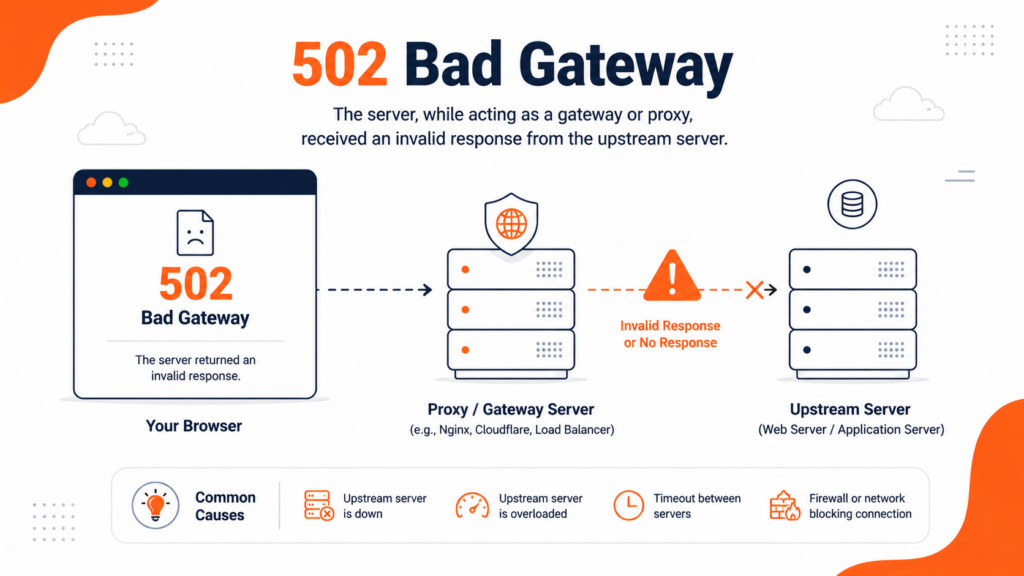
The 502 Bad Gateway is one of the most common — and most confusing — errors on the web, because the message tells you that something failed but not what. If you’re a visitor, it means the site you’re trying to reach is having a server problem. If you’re the site owner, it means Nginx couldn’t get a valid response from whatever runs behind it. This guide covers both sides: what you can do as a visitor, and how to actually diagnose and fix it as the person running the site.
Table of Contents
What does “502 Bad Gateway” mean in Nginx?
Nginx is often used as a reverse proxy: it sits in front of your application and forwards visitor requests to an “upstream” server — commonly PHP-FPM (for WordPress and other PHP apps), Node.js, or another backend. Normally, the upstream processes the request, returns a response, and Nginx relays it to the visitor.
A 502 Bad Gateway happens when that handoff breaks: Nginx forwarded the request, but the upstream either returned something invalid, closed the connection early, or never answered. Nginx has nothing valid to send back, so it returns a 502. In other words, the problem is rarely Nginx itself — it’s the backend behind Nginx. Nginx is just the messenger reporting that the backend let it down.
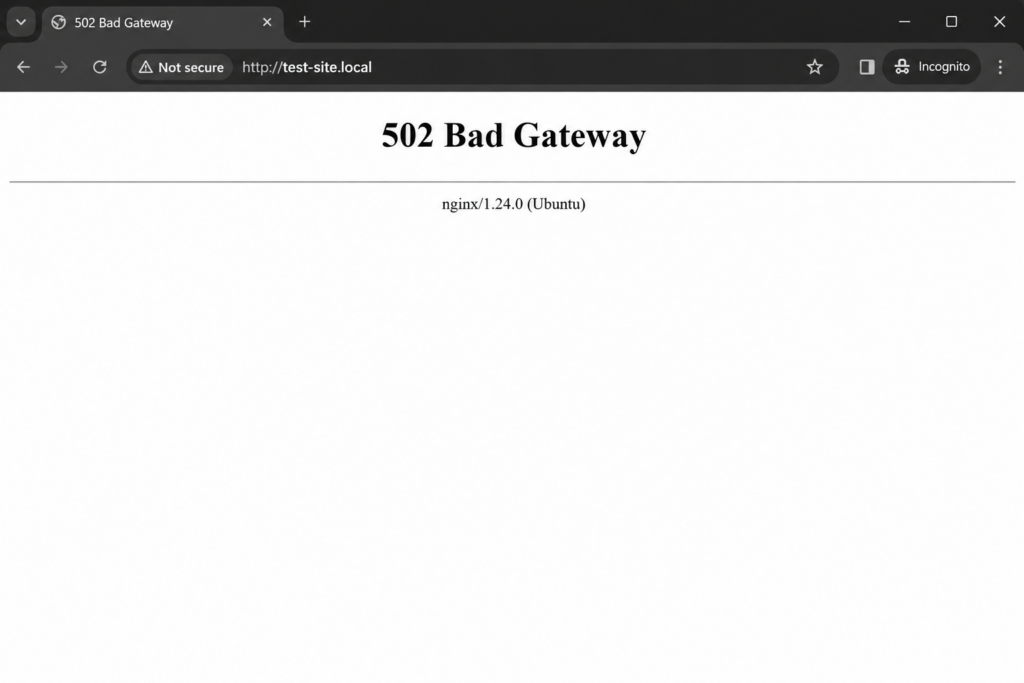
You might see the error in different forms: “502 Bad Gateway”, “502 Bad Gateway nginx”, “HTTP Error 502”, or a blank page with just the code. They all mean the same thing.
502 vs 503 vs 504: don’t confuse them
These three errors look similar but point to different problems — and knowing which you have saves time:
In short: 502 means the upstream gave an invalid response; 503 means the server is up but refusing requests (often rate limiting or maintenance); 504 means the upstream was reached but took too long. This article is about the 502.
The 50X is one of several server and WordPress errors — see our complete guide to common WordPress errors for the full map.
If you’re a visitor: what you can do
If you hit a 502 on someone else’s site, the problem is almost certainly on their end — but a few quick checks rule out your side:
- Reload the page. Many 502s are temporary (a backend restarting or a brief spike). Wait a few seconds and refresh — it often clears on its own.
- Clear your browser cache (or try a private/incognito window). Occasionally a cached version causes the issue.
- Try another browser or device. This confirms whether it’s just you or the site for everyone.
- Check if the site is down for everyone. A tool like “Down for Everyone or Just Me” tells you if the outage is global.
- Try a different DNS server. Rarely, a bad DNS entry at your provider causes it; switching to a public DNS (like 8.8.8.8) can help.
If none of that works, the issue is on the website’s side, and only the site owner or host can fix it. For a small site, a quick heads-up to the owner is often appreciated.
If you own the site: how to fix a 502 in Nginx
This is where the real fix happens. Work through these from most to least common.
1. Check the error log first — always
Never guess at a 502. The Nginx error log tells you exactly what failed. On most servers it’s at:
/var/log/nginx/error.lognginx.conf if it differs.Open it and look for the entry matching the time of the error. The message usually names the cause directly:
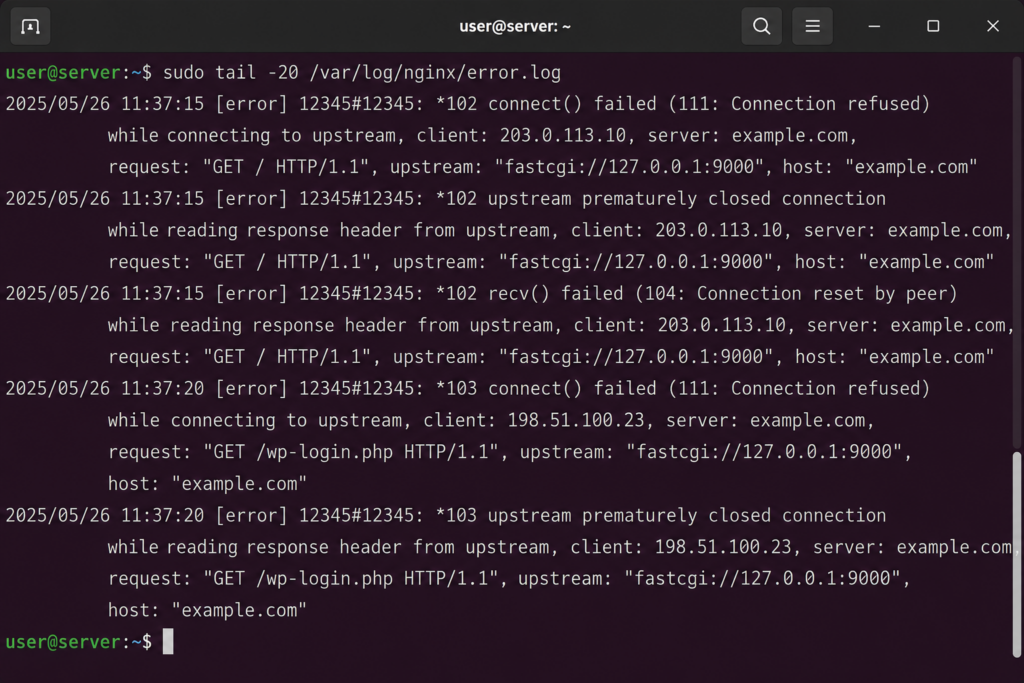
For WordPress and PHP applications, also check your application logs — see our guide on WordPress error logs for how to enable and read them. On shared hosting, these logs are usually available in your control panel (in cPanel, under Metrics).
2. Restart the backend service (the #1 fix)
The single most common cause of a 502 in Nginx is a stopped or crashed PHP-FPM service (or Node.js, etc.). When PHP-FPM isn’t running, its socket disappears and Nginx has nothing to talk to. Restarting it fixes the majority of 502s.
Before restarting blindly, it’s worth a quick diagnosis: is the backend actually running, and does its socket exist? Check the service status and look for the socket file:
sudo systemctl status php-fpm
ls -l /run/php/active (running) or failed; the second confirms the socket file (e.g. php8.2-fpm.sock) exists.If the status shows it stopped or failed, restarting usually brings it back. If the socket file is missing, that confirms PHP-FPM isn’t running — Nginx has nothing to connect to. Restart it:
sudo systemctl restart php-fpm
sudo systemctl restart nginxphp8.2-fpm or similar.If the service won’t start, the log will show why (a config syntax error, a missing extension, a port conflict). Fix that, then start it again. (Note: these commands require server/root access — on shared hosting, see the shared-hosting section below.)
3. Check the Nginx ↔ backend configuration
Nginx and PHP-FPM (or your backend) must agree on how they talk — the same socket path or TCP address. If a recent change, update, or migration left them mismatched, Nginx can’t connect and returns a 502. Confirm that the fastcgi_pass (or proxy_pass) in your Nginx config points to the exact socket or address your backend is actually listening on.
One subtle cause worth checking here: socket permissions. Even when PHP-FPM is running and the socket exists, if the Nginx user (often www-data or nginx) doesn’t have permission to access that socket, Nginx still can’t connect — and returns a 502. If the log shows a “permission denied” message pointing at the socket, fix the ownership and permissions of the PHP socket directory:
sudo chown -R www-data:www-data /run/php/
sudo chmod 755 /run/php/www-data on Debian/Ubuntu, often nginx on CentOS/RHEL.Also make sure the listen.owner and listen.group in your PHP-FPM pool config match the Nginx user, so the socket is created with the right permissions going forward.
4. Look at server resources and load
If the backend is overwhelmed — a traffic spike, a memory leak, heavy database queries, or simply too little RAM/CPU — it can stop responding and trigger 502s. Check CPU and memory usage. If resources are maxed out, you’ll need to optimize (cache, fix slow queries) or scale up. This is one of the most common causes on busy or underpowered sites.
5. Increase timeouts and buffers (for specific cases)
Two configuration tweaks solve specific 502s:
- Buffers: if the log shows “upstream sent too big header”, the backend’s response headers exceeded Nginx’s buffer size (common with apps that set many cookies). Increasing
fastcgi_buffers/proxy_buffer_sizefixes it. - Timeouts: if a slow backend is closing connections, raising
fastcgi_read_timeout/proxy_read_timeoutcan help — though a true timeout usually shows as a 504, so confirm in the log first.
6. Check firewalls and security tools
A firewall (or a security layer like ModSecurity, Fail2Ban, or Cloudflare) can block the connection between Nginx and the backend — especially after enabling a new service on an uncommon port, or following a migration. If you use Cloudflare and see a 502, check whether the error comes from Cloudflare (it can’t reach your origin) or from your origin server itself. Make sure your backend ports are allowed through the firewall.
Fixing a 502 on shared hosting (no root access)
Here’s the part most guides skip — and the one that matters for most WordPress site owners. On shared hosting, you usually can’t restart PHP-FPM or edit the Nginx config yourself. So your realistic options are:
- Check your control panel for the error logs (in cPanel, under Metrics → Errors) to understand what’s happening.
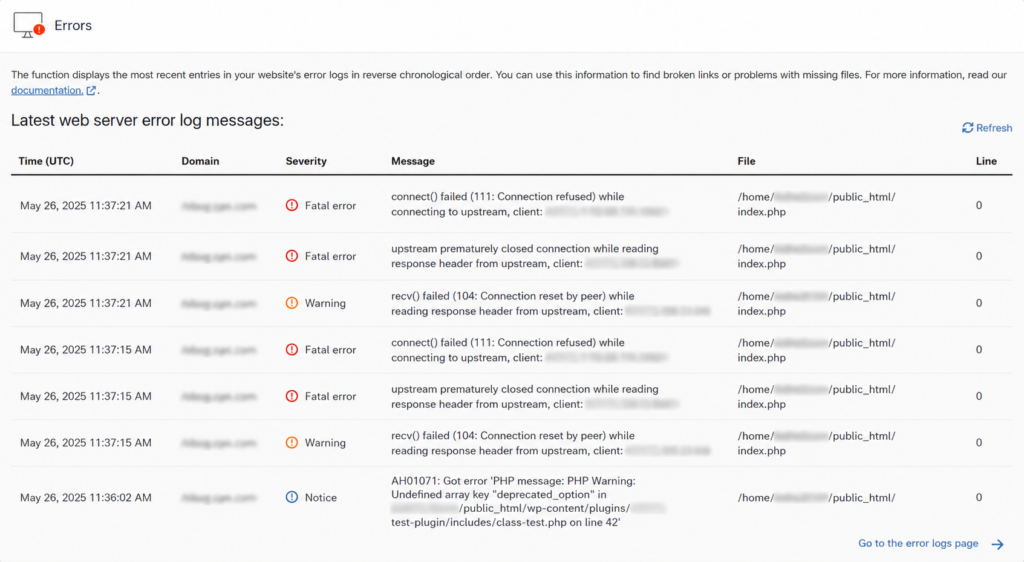
- Reduce the load: a traffic spike or a heavy plugin can exhaust your account’s resources and trigger 502s. Enable caching, and disable or replace resource-hungry plugins.
- Look for a recent change: a plugin or theme update right before the error is a prime suspect — roll it back.
- Contact your host’s support. Since the fix often requires server-level access, a good host will diagnose and resolve it for you, fast. This is exactly where responsive support earns its keep.
If 502 errors keep coming back on shared hosting, it’s often a sign your site has outgrown an overcrowded, underpowered plan — and that better-resourced hosting would prevent them.
How hosting affects 502 errors
Because a 502 is fundamentally about the server failing to respond, your hosting plays a central role. On cheap, overcrowded shared servers, tight resource limits and overloaded backends cause far more 502s — and you’re left waiting on support with no access to fix it yourself. Quality hosting reduces them at the source: adequate CPU and memory so the backend doesn’t choke under load, a properly configured Nginx/PHP-FPM stack, server-side caching to absorb spikes, easy access to your error logs, and responsive support when something does break. For a site that needs to stay online, that infrastructure is the difference between a momentary blip and a prolonged outage.
How to prevent 502 errors
Frequently asked questions
Copahost runs your site on a properly configured stack with the resources, caching, and responsive support that keep 502s and downtime away.
See web hosting plansConclusion
A 502 Bad Gateway in Nginx means the backend behind Nginx — usually PHP-FPM or an application server — failed to return a valid response. As a visitor, a reload or a quick cache clear is often all you can do; as a site owner, the fix starts with the error log, and most often comes down to restarting a stopped backend service, correcting a config mismatch, or relieving an overloaded server. On shared hosting, where you can’t touch the server yourself, reducing load and leaning on responsive support is the way through — and solid, well-resourced hosting is what prevents these errors from happening in the first place.
