
The error “Warning: Cannot modify header information – headers already sent by” means a PHP script tried to send HTTP headers (for a redirect, cookie, or page setting) after content had already been sent to the browser. The usual cause is stray output — a blank space, line break, or text — before the headers, most often whitespace before <?php or after ?> in a file. The good news: the error message tells you exactly which file and line to fix.
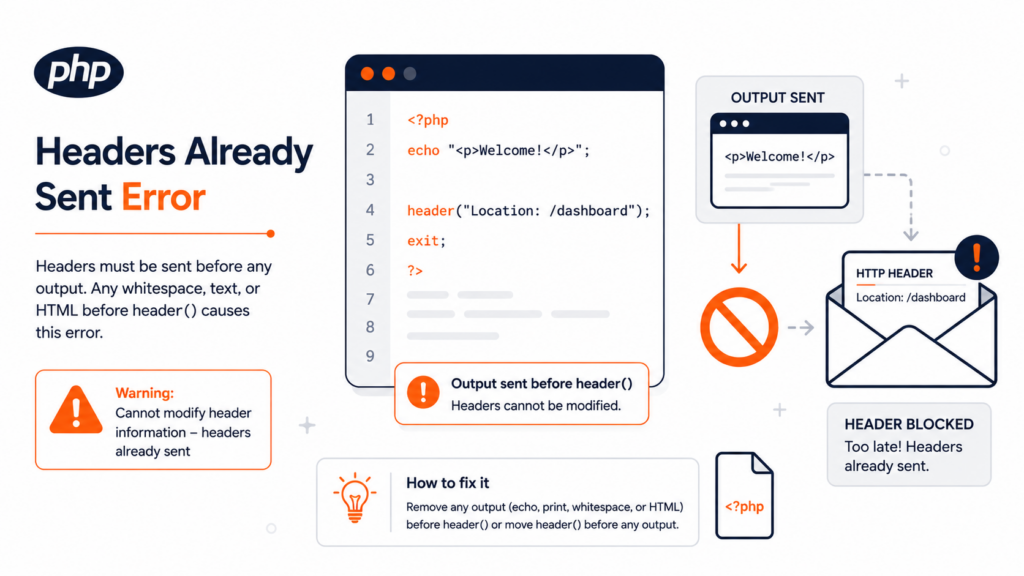
If you’re seeing this warning across the top of your site — often after installing a plugin, editing your theme, or adding a redirect — don’t panic. It looks cryptic, but it’s one of the more logical WordPress errors to fix, because the message itself points you to the culprit. The trick is knowing how to read it, which is exactly what this guide will show you.
What “headers already sent” means
When a browser requests a page, the server must send HTTP headers first (invisible instructions like content type, cookies, and redirects), and only then the content (the HTML you see). That order is fixed by the HTTP protocol.
The “headers already sent” error happens when a PHP script tries to send a header — through a function like header(), wp_redirect(), setcookie(), or session_start() — after some content has already gone to the browser. Once output has started, it’s too late to send headers, so PHP throws the warning. You may also see it phrased simply as “headers already sent” or “cannot modify header information” — it’s the same error.
This matters beyond the warning text itself: because the failed header is often a redirect, a cookie, or a login action, those features can silently stop working — broken redirects, users unable to log in, or sessions that won’t start — until the underlying output is removed.
The “content” that slips out early is usually invisible: a stray space or blank line, a forgotten echo, or hidden characters in a file. That’s why this error feels mysterious until you know where to look.
The key skill: how to read the error message
This is what most people get wrong — and it’s the fastest way to fix the error. The message has three parts, and they don’t all mean the same thing:
Warning: Cannot modify header information - headers already sent by
(output started at /public_html/wp-content/themes/mytheme/functions.php:42)
in /public_html/wp-includes/pluggable.php on line 1450The crucial insight: the file in “output started at” is the one you fix — that’s where the stray output began. The file at the end (“in … on line …”) is usually a WordPress core file like pluggable.php that simply failed because of the first file. Don’t edit that core file — it’s the victim, not the cause. Beginners often waste time editing the wrong file; reading the message correctly avoids that entirely.
So your first step is always: read the message, note the file and line in the “output started at” part, and go there.
Common causes
By far the most common is whitespace — a space or blank line before the opening <?php or after the closing ?> tag. It’s invisible in most editors but counts as output, so the headers fail. The second most common is a plugin or theme introducing premature output, especially right after an update.
How to fix it
Step 1 — Open the file the message points to
Using your hosting File Manager or an FTP client, open the file named in the “output started at” part of the message, and go to the line number it gives. (If your dashboard still works and the file is a theme or plugin file, you can sometimes use the built-in editor — but FTP is safer.)
Always back up the file before editing it.
Step 2 — Remove the stray output
Look at the indicated line and the lines just before it. You’re hunting for output that shouldn’t be there:
- Whitespace before
<?php— delete any spaces or blank lines at the very top of the file, so<?phpis the very first thing. - Whitespace or blank lines after
?>— better yet, in files that are pure PHP (likewp-config.phpandfunctions.php), remove the closing?>entirely. PHP doesn’t require it, and removing it eliminates this whole class of error. - Stray
echo,print,var_dump, or HTML before a header call — remove leftover debug code or markup that runs before headers are sent.
wp-config.php and functions.php — simply delete the closing ?> tag at the end. PHP doesn’t need it, and removing it means stray whitespace after it can never cause this error again.Step 3 — If it’s a plugin or theme
If the “output started at” file lives in /wp-content/plugins/ or /wp-content/themes/, the culprit is that extension:
- Update it — if the plugin’s code caused it, the developer may have already released a fix.
- Deactivate it to confirm. If you can’t reach the dashboard, rename the plugin’s folder (or the whole
/wp-content/plugins/folder) via FTP to force-deactivate, then rename it back once fixed. - Reinstall a fresh copy if the file is simply corrupted.
Step 4 — Check for a BOM (hidden characters)
If you’ve checked for whitespace and found nothing, the file may have been saved with a BOM (Byte Order Mark) — invisible bytes that some editors add when saving as “UTF-8 with BOM.” Re-save the file as UTF-8 without BOM in a proper code editor. This sends output before your code even runs, and is a sneaky cause when everything looks clean.
For developers: output buffering and hooks
If you’re writing the code yourself, two proper fixes: wrap early output with ob_start() (output buffering) so headers can still be sent, or — better — make sure redirects and header calls run before any output, by hooking into an early action like template_redirect rather than inside a template. This addresses the cause rather than masking it.
Where this connects
This is a PHP output error, not a resource limit — but it’s still a PHP error you’ll find in your error log, and it’s one of the common WordPress errors. If the stray output is severe enough that the page renders completely blank instead of showing the warning, see our guide on the white screen of death — the whitespace-after-?> cause is the same family of problem.
A related point: this warning only shows on screen when display_errors (or WP_DEBUG) is enabled — on a production site it often goes to the error log instead. Be wary of “fixes” that simply turn display_errors off: that only hides the message, leaving the broken headers (and whatever redirect or cookie they affect) still failing underneath. Always fix the stray output itself, not the visibility of the warning.
Frequently asked questions
Editing a file over FTP, restoring a backup, clearing a cache — Copahost gives you an easy File Manager, one-click backups, and support that knows WordPress, so a stray space never costs you your afternoon.
See web hosting plansConclusion
“Cannot modify header information – headers already sent by” looks intimidating but is one of the more readable WordPress errors: the message names the exact file and line where stray output began. Open that file (the one in “output started at,” not the core file at the end), remove the offending whitespace, blank line, or premature output — or update the plugin or theme responsible — and the warning clears. Removing the closing ?> from pure-PHP files and saving without a BOM prevents it from coming back. And as always, edit through FTP with a backup in hand, so a small fix never turns into a big problem.
