
You select an image in the Media Library, click “Delete permanently”… and it either does nothing, throws an error, or the image reappears after you reload. It’s a frustrating problem with several possible causes — from something as simple as your user role or browser cache to file permissions or a plugin conflict. This guide walks through every cause, from the most common and easiest to the more technical, so you can delete those images and clean up your library.
Most often it’s one of three things: your user role isn’t Administrator (only admins can delete media), your browser cache is showing a deleted image that’s actually gone, or your site’s file permissions are wrong. Check those first, then look at plugin conflicts and database issues.
First, rule out the simple things
Before digging into permissions or the database, check the two causes that account for most cases:
1. Are you an Administrator? By default, WordPress only lets users with the Administrator role delete files from the Media Library. If you’re logged in as an Editor, Author, or Contributor, you won’t even see the “Delete permanently” option — this is intentional, to protect the library. Check your role under Users, and if needed, ask an administrator to delete the file or to adjust your role. For a full breakdown of what each role can do, see our guide to WordPress user roles and permissions.
2. Is it just your browser cache? Sometimes the image was deleted, but your browser still shows the cached copy, making it look like the deletion failed. Do a hard refresh (Ctrl + F5 / Cmd + Shift + R), or open the Media Library in an incognito window, to confirm whether the image is really still there. If it’s gone in incognito, it was only a caching issue.
If neither of those is the cause, move on to the technical fixes below.
Fix 1: Correct your file permissions
If WordPress genuinely can’t delete the file — the deletion errors out or silently fails — incorrect file permissions on your server are the most common technical cause. WordPress needs write access to the wp-content/uploads folder (where your media lives) to remove files from it.
The standard permissions are 755 for folders and 644 for files. If your uploads folder is set more restrictively, WordPress can’t delete from it. You can check and reset permissions through your hosting File Manager (in cPanel) or an FTP client:
- Navigate to
wp-contentand select theuploadsfolder. - Set folders to 755 (apply recursively to subdirectories).
- Set files to 644.
- Never use 777 — it’s a security risk and won’t fix the underlying issue.
For the complete guide to setting permissions correctly across your whole site, see our WordPress file permissions guide. If permissions look correct but deletion still fails, the problem may be file ownership (the web server user doesn’t own the files) — in that case, your host’s support can reset ownership for you. This is common after a migration or a manual file upload.
Wrong file permissions cause more than deletion failures — they also trigger upload errors and even the critical error screen. If you’re seeing several odd problems at once, permissions (or ownership) are a likely common cause.
Fix 2: Deactivate conflicting plugins
Media, optimization, and backup plugins sometimes interfere with deletion — an image-optimization or media-management plugin can lock a file or intercept the delete request. To test:
- Temporarily deactivate all media-related, optimization, and backup plugins.
- Try deleting the image again.
- If it works, reactivate the plugins one by one, testing after each, until you find the culprit.
Once you’ve identified the conflicting plugin, check its settings for a relevant option, update it, or replace it with an alternative.
Fix 3: Clear the cache (if the image “comes back”)
If you delete an image and it reappears after reloading — but a hard refresh or incognito window shows it’s actually gone — the issue is caching, not deletion. Clear your caching plugin and server cache so the Media Library shows its true current state. Our guide on how to clear your WordPress cache covers every layer. This is also worth checking if you use a CDN, which can serve a cached copy of a deleted image for a while.
Fix 4: Repair the database
If a single image refuses to delete and throws an error (often a 403 or 500), the cause can be corrupted or orphaned metadata in your database. WordPress tracks each attachment across the wp_posts and wp_postmeta tables; if those references break, the deletion request fails.
The safest first step is WordPress’s built-in database repair. Add this line to your wp-config.php file (above the “stop editing” line):
define( 'WP_ALLOW_REPAIR', true );Then visit yoursite.com/wp-admin/maint/repair.php and run the repair. Remove that line from wp-config.php afterward, since the page is accessible without login while it’s enabled. Always back up your database before repair operations. If the issue persists, orphaned attachment metadata may need manual cleanup in phpMyAdmin — a task best done carefully, with a backup, or with your host’s help.
Prefer the command line? If you have SSH access and WP-CLI installed, you can repair the database in one command without editing wp-config.php at all:
wp db repairThis runs the same repair as the repair.php page, straight from the terminal — handy on managed or VPS hosting where you already work over SSH.
Any database repair or manual edit carries risk. Always take a full backup (files and database) before running repair.php or touching tables in phpMyAdmin, so you can restore if anything goes wrong.
How to delete images correctly (and in bulk)
Once the underlying issue is fixed, here’s the proper way to delete media:
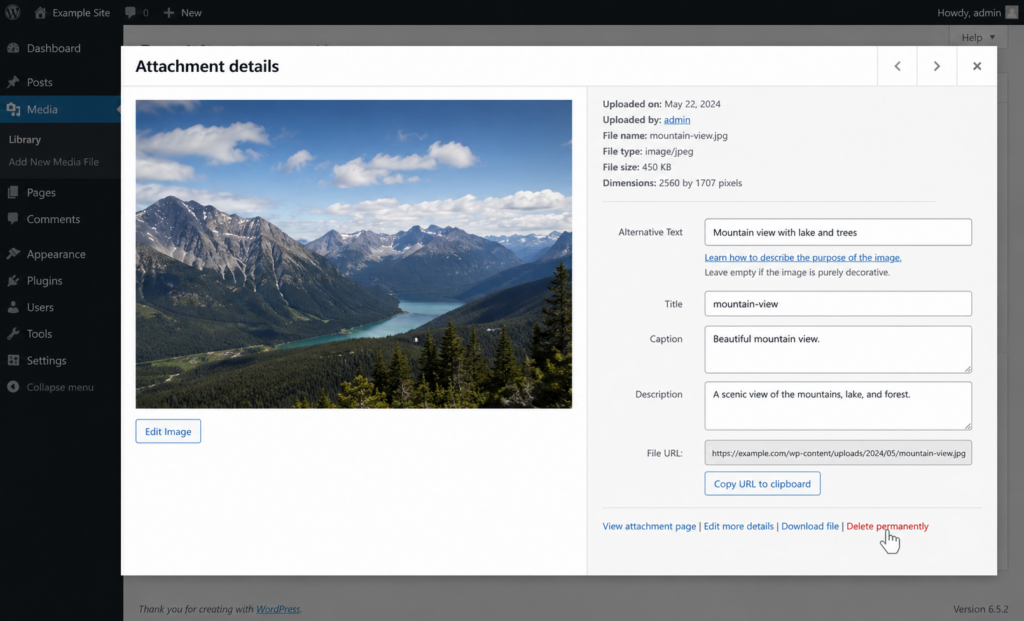
- Single image: Media → Library, click the image, then Delete permanently (confirm the prompt).
- Multiple images (bulk): In the Library, switch to list view (the icon top-left), tick the checkboxes for the images you want, choose Delete permanently from the Bulk actions dropdown, and click Apply.
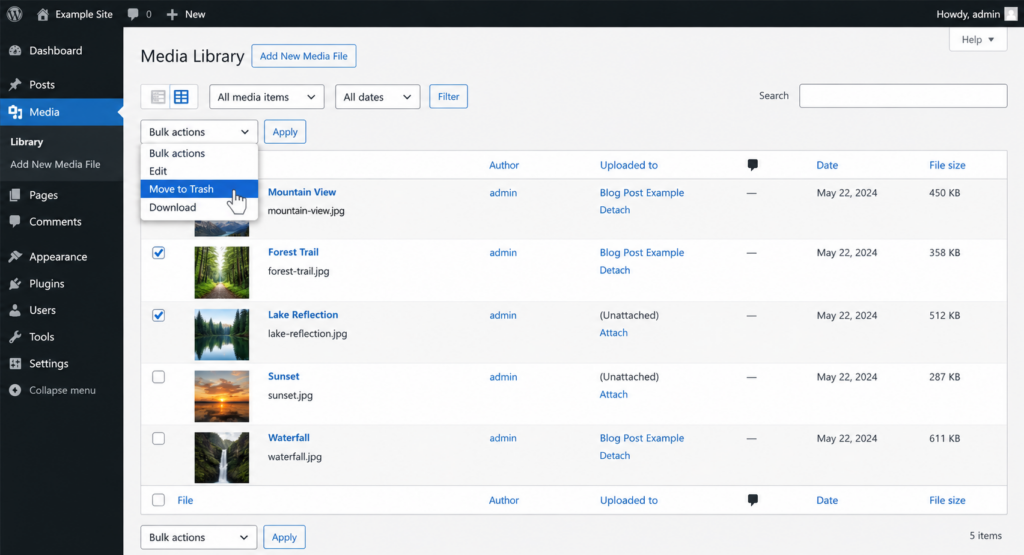
Unlike posts, media items are usually deleted permanently right away — there’s no Trash step by default — so double-check your selection before confirming.
WordPress won’t warn you if an image is still used in a post or page. Deleting it leaves a broken image wherever it appeared. Before bulk-deleting, make sure the images really are unused — check the “Uploaded to” column, or use a media-cleanup plugin that detects unused files.
Cleaning up unused images
If your goal is a tidier library — not fixing an error — the challenge is knowing which images are safe to remove. WordPress doesn’t flag unused media, and images pile up from deleted posts, replaced photos, theme changes, and abandoned drafts. Rather than checking each one by hand (impractical past a few hundred images), a media-cleanup plugin can scan your site and flag files that aren’t used anywhere, so you can review and delete them safely. Always back up first, and confirm the plugin’s findings before mass-deleting — automated detection can occasionally miss an image referenced in a way it doesn’t scan.
Copahost gives you cPanel with a full File Manager and SSH access, so you can check permissions, manage your uploads folder, and fix issues like this yourself — with responsive support when you need a hand with ownership or the database.
See web hosting plansFrequently asked questions
Why can’t I delete images from my WordPress Media Library?
The most common reasons are: your user role isn’t Administrator (only admins can delete media), your browser is showing a cached copy of an already-deleted image, or your server’s file permissions are wrong so WordPress can’t write to the uploads folder. Plugin conflicts and corrupted database metadata are less common causes.
Why does a deleted image keep coming back?
Usually caching. The image was deleted, but your browser, caching plugin, or CDN is still serving the old copy. Do a hard refresh (Ctrl+F5) or check in an incognito window; if it’s gone there, clear your site and CDN cache to see the true state.
What file permissions does WordPress need to delete images?
Folders should be 755 and files 644, and the uploads folder must be writable by the web server. If permissions are correct but deletion still fails, it’s often a file-ownership problem, which your host can fix. Never set permissions to 777.
How do I delete multiple images at once?
In Media → Library, switch to list view, check the boxes for the images you want, choose “Delete permanently” from the Bulk actions dropdown, and click Apply. Make sure the images aren’t used anywhere first, since deletion is permanent and has no trash by default.
Is it safe to delete images from the Media Library?
Yes, as long as the image isn’t in use. WordPress won’t warn you if it’s still embedded in a post or page, so deleting an in-use image leaves a broken image there. Check the “Uploaded to” column or use a cleanup plugin to confirm an image is unused before deleting.
Conclusion
When you can’t delete images from the WordPress Media Library, work from the simple causes to the technical ones: confirm you’re an Administrator, rule out browser cache, then check file permissions, plugin conflicts, and finally the database. In most cases it’s permissions or a caching illusion, both quick to fix. Once deletion works, remember that media is removed permanently and WordPress won’t warn you about images still in use — so back up, confirm what’s unused, and clean up with confidence.
