
WordPress user roles control who can do what on your site — from full administrative power down to read-only access. Understanding them is the foundation of a secure, well-organized site, especially once more than one person logs in. This guide explains all six default roles and exactly what each can and can’t do, how to change a user’s role, how to modify permissions or create custom roles, and the security rule that matters most: give everyone the least access they need.
Table of Contents
What are WordPress user roles?
A role is a named collection of capabilities — the individual actions a user is allowed to perform, like edit_posts, publish_posts, or manage_options. When you assign someone a role, you’re granting them the whole set of capabilities that come with it. That’s what makes the system both simple (pick a role) and powerful (each role maps to a real-world responsibility).
WordPress ships with six predefined roles. On a standard single-site install you’ll use five of them; the sixth (Super Admin) only exists on a Multisite network. The first user created during installation is an Administrator by default.
An important idea to keep in mind: roles aren’t strictly “senior” to one another so much as they define responsibilities. Each role down the list simply has fewer capabilities than the one above it — an Editor can do everything an Author can, plus more.
The six default WordPress user roles
Administrator
Full control over a single site. An Administrator can do everything: publish and delete any content, install and delete plugins and themes, edit theme code, change every setting, run core updates, and add, edit, or remove other users — including other Administrators.
Use it for: yourself, and maybe one trusted backup. This is the most powerful and most dangerous role, so keep the list short.
Editor
Manages all content, but not the site itself. An Editor can publish, edit, and delete any post or page — including those written by other users — plus moderate comments, manage categories and tags, and upload media. What they can’t do: install plugins, change themes, edit settings, or manage users.
Use it for: a managing editor or content lead who runs the editorial side without being able to break the site. This is the highest role most content people ever need.
Author
Manages their own content. An Author can write, edit, publish, and delete their own posts, and upload media. They can’t touch other users’ content, create pages, or access any settings.
Use it for: regular contributors on a multi-author blog who publish independently.
Contributor
Writes, but can’t publish. A Contributor can create and edit their own posts, but can’t publish them — a post stays as a draft until an Editor or Administrator reviews and publishes it. Notably, Contributors can’t upload media, which is a frequent point of confusion.
Use it for: guest writers or new team members whose work you want to review before it goes live.
Subscriber
The most limited role. A Subscriber can manage their own profile and read content — nothing more. On membership or subscription sites, this role gives logged-in users access to restricted content.
Use it for: newsletter signups, commenters, or members on a gated site.
Super Admin (Multisite only)
Exists only on a WordPress Multisite network. A Super Admin controls the entire network of sites: creating and deleting sites, managing network-wide plugins and themes, and network settings. On Multisite, some capabilities normally held by an Administrator (like installing plugins) are reserved for the Super Admin.
Use it for: the owner or lead developer of a Multisite network.
Roles at a glance
Understanding capabilities
Every role is really just a bundle of capabilities — individual permissions that each control one specific action. When you assign a role, you’re handing over its whole set of capabilities. Knowing the key ones helps you understand exactly where the line between roles falls, and which capability to add or remove when you customize a role.
There are dozens more, but these are the ones that define the boundaries between roles. When you build a custom role, you’re really just choosing which of these to switch on.
One special case worth knowing: unfiltered_upload. This capability lets a user upload file types WordPress normally blocks, like SVG or PSD. It isn’t granted to any role by default — not even Administrator — because those file types carry security risks. Enabling it requires adding a constant to your wp-config.php file, and you should only do so if you understand the risk.
How to change a user’s role
Changing someone’s role takes a few clicks and requires Administrator access:
- In the dashboard, go to Users → All Users.
- Check the box next to the user (or users) you want to change.
- From the Change role to… dropdown at the top, pick the new role.
- Click Change.
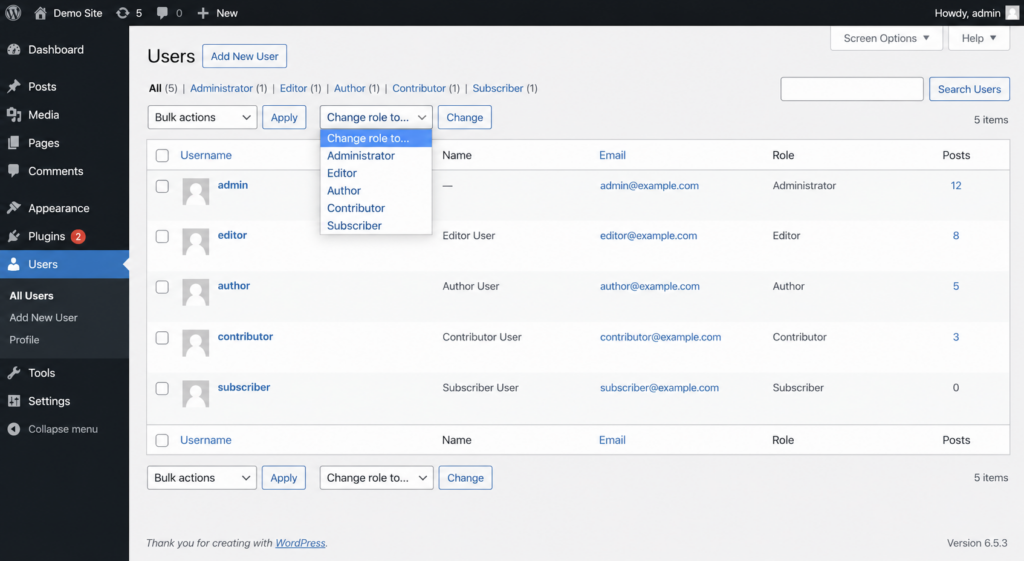
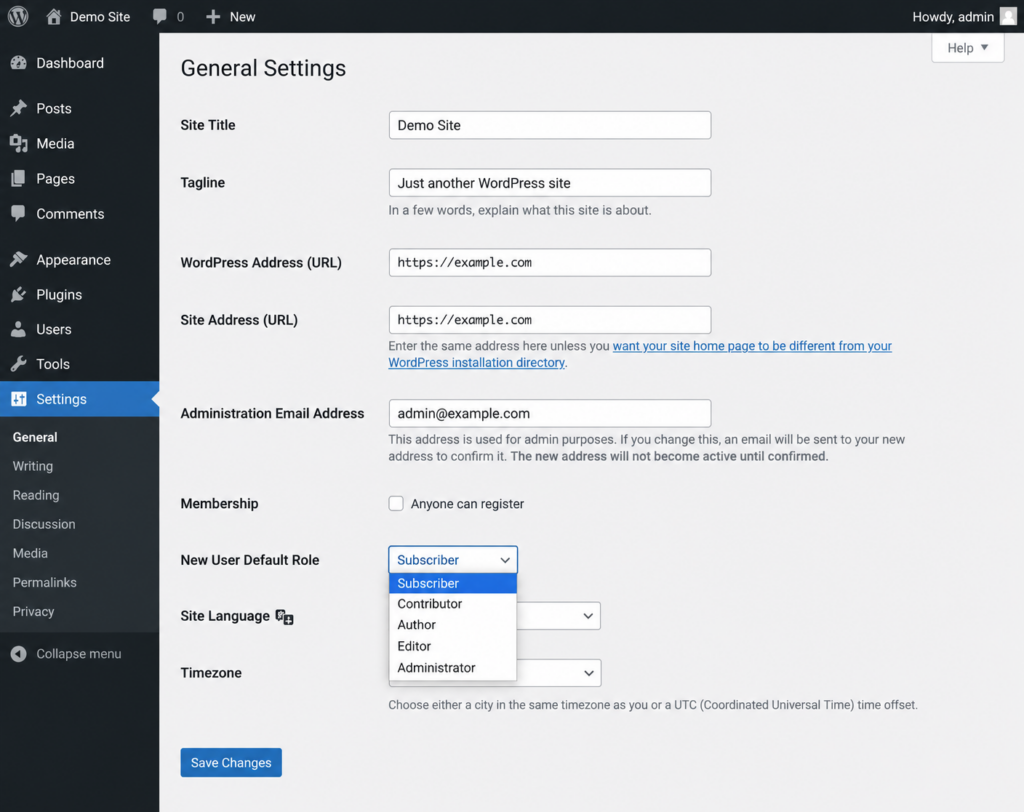
You can also change a single user’s role by clicking Edit under their name and selecting a new role from the Role dropdown on their profile. To set the default role for new sign-ups, go to Settings → General → New User Default Role — keep this as Subscriber unless you have a reason to change it.
Can a user have more than one role? By default the dashboard assigns one role per user, but WordPress does support multiple roles — a secondary role simply adds its capabilities on top of the primary one. Assigning a second role requires a role editor plugin or code; it’s an advanced setup most sites won’t need, but it’s useful when someone’s job spans two roles.
What happens to content when you delete a user
Deleting a user doesn’t have to mean losing their work. When you remove a user who has created content, WordPress stops and asks what to do with it, giving you two choices:
- Delete all content — every post and page that user created is removed along with the account.
- Attribute all content to another user — the account is deleted, but their posts and pages are reassigned to a user you pick, so the content stays live on your site.
In almost every case you want the second option. For example, if a guest Author leaves, you can reassign their articles to an Editor or Administrator and keep them published. Choose carefully — deleting the content is permanent, so when in doubt, reassign. (Note that media in the library isn’t deleted this way; it stays in your uploads regardless.)
How to modify permissions and create custom roles
Sometimes the six defaults don’t quite fit — you might want a “Proofreader” who can edit posts but not publish, or an Author who can also manage pages. You have two ways to adjust roles and permissions.
With a plugin (recommended for most people). A role editor plugin like User Role Editor gives you a checkbox interface to add or remove individual capabilities from any role, create brand-new roles, clone existing ones, and restore defaults. It’s the safest route because there’s no code to break, and you can undo changes easily.
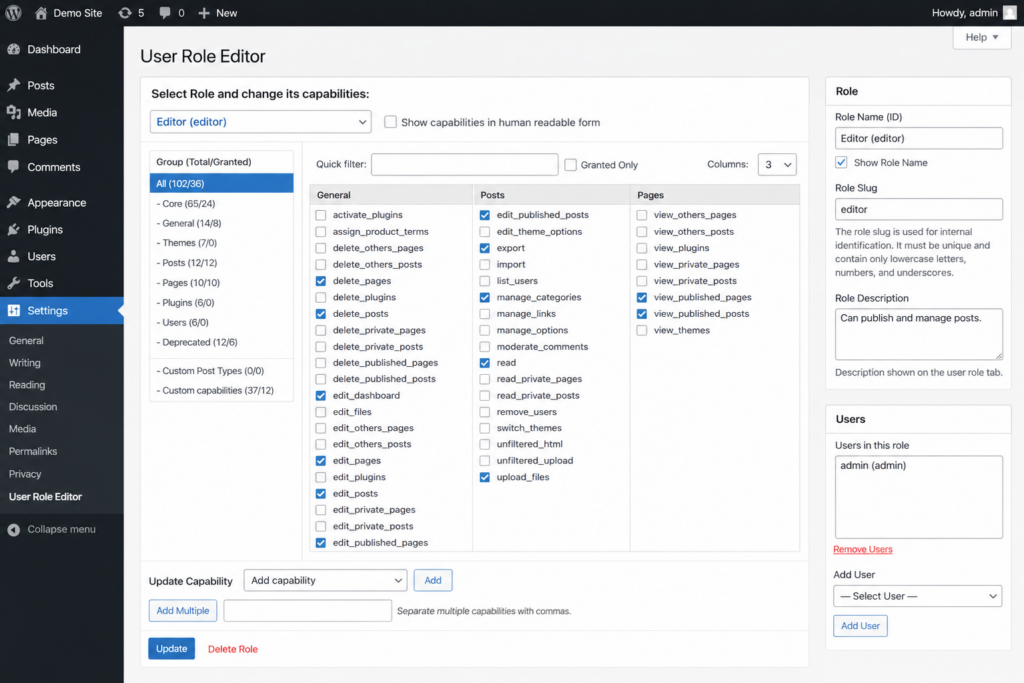
With code (for developers). WordPress provides functions to manage roles programmatically. You add these to your theme’s functions.php file (ideally in a child theme) or a site-specific plugin. For example, to create a custom “Proofreader” role that can read and edit posts but not publish:
add_role( 'proofreader', 'Proofreader', array(
'read'         => true,
'edit_posts'   => true,
'delete_posts' => false,
'publish_posts'=> false,
) );
The related functions are add_role() and remove_role() for whole roles, and add_cap() and remove_cap() for individual capabilities on an existing role. Always back up before editing functions.php — a syntax error there can trigger a critical error.
A role is a labeled bundle of capabilities. “Editor” is a role; edit_others_posts is a capability inside it. Custom roles are just your own bundles — pick the exact capabilities a job needs, no more.
WooCommerce and plugin roles
Plugins can add their own roles. The most common example is WooCommerce, which adds two:
- Customer — assigned automatically to anyone who creates an account at checkout. They can manage their own account and view their orders.
- Shop Manager — can manage products, orders, and reports without having full Administrator access. Ideal for staff who run the store but shouldn’t control the whole site.
Membership and LMS plugins often add roles too, so don’t be surprised to see more than the six defaults on an established site.
Troubleshooting user roles and permissions
A few role-related problems come up often. The usual causes and fixes:
An Author or Contributor can’t upload images. Contributors can’t upload media by design — that’s expected. If an Author can’t upload when they should be able to, it’s usually a plugin conflict or a server file-permission issue rather than the role itself. Deactivate plugins to test, and check your folder permissions.
A user can’t see a menu item in the dashboard. The WordPress dashboard is dynamic — it only shows menu items the current user’s role has the capability to access. A missing menu item almost always means the role lacks that capability. Check (and, if appropriate, add) the capability with a role editor plugin.
You’re locked out of your admin account. If you lose Administrator access, you can restore it without the dashboard. With FTP, you can add a new admin user via code in your theme’s functions.php. Or, through phpMyAdmin in your hosting panel, you can edit the wp_users and wp_usermeta tables to reset your password or restore Administrator capabilities. Our WordPress login guide covers account recovery in detail.
User roles and site security
Roles aren’t just about workflow — they’re one of your most important security controls. The guiding principle is least privilege: give each user only the access they genuinely need.
The single most common WordPress security mistake is too many Administrators. Someone joins to do one admin task, gets an Admin account, and it’s never downgraded. A year later there are eight Admins — some belonging to former freelancers with reused passwords — and any one of them is a way into the whole site. A few habits prevent this:
- Cap your Administrators at one or two per site. Everyone else gets Editor or lower.
- Downgrade or remove accounts the day a project or role ends.
- Audit users quarterly — go to Users → All Users and actually read the list.
- Require strong passwords and 2FA, especially on any account that can install plugins or change settings. See our WordPress login security guide.
Managing a multi-user WordPress site is easier on solid hosting. Copahost gives you cPanel, automatic backups, free SSL, and support in your corner — so you can add your team with confidence.
See web hosting plansFrequently asked questions
What are the default WordPress user roles?
WordPress has six: Administrator (full site control), Editor (manage all content), Author (own posts), Contributor (draft own posts, can’t publish), Subscriber (profile and reading only), and Super Admin (Multisite networks only). Each is a set of capabilities defining what the user can do.
How do I change a user’s role in WordPress?
Go to Users, All Users, check the user, pick the new role from the “Change role to” dropdown, and click Change. You can also edit a single user’s profile and change the Role field there. You need Administrator access to do this.
What’s the difference between Author and Contributor?
An Author can publish and delete their own posts and upload media. A Contributor can write and edit their own posts but cannot publish them or upload media — an Editor or Administrator must review and publish their work.
Can I create a custom user role in WordPress?
Yes. The easiest way is a role editor plugin like User Role Editor, which lets you add, edit, and remove roles and capabilities with checkboxes. Developers can also use the add_role and add_cap functions in functions.php or a site-specific plugin.
How many Administrators should a WordPress site have?
As few as possible — ideally one or two trusted people. Every extra Administrator account is a potential entry point for attackers. Give everyone else the lowest role that lets them do their job, and remove old accounts promptly.
Related guides
Managing users connects to several WordPress topics — see our guides on WordPress login and wp-admin, the functions.php file (where custom roles are coded), the wp-config.php file, and our hub of common WordPress errors.
Conclusion
WordPress user roles are the framework that keeps a multi-user site organized and secure. The six defaults — Administrator, Editor, Author, Contributor, Subscriber, and Super Admin — cover most needs, and when they don’t, a role editor plugin or a few lines in functions.php let you build exactly the permissions you want. Whatever your setup, follow one rule above all: give each person the least access they need, keep the Administrator list short, and audit your users regularly. Do that, and your site stays both collaborative and safe.
