
File permissions decide who can read, write, and execute each file on your WordPress site. Set them too loose and you hand attackers a way in; set them too tight and WordPress breaks. The good news: the correct values are simple and well-established — 755 for directories, 644 for files, and stricter for wp-config.php. This guide explains what the permission numbers actually mean, the exact values every WordPress file and folder should have, how to set them via cPanel, FTP, or SSH, and the ownership issue that trips up even careful admins.
Never set anything to 777. World-writable permissions are exploited in the vast majority of WordPress file-upload attacks — they let any process on the server overwrite your files. If a tutorial or plugin tells you to “just chmod 777,” don’t; there’s almost always a safer fix. And before running any recursive chmod -R command, back up your site — a recursive command applied to the wrong path or value can break the whole installation in one line.
Table of Contents
What file permissions are (and how the numbers work)
Every file and folder on a Linux server (which is what most WordPress hosting runs on) has permissions that control three things — read, write, and execute — for three groups of people:
- Owner — the user account that owns the file (usually your hosting/FTP account).
- Group — a set of users, often including the web server process.
- Others — everyone else on the server.
Those permissions are written as a three-digit number like 755 or 644. Each digit is a sum of three values: 4 for read, 2 for write, 1 for execute. Add them up per group:
- 7 = 4+2+1 = read, write, execute
- 6 = 4+2 = read, write
- 5 = 4+1 = read, execute
- 4 = read only
- 0 = no access
So in 755, the owner has 7 (full control), while group and others have 5 (read and execute). In 644, the owner has 6 (read/write) and everyone else has 4 (read only). The three digits are always in the order owner, group, others.
On a directory, the execute bit doesn’t mean “run a program” — it means “allowed to enter this folder to reach the files inside.” That’s why directories are 755 (not 644): without the execute bit, nobody could open the folder. Files, on the other hand, don’t need execute — which is why PHP files are 644, not 755.
How to check your current permissions
Before changing anything, it helps to see what your files are set to now. Every tool shows permissions, just in different formats.
In your cPanel File Manager or FTP client, permissions appear in a column next to each file — usually as the three-digit number (644, 755) or as a symbolic string. Over SSH, the command ls -l lists every item with its permissions on the left:
-rw-r--r--   wp-config.php      (= 644)
drwxr-xr-x   wp-content         (= 755)
That string looks cryptic but maps directly to the numbers. Read it in groups of three after the first character:
- The first character is the type:
-for a file,dfor a directory. - The next three are the owner’s permissions, then the group’s, then others’.
r= read (4),w= write (2),x= execute (1), and-means that permission is off.
So -rw-r--r-- is a file where the owner has read+write (6) and group and others have read only (4+4) — that’s 644. And drwxr-xr-x is a directory (the d) where the owner has read+write+execute (7) and everyone else has read+execute (5+5) — that’s 755.
To audit a whole site over SSH and find anything that deviates from the standard, use find to list the exceptions:
# Find files NOT set to 644
find . -type f ! -perm 644# Find directories NOT set to 755
find . -type d ! -perm 755
Anything these commands list is worth reviewing — it’s a permission that strays from the recommended baseline.
The correct WordPress file permissions
Here are the values WordPress.org officially recommends and that work on the vast majority of hosts:
The short version most people can rely on: 755 for folders, 644 for files, and lock down wp-config.php further. That covers 95% of WordPress setups. On stricter, modern setups you may see the tighter scheme of 750 for directories and 640 for files. This works when PHP runs as the same user that owns the files (common on properly configured VPS and managed hosting): since no third identity needs access, the “others” bit is dropped entirely — nobody outside the owner and group can read anything. It’s more secure than 755/644, but only works in that ownership setup. Both schemes are valid; use whichever your host supports.
One sign of carelessly set permissions: PHP files at 755. PHP files never need the execute bit — the web server (Apache or Nginx) interprets them through its PHP module, not by “executing” the file at the filesystem level. Seeing 755 on your .php files usually means permissions were applied in bulk without separating files from directories. Files should be 644; only directories get the execute bit (755).
Why you should never use 777
It’s worth repeating because it’s the single most common permission mistake. Setting a file or folder to 777 gives read, write, and execute to everyone — the owner, the group, and every other user on the server. On shared hosting, that means another tenant’s compromised site could overwrite your files. On any server, it means a single compromised process can inject malicious code into your theme, plugins, or core.
Attackers actively scan for world-writable files, and backdoors commonly persist by setting themselves to 777. Security scanners like Wordfence flag it immediately. If something only works at 777, the real problem is almost always ownership (covered below), not permissions — and 777 is masking it dangerously.
How to set file permissions
Three ways to change permissions, depending on your access and how many files you’re fixing.
Via cPanel File Manager
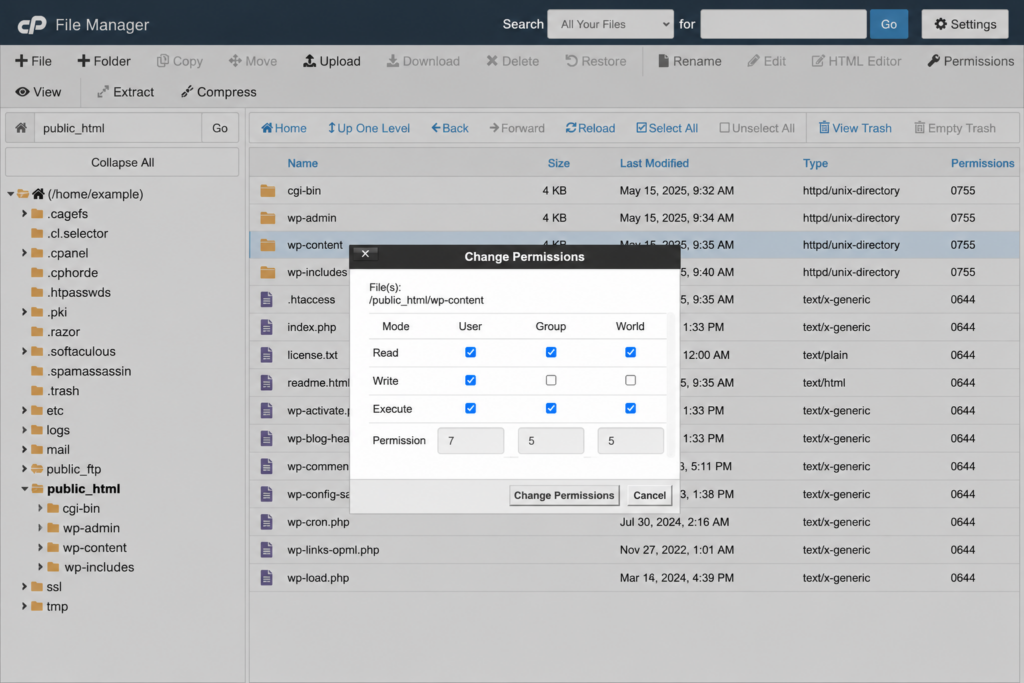
Log in to cPanel, open File Manager, and navigate to your WordPress folder. Right-click any file or folder, choose Change Permissions (or Permissions), and you’ll see checkboxes for read/write/execute across owner/group/others, plus the numeric value. Set it and save. Best for fixing one or a few items.
Via FTP (FileZilla)
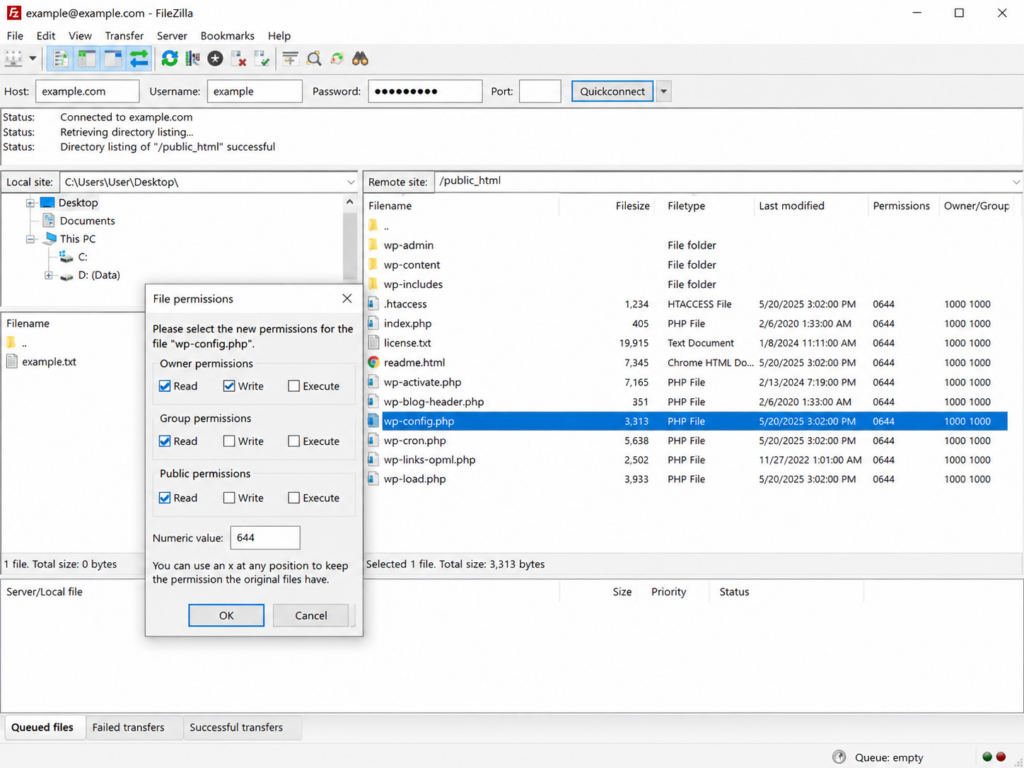
Connect with an FTP client, right-click a file or folder, and choose File Permissions. Enter the numeric value (e.g. 644) or use the checkboxes. FileZilla can also apply recursively — and here’s the key detail: when recursing, choose “Apply to files only” when setting 644, and “Apply to directories only” when setting 755. Never apply 644 to directories (it removes the execute bit they need) or 755 to files.
Via SSH (fastest for a whole site)
If your plan includes SSH access, the command line fixes an entire installation in seconds. Connect and navigate to your WordPress root, then run these two commands — the first sets all directories to 755, the second all files to 644:
find . -type d -exec chmod 755 {} \;
find . -type f -exec chmod 644 {} \;
Then secure wp-config.php separately (the bulk command set it to 644 along with everything else):
chmod 400 wp-config.phpThat’s it — three commands and your whole installation has correct, secure permissions. (In the chmod number, the same 4/2/1 logic applies: chmod 644 means owner read+write, others read.)
Permissions vs. ownership: the part everyone misses
Here’s the subtlety that breaks most permission fixes: permissions and ownership are two different things. Permissions say what the owner, group, and others can do. Ownership says which identity a given process counts as.
The classic symptom: your permissions are textbook-correct, but when you try to install a plugin or update WordPress from the dashboard, it asks you to “enter your FTP credentials.” That’s not a permissions problem — it’s an ownership mismatch. The PHP process is running as a different user than the one that owns your files, so it can read them (via the “others” bit) but can’t write to them.
The fix isn’t to loosen permissions to 777. It’s to align ownership so the user running PHP matches the file owner. On shared or managed hosting you usually can’t change ownership yourself — contact your host and ask them to verify that the PHP process user matches the file owner. On cPanel, hosts have a “Fix File Ownership” tool that resolves this automatically. This is why two sites with identical permissions can behave differently: the ownership underneath is different.
After an FTP upload, re-check your permissions
One practical gotcha: many FTP clients upload files with the wrong permissions by default (sometimes even 755 or 777). After any manual upload or FTP-based deployment, it’s worth re-running the find + chmod commands above to normalize everything back to 644 for files and 755 for directories — then re-locking wp-config.php. This keeps a careless upload from silently loosening your security.
On Copahost, WordPress is installed with correct permissions and ownership from the start, with cPanel, FTP, and SSH access to adjust them — plus support that can fix an ownership mismatch when the dashboard asks for FTP credentials.
See web hosting plansFrequently asked questions
What are the correct file permissions for WordPress?
Directories should be 755 and files should be 644. The wp-config.php file should be stricter — 400 or 440 — because it holds your database credentials. These are WordPress.org’s official recommendations and work on most hosts.
Why should I never use 777 permissions?
777 gives read, write, and execute access to everyone on the server, including other users and any compromised process. It’s exploited in most WordPress file-upload attacks. If something only works at 777, the real issue is usually file ownership, not permissions.
How do I change file permissions in WordPress?
Use your hosting File Manager (right-click, Change Permissions), an FTP client like FileZilla (right-click, File Permissions), or SSH with the chmod command. Over SSH you can fix an entire site with two find commands: 755 for directories and 644 for files.
Why does WordPress ask for FTP credentials when I install a plugin?
That’s an ownership mismatch, not a permissions problem. The PHP process runs as a different user than the one that owns your files, so it can’t write to them. The fix is to align ownership (ask your host), not to set files to 777.
What permission should wp-config.php have?
400 or 440 — more restrictive than the default 644. This file contains your database username, password, and security keys, so it should be readable only by the owner. If WordPress can’t read it after setting 400, try 440 or 444 depending on your host’s setup.
Related guides
File permissions connect to several WordPress topics — see our guides on the wp-config.php file, the wp-content folder, the .htaccess file, and our hub of common WordPress errors.
Conclusion
WordPress file permissions come down to a short, memorable rule: 755 for directories, 644 for files, and lock down wp-config.php to 400 or 440 — and never, ever 777. Understand that the numbers are just sums of read (4), write (2), and execute (1) for owner, group, and others, and the whole system stops being mysterious. If your permissions look right but WordPress still asks for FTP credentials or can’t write files, look to ownership rather than loosening permissions. Set them once, correctly, re-check after uploads, and you’ve closed one of the most common security gaps on a WordPress site.
