
A plugin that suddenly stops working — or takes your whole site down with it — is one of the most common WordPress headaches. The cause is almost always one of a few things: a conflict with another plugin, theme, or WordPress version; an outdated or poorly coded plugin; or a server limit like memory. The good news is that the fix follows a reliable, systematic process. This guide walks through how to diagnose exactly which plugin is failing and why, how to fix it, and what to do when the problem has locked you out of your dashboard entirely.
Before deactivating, updating, or deleting plugins, make a full backup of your site (files and database). Troubleshooting involves changes that can occasionally make things worse — a backup means you can always get back to where you started. If possible, test on a staging site rather than your live one.
Why a WordPress plugin stops working
Plugins are written by thousands of different developers, while WordPress itself is constantly updated — so it’s almost inevitable that something clashes eventually. The usual causes:
- A plugin conflict. Two plugins try to use the same function, script, or database element in incompatible ways, and one (or both) breaks. This is the single most common cause.
- An outdated plugin. A plugin that hasn’t kept up with the current WordPress or PHP version starts misbehaving, or stops working after a core update.
- A theme conflict. Sometimes what looks like a plugin problem is really the theme clashing with it.
- A server resource limit. A plugin that needs more memory or execution time than your server allows can fail silently or trigger errors.
- A bad update or incomplete install. An update that didn’t finish, or files that didn’t upload fully, can leave a plugin broken.
Some combinations are near-guaranteed to clash because both plugins try to do the same job. If you’re running any of these pairs, that’s very likely your problem — keep only one of each:
- Two caching plugins (e.g. WP Rocket + LiteSpeed Cache)
- Two SEO plugins (e.g. Yoast + Rank Math) — they fight over the same meta tags
- Two security plugins running firewalls at once
- A page builder + a separate minifier (the minifier often breaks the builder’s CSS/JS)
The symptoms vary just as much: a feature quietly stops working, the site shows a white screen or critical error, the layout breaks, or you get locked out of wp-admin. Because the same conflict can produce different errors, the trick isn’t to guess from the symptom — it’s to work through the process below.
First, the quick checks
Before the full process, rule out the simple stuff — these solve a surprising number of cases in seconds:
- Clear your caches. A cached page can keep showing a broken state after it’s actually fixed. Clear your browser cache and your caching plugin (see our guide to cache plugins), then recheck.
- Try a different browser or an incognito window, to rule out a browser-side issue.
- Update everything. Go to Dashboard → Updates and update the plugin, your other plugins, the theme, and WordPress core. A plugin “not working” is very often just one that needs an update — developers ship fixes constantly.
If none of those resolve it, move on to isolating the plugin.
How to find the plugin causing the problem
The core technique is simple: deactivate all plugins, then reactivate them one at a time, checking your site after each. When the problem returns, the plugin you just reactivated is the culprit.
If you can still reach your dashboard:
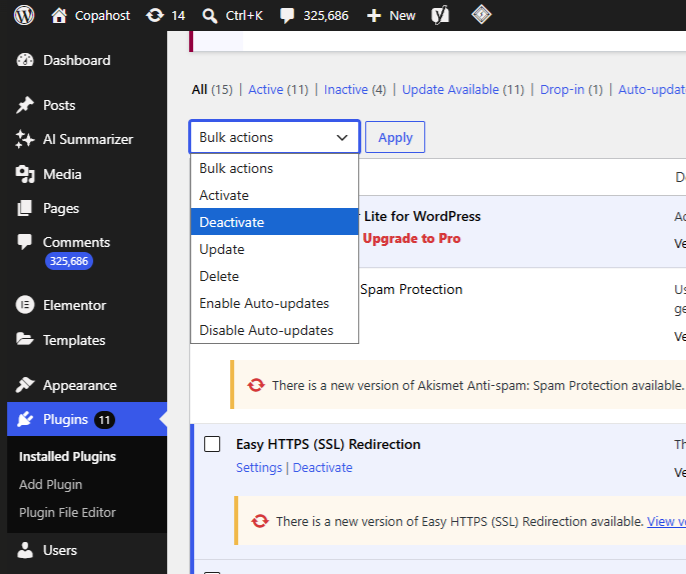
- Go to Plugins → Installed Plugins.
- Select all plugins with the top checkbox, choose Deactivate from the Bulk Actions dropdown, and click Apply.
- Check your site. If the problem is gone, a plugin was the cause.
- Reactivate the plugins one by one, checking the site after each. When the error reappears, the last plugin you activated is the one causing it.
- Note it, then deactivate it again to confirm the site recovers.
The free Health Check & Troubleshooting plugin lets you disable plugins and switch themes for your session only — so you can run this whole process without taking the site offline for visitors. It’s the safest way to troubleshoot a live site.
Rule out a theme conflict
If deactivating every plugin doesn’t fix it, the theme may be involved. Temporarily switch to a default WordPress theme (like Twenty Twenty-Four) under Appearance → Themes. If the problem disappears, it’s a theme conflict — the plugin and your theme don’t get along. If it persists even on a default theme with all plugins off, the issue is likely elsewhere (core, server, or the database).
Check your PHP version
One of the most common — and most overlooked — reasons a plugin breaks is a PHP version mismatch. Every plugin has a minimum (and tested) PHP version, and WordPress runs on PHP under the hood. If your host recently updated PHP, or your server is running an old version, a plugin can suddenly stop working or throw a fatal error even though nothing else changed.
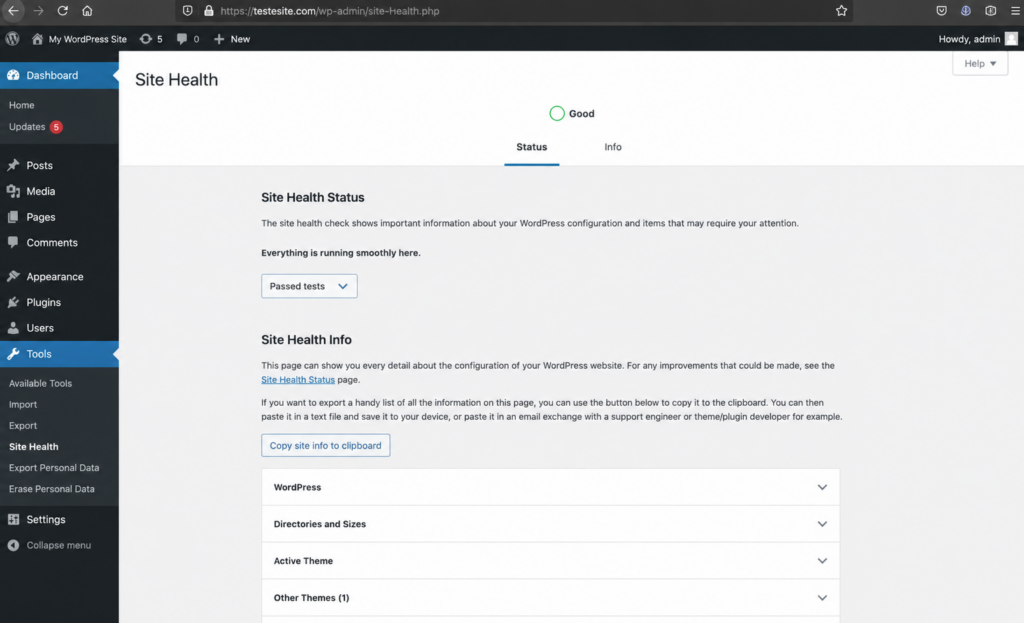
To check: open the plugin’s page on WordPress.org and look at “Requires PHP” and the tested version range. Then compare it to your site’s PHP version — you’ll find it under Tools → Site Health → Info → Server, or in your hosting panel.
If they don’t match, the fix is usually to change your PHP version in your hosting control panel (on Copahost, through cPanel’s “MultiPHP Manager”). Upgrading to a current, supported version (PHP 8.1 or 8.2 are the modern standard) fixes most cases and is better for security and speed. Only downgrade PHP as a temporary, last-resort measure, and ask your host if you’re unsure — after any change, clear your caches and retest.
Related to server resources: heavy plugins like page builders and WooCommerce need more memory than a basic blog. If a resource-hungry plugin fails or behaves erratically, your site may be hitting its PHP memory limit — modern builders often need 256MB or more. See our guide on the WordPress memory limit to raise it.
Check for JavaScript conflicts
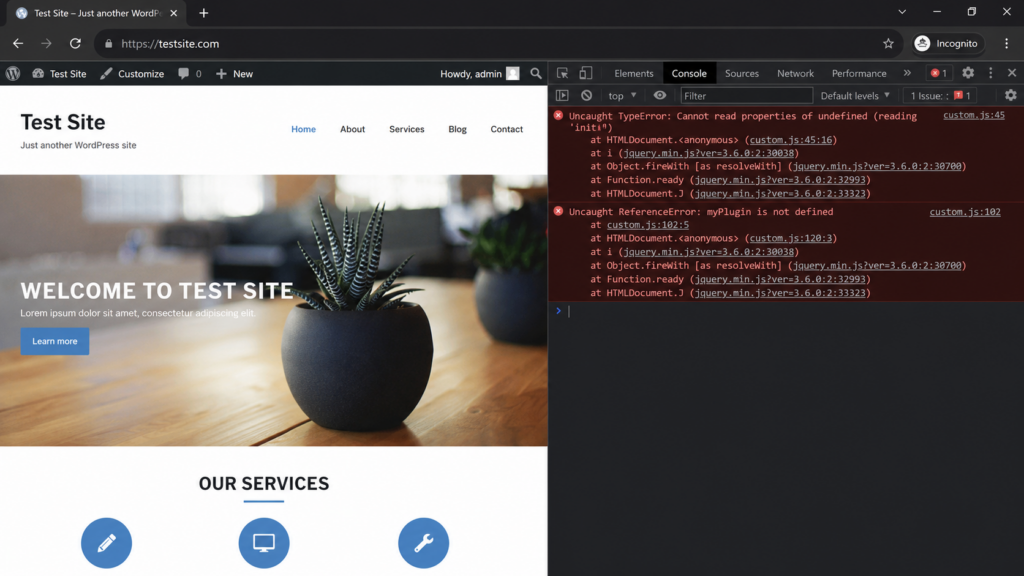
Not every plugin failure is a PHP problem. Many modern plugins rely on JavaScript for their front-end features — sliders, forms, popups, dynamic widgets. When two plugins load conflicting scripts (for example, different versions of the same library, like jQuery), the plugin’s front-end features stop working even though the plugin is still active and shows no error in the dashboard. This is a common but easy-to-miss cause.
To spot it, open the page where the feature is broken, then open your browser’s developer tools (press F12) and click the Console tab. JavaScript errors appear there in red. Messages like “Cannot read property of undefined” or “$ is not a function” point to a script conflict. Note the error and the file it names — it usually identifies the plugin — and share it with the plugin’s developer, who can often fix it or tell you how to load the script only where it’s needed.
If you use a CDN or Cloudflare, it can occasionally interfere with plugins too — especially those handling forms, payments, or dynamic content — by caching or altering how their scripts load. If a plugin misbehaves only in production (not on a staging site without the CDN), try purging the CDN cache, or temporarily pausing it, to see if that’s the cause.
What to do when you’re locked out of wp-admin
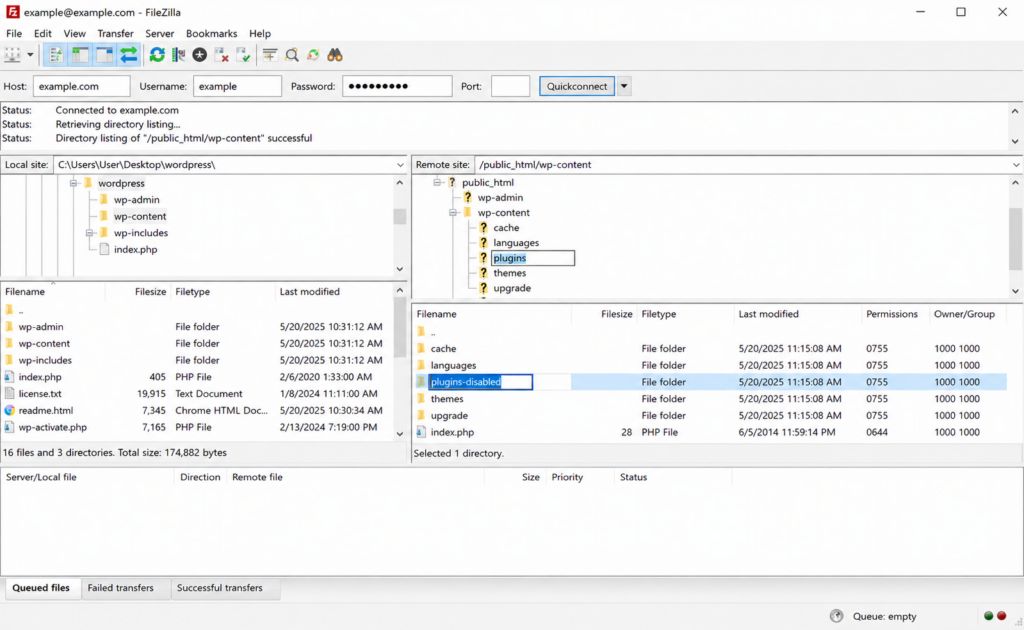
Sometimes the plugin problem takes down the dashboard itself, so you can’t deactivate anything the normal way. You can still disable plugins through your files, via FTP or your cPanel File Manager:
- Connect and go to the
/wp-content/folder. - Rename the
pluginsfolder to something likeplugins_old. This instantly deactivates all plugins, and you should be able to log back into wp-admin. - Rename it back to
plugins. Your plugins reappear in the dashboard, deactivated. - One related lockout: if a plugin update was interrupted, your site can get stuck showing “Briefly unavailable for scheduled maintenance.” That’s caused by a leftover file named
.maintenancein your WordPress root folder. Connect via FTP or File Manager, delete that.maintenancefile, and the site comes back immediately. - Now reactivate them one by one as above to find the culprit.
To disable just one suspected plugin instead of all of them, rename only that plugin’s individual folder inside /wp-content/plugins/ (for example, akismet to akismet-old).
Once you’ve found the culprit
When you know which plugin is at fault, you have a few options, in order of preference:
- Update it. If you hadn’t already, check for an update — the fix may exist. If a recent update caused the problem, you can roll back to the previous version with a plugin like WP Rollback.
- Check its settings. Some conflicts, especially with caching or optimization plugins, come from configuration rather than the plugin itself. Their docs often list exclusions to fix known clashes.
- Contact the developer. Report the conflict on the plugin’s support forum — it may be a known issue with a patch coming, or something they can help with directly.
- Replace it. If the plugin is abandoned or the developer can’t help, find a better-maintained alternative in the WordPress.org plugin directory.
- Delete it. If you don’t actually need it, remove it — fewer plugins means fewer conflicts.
- Reinstall it cleanly. If the plugin’s files were corrupted by an interrupted update, a fresh install fixes it. Deactivate and delete the plugin, then reinstall it from Plugins → Add New. Don’t worry — your settings are stored in the database, not in the plugin files, so deleting and reinstalling almost always preserves your configuration.
Use debug mode to pinpoint the error
If you want to know why a plugin is failing, not just which one, enable WordPress debug mode. With WP_DEBUG and WP_DEBUG_LOG on, WordPress records the exact PHP error — including the file and line — in a debug.log file. A fatal error will usually name the plugin’s own file, confirming the culprit and often revealing the specific cause (a deprecated function, a memory limit, a missing dependency). It’s the difference between guessing and knowing.
How to prevent plugin problems
Most plugin trouble is avoidable with a few habits:
- Keep everything updated — plugins, theme, and core. Most conflicts come from something being out of date.
- Choose plugins carefully. Before installing, check the active installs, recent update history, reviews, and whether it’s tested with your WordPress version. Well-maintained plugins from reputable developers rarely cause problems.
- Don’t over-install. Every plugin is a potential conflict. Use only what you need, and delete what you don’t.
- Use a staging site to test updates and new plugins before applying them live.
- Back up regularly, so a bad plugin is never a disaster.
Copahost includes automatic backups, cPanel and FTP access, and support that helps when a plugin takes your site down. Test plugins safely and recover in a click if something breaks.
See web hosting plansFrequently asked questions
Why did my WordPress plugin suddenly stop working?
Usually a conflict with another plugin, the theme, or a new WordPress/PHP version — or the plugin is outdated. Updates are the most common trigger: a core or plugin update can expose an incompatibility that wasn’t there before. Start by updating everything, then deactivate plugins one by one to find the cause.
How do I find which plugin is causing a problem?
Deactivate all your plugins, confirm the problem is gone, then reactivate them one at a time, checking your site after each. When the error returns, the last plugin you reactivated is the culprit. The free Health Check & Troubleshooting plugin lets you do this without affecting live visitors.
How do I deactivate a plugin if I can’t access wp-admin?
Connect via FTP or your hosting File Manager, go to /wp-content/, and rename the “plugins” folder to “plugins_old”. This deactivates all plugins and lets you log back in. To disable just one plugin, rename only its folder inside /wp-content/plugins/.
Why does a plugin work on one site but not another?
Because the environment differs — different themes, other plugins, WordPress or PHP versions, or server limits like memory. A plugin that conflicts with a specific other plugin will only fail where both are active. Debug mode helps identify the exact clash.
Can too many plugins break my site?
Not the number itself, but more plugins means more chances for a conflict, and can strain server resources. Use only the plugins you need, keep them updated, and remove any you don’t use to keep the site stable and fast.
Related guides
Plugin problems overlap with several other issues — see our guides on the white screen of death, the critical error, WordPress debug mode, the memory limit error, and our hub of common WordPress errors.
Conclusion
A WordPress plugin not working feels alarming, but the fix is almost always methodical, not mysterious. Back up first, run the quick checks (cache, updates), then deactivate all plugins and reactivate them one by one to find the culprit — using the Health Check plugin to keep your live site safe, or FTP if you’re locked out. Once you’ve found it, update it, check its settings, contact the developer, or replace it. Turn on debug mode when you want the exact cause. And prevent the next one with the basics: keep everything updated, choose plugins carefully, and back up regularly. Work the process and even a site-down plugin failure becomes a routine fix.
