
Table of Contents
What is the 404 error code?
The 404 error code, also known as “404 Not Found,” is an HTTP status code that indicates the requested resource or webpage could not be found on the server. It is one of the most common and recognizable error codes encountered while browsing the web.
When you encounter a 404 error, it means that the server was successfully contacted, but it could not locate the specific resource you requested. This could occur due to various reasons, such as:
- Mistyped URL: If you entered the URL incorrectly, the server will not find the corresponding resource and respond with a 404 error.
- Deleted or moved resource: The resource you are trying to access may have been deleted or moved to a different location on the server. As a result, the server cannot find the requested resource and returns a 404 error.
- Broken links: If you clicked on a link from a webpage or search engine result that points to a non-existent or outdated resource, you will receive a 404 error when attempting to access it.
When you encounter a 404 error, it’s generally recommended to check the URL for any typos or errors. You can also try refreshing the page or clearing your browser cache to ensure you’re not loading a cached, outdated version of the webpage. If the error persists, it’s likely an issue with the availability or location of the requested resource on the server.
Similar codes exist for other situations: 500 (Internal Server Error) when the server itself fails, and 403 when access is denied. Our complete HTTP status code reference covers all of them.

How the 404 error code looks in the browser
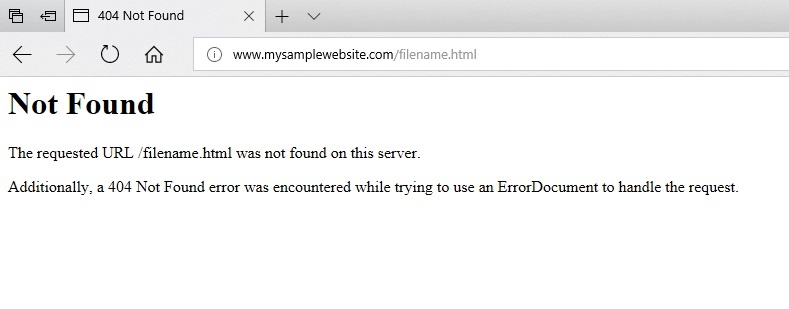
This is how the message is presented by default. There are methods to customize the 404 error page. Is shows the error 404 texts like in the image:
If you’re a visitor: what to do
Four steps, in order, and the first two resolve most cases.
Check the URL for typos. The most common cause by far. Look especially for a missing letter, a doubled slash, or a link that got truncated when pasted from a chat or email.
Try the site’s own search. If the page moved rather than disappeared, searching the site for a few words of what you wanted usually finds it. Google works too: site:example.com your keywords.
Reload once, and clear the cache if it persists. A cached redirect can send you to a page that no longer exists. Ctrl+Shift+R (or Cmd+Shift+R on Mac) forces a fresh load.
Look for the page in the Wayback Machine. If the content is genuinely gone, web.archive.org often still has a copy. This is the step most guides omit, and the one that actually recovers what you were looking for.
What won’t help: flushing DNS, changing resolvers, or restarting your router. A 404 means the server answered you correctly — it just has nothing at that address. Network fixes address a different class of error entirely.
If you own the site: what to do
The order matters here, because the first step tells you whether there’s anything to fix at all.
1. Decide whether the URL should exist
Not every 404 is a problem. A page you deliberately deleted should return 404 — that’s the correct response, and leaving it is the right call. Fix the ones that are mistakes, not the ones that are accurate.
2. If the page moved, add a 301 redirect
Point the old URL at the closest equivalent page — not the homepage. Google treats homepage redirects for missing content as soft 404s, and visitors find them disorienting. Our guide on how to redirect a URL covers the methods, and on WordPress the Redirection plugin handles it from the dashboard.
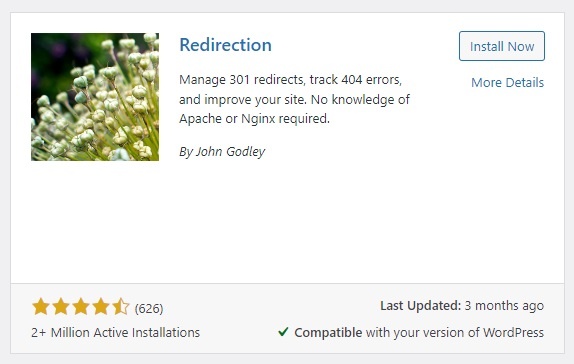
After installing the Redirections plugin, you must Add a new entry for each page that moved.
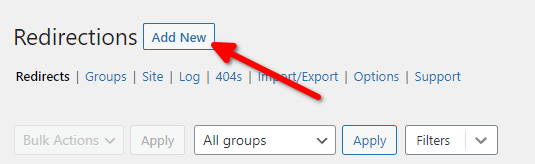
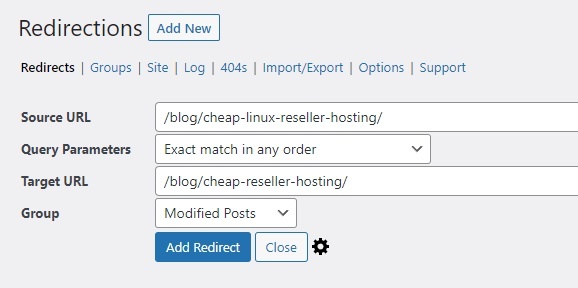
Now, just place the Source URL (which is the URL that is showing Error 404). Also set the Target URL, which is the correct URL for the content.
3. If it’s WordPress and every page 404s except the homepage
It’s the permalink rewrite rules. Go to Settings → Permalinks and click Save without changing anything — that regenerates the .htaccess rules. This is the single most common WordPress 404, and it happens frequently after a migration or a server change.
4. If a specific file is missing, upload it
For a static site, files go in public_html; on WordPress, in the correct theme or plugin folder. Check the path carefully — on Linux, Images/logo.png and images/logo.png are different files, and a case mismatch produces a 404 that looks inexplicable.
5. Check your .htaccess for a rule catching the URL
A malformed RewriteRule can send valid requests nowhere. Comment out custom rules one at a time to isolate the culprit. Our guide on .htaccess covers the syntax.
6. Rule out a plugin or theme conflict
On WordPress, a plugin that rewrites URLs can break routing. Deactivate plugins one at a time from Plugins → Installed plugins, testing after each. If you can’t reach the dashboard, rename the plugins folder via FTP — WordPress deactivates what it can’t find.
7. Customise your 404 page
A page with your navigation, a search box and links to popular content recovers visitors who would otherwise leave. Our guide on creating a custom 404 page shows how to set it through .htaccess or a WordPress theme template.
Causes for the error 404 in WordPress
In WordPress, the 404 error can occur due to several reasons. Here are some common causes for the 404 error in WordPress:
- Permalink issues: WordPress uses a feature called “Permalinks” to create user-friendly and search engine optimized URLs. If the Permalinks settings are misconfigured or the .htaccess file (which handles URL rewriting) is not properly set up, it can lead to 404 errors when accessing posts, pages, or other content.
- Deleted or unpublished content: If you or someone with administrative privileges has deleted a page or post, or if the content was never published in the first place, attempting to access that specific URL will result in a 404 error.
- Plugin or theme conflicts: Sometimes, conflicts between plugins or themes can cause issues with URL routing, resulting in 404 errors. It may occur when a plugin or theme tries to modify or handle URLs in a way that conflicts with WordPress core functionality.
- Incorrectly configured redirects: If you have set up redirects using a plugin or a server-level redirect configuration, incorrect or misconfigured redirects can lead to 404 errors when attempting to access certain URLs.
- File permission issues: In some cases, incorrect file permissions on the server can prevent WordPress from accessing or serving the requested content, resulting in 404 errors.
- Caching-related issues: If you are using a caching plugin or server-level caching mechanisms, outdated or misconfigured cache settings can cause 404 errors when trying to access updated content.
How to find the 404s on your own site
You can’t fix what you can’t see, and 404s stay invisible until someone complains.
Google Search Console — free and authoritative. Under Pages → Not found (404), you get every URL Google tried and failed to fetch. Cross-reference with Performance: a URL that had impressions and now 404s is your priority.
Your server’s access log — it shows every failed request, including the ones Google never tried. On cPanel, the raw access logs are downloadable. On a VPS:
grep ' 404 ' /var/log/nginx/access.log | awk '{print $7}' | sort | uniq -c | sort -rn
That lists the most-requested missing URLs, ordered by how often people ask for them.
A crawler — Screaming Frog (free up to 500 URLs) or a plugin like Broken Link Checker finds internal links pointing nowhere. Those are the 404s you’re causing yourself, and the easiest to fix.
Which to fix first: URLs with backlinks or traffic, then internal links, then everything else. A 404 nobody requests costs nothing.
Do 404 errors hurt your SEO?
Not directly, and this is one of the most persistent myths in SEO. Google’s position is explicit and has been repeated for years: 404 errors are a normal part of the web and do not cause a ranking penalty. Pages disappear, URLs change, and people mistype links — search engines expect that. A site with 404s is not penalised for having them.
What can hurt you is what happens around the 404:
- Soft 404s are worse than real ones. If a missing page returns a 200 status with a “not found” message, or redirects to your homepage, search engines can’t tell the content is gone. Google flags these as soft 404s, and they’re genuinely problematic — unlike an honest 404.
- Lost link equity. If a page that had backlinks starts returning 404, the authority those links passed is lost. This is the real SEO cost, and the fix is a 301 to the closest equivalent page — not to the homepage.
- Wasted crawl budget, but only on very large sites. For a site with a few hundred pages, this is irrelevant.
- User experience and conversions. A visitor who hits a 404 usually leaves. That’s a business cost, not a ranking one.
So the practical rule: don’t panic about 404s in Search Console, and don’t mass-redirect them to your homepage. Redirect the ones that had traffic or backlinks to a relevant page, leave genuinely dead URLs returning 404, and make sure your 404 page helps people find their way.
Our full guide on 404 errors and SEO covers soft 404s, when to use 410 instead, and how to triage the list in Search Console.
Other uncommon possible causes for this error
Not only problems with the server or files can cause such error. Client-side issues can also be a possible cause. For example, infected clients with spyware or viruses can have their URL’s automatically redirected. There are also spywares that can change your hosts file, overlapping your provider’s DNS servers. This can redirect your navigation to other external sites, throwing 404 errors.
Browser caches can also cause this issue. Some older browsers used to keep caches for a long time so that users needed to clear them actively. Today’s browsers have better cache control, and this possible cause isn’t as common as it was in the past.
Another possibility is a delay in DNS propagation. Delays in DNS servers to update their records can also point your website’s IP address to a wrong or outdated web server.
Frequently Asked Questions
What does error 404 mean?
It means the server was reached successfully but could not find the requested page or file. The 404 status code is part of the HTTP specification and indicates a client-side error: the request was understood, but the resource does not exist at that address.
What causes a 404 error?
The most common causes are a mistyped URL, a page that was deleted or moved without a redirect, and a broken link pointing to content that no longer exists. On WordPress specifically, misconfigured permalinks, plugin conflicts and incorrect redirect rules are frequent culprits.
What should I do as a visitor when I get a 404?
Check the URL for typos first, since that’s the most common cause. Then try the site’s own search, or a Google search restricted to that domain with site:example.com. Force a fresh reload to rule out a cached redirect. And if the content is genuinely gone, the Wayback Machine at web.archive.org often still has a copy.
Will flushing DNS fix a 404 error?
No. A 404 means the server answered you correctly and found nothing at that address, so DNS worked fine. Flushing the cache, changing resolvers or restarting the router address a different class of error — one where the server is unreachable, rather than reachable and empty.
Do 404 errors hurt my SEO?
Not directly. Google has stated repeatedly that 404 errors are a normal part of the web and do not cause a ranking penalty. What does cause damage is losing the link equity of a page that had backlinks, or returning soft 404s — pages that respond with a 200 status while showing “not found” content. See our guide on 404 errors and SEO for the full picture.
Should I redirect all 404 pages to my homepage?
No. Google treats homepage redirects for missing content as soft 404s, and visitors find them confusing. Redirect only the URLs that had traffic or backlinks, and send each to the closest equivalent page. URLs with no relevant replacement should keep returning an honest 404.
Why do all my WordPress pages return 404 except the homepage?
This is almost always the permalink rewrite rules. Go to Settings, then Permalinks, and click Save without changing anything — that regenerates the .htaccess rules. It’s the single most common WordPress 404, and it happens frequently after a migration or a server change.
How do I find the 404 errors on my own site?
Google Search Console lists them under Pages → Not found (404). Your server access log shows every failed request, including the ones Google never tried. And a crawler such as Screaming Frog, or a plugin like Broken Link Checker, finds internal links pointing nowhere. Fix the URLs with backlinks or traffic first.
How do I fix 404 errors reported in Google Search Console?
Check whether each URL should exist. If the page moved, add a 301 redirect to the new address. If it was deleted intentionally, leaving the 404 is correct — you don’t need to fix it. If the URL is valid and should work, the problem is on your site, not in Search Console.
Can I customise the 404 error page?
Yes, and you should. A custom page with your navigation, a search box and links to popular content recovers visitors who would otherwise leave. It can be set through your .htaccess file or, on WordPress, through your theme’s 404 template.
Is a 404 error a server problem?
No. A 404 is a client-side error: the server is working correctly and answering your request — it just has nothing at that address. Server-side failures return codes in the 500 range instead, such as 500 Internal Server Error or 502 Bad Gateway.
Finding the 404s on your own site starts with the server log — and plenty of hosts don’t give you one. Copahost plans include full access and error logs, cPanel to manage redirects and custom error pages, free SSL, and support that reads the log with you when the answer isn’t obvious.
See hosting plansConclusion
A 404 means the server looked for a file and didn’t find it. Sometimes the fix really is uploading the missing file, but more often — especially in WordPress — the cause is a permalink configuration, a plugin conflict, or a redirect pointing at the wrong place. Work through the causes in order, and remember that a 404 on its own isn’t an SEO emergency: what matters is redirecting the URLs that had traffic or links, and leaving the rest to return an honest 404.
