
URL redirection is widely used for several reasons. There are many tools that help us make a simple and effective URL redirect. In this article, we will show some examples. If you wish to redirect the whole domain (any folder and page on it), then we recommend this article.
For SEO purposes, we always recommend using 301 Redirects (Permanent).
Table of Contents
What is URL forwarding?
URL forwarding is a technique that automatically sends visitors from one web address to another. When someone opens the original (source) URL, they’re taken straight to the destination URL instead — usually without doing anything themselves. It’s what lets an old page, a retired domain, or a short marketing link point to wherever your content actually lives now.
You’ll see two terms used for this, often interchangeably: URL forwarding and URL redirect. In everyday use they mean the same thing. The slight nuance is that “forwarding” is the word registrars and domain panels tend to use (especially for pointing a whole domain somewhere else), while “redirect” is the more technical term used at the server level, with specific status codes like 301 and 302. For practical purposes, forwarding and redirecting describe the same outcome: a visitor lands on URL A and ends up on URL B.
If your goal specifically is to force HTTPS across your whole site, see our dedicated guide on how to redirect HTTP to HTTPS.
301 vs 302: permanent and temporary redirects
Every redirect carries a status code that tells browsers and search engines why the address changed. The two that matter are 301 (permanent) and 302 (temporary), and choosing the right one has real SEO consequences.
| 301 — Permanent | 302 — Temporary | |
|---|---|---|
| Meaning | The page has moved for good | The page is away only for now |
| SEO value passed | Passes almost all ranking value to the new URL | Passes little to no ranking value |
| What search engines do | Index the new URL and drop the old one | Keep the old URL indexed as the main one |
| Use it when | Changing domains, merging or retiring pages | Seasonal pages, A/B tests, maintenance |
As a rule of thumb: if the move is permanent — you’ve changed domains, merged pages, or retired an old URL for good — use a 301, because it passes almost all of the original page’s ranking value to the new one. Use a 302 only when the change is genuinely temporary, like sending visitors to a seasonal landing page or a maintenance notice you’ll remove later. Using a 302 for a permanent move is a common mistake that can cost you rankings, since search engines keep treating the old URL as the “real” one.
While 301 and 302 cover almost every case, they aren’t the only redirect status codes. A few others show up in technical setups, and they’re worth knowing if you want full control over how a redirect behaves:
In short, 301 and 302 are what you’ll use day to day. The 307 and 308 codes are stricter, modern equivalents that guarantee the request method (like a form submission) is preserved, while a “URL frame” isn’t a real redirect at all — it’s just another name for masking, which we cover below.
Standard forwarding vs. URL masking (cloaking)
There are two ways a forward can behave in the visitor’s browser, and the difference is what they see in the address bar.
With a standard redirect, the address bar updates to show the destination URL. The visitor ends up on newsite.com and the bar reads newsite.com — clean, honest, and SEO-friendly. This is what a 301 or 302 does.
With URL masking (also called cloaking or framed forwarding), the visitor is shown the destination content but the address bar keeps displaying the original URL. So someone visits oldsite.com, sees the new content, but the bar still reads oldsite.com. Masking is sometimes used to keep a short or branded domain visible, but it comes with downsides: it can break bookmarking and sharing, interfere with HTTPS, and search engines often view it unfavorably. For anything SEO-related, a proper 301 redirect is almost always the better choice than masking.

When to use URL forwarding
URL forwarding solves a surprising number of everyday problems. Here are the most common situations where you’ll want to use it:
Moving to a new domain
Changed your brand or domain name? Forward the old domain to the new one with a 301 so existing links, bookmarks, and search rankings carry over instead of breaking.
www vs. non-www canonical
Pick one version of your address and forward the other to it — for example, send www.yoursite.com to yoursite.com. This avoids duplicate-content issues and keeps your SEO signals on a single URL.
HTTP to HTTPS security
After installing an SSL certificate, forward every http:// request to the secure https:// version, so visitors always load the encrypted, padlock site.
Shortening long links
Turn a long, messy URL into a short, memorable one by forwarding a clean address to it — handy for anything you say out loud, print, or share.
Marketing campaigns
Forward a catchy campaign domain (printed on a flyer, ad, or product) to the actual landing page, so the address is easy to remember even if the real URL is long.
Retiring old pages
Removed or merged a page? Forward its old URL to the closest relevant page with a 301, so visitors and search engines land somewhere useful instead of a 404.
When not to use URL forwarding
Forwarding is the right tool in plenty of situations, but it isn’t always the answer. In a few cases it can actually hurt your visitors or your SEO, and a different approach works better.
When each domain has its own unique content. If you run separate sites that serve different audiences or purposes, forwarding them all to one place backfires — visitors lose the content they were looking for, and you weaken the distinct identity of each brand. Keep them as standalone sites instead.
When you need SEO value to transfer at the page level. Forwarding an entire domain to a single homepage throws away the ranking signals of every individual old page. If those pages had traffic or backlinks, redirect each one to its matching page with a 301 (page-level), rather than funneling everything to the root.
When the content is staying put. If you’re just reorganizing within the same site, you may not need forwarding at all — internal links or a canonical tag are often the cleaner fix for duplicate or moved content within one domain.
When you want to keep the original URL visible for the long term. Masking can hide the destination URL, but it breaks bookmarking and sharing and tends to hurt SEO. If a separate, real website is what you need, build it on its own domain instead of masking a forward.
In short, forwarding is for sending visitors elsewhere. When the goal is to keep distinct sites, preserve page-level SEO, or reorganize within one site, reach for standalone sites, page-level 301s, or canonical tags instead.
Domain forwarding: pointing an entire domain elsewhere
So far we’ve talked about redirecting individual URLs. But a very common need is different: forwarding a whole domain to another address, so that every page on it lands visitors somewhere else. This is called domain forwarding (or domain redirection), and it’s usually set up at the domain or registrar level rather than by editing files on your server.
The classic example is owning more than one domain. Say your main site is mybrand.com, but you also registered mybrand.net and my-brand.com to protect your brand. Instead of building a site on each one, you forward them all to mybrand.com. Anyone who types any of those addresses ends up on your real site, and you keep your whole presence under a single domain.
When domain forwarding is the right tool
Domain forwarding is the simplest option whenever the redirect applies to the entire domain rather than a single page. Common cases include:
- Brand and typo protection — forward alternate spellings and extensions (.net, .org, common misspellings) to your primary domain.
- Rebranding or changing domains — when you move from an old domain to a new one, forward the old domain so existing links and bookmarks still work.
- Short or campaign domains — forward a memorable domain (like one printed on a flyer) to a longer landing-page URL.
- Consolidating multiple sites — point retired or duplicate domains to the one site you actually maintain.
In all of these, you’re sending an entire domain somewhere — not rewriting one path — so doing it at the domain level is far easier than editing .htaccess or PHP on every page.
How domain forwarding works
Domain forwarding is typically configured in one of two places. The first is your registrar or domain control panel, where many providers offer a simple “forwarding” setting: you enter the destination URL, choose permanent (301) or temporary (302), and optionally enable masking. The second is your hosting control panel, such as cPanel, which can redirect a domain at the server level.
Whichever you use, the SEO rules from earlier still apply: for a permanent move, choose a 301 so the destination inherits the original domain’s ranking value, and avoid masking if search visibility matters. Domain forwarding is really just a redirect applied to every URL on the domain at once — the same 301 vs 302 logic holds.
Subdomain and wildcard forwarding
Forwarding isn’t limited to root domains and individual pages — you can also forward subdomains. A common use is turning a subdomain into a clean, branded link to an external profile. For example, you can point
instagram.yoursite.comstraight to your Instagram page, orshop.yoursite.comto your store on another platform. Visitors get a short, on-brand address that’s easy to remember and share, while the destination does the actual work.There’s also wildcard forwarding, which catches any subdomain you haven’t specifically set up and sends it to a single destination. A wildcard is written with an asterisk —
*.yoursite.com— and it means “every subdomain that doesn’t already exist.” So if someone typesblog.yoursite.com,random.yoursite.com, or any other variation you never created, the wildcard forwards them all to your main site instead of showing an error. It’s a simple way to make sure no mistyped or unused subdomain leaves a visitor stranded.Both are usually configured in your registrar or DNS panel, right alongside the domain forwarding settings — and the same 301-vs-302 and masking rules still apply.
Path forwarding: keep or remove the path
When you forward a whole domain, you face one decision that trips a lot of people up: what should happen to the path — the part of the URL that comes after the domain. Most forwarding tools give you two options, and picking the wrong one can send visitors to the wrong place or straight to a 404.
Keep the path
oldsite.com/about→newsite.com/about
oldsite.com/blog/post→newsite.com/blog/postEach page maps to the matching page on the new domain. Use for true site migrations.Remove the path
oldsite.com/about→newsite.com
oldsite.com/blog/post→newsite.comEverything lands on one destination. Use for brand or campaign domains.Keep the path is the right choice for a true site migration, when the old and new sites share the same URL structure. If
oldsite.com/aboutandoldsite.com/blog/postshould becomenewsite.com/aboutandnewsite.com/blog/post, keeping the path preserves every individual link, so no one lands on a missing page.Remove the path is what you want when the destination doesn’t have matching pages — for example, when you’re forwarding a brand-protection domain or a short campaign domain to a single homepage. In that case, every visitor should land on
newsite.comregardless of what they typed, becausenewsite.com/some-old-pathwouldn’t exist anyway.As a rule: keep the path when you’re moving a real site one-to-one, and remove it when you’re funneling an entire domain to one destination.
Setting up domain forwarding step by step
Because forwarding an entire domain has a few specifics of its own — including pointing the domain’s DNS correctly and handling www vs. non-www — we’ve covered the full walkthrough in a dedicated guide. For complete instructions, see our step-by-step article on how to redirect a domain.
If instead you only need to redirect a single page or path, the four methods below are exactly what you want.
Method 1: Redirect URL using cPanel
By this method, you need access to your cPanel control panel. This is maybe the easiest and fastest method.
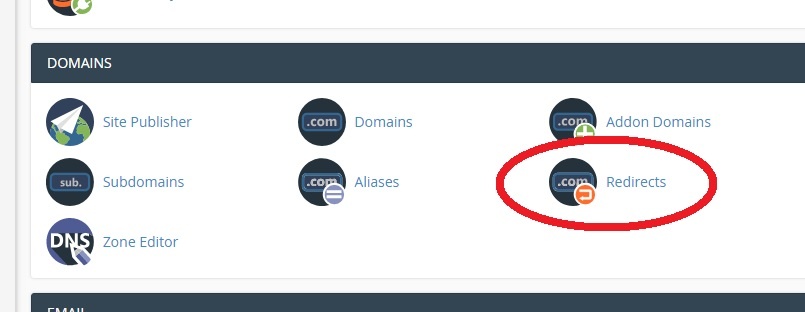
Firstly, access your cPanel control panel. Scroll down and find the Domains – Redirects icon, as shown in the photo. Then, click on it.
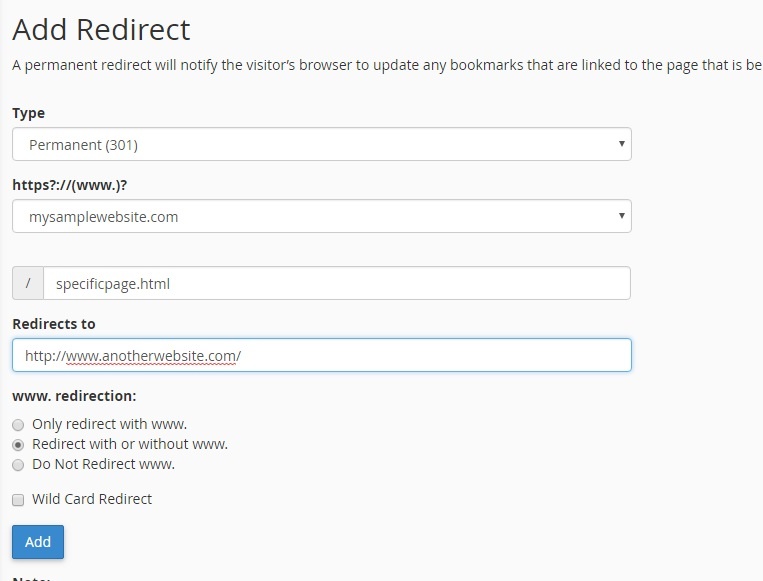
Then, we will explain how to configure the URL redirect in this screen. Firstly, we recommend keeping the field Type as Permanent (301).
Afterward, select the domain name you wish to redirect to outside. For instance, http://mysamplewebsite.com/specificpage.html is our source URL.
Under Redirects to, place the details of the destination URL. For example, we will redirect to http://www.anotherwebsite.com/.
Click Add, and the URL redirect is done! The source URL will redirect to another URL.
Method 2: Redirect via HTML Meta tag
This is the solution about how to redirect a URL when you have FTP (or similar) access to your site. You just need access to edit the HTML files of the source URL you wish to redirect. Simply edit the specific source HTML file, and add this line to your <head> section.
<meta http-equiv="refresh" content="2;url=http://www.anotherwebsite.com/" />Code language: HTML, XML (xml)For example, here’s how the HTML will look like:
<html>
<head>
<meta http-equiv="refresh" content="2;url=http://www.anotherwebsite.com" />
<title>Old page</title>
</head>
<body>
This is the old page that will redirect to the new one
</body>
</html>Code language: HTML, XML (xml)
Method 3: Redirect URL using PHP
Now, by this method, you need FTP access to edit files in your server as well. We will create a PHP file named old.php. Here’s how this file will look like:
<?php
header("Location: http://www.mynewwebsite.com/blog/");
?>Code language: HTML, XML (xml)
This way, whenever we access this specific PHP file, the user will be redirected to our destination site.
We can also use a more complete PHP file, specifying that this is a 301 redirect (permanent). In this case, the PHP file would look like:
<?php
header("HTTP/1.1 301 Moved Permanently");
header("Location: http://www.mynewwebsite.com/blog/");
?>Code language: HTML, XML (xml)
Method 4: Redirect URL using .htaccess
This method consists in editing a file called .htaccess in your server and placing a specific line to make the URL redirection. Please note that the filename .htaccess really contains one “.” on its beginning!
This method requires FTP access to the server so that you can upload files.
Now, edit locally the .htaccess file.
You can choose one of the following code options. We will explain each one:
First alternative, redirect a specific page called /sourcepage.html to another URL:
Redirect 301 /sourcepage.html http://www.mynewdomain.com/
Code language: JavaScript (javascript)
Second alternative, redirect the whole domain to another URL:
Redirect 301 / http://www.mynewdomain.com/
Code language: JavaScript (javascript)
And last, redirect one file to another file, locally, in the same domain:
Redirect 301 /old/path/oldpage.html http://www.currentdomain.com/new/path/newpage.htmlCode language: JavaScript (javascript)Frequently Asked Questions about URL Forwarding
What’s the difference between URL forwarding and a redirect?
What is the difference between URL forwarding and domain forwarding?
Does URL forwarding hurt SEO?
301 redirect passes almost all of the original URL’s ranking value to the destination, so your SEO is preserved. Problems appear when people use a temporary 302 for a permanent move (which keeps search engines focused on the old URL) or rely on masking/cloaking, which search engines tend to view unfavorably. For anything SEO-sensitive, use a 301 and avoid masking.Does a 301 redirect pass link equity to the new URL?
Should I use a 301 or a 302 redirect?
301 for any permanent change — moving domains, merging pages, or retiring a URL for good — because it transfers ranking value to the new address. Use a 302 only when the move is genuinely temporary, like a seasonal landing page or a maintenance notice you’ll remove later. Using a 302 for a permanent move is a common mistake that can cost you rankings.Is URL forwarding free?
Can I forward a URL without hosting?
How long does URL forwarding take to work?
How do I redirect HTTP to HTTPS?
http:// traffic to the secure https:// version of your site. This is typically done with a 301 redirect in your .htaccess file or through a setting in your control panel, so visitors always load the encrypted version with the padlock icon.How do I redirect www to non-www (or the reverse)?
www.yoursite.com to yoursite.com. This prevents duplicate-content issues and keeps all your SEO signals consolidated on a single canonical URL. It’s usually configured in .htaccess or your hosting control panel.