
An SSL certificate is a small digital file installed on a web server that does two things: it encrypts the data exchanged between a website and its visitors, and it verifies the site’s identity. It’s what turns an insecure “http://” connection into a secure “https://” one — and what puts the padlock icon in the browser’s address bar. Today it’s essential for virtually every website.
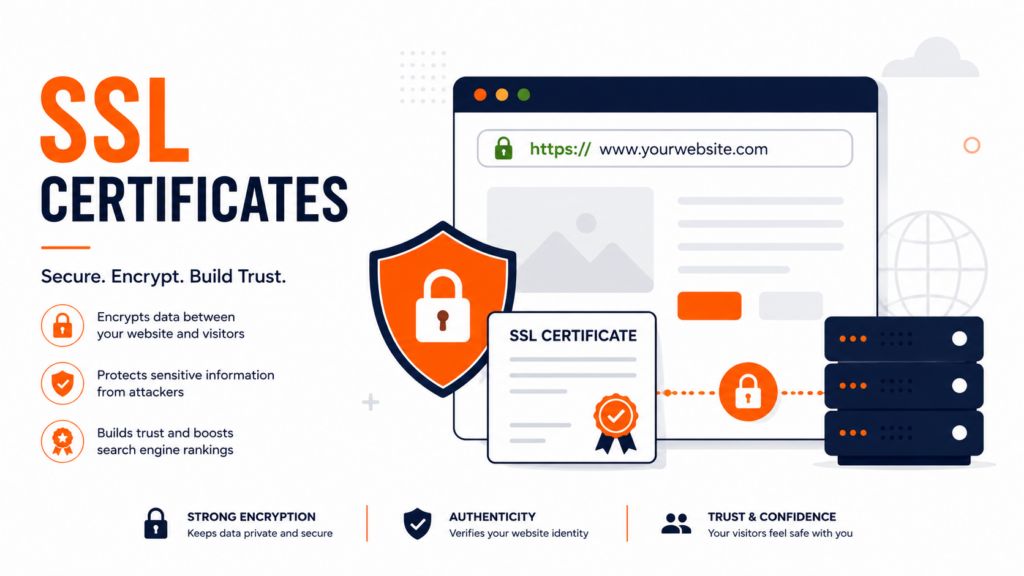
If you’ve ever seen a “Not Secure” warning in your browser, or wondered what that padlock actually means, the answer is the SSL certificate. This guide explains what it is, how it works, the different types, why your site needs one, the important validity changes happening in 2026, and how to get one (often for free). For how it fits into the bigger picture, see our guide on what web hosting is.
Table of Contents
What is an SSL certificate?
An SSL certificate is a digital file installed on a web server that authenticates a website’s identity and enables an encrypted connection between that site and its visitors’ browsers. The name comes from SSL (Secure Sockets Layer), an older security protocol. In practice, modern certificates use TLS (Transport Layer Security), SSL’s more secure successor — but “SSL certificate” stuck as the common term, and both names refer to the same thing today. (For the protocol-level distinction, see our guide on SSL vs TLS.)
The certificate does two jobs at once. Encryption: it scrambles the data traveling between the browser and the server, so that passwords, credit card numbers, and personal details can’t be read if intercepted. Authentication: it proves the website really belongs to who it claims to, issued by a trusted third party. Together, these are what make a connection trustworthy — and what enable the secure HTTPS protocol.
How does an SSL certificate work?
SSL certificates rely on public-key cryptography — a pair of mathematically linked keys. The public key encrypts data and is shared openly; the private key decrypts it and is kept secret on the server. Data scrambled with one can only be unscrambled with the other, which is what keeps it safe in transit.
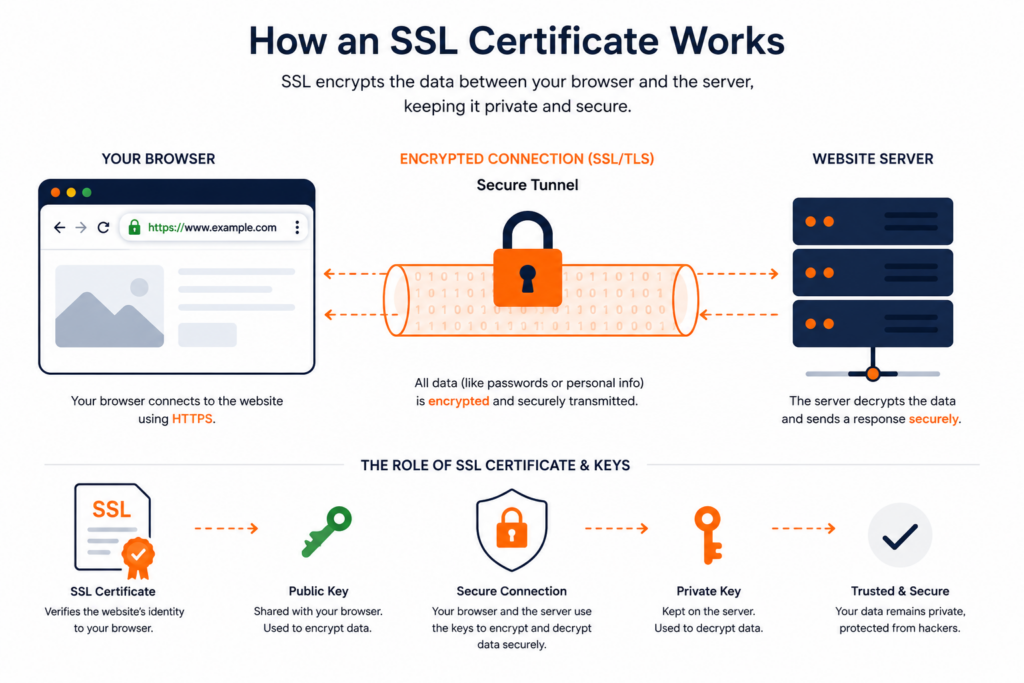
Here’s what happens, simplified, when you visit a secure site (the “TLS handshake”):
The certificate itself is issued by a Certificate Authority (CA) — a trusted organization that verifies the requester’s identity before issuing it. Your browser keeps a list of CAs it trusts; when a site presents a certificate signed by one of them, the browser accepts it and shows the padlock. If a certificate is missing, expired, or untrusted, the browser shows a warning instead. This chain of trust is what makes the whole system work.
One refinement worth knowing: the public/private key pair (known as asymmetric encryption) is actually used only briefly, at the start. Because asymmetric encryption is slow, the handshake uses it just to securely agree on a temporary session key — a single shared key used with faster symmetric encryption for the rest of the conversation. This whole framework of keys, certificates, and trusted authorities is called PKI (Public Key Infrastructure). You don’t need to manage any of this yourself; it happens automatically in milliseconds every time the padlock appears.
SSL certificate types by validation level
Not all certificates verify identity to the same depth. There are three validation levels, and the right one depends on the kind of site:
Domain Validation (DV) is the most basic: the CA only confirms you control the domain, usually through an automated check. It’s issued in minutes, is often free, and is perfect for blogs, personal sites, and small projects. Organization Validation (OV) adds a check of the organization behind the site, offering more trust — common for business sites. Extended Validation (EV) involves the most rigorous vetting of the legal entity, giving the strongest trust signals — typically used by large e-commerce, financial, and enterprise sites. For most websites, a DV certificate (which is what free providers issue) is perfectly sufficient.
SSL certificate types by coverage
Certificates also differ by how many domains or subdomains they protect:
- Single-domain: covers one specific domain (and usually its www version). Ideal for a single site.
- Wildcard: covers a domain and all its subdomains (e.g., blog.yoursite.com, shop.yoursite.com) with one certificate.
- Multi-domain (SAN): covers several different domains with a single certificate, convenient for managing multiple sites together.
There’s also a category worth a quick mention: self-signed certificates. These are certificates you issue yourself, without a Certificate Authority. They provide encryption and are fine for testing, development, or internal/intranet use — but because no trusted CA vouches for them, browsers show a warning for public sites. For any website facing real visitors, you need a certificate from a trusted CA, not a self-signed one.
Which you need depends on your setup — a single site is fine with a single-domain certificate, while someone running many subdomains benefits from a wildcard.
Why your website needs an SSL certificate
An SSL certificate stopped being optional years ago. Today it matters for several concrete reasons:
Security is the core purpose: it protects any data your visitors submit — logins, forms, payments — from interception. User trust comes next: browsers label sites without HTTPS as “Not Secure,” and that warning visibly scares visitors away; the padlock, by contrast, signals safety. There’s a direct SEO benefit: Google uses HTTPS as a ranking signal, so secured sites have an edge. It’s also a requirement for modern features: technologies like HTTP/2 and HTTP/3 (which speed up your site) require a secure connection, and you can’t process online payments without one. In short, every site — even a simple blog — should have one.
How to check if a website has an SSL certificate
You can tell whether any site has a valid SSL certificate in seconds, and even inspect its details:
- Look at the address bar: a URL starting with https:// and a padlock icon means the connection is secured. A “Not Secure” label means it isn’t.
- Click the padlock: your browser shows basic security information and a link to view the certificate.
- View the certificate details: there you can see who it was issued to, the Certificate Authority that issued it, and the validity dates (when it expires).
- Use an online SSL checker: free tools let you enter any domain and see the full certificate details, the issuing chain, and whether anything is misconfigured.
This is useful both for checking your own site after setup and for verifying a site before you trust it with sensitive data.
Common SSL certificate errors
Sometimes a certificate is present but something’s wrong, and the browser shows a warning instead of the padlock. The most common ones:
- “Not Secure” / no certificate: the site has no valid SSL, so the connection isn’t encrypted.
- Expired certificate (e.g.
NET::ERR_CERT_DATE_INVALID): the certificate lapsed and wasn’t renewed — a strong argument for automatic renewal. - Name mismatch: the certificate doesn’t match the domain being visited (for example, it covers
example.combut notwww.example.com). - Protocol error (e.g.
ERR_SSL_PROTOCOL_ERROR): a configuration problem prevents the secure connection from being established. We cover this one in detail in our guide on how to fix the ERR_SSL_PROTOCOL_ERROR. - Untrusted issuer: the certificate was issued by an authority the browser doesn’t recognize (common with self-signed certificates — more on those below).
Most of these come down to renewal, configuration, or coverage — and a quality host that manages SSL automatically prevents the majority of them.
SSL certificate validity and the 2026 changes
Certificates don’t last forever — they expire and must be renewed, which is a security feature (it forces periodic re-validation). This is an area undergoing significant change. Historically, the maximum validity has been gradually shortened, and the CA/Browser Forum (the body that sets the rules) has approved a steep reduction over the next few years:
The practical takeaway: certificate lifespans are getting much shorter, which makes automatic renewal increasingly important. The good news is that most modern hosts and free providers automate renewal entirely, so you don’t have to track expiration dates manually. If you manage certificates yourself, automation is the way to avoid the dreaded “certificate expired” warning that takes a site’s trust down instantly.
How to get an SSL certificate
Getting an SSL certificate is far easier (and cheaper) than it used to be. Years ago they cost around $99 a year; today, free certificates from authorities like Let’s Encrypt have made HTTPS universal. There are a few routes:
The simplest is through your web host: most hosting plans include a free SSL certificate that installs automatically, with nothing for you to configure. This is the path most people use — for example, on a shared hosting plan with free SSL, your site is secured out of the box. If you manage your own panel, you can issue a free Let’s Encrypt certificate in a couple of clicks — we show exactly how in our guide on installing free SSL with Let’s Encrypt in DirectAdmin. For sites needing OV or EV validation, you purchase those from a CA, which runs the additional identity checks before issuing.
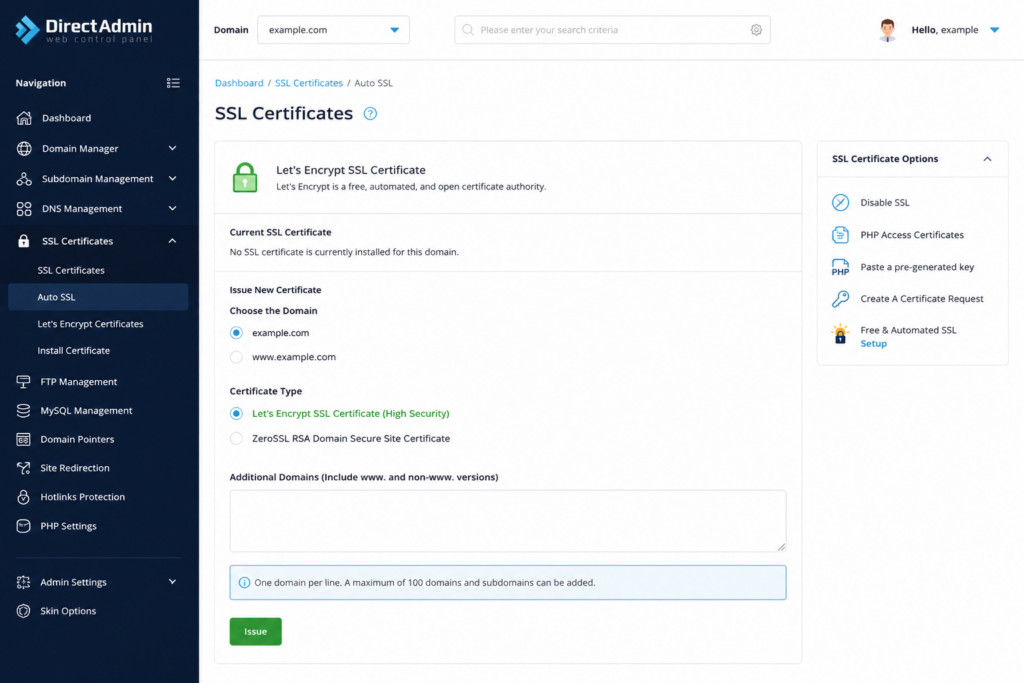
For the vast majority of websites, the free DV certificate that comes with quality hosting is all you’ll ever need.
How to install and verify an SSL certificate
If your host provides SSL automatically, there’s nothing to install — it’s done for you. But if you’re setting one up manually, the process follows a standard sequence:
With free providers like Let’s Encrypt, steps 1–3 are fully automated — the panel generates the CSR, requests the certificate, and installs it in one click. We walk through it in our guide on installing free SSL with Let’s Encrypt in DirectAdmin. It’s also good practice to enable a “force HTTPS” redirect afterward, so visitors who type “http://” are automatically sent to the secure version.
Frequently asked questions about SSL certificates
What is an SSL certificate in simple terms?
It’s a digital file on a web server that encrypts the data exchanged with visitors and verifies the site’s identity. It turns an insecure “http://” connection into a secure “https://” one and produces the padlock icon in the browser. It protects sensitive information like passwords and payment details from being intercepted.
What’s the difference between SSL and TLS?
SSL (Secure Sockets Layer) is the original protocol; TLS (Transport Layer Security) is its newer, more secure successor. Modern “SSL certificates” actually use TLS, but the name SSL stuck out of habit. So when you see “SSL certificate,” it almost always means a TLS certificate in practice. Modern CDNs also handle TLS at the edge — see how in our guide on what a CDN is.
Do I really need an SSL certificate?
Yes, virtually every website needs one today. Without it, browsers label your site “Not Secure,” scaring away visitors; you lose an SEO ranking signal; you can’t process payments; and any data visitors submit is exposed. Even a simple blog benefits from the trust and security an SSL certificate provides.
How much does an SSL certificate cost?
It can be completely free. Authorities like Let’s Encrypt issue free DV certificates, and most hosting plans include free SSL that installs automatically. Paid certificates exist for higher validation levels (OV and EV), used mainly by businesses and large e-commerce sites, but most websites are fully served by a free certificate.
What are the types of SSL certificates?
By validation level: DV (domain validation, basic and often free), OV (organization validation, more trust), and EV (extended validation, the strongest trust signals). By coverage: single-domain, wildcard (a domain plus all its subdomains), and multi-domain (several domains in one certificate). Most sites use a free DV single-domain certificate.
How long is an SSL certificate valid?
Validity is getting shorter. The maximum has been 398 days, but the CA/Browser Forum is reducing it to 200 days in March 2026, 100 days in 2027, and 47 days by 2029. This makes automatic renewal important — most hosts and free providers handle it for you so the certificate never lapses.
What happens if my SSL certificate expires?
Browsers will show a prominent security warning to visitors, who will likely leave immediately, and your site effectively appears broken and untrustworthy. That’s why automatic renewal matters — free providers like Let’s Encrypt and most quality hosts renew certificates automatically so they never expire unexpectedly.
Every Copahost plan comes with a free SSL certificate that installs and renews automatically — your site is secured with HTTPS out of the box, no setup and no expiration to track. Plus a free control panel and real support.
Explore hosting plansConclusion
An SSL certificate is the small digital file that makes the web trustworthy — encrypting data and verifying identity so visitors can browse, log in, and buy with confidence. It’s no longer a luxury for big sites; with free certificates and automatic installation, every website can and should have one. For most people, the free SSL that comes with quality hosting is all that’s needed: it secures your site, satisfies browsers and search engines, and keeps your visitors’ data safe. With validity periods shortening over the next few years, the one thing to ensure is that renewal is automated — and a good host takes care of that for you.
