
The wp-content folder is the heart of your WordPress site’s content. While WordPress core runs the software, wp-content holds everything that makes your site yours — your themes, your plugins, and every image and file you’ve uploaded. It’s the one core folder you’re actually meant to work with, and the most important one to back up. This guide explains what wp-content is, what each folder inside it does, how to access it, and how to manage it safely.
Table of Contents
What is the wp-content folder?
wp-content is the directory in your WordPress installation that stores all user-provided content that isn’t kept in the database — your themes, plugins, and media uploads. WordPress separates its files into a few groups: the core system files (which run the software), the configuration files like wp-config.php, and wp-content, which holds everything specific to your particular site.
There’s an important distinction to understand: your posts and pages (the text) live in the WordPress database, not in wp-content. What lives in wp-content is everything else that makes your site unique — the design (themes), the functionality (plugins), and the media (uploads).
One key property: wp-content is persistent. When you update WordPress core, the core files are overwritten with the new version — but wp-content is left untouched. That’s why it’s the safe place for your customizations, and why losing it means losing everything unique about your site.
Where is the wp-content folder located?
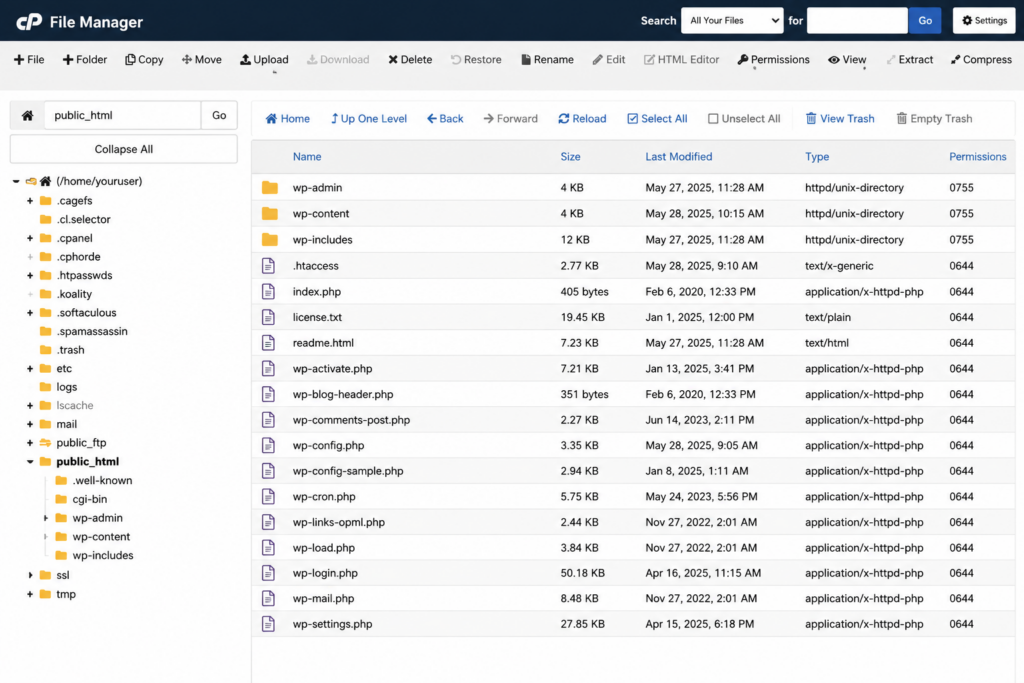
wp-content sits in the root directory of your WordPress install — usually the public_html folder — right next to wp-admin, wp-includes, wp-config.php, and .htaccess:
public_html/
├── wp-admin/          (dashboard files — don't edit)
├── wp-includes/       (core code — don't edit)
├── wp-content/        (your themes, plugins, uploads)
├── wp-config.php
└── .htaccess
You reach it through your hosting File Manager (in cPanel), an FTP client like FileZilla, or over SSH.
What’s inside wp-content
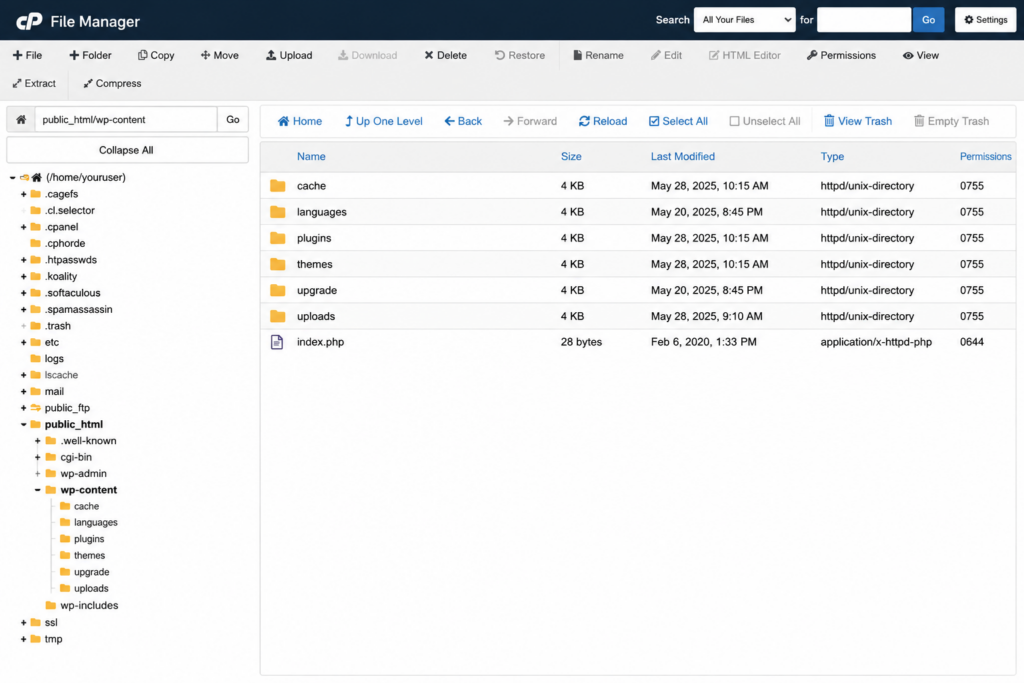
Open the folder and you’ll find three main subfolders, plus a few optional ones.
/themes/
Stores every theme installed on your site — not just the active one. Each theme lives in its own subfolder with its template files, stylesheet, and assets. If you build or edit a theme (ideally a child theme), this is where you work. You can also upload a theme here directly via FTP instead of the dashboard.
/plugins/
Holds every plugin installed on your site, each in its own subfolder. Installing a plugin from the dashboard drops its files here; you can also upload a plugin folder directly via FTP. Deactivating and deleting plugins from the dashboard removes their folders here.
/uploads/
Where WordPress stores every media file you add through the Media Library — images, videos, PDFs, and more. By default, uploads are organized into subfolders by year and month (e.g. /uploads/2026/07/). You can turn this month-and-year organization on or off under Settings → Media in the dashboard.
A few things make the uploads folder special. First, WordPress generates and stores multiple resized versions of every image you upload (thumbnail, medium, large), so one photo becomes several files. Non-image files like PDFs and ZIPs, on the other hand, are stored as-is without resizing. Second, uploads is the only folder WordPress lets plugins write to — so many plugins create their own subfolders here. You’ll often find folders from Elementor (which stores generated CSS per page), caching plugins, WooCommerce, WPForms, and others inside uploads. That’s normal, but it’s worth knowing when you’re browsing the folder or planning a backup.
You can always re-download WordPress core, your theme, and your plugins. But the uploads folder holds your unique media — if you lose it without a backup, it’s very hard to recover. Always include wp-content (especially uploads) in your backups.
Optional folders you may also see
Depending on your setup, wp-content can contain more:
- languages/ — translation files, for sites not in English (and for translated plugins/themes).
- upgrade/ — a temporary folder WordPress uses during updates. Normally empty; may hold leftover files after a failed update.
- mu-plugins/ — “must-use” plugins that load automatically and can’t be deactivated from the dashboard. Not present by default; created when needed.
- cache/ or plugin-specific folders — caching plugins like WP Super Cache or W3 Total Cache, and builders like Elementor, create their own folders here to store generated files. See our guide to cache plugins.
How to access wp-content
Three common ways, depending on what you need:
cPanel File Manager. The quickest route on most hosting. Log in to cPanel, open File Manager, navigate to public_html, and you’ll see the wp-content folder alongside wp-admin and wp-includes. Double-click to open it. Best for quick edits and single-file uploads without extra software.
FTP (FileZilla). Connect to your site with an FTP client using the FTP credentials from your host, navigate to the root folder, and open wp-content. Best for uploading or downloading many files at once, or a whole theme or plugin folder.
SSH. On a VPS or any plan with shell access, connect over SSH and navigate to the folder with the command line (cd public_html/wp-content). Fastest for advanced users doing bulk operations or running commands.
When you’ll work with wp-content
Unlike wp-admin and wp-includes, wp-content is meant to be used. Common reasons to go in:
- Troubleshooting a broken site. If a plugin or theme causes a white screen or critical error and you can’t reach the dashboard, you can deactivate all plugins by renaming
wp-content/pluginstoplugins_oldvia FTP, or switch themes by renaming the theme folder. - Manually installing a theme or plugin by uploading its folder via FTP.
- Backing up your site — wp-content is the essential folder to save.
- Cleaning up orphaned images or old theme files to reclaim space.
Cleaning up your uploads folder
Over time, the uploads folder fills with clutter: images from deleted posts that were never removed, and old thumbnail sizes left behind when you switch themes (a new theme often registers different image dimensions, orphaning the old ones). This bloat wastes storage and slows down backups.
Cleaning it up safely is hard to do by hand, because it’s difficult to tell which files are still in use. The safe approach is a plugin: Media Cleaner scans your database and flags media files that aren’t referenced anywhere, so you can review and delete true orphans, while Regenerate Thumbnails rebuilds the correct image sizes after a theme change. Always take a full backup before deleting anything — once media is gone, it’s gone.
How to keep wp-content secure
Because the wp-content structure is identical on every WordPress site, attackers know exactly where to look. A few measures help:
index.php inside folders like plugins and themes is there on purpose: if directory listing is enabled, it stops visitors from seeing a full list of your plugins and themes. Don’t delete them.When it comes to backups, it helps to think of wp-content in two parts: code and data. The plugins and themes folders hold code — you can always re-download those from their sources if needed. The uploads folder holds your data: unique media that exists nowhere else. Because uploads changes every time you add an image to a post, it’s the part that most needs frequent, reliable backups. If you ever have to prioritize, back up uploads first.
Renaming or moving the wp-content folder
Because every WordPress site uses the exact same wp-content path, attackers know precisely where to aim. As an advanced hardening step, you can rename or relocate the folder so automated attacks miss it. WordPress lets you redefine its location with two constants in your wp-config.php file:
define( 'WP_CONTENT_DIR', dirname(__FILE__) . '/site-files' );
define( 'WP_CONTENT_URL', 'https://yoursite.com/site-files' );Do this only on a fresh install. Changing the wp-content location on an established site will break every existing image path and can conflict with plugins that hard-code the default path. The security benefit is modest — it deters automated bots but not a determined attacker — so weigh it against the risk before changing anything.
Since wp-content holds everything unique to your site, backups matter. Copahost WordPress hosting includes automatic backups, cPanel and FTP access, and free SSL — so your themes, plugins, and uploads are protected and easy to manage.
See web hosting plansFrequently asked questions
What is the wp-content folder in WordPress?
It’s the directory that stores all your site’s user content that isn’t in the database — your themes, plugins, and media uploads. It sits in the root of your WordPress install, next to wp-admin and wp-includes, and it’s the one core folder you’re meant to work with.
Can I delete the wp-content folder?
No. Deleting wp-content removes your active theme, all plugins, and every media upload — your site would crash and lose its content. It’s the most important folder to keep and to back up.
What are the three main folders inside wp-content?
themes (your installed themes), plugins (your installed plugins), and uploads (your media library — images, videos, PDFs, organized by year and month). You may also see languages, upgrade, mu-plugins, and cache folders.
Where are WordPress images stored?
In wp-content/uploads, organized into subfolders by year and month by default. WordPress also stores several resized versions of each image there, so one upload becomes multiple files.
Is it safe to edit files in wp-content?
It’s the safest core folder to work in, but still edit with care and a backup. Avoid editing third-party plugins and themes directly, since updates overwrite your changes — use a child theme or a code snippets plugin instead.
Related guides
The wp-content folder connects to several WordPress topics — see our guides on the wp-config.php file, the functions.php file, the .htaccess file, and our hub of common WordPress errors.
Conclusion
The wp-content folder is where your WordPress site truly lives — its themes, plugins, and every file you’ve uploaded. Unlike the wp-admin and wp-includes folders, which run WordPress itself and should never be touched, wp-content is your space to work in: install themes, add plugins, manage media, and troubleshoot when something breaks. Just remember the two rules that matter most: back it up regularly (especially the uploads folder), and don’t edit third-party themes or plugins directly. Understand wp-content, and you understand where the unique part of every WordPress site is kept.
