
The error “Fatal error: Allowed memory size of X bytes exhausted” means a PHP script tried to use more memory than your server’s memory_limit allows, so PHP stopped it. The byte numbers in the message vary from site to site, but the fix is always the same: raise the PHP memory limit — through wp-config.php, php.ini, your control panel, or by asking your host. WordPress’s default is often just 40–64 MB; 256 MB is the recommended target for a modern site.
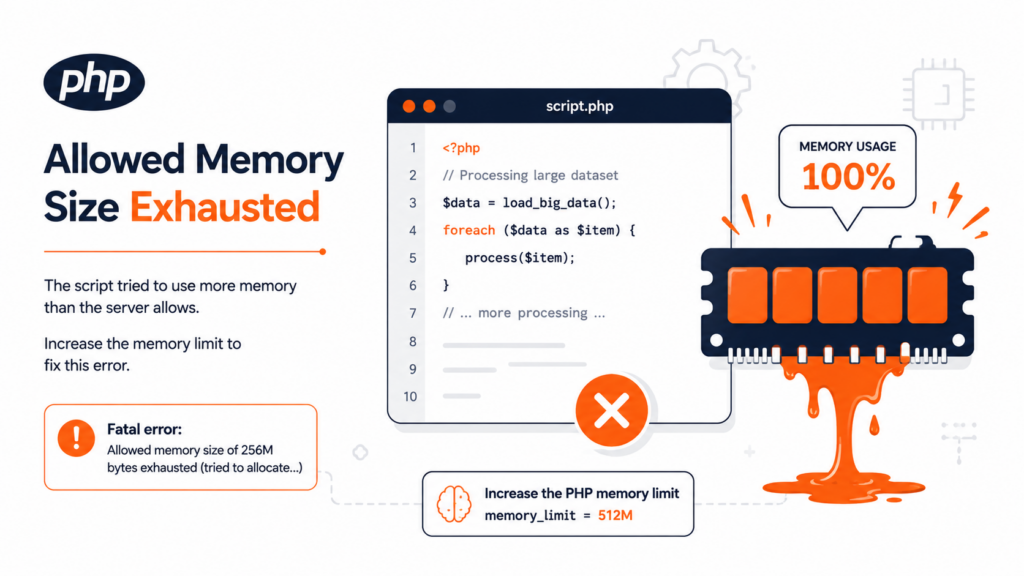
If your site shows “Allowed memory size of 33554432 bytes exhausted” (or any other byte value), don’t worry about the exact number — it’s simply your current limit, and the cause is the same: something on your site needed more memory than PHP was allowed to give it. This guide explains what the limit is, the three different memory settings that confuse most people, and how to raise it the right way.
What does “allowed memory size exhausted” mean?
WordPress runs on PHP, and every PHP script gets a fixed memory budget — the memory_limit. Your host sets this so that one site (or one runaway script) can’t consume all the server’s memory and crash everything else. When a script needs more than its budget, PHP terminates it and throws the fatal error.
The full message looks like this, with the specific numbers and file path varying each time:
Fatal error: Allowed memory size of 33554432 bytes
exhausted (tried to allocate 2348617 bytes) in
/home/user/public_html/wp-includes/plugin.php on line 260
The first number is your current limit (in bytes — 33554432 is 32 MB, 67108864 is 64 MB, and so on); the second is what the script tried to use. The exact figures don’t change the fix — you raise the limit either way.
You might be seeing it as a blank screen or “critical error”
Because this is a fatal error, how it appears depends on your WordPress version. On older versions you’d see the raw message; since WordPress 5.2, you’ll often see a generic critical error message instead, or — if PHP died before WordPress could respond — a plain white screen of death. In those cases, enable debugging to reveal the actual “allowed memory size exhausted” line in your error log; that confirms it’s a memory problem rather than something else.
The three memory settings (this is what confuses people)
Here’s the part most guides skip, and it’s why people raise a limit and nothing changes. There are three different memory settings:
The critical rule: WP_MEMORY_LIMIT can never exceed the server’s memory_limit. If your host caps PHP at 128 MB, setting 256 MB in wp-config.php does nothing — you’d need to raise the server limit (php.ini) or ask your host. This is the single most common reason a fix “doesn’t work.”
It’s also worth knowing that WordPress tries to raise the limit on its own — to 40 MB for a single site and 64 MB for multisite — so the error usually only appears when a task needs more than that automatic floor. Going higher is where the settings above come in.
Check your current limit first
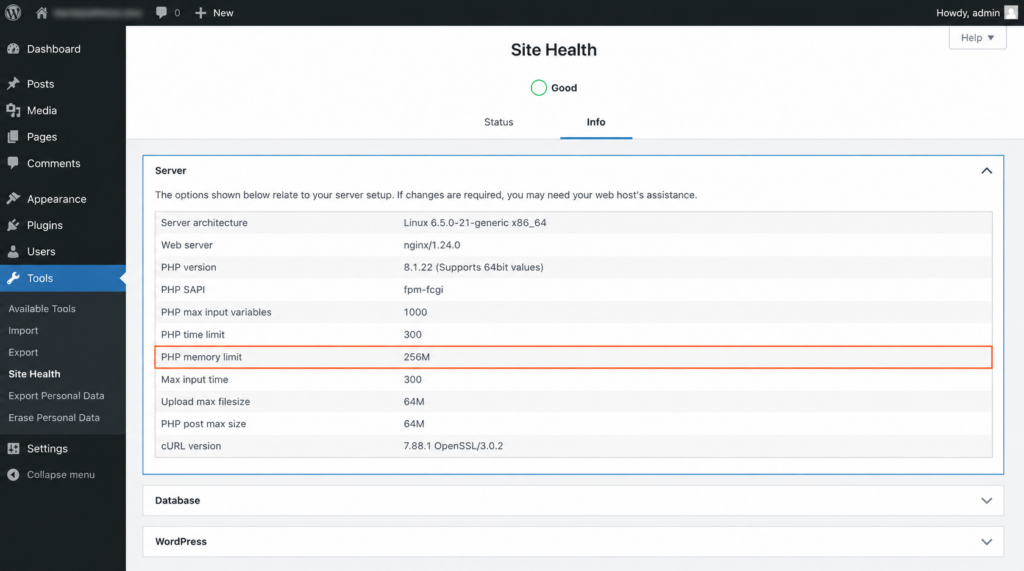
Go to Tools → Site Health → Info → Server and find PHP memory limit — that’s your real server-side ceiling. You can also upload a file with <?php phpinfo(); ?> and search for memory_limit. Note it before changing anything.
How to increase the memory limit
Use whichever method your hosting allows, from easiest to most technical.
Method 1 — wp-config.php (the WordPress way)
The standard fix. Edit wp-config.php and, above the line /* That's all, stop editing! */, add:
define( 'WP_MEMORY_LIMIT', '256M' );
define( 'WP_MAX_MEMORY_LIMIT', '512M' );The first line raises the front-end limit; the second raises the admin limit (useful when the error happens in wp-admin). Save and reload. Remember: this only works up to your server’s cap.
Method 2 — Your hosting control panel
If your host uses cPanel, go to Select PHP Version → Options (or MultiPHP INI Editor under Software), find memory_limit, set it to 256M or higher, and save. This changes the server-side limit directly — the most reliable route on most hosts, and the one Copahost lets you do yourself.
Method 3 — Edit php.ini
On a VPS or where per-site php.ini is allowed, edit php.ini and set:
memory_limit = 256MSave and restart PHP (or wait for it to reload).
Method 4 — Edit the .htaccess file
On Apache, add to the .htaccess file in your site’s root:
php_value memory_limit 256Mphp_value in .htaccess isn’t allowed. Remove the line and use Method 1, 2, or 3 instead. Nginx servers don’t use .htaccess, so this method is Apache-only.Method 5 — Ask your host
Since the server’s memory_limit is the true ceiling — and many shared plans lock it — your host may need to raise it. It’s a routine request: ask them to increase your PHP memory limit to 256 MB (or higher). On a good host this takes minutes.
If you raise the limit and the error comes back
This is important: if you increase the memory limit and the error returns, you probably have a memory leak — a poorly coded plugin or theme consuming memory until it hits even the new ceiling. Raising the limit further just delays it. The real fix is to find the culprit:
- Deactivate all plugins, then reactivate one at a time, watching for the error to return.
- Switch to a default theme to rule out the theme.
- A monitoring plugin like Query Monitor can show which process is eating memory.
- Beyond finding the culprit, reduce overall consumption: optimize large images before uploading, remove plugins you don’t actually use, and clean up your database — all of which lower how much memory each request needs.
In other words, more memory is the right fix for a site that has genuinely grown; it’s the wrong fix for a script that’s misbehaving.
object-cache.php and you use a persistent object cache (Redis or Memcached), the object cache itself may be misconfigured or oversized — in that case the fix is on the cache side, not just the memory limit.Verify the change
After applying a method, recheck Tools → Site Health → Info → Server → PHP memory limit, or your phpinfo() page, to confirm the new value took effect. If it still shows the old number, your host is likely enforcing the cap at the server level (see Method 5).
Fixing this on shared hosting
On shared hosting, the server’s memory_limit is set by the host, and many lock it — so wp-config.php or .htaccess changes may have no effect, and php_value lines can even break the site under FPM/CGI. Your reliable routes are the control panel (Method 2) or asking support (Method 5). And there’s a bigger signal here: if you keep hitting memory limits even after raising them, your site has likely outgrown an under-resourced plan. A modern WordPress site with a page builder or WooCommerce genuinely needs more memory than a bargain shared plan provides — and better-resourced hosting fixes the problem at its root.
This is the memory member of a family of PHP-limit errors — see also the upload_max_filesize error (file size) and the max_execution_time error (time), and our hub of common WordPress errors.
Frequently asked questions
Constant memory errors mean a plan that’s too tight for your site. Copahost gives your WordPress generous PHP memory and the freedom to raise it — so heavy plugins, WooCommerce, and page builders just run.
See web hosting plansConclusion
“Allowed memory size of X bytes exhausted” means a PHP script ran out of its memory budget — and whatever byte value it reports, the fix is to raise the limit. Set WP_MEMORY_LIMIT in wp-config.php, raise memory_limit via your control panel or php.ini, or ask your host — remembering that WordPress can’t exceed the server’s ceiling. If the error returns after you raise the limit, suspect a memory-leaking plugin rather than reaching for an ever-higher number. And if you’re constantly fighting memory limits, that’s the clearest sign your site needs hosting with the resources to match how it’s grown.
