
The WordPress white screen of death (WSOD) is a completely blank page — no content, no error message, nothing — that appears when a fatal PHP error crashes WordPress before it can render anything. The most common cause of a truly blank screen is PHP memory exhaustion, where the process is killed before WordPress can even show an error. It’s almost always fixable, usually by raising the memory limit or disabling the plugin or theme behind it.
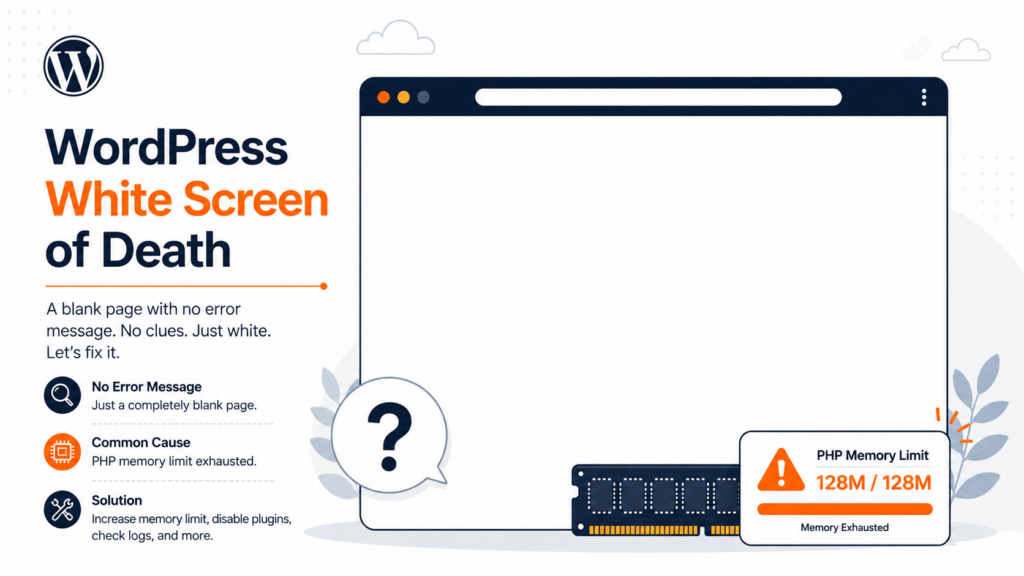
Few things are as unsettling as loading your site and getting nothing but a blank white page. The white screen of death is especially frustrating because, unlike most errors, it gives you no clue — no code, no message, no hint of where to look. This guide explains what causes that blank screen specifically, how it differs from the “critical error” message you may have seen, and how to fix it step by step — starting with the most likely cause.
What is the white screen of death?
The WSOD is a blank, unresponsive page that replaces your site when a fatal PHP error stops WordPress before it can output any HTML. WordPress hides fatal errors by default (they can expose sensitive information), so instead of an error message, you get a white void.
It can affect your whole site, just the front end, or just the admin dashboard — and which one it hits is itself a clue, as we’ll see. Across browsers it looks slightly different (Chrome may say “This page isn’t working” with an HTTP 500, Firefox shows a plain blank page), but the root cause is the same.
White screen vs. the “critical error” message
This is the key distinction, and it tells you a lot about what went wrong. Since WordPress 5.2, WordPress has a fatal-error handler that catches most fatal errors and shows the message “There has been a critical error on this website,” along with a recovery-mode email. So why do you still sometimes get a pure blank screen?
Because some errors kill PHP before WordPress can run that handler — most often memory exhaustion. When PHP runs out of memory, it terminates the process immediately, leaving no chance for WordPress to display its critical-error message. So:
- A pure blank white screen usually means PHP died before the handler ran — think memory.
- A “critical error” message means WordPress caught the error and can tell you more — see our guide on the WordPress critical error, which includes the recovery-mode method.
If you see the message rather than the blank screen, follow that guide; if you see pure white, keep reading.
What causes the white screen of death?
The single most common cause of a truly blank screen is PHP memory exhaustion — a plugin or theme demands more memory than your server allows, and PHP stops dead. That’s why the fixes below start there. When the white screen is caused by PHP running out of memory, the underlying message is “allowed memory size exhausted” — see our guide to fixing the memory limit error to raise it.
A quick clue: where is the screen blank?
Before diving in, check one thing that narrows the cause fast: can you reach your admin dashboard at yourdomain.com/wp-admin?
- Admin works, front end is blank → the problem is most likely your theme.
- Both are blank → more likely a plugin or a memory issue affecting the whole site.
- Only one page is blank → suspect a plugin or a specific piece of content on that page.
This single check often saves you several steps.
How to fix the white screen of death
Work through these in order, from most likely to least. Back up your site first.
1. Increase the PHP memory limit
Since memory exhaustion is the top cause of a blank screen, start here. Edit wp-config.php (via FTP or your file manager) and add, above the line that says /* That's all, stop editing! */:
define( 'WP_MEMORY_LIMIT', '256M' );The default memory limit on shared hosting is often just 32MB or 64MB, while WordPress recommends 256MB. If raising it brings the site back, a plugin or theme was hitting the ceiling — investigate which one. If the limit can’t be raised at the WordPress level, it needs to be raised at the server level (php.ini or your hosting panel), something good hosting lets you do easily.
2. Deactivate all plugins
If memory wasn’t it, suspect a plugin (the most common source of fatal errors). If you can still access wp-admin (for example, the front end is blank but the dashboard loads), the easiest route is to deactivate plugins right from the dashboard: go to Plugins, select all, and choose Deactivate from the bulk actions.
If you can’t reach wp-admin, connect via FTP, go to wp-content, and rename the plugins folder to plugins.deactivated — this disables all plugins at once. Reload your site. If it works, rename the folder back and re-enable plugins one by one, reloading after each, until the culprit reappears.
3. Switch to a default theme
If the admin worked but the front end was blank (the clue from earlier), the theme is the likely cause. Via FTP, rename your active theme’s folder in wp-content/themes; WordPress falls back to a default theme (like Twenty Twenty-Four). If the site returns, the theme — often a functions.php edit — caused it.
A classic, easy-to-miss culprit here: blank spaces or lines after the closing ?> tag in your theme’s functions.php (or in wp-config.php). Even a single stray space after ?> can trigger a “headers already sent” error and a blank screen. If you recently edited either file, open it and remove any whitespace after the final ?> — or simply delete the closing ?> tag altogether, which is valid and avoids the problem.
When that stray whitespace produces a visible warning instead of a blank page, you’ll see “cannot modify header information” — see our guide on the headers already sent error to fix it.
4. Regenerate the .htaccess file
A corrupted .htaccess file can produce a blank screen too — Apache reads it before WordPress loads, so a syntax error there (often left by a security or caching plugin) makes the server fail before WordPress even starts. To rule it out, connect via FTP or your file manager, find .htaccess in your site’s root folder, and rename it to .htaccess_old. Reload your site. If it works, go to Settings → Permalinks in wp-admin and click Save Changes — WordPress generates a fresh, clean .htaccess automatically.
5. Enable debugging to see the hidden error
If you’re still guessing, force WordPress to reveal the error. In wp-config.php, enable logging:
define( 'WP_DEBUG', true );
define( 'WP_DEBUG_LOG', true );
define( 'WP_DEBUG_DISPLAY', false );wp-content/debug.log without showing them to visitors.Then reload the blank page and open wp-content/debug.log. For the full method of enabling and reading logs, see our guide on WordPress error logs — the most recent fatal-error line usually names the exact file at fault. Remember to set WP_DEBUG back to false when done.
6. Replace corrupted core files
If nothing above works, a core file may be corrupted (often after an interrupted update or a failed transfer). Download a fresh copy of WordPress from wordpress.org and re-upload the wp-admin and wp-includes folders via FTP — this replaces core files without touching your content, themes, plugins, or database.
.htaccess and server-side angles.Will I lose my content?
No. The fixes above — disabling plugins, renaming the theme, raising memory, re-uploading core — don’t touch your database or your wp-content/uploads folder. Your posts, pages, images, and settings stay intact. Back up first as a precaution, but content loss from a WSOD fix isn’t a realistic risk if you follow the steps correctly.
How hosting affects the white screen of death
Because the leading cause of a blank screen is PHP memory exhaustion, hosting plays a direct role. On cheap, overcrowded shared plans, default memory limits are often set low (32–64MB) and you may not be able to raise them — so a slightly heavy plugin tips the site into a white screen. Good hosting gives you adequate PHP memory, current PHP versions, easy access to your error logs and files, and one-click backups to roll back fast. Much of the troubleshooting above becomes simpler — or unnecessary — when your server has the headroom WordPress needs.
Frequently asked questions
The white screen usually comes down to PHP memory. Copahost gives your WordPress site generous memory limits, current PHP, and easy log access — so a heavy plugin doesn’t take your site dark.
See web hosting plansConclusion
The white screen of death looks like the scariest WordPress error precisely because it tells you nothing — but it follows a short, predictable list of causes, led by PHP memory exhaustion. Check whether your admin still loads to narrow it down, raise the memory limit, disable plugins, switch the theme, and enable debugging to read the hidden error. If you see a “critical error” message instead of a blank page, WordPress caught the error and the recovery-mode method is faster. And since memory limits come down to your hosting, running on a well-resourced plan is the simplest way to keep the screen from going blank in the first place.
