
You open your WordPress site and instead of your homepage you get a blank page with a single line: “Error establishing a database connection.” No menu, no design, no admin area — the whole site is down, for visitors and for you.
It looks catastrophic, but here is the reassuring part first: your content is almost certainly safe. Your posts, pages, users, and settings are still sitting in the database exactly where you left them. WordPress simply can’t reach that database right now, and reaching it again is usually a matter of checking a handful of settings in the right order.
This guide is built to be the most complete reference on the error. We’ll explain exactly what is happening behind the scenes, show you how to read the real cause instead of guessing, and then walk through every fix — from the one that solves most cases in two minutes to the deep server-side checks that hosts and developers rely on.
What “Error establishing a database connection” actually means
A WordPress site is two things working together: the files (PHP, themes, plugins) and the database (a MySQL or MariaDB database that stores all your content and settings). Every time someone loads a page, WordPress runs PHP that opens a connection to the database, pulls the content, and assembles the page on the web server.
To open that connection, WordPress reads four values from its configuration file, wp-config.php: the database name, the database username, the database password, and the database host. If any of those four is wrong — or if the database server itself doesn’t answer — the connection fails and WordPress shows the generic message instead of your site.
So the error is not “your data is gone.” It is “the conversation between your files and your database didn’t happen.” That distinction is what makes the fix systematic: you are checking each link in that short chain until you find the broken one.
Two different messages — and why the difference matters
There are actually two versions of this problem, and telling them apart saves you a lot of time:
- On the front end of your site, you see: “Error establishing a database connection.”
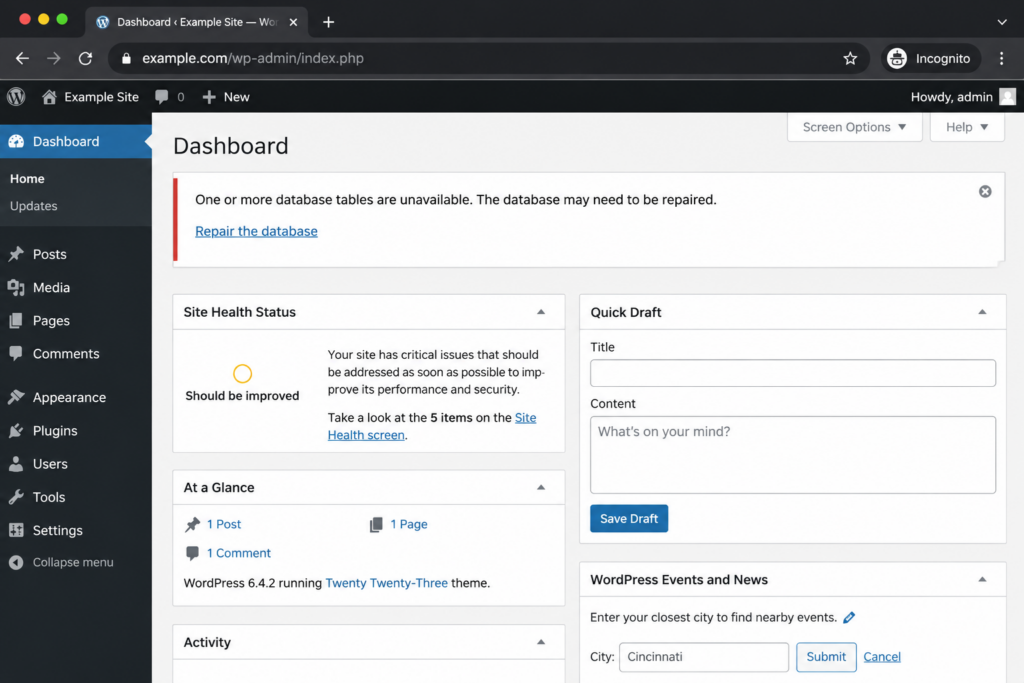
- In wp-admin (the dashboard), you may instead see: “One or more database tables are unavailable. The database may need to be repaired.”
If you see the second message in the dashboard while the front end still partly works, the cause is almost certainly corrupted database tables, and you should jump straight to the repair steps — not the credential checks. If you see the first message everywhere, work through the full order below.
Note that the front end may briefly serve a cached page with no error, so the dashboard is the more reliable signal that the database connection is failing.
The most common causes (in order of likelihood)
Before changing anything, it helps to know what you are actually hunting for. These are the causes, roughly from most to least common:
debug.log for the real error · Step 1Before you start: two things to do first
1. Back up everything you can. Several of the fixes below edit wp-config.php, repair tables, or touch the database directly. If you can still reach your files or your hosting panel, take a backup of the database and the wp-config.php file before making changes. If you have a recent backup already, you’re covered.
2. Know how to reach your files. Most fixes require editing wp-config.php, which lives in the root folder of your WordPress install. You’ll reach it one of two ways:
- Your host’s File Manager (in cPanel, Plesk, DirectAdmin, or a custom panel), or
- An FTP/SFTP client such as FileZilla.
Keep one of those open — you’ll use it throughout.
Step 1 — Find the real cause with WP_DEBUG
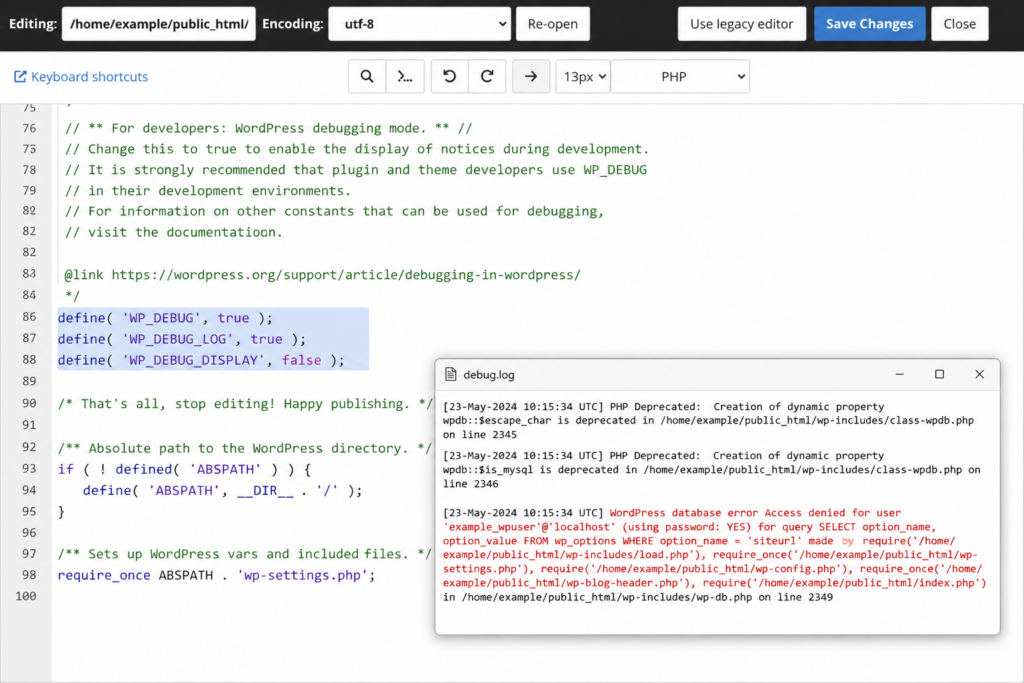
The default message is deliberately vague. Turn on WordPress debugging to see the actual error underneath it. Edit wp-config.php and, just above the line that says /* That's all, stop editing! */, add:
php
define( 'WP_DEBUG', true );
define( 'WP_DEBUG_LOG', true );
define( 'WP_DEBUG_DISPLAY', false );Code language: JavaScript (javascript)
Reload your site, then open the file /wp-content/debug.log. The specific line there — “Access denied for user”, “Unknown database”, “Can’t connect to MySQL server”, “Too many connections” — tells you exactly which fix below to go to. Turn debugging back off when you’re done.
A quick parallel check: is the site down for everyone, or just you? A multi-location checker (like Down for Everyone or Just Me) confirms whether the server is truly unreachable. If your host’s status page reports an incident, the problem may not be on your end at all.
Step 2 — Check your database credentials in wp-config.php
This single step fixes the majority of cases, especially if the error appeared right after migrating, cloning, or changing hosts. Open wp-config.php and find these four lines:
php
define( 'DB_NAME', 'your_database_name' );
define( 'DB_USER', 'your_database_user' );
define( 'DB_PASSWORD', 'your_database_password' );
define( 'DB_HOST', 'localhost' );Code language: JavaScript (javascript)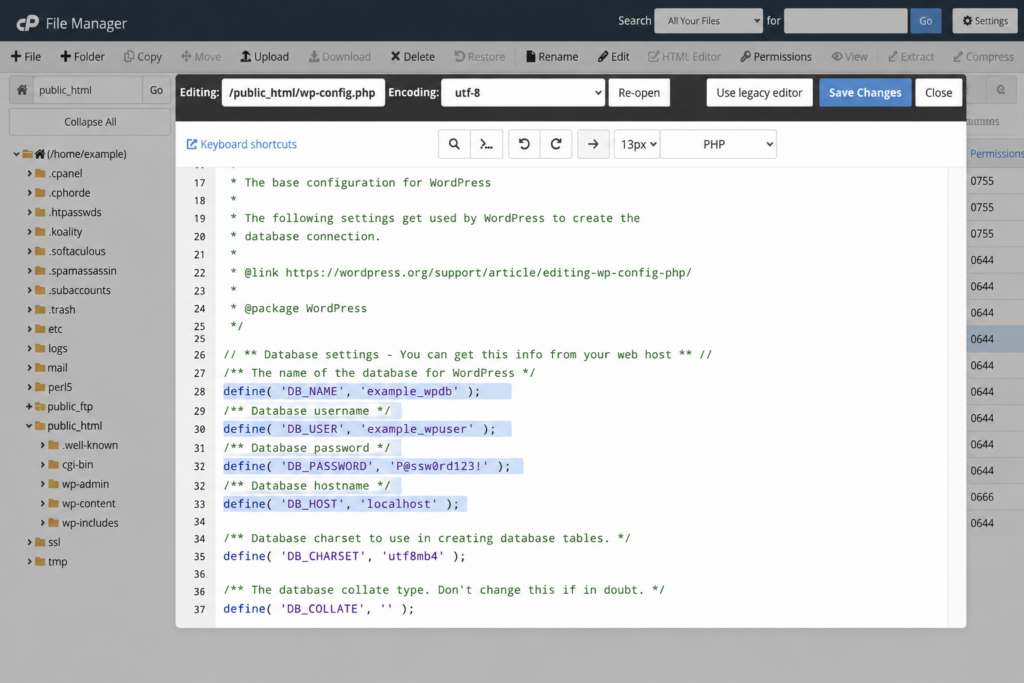
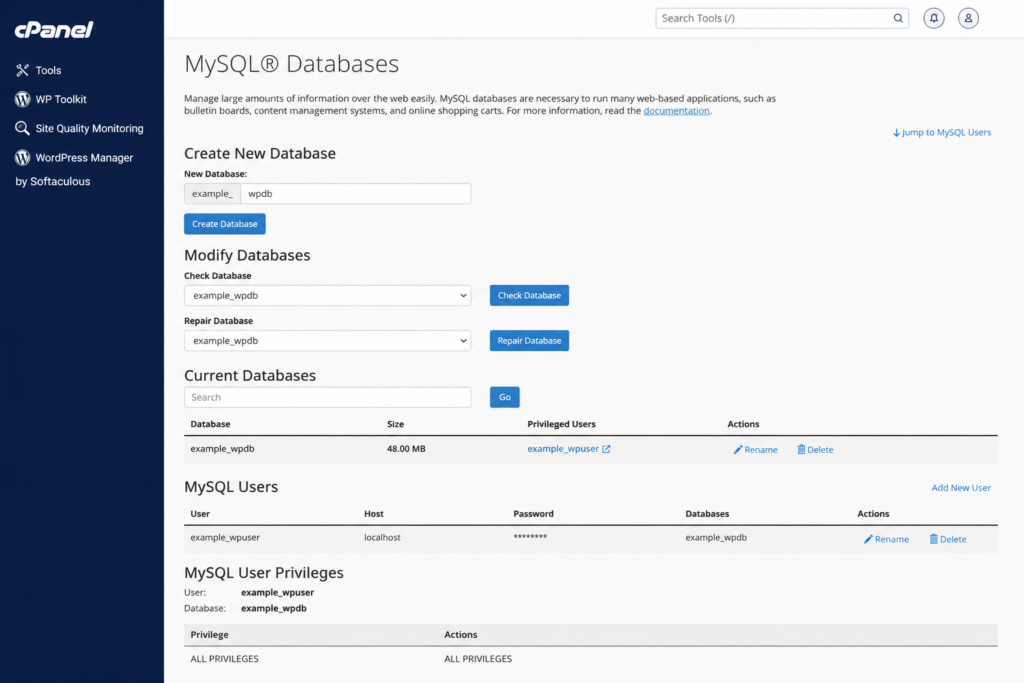
Now compare each value against what your hosting panel actually shows for the database (in cPanel: MySQL Databases). Watch for the small things that break it: a typo, a trailing space, a password that was reset during migration, or a database name that changed (many hosts prefix it, like username_wpdb). Correct any mismatch, save, and reload.
If you’re not sure the password is right, the safest move is to set a new one in your hosting panel’s MySQL Databases area and paste that exact value into DB_PASSWORD.
Step 3 — Verify the DB_HOST value
localhost works on most shared hosting, but not everywhere. If your credentials are definitely correct and it still fails, DB_HOST is the usual suspect. Some servers expect 127.0.0.1, some use a socket path, and some hosts run the database on a separate server with its own hostname (sometimes with a port, like dbserver.example.com:3306).
Your hosting panel or host’s DNS and database documentation lists the correct value. A classic fix is switching localhost to 127.0.0.1 (or vice-versa) when a socket connection is misbehaving.
Always confirm the exact value in your hosting panel — using the wrong host is a top cause of the error.
Step 4 — Test the credentials with a small script
Want to know for certain whether the username and password can even reach the server? Create a file called dbtest.php in your WordPress root with this content, replacing the values with yours:
php
<strong><?php</strong>
$link = mysqli_connect( 'localhost', 'your_database_user', 'your_database_password' );
if ( ! $link ) {
    die( 'Could not connect: ' . mysqli_connect_error() );
}
echo 'Connected to the MySQL server successfully — credentials are valid.';
mysqli_close( $link );Code language: HTML, XML (xml)
Visit https://yourdomain.com/dbtest.php. If it says it connected successfully, your username and password are fine and the problem is elsewhere (likely the database name, corruption, or the server). If it reports “Access denied,” the username/password is the issue — go back to Step 2 or recreate the user (Step 5). Delete dbtest.php afterward so you don’t leave credentials exposed.
Step 5 — Check the database user and its privileges
Sometimes the credentials exist but the user no longer has permission to use the database — common after a migration that moved the database but not the user grant. In your hosting panel’s MySQL Databases screen, confirm the user is assigned to the database with “All Privileges.” If in doubt, create a fresh user, give it a strong password, attach it to the database with all privileges, and update DB_USER and DB_PASSWORD to match.
Step 6 — Repair a corrupted database
If wp-admin shows “One or more database tables are unavailable. The database may need to be repaired,” or debugging points to corrupt tables, use WordPress’s built-in repair tool. Add this line to wp-config.php:
php
define( 'WP_ALLOW_REPAIR', true );Code language: JavaScript (javascript)Then visit https://yourdomain.com/wp-admin/maint/repair.php. You’ll get two buttons — Repair Database and Repair and Optimize Database. Start with the first (it’s faster). When it finishes, reload your site.
WP_ALLOW_REPAIR line from wp-config.php immediately after the repair.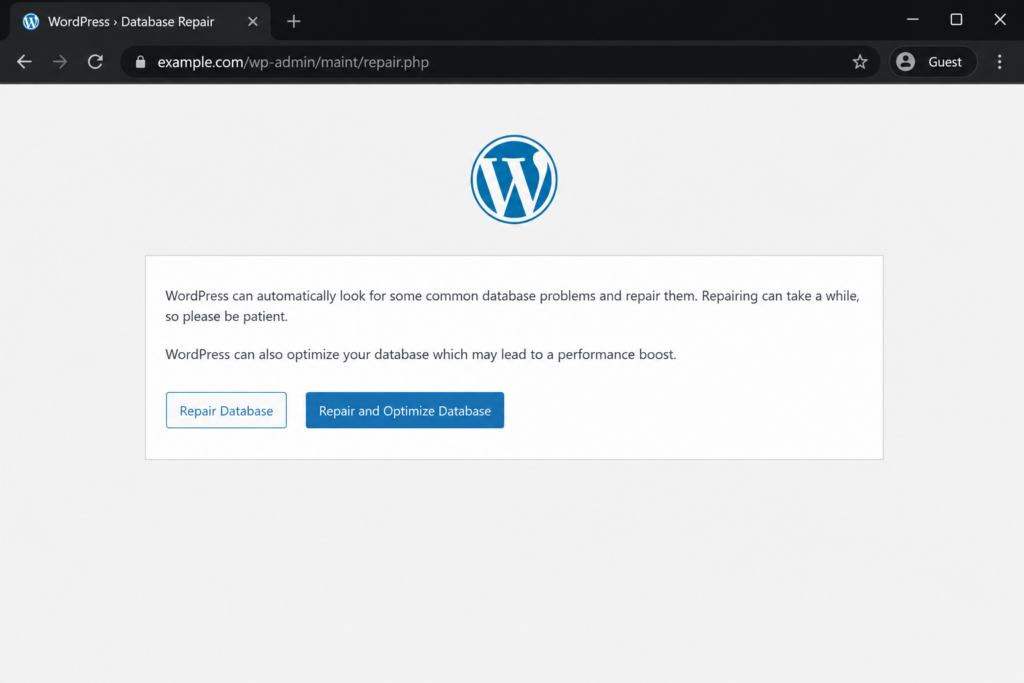
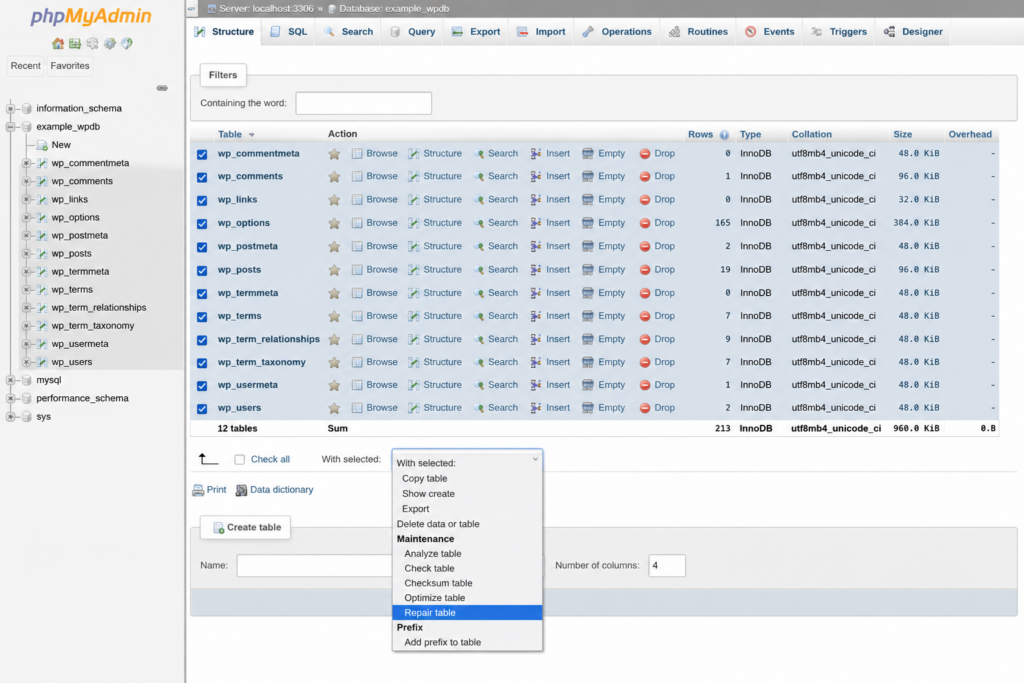
No code option: most panels can repair tables directly. In phpMyAdmin, select the database, tick the tables, and choose Repair table from the dropdown. If you have terminal access, WP-CLI does it in one command: wp db repair.
Step 7 — Check whether the MySQL server is down or overloaded
If credentials and tables are fine, the database server itself may be the problem. Two scenarios:
- The service crashed or stopped. On a server you manage (VPS/cloud), restart MySQL/MariaDB (for example,
sudo systemctl restart mysql). On managed or shared hosting you can’t do this — contact support to confirm the database server’s status. - “Too many connections.” Database servers cap how many simultaneous connections they accept. Under a traffic spike — or on shared hosting where neighbors compete for the same resources — that ceiling gets hit and new connections are refused, producing the error intermittently. Reducing database load with a caching plugin helps, and on the server side raising
max_connections(or moving to a plan with more headroom) is the durable fix.
This intermittent, traffic-related pattern is the clearest sign that the issue is resources rather than configuration.
Step 8 — Replace corrupted WordPress core files
A failed update, an interrupted file transfer, or malware can corrupt WordPress’s core files. Refreshing them is safe and doesn’t touch your content: download the latest WordPress from wordpress.org, unzip it, delete the wp-content folder and wp-config-sample.php from the download, then upload the remaining files via SFTP, overwriting the existing ones. Your themes, plugins, uploads (in wp-content) and your wp-config.php stay untouched. Clear your browser cache and retest.
Step 9 — Create a new database
If nothing connects and you suspect the database itself is broken or missing (for instance, “Unknown database” in the debug log), create a fresh database and user in your hosting panel, then update wp-config.php with the new details. You can then import your most recent database backup into it via phpMyAdmin. This is also the recovery path when a migration left the database behind.
Step 10 — Fix a site URL mismatch
After moving domains or switching from HTTP to HTTPS, a wrong site URL stored in the database can surface as connection or redirect failures. You can override it temporarily in wp-config.php:
php
define( 'WP_HOME', 'https://yourdomain.com' );
define( 'WP_SITEURL', 'https://yourdomain.com' );Code language: JavaScript (javascript)
Or fix it at the source in phpMyAdmin by running this query against your database (adjust the wp_ table prefix if yours differs):
sql
UPDATE wp_options SET option_value = 'https://yourdomain.com'
WHERE option_name = 'siteurl' OR option_name = 'home';Code language: JavaScript (javascript)
For a full domain change, don’t run raw SQL REPLACE on wp_posts or wp_postmeta — that corrupts serialized data (widgets, theme options). Use a tool that handles serialization safely: the WP-CLI command wp search-replace 'https://old-domain.com' 'https://new-domain.com' or the Better Search Replace plugin.
Step 11 — Confirm your domain points to the right host
After a migration, the error often means your domain’s DNS still points to the old server, so WordPress reaches a database that no longer exists there. Check your domain’s nameservers in your registrar and confirm they point to your current host, then verify with a DNS lookup tool. Remember that DNS changes can take time to propagate across the internet — up to 24–48 hours — before the site is reachable everywhere.
Step 12 — Restart the server (self-managed) or restore a backup
On a VPS or cloud server, a reboot clears stuck processes and stale connections and can bring a wedged database back. And if you simply need your site up now and you have a recent, known-good backup, restoring it is often the fastest route — especially if the failure followed a bad update. Restore, confirm the site is back, then investigate the root cause calmly.
Step 13 — Contact your host
If you’ve verified credentials, ruled out corruption, and the database server still won’t answer, the problem is on the hosting side: a down database service, resource limits, or a server-level misconfiguration only the provider can see and fix. Give them the specifics you gathered (the exact debug.log line, when it started, whether it’s constant or traffic-related) so they can resolve it quickly.
After you fix it: optimize your database
Getting your site back online is only half the job. The same database that just failed will be healthier — and less likely to fail again — if you keep it lean. Over time a WordPress database fills up with post revisions, auto-drafts, trashed items, expired transients, and leftover tables from plugins you’ve removed. All of that bloat makes every query heavier and raises the odds of corruption and slow, connection-straining queries.
Once your site is stable, take a few minutes to clean it up. The easiest route is an optimization plugin such as WP-Optimize, which clears revisions, stale transients, and spam, and runs table optimization in a couple of clicks. If you’re comfortable on the command line, WP-CLI does the same with wp db optimize. Set it to run on a schedule so the cleanup stays automatic rather than something you remember only after the next outage.
And do the one thing that turns any future database problem into a non-event: make sure automatic backups are switched on. A recent, restorable backup means that even if the database breaks again, you’re minutes — not hours — away from being back online.
The server side: why this keeps happening
For most one-off cases, a credential or corruption fix ends the story. But if the error keeps coming back, the cause is usually environmental, and that’s worth naming plainly:
- Resource limits. A site that has outgrown shared hosting will repeatedly hit CPU, RAM, or connection ceilings, and the database will start refusing connections under load. Moving to a plan with real headroom — or a properly set-up WordPress host — removes the ceiling.
max_connectionstoo low for your traffic, so peaks trigger “too many connections.”- An unoptimized database bloated with transients, spam, and post revisions, making every query heavier than it should be.
- A noisy neighbor on oversold shared hosting consuming the shared database resources.
The prevention checklist follows directly from that: keep automatic backups, run a caching plugin to cut database load, keep the database lean (remove unused plugins, clear revisions and transients), monitor uptime so you catch trouble early, and choose a host that gives you resource headroom and visibility instead of a hard, invisible ceiling.
How this error differs from other WordPress failures
It’s easy to confuse the database connection error with other “site is down” screens. Knowing the difference points you to the right guide:
If visitors instead see a connection being cut mid-load rather than a database message, that’s a different problem — see our guide to the ERR_CONNECTION_RESET error.
Conclusion
“Error establishing a database connection” looks alarming, but it’s one of the most fixable WordPress errors once you stop guessing and work the chain in order: turn on debugging to read the real error, then check credentials, DB_HOST, the database user, corruption, and finally the server itself. Most sites are back within a few steps, and the content was never in danger.
When the error keeps returning, treat it as a signal rather than an annoyance — it usually means the database is straining against the limits of its environment. A host with proper resources, automatic backups, and a support team that can actually inspect the database server turns a recurring emergency into a non-event.
Frequently Asked Questions
Quick answers about the “Error establishing a database connection” in WordPress.
