
When running a web server powered by NGINX, you may encounter some errors. One such error is “NGINX 500 Internal Server Error”. This error indicates that something went wrong on the server side, preventing it from processing requests.
This error can be a headache for developers, especially in the production environment, as they break the functionality of the entire website. However, it is possible to make your server work again after identifying the causes of this error and fixing it. So, in this article, we will explore common causes of NGINX 500 Internal Server Error and provide you with potential fixes to resolve the issue.
Table of Contents
What is the NGINX 500 internal server error?
NGINX 500 Internal Server Error is a generic HTTP status code implying an internal problem within the server. Unlike error codes that pinpoint the problem, such as Error 404 for “Not Found” or 403 for “Forbidden”, the 500 error does not reveal the exact cause of the problem. When the server is overloaded or in maintenance, Nginx returns a 503 Service Unavailable rather than a 500.
NGINX is multipurpose software. Both reverse proxy server, load balancer or web server can cause such error. When you encounter a 500 Internal Server Error, it indicates that the NGINX server encountered an error while trying to perform its tasks.
Quick Diagnostic Checklist
If your server is returning a 500 Internal Server Error right now, run through this checklist before diving into each individual fix. Most cases are resolved in one of the first four steps.
Step 1 — Check the Nginx error log
This is always the first place to look. The log will tell you exactly what went wrong.
cd /var/log/nginx
tail -n 50 error.logCode language: JavaScript (javascript)
If the log is too large to scan manually, filter by the last hour:
journalctl -u nginx --since "1 hour ago"Code language: JavaScript (javascript)Step 2 — Test the Nginx configuration syntax
A misconfigured directive can silently break everything. Run:
nginx -tIf you want to inspect the full resolved configuration including all included files:
nginx -TFix any reported errors, then reload:
nginx -s reloadStep 3 — Check the Nginx service status
Confirm that Nginx is actually running and not stuck in a failed state:
systemctl status nginxIf it shows “failed” or “inactive”, restart it:
sudo systemctl restart nginxStep 4 — Check the backend service
If Nginx is working but the backend is not responding, the 500 error originates in the application layer, not Nginx itself.
PHP-FPM:
systemctl status php8.2-fpmCode language: CSS (css)Node.js (PM2):
pm2 status
pm2 logs --lines 50
Test if the backend is responding directly, bypassing Nginx:
curl http://127.0.0.1:PORTCode language: JavaScript (javascript)If this returns a valid response, the problem is in the Nginx proxy configuration. If it fails, the problem is in the backend application. If Nginx can’t reach the backend at all, you’ll see a 502 Bad Gateway instead.
Step 5 — Check file permissions and ownership
Nginx must be able to read the files it serves. Verify permissions and ownership of your web root:
ls -la /var/www/example.comCode language: JavaScript (javascript)Files should be 644, directories 755, and ownership should belong to the Nginx process user (typically www-data on Debian/Ubuntu, or nginx on RHEL/CentOS):
chown -R www-data:www-data /var/www/example.comCode language: JavaScript (javascript)Step 6 — Check server resources
A server running out of RAM, CPU, or disk space will return 500 errors under load.
free -h        # RAM and swap
df -h          # disk space per partition
htop           # CPU and memory usage per processCode language: PHP (php)
To check if the Linux OOM Killer has been terminating processes:
dmesg | grep -i "oom\|killed process"Code language: JavaScript (javascript)Step 7 — Check upstream connectivity (reverse proxy only)
If Nginx is configured as a reverse proxy, verify that the upstream server is reachable and responding:
curl http://127.0.0.1:PORTCode language: JavaScript (javascript)Also check your timeout settings in the Nginx config. If the backend takes too long to respond, Nginx returns a 500 (or 504) error:
proxy_connect_timeout 60s;
proxy_read_timeout 120s;
If none of the steps above resolve the issue, continue reading for a detailed explanation of each cause and fix.
Is your server struggling to handle the load?
If you keep hitting 500 errors due to lack of RAM or CPU, the problem may be your server — not your config. Copahost Cloud VPS gives you dedicated resources and full root access.
Possible causes for the NGINX 500 internal server error
As mentioned above, this error indicates a general problem with your server that has not been detailed. However, there are some possible causes to consider that might trigger the error. Some possible causes of the NGINX 500 Internal Server Error include:
Misconfigured Server Settings
One of the primary causes of the Nginx 500 Internal Server Error is misconfigured server settings. These settings control the server’s behavior, and incorrect configurations can lead to unexpected errors. Misconfigured server configuration files may contain incompatible directives, incorrect syntax, or conflicting options — especially after upgrading Nginx or enabling new modules such as HTTP/2 or TLS 1.3, which are now standard in modern server setups.
Insufficient Server Resources
Another potential cause of the Nginx 500 Internal Server Error is insufficient server resources, such as CPU, RAM, or disk space. When these resources are exhausted, the server cannot respond to users’ requests — a situation commonly referred to as a “bottleneck”.
This can happen due to a spike in legitimate traffic, malicious automated requests (such as DDoS attacks), or a memory leak in a backend application. In extreme cases, the Linux kernel itself may forcibly kill Nginx worker processes through the OOM Killer (Out-Of-Memory Killer) to protect the system, resulting in a 500 error with no obvious configuration problem.
Backend Application Errors
The Nginx 500 Internal Server Error can also be a result of errors in the backend application that Nginx is proxying to. In Nginx, proxying refers to the action of forwarding client requests to another server or service. For example, Nginx can receive requests from clients and forward them to a Node.js, PHP-FPM, Python/Gunicorn, or Ruby/Puma backend.
The 500 error occurs when the backend crashes, times out, or returns an unhandled exception — and Nginx has no valid response to pass back to the client.
Insufficient File Permissions
Nginx needs the appropriate file permissions to access and serve the requested files. If permissions are too restrictive, Nginx cannot read the files it needs and returns a 500 Internal Server Error. This is especially common after migrating a site, restoring a backup, or running deployment scripts that reset ownership.
On systems with SELinux or AppArmor enabled — such as Ubuntu 22.04+ or RHEL/CentOS — permission denials can happen silently even when standard Unix permissions appear correct, making this one of the trickiest causes to diagnose.
Browser Related Problems
This cause is about client-side. You may not be seeing the 500 Internal Server Error message only because of server-related issues. If you are sure that you have configured your server well, you may be getting this error due to the caching mechanism of browsers or the extensions you have installed on your browser.
How to fix NGINX 500 internal server error
We have discussed the problems that can cause 500 Internal Server Errors. Now let’s look at the steps that can be taken to fix these problems.
Fixing Misconfigured Server Settings
Fix 1 – Check Nginx Error Logs
Start by checking the NGINX error log file — it can provide valuable insights into the specific configuration error. The default location for the error log is usually /var/log/nginx/error.log. Run the following commands to access it:
cd <span style="background-color: transparent;color: inherit;font-family: inherit;font-size: inherit;font-weight: inherit">/var/log/nginx</span>
cat error.logCode language: HTML, XML (xml)
For a more targeted view, you can filter only recent entries using journalctl, which is available on most modern Linux distributions (Ubuntu 20.04+, Debian 11+):
journalctl -u nginx --since "1 hour ago"Code language: JavaScript (javascript)This is especially useful on busy servers where error.log is large and hard to scan manually.
The log will show errors affecting Nginx functionality. For example, an SSL/TLS handshake failure, a missing config file, or an invalid directive. Once you identify the error message, a targeted search will usually lead you to the solution quickly.
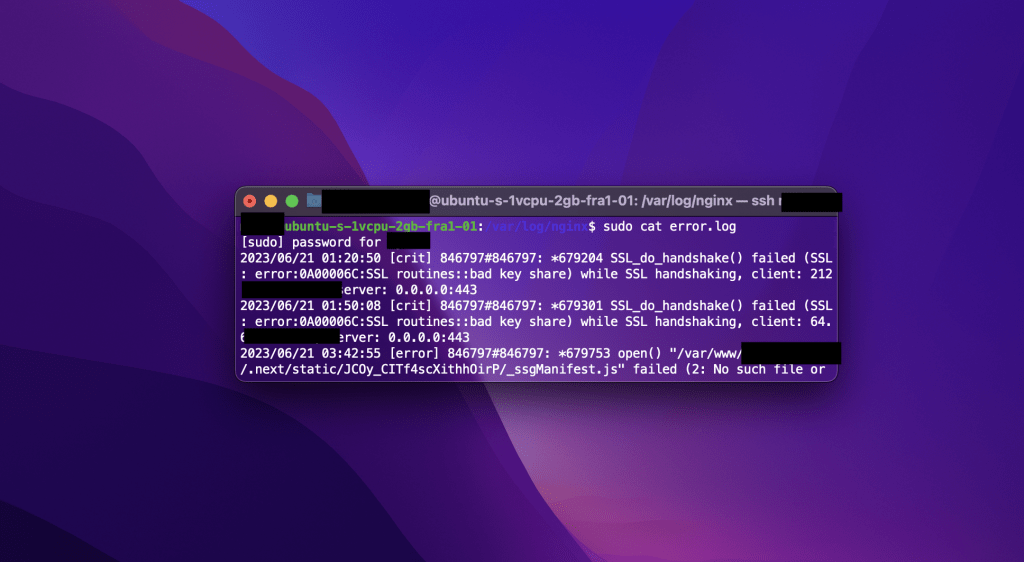
Of course, that’s just a problem, you may find different kinds of errors in your Nginx log file. In this case, you can find the cause of your problem with a simple google search
Fix 2 – Verify the Configuration Syntax
Review your Nginx configuration files, paying attention to syntax errors or misplaced directives. Run the following to validate the syntax:
<code>nginx -t</code>Code language: HTML, XML (xml)If you want to see the entire resolved configuration (including all included files), use:
nginx -TThis is useful when you have multiple config files spread across /etc/nginx/conf.d/ or /etc/nginx/sites-available/ and need to identify where a conflicting directive is coming from.
If nginx -t reports a syntax error, fix it in the indicated file and line. Once corrected, reload Nginx gracefully — this applies changes without dropping active connections:
nginx -s reloadOr restart the service fully if the issue persists:
sudo systemctl restart nginxNote: prefer systemctl over sudo service nginx restart on modern systems running systemd (Ubuntu 16.04+, Debian 9+, CentOS 7+), as it gives more reliable status feedback.
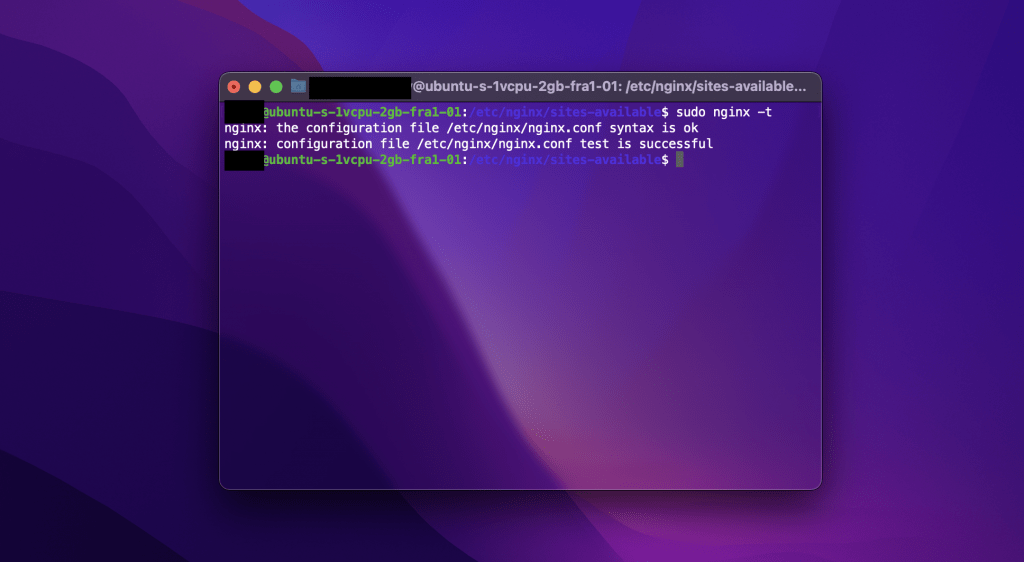
However, if you see a syntax error, you must fix it. Once fixed the syntax errors, restart the Nginx server using the command sudo service nginx restart or else nginx -s reload.
Fixing Insufficient Server Resources
Fix 3 – Monitor System Resources
If you suspect a lack of system resources, start by checking memory usage, CPU load, and disk space. Use the following commands:
htop          # interactive CPU and memory usage per process
free -h       # quick overview of RAM and swap usage
df -h         # disk space usage per partition vmstat 1 5 # CPU, memory, I/O stats sampled every 1s for 5 iterations
iostat -x 1   # disk I/O stats — useful if disk is the bottleneckCode language: PHP (php)
To check if the Linux OOM Killer has terminated any Nginx processes, run:
dmesg | grep -i "oom\|killed process"Code language: JavaScript (javascript)If you see Nginx or PHP-FPM processes listed there, your server is running out of RAM and killing processes to survive — a clear sign you need to either optimize memory usage or upgrade your plan.
Preventing resource exhaustion proactively
If the issue is caused by too many simultaneous requests, you can add rate limiting directly in your Nginx configuration to protect the server:
http {
    limit_req_zone $binary_remote_addr zone=one:10m rate=10r/s;

    server {
        location / {
            limit_req zone=one burst=20 nodelay;
        }
    }
}Code language: PHP (php)
This limits each IP address to 10 requests per second, with a burst tolerance of 20 — helping prevent both accidental traffic spikes and malicious flooding from triggering a 500 error.
If resource limitations persist after optimization, consider removing unnecessary files and services, or migrating to a higher-performance hosting plan.
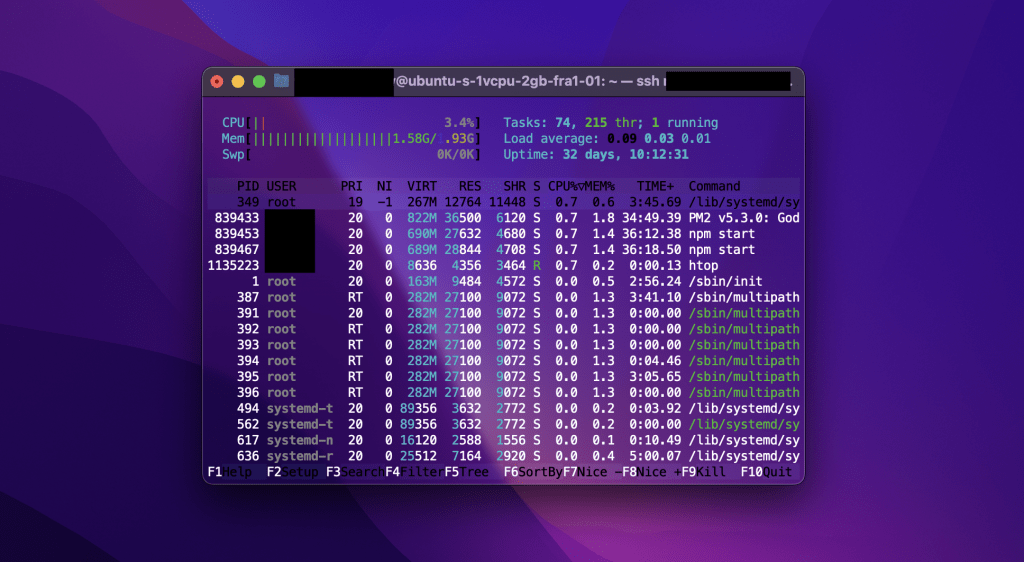
Once you identify the problem in sources, you can try to remove unnecessary files, if the resource limitations persist, you should consider upgrading your server hardware or migrating to a higher-performance hosting solution.
Fixing Backend Application Errors
Fix 4 – Check Backend Application Logs
Inspect the logs of the backend application to identify any errors or exceptions. The log location depends on your application stack:
Node.js with PM2:
pm2 logs --lines 100    # last 100 lines of all app logs
pm2 monit               # real-time CPU/memory monitor per processCode language: PHP (php)
PHP-FPM (one of the most common causes of Nginx 500 errors):
systemctl status php8.2-fpm      # check if PHP-FPM is running
cat /var/log/php8.2-fpm.log      # main PHP-FPM log
cat /var/log/nginx/error.log | grep "FastCGI"    # Nginx-side PHP errorsCode language: PHP (php)
Replace php8.2 with your actual PHP version (php7.4, php8.1, etc.).
Python with Gunicorn:
journalctl -u gunicorn --since "1 hour ago"Code language: JavaScript (javascript)WordPress:
cat /var/www/example.com/logs/error.logCode language: JavaScript (javascript)Or enable WordPress debug mode by adding the following to wp-config.php:
define('WP_DEBUG', true);
define('WP_DEBUG_LOG', true); // logs to /wp-content/debug.log
define('WP_DEBUG_DISPLAY', false);Code language: JavaScript (javascript)
In all cases, look for exceptions, fatal errors, or timeout messages — these will point directly to the root cause. See where to find and how to read your WordPress error logs to identify the root cause.
Fix 5 – Check Proxy Configurations
Ensure the proxy_pass directive in your Nginx server block points to the correct backend address and port:
location / {
    proxy_pass http://127.0.0.1:3000;   # example: Node.js running on port 3000
}Code language: JavaScript (javascript)
If you’re using an upstream block for load balancing or multiple backends, verify it in /etc/nginx/nginx.conf:
upstream backend {
    server 127.0.0.1:3000;
    server 127.0.0.1:3001;
}
Timeout settings are a frequent and overlooked cause of 500 errors under load. If your backend takes too long to respond, Nginx will return a 500 (or 504) error. Add or adjust these directives in your server block:
proxy_connect_timeout 60s;
proxy_read_timeout 120s;
proxy_send_timeout 120s;
To quickly verify if the backend itself is responding correctly, bypass Nginx entirely and test it directly:
curl http://127.0.0.1:3000Code language: JavaScript (javascript)If this returns a valid response, the backend is healthy and the issue is in the Nginx proxy configuration. If it fails, the problem is in the backend application itself.
After making any changes, reload Nginx to apply them:
nginx -s reloadAfter making any changes, restart the Nginx service to apply the modifications using commands sudo service nginx restart or nginx -s reload .
Fixing Insufficient File Permissions
Fix 6 – Check directory permissions
Check the permissions of the files and directories that Nginx is trying to access. The recommended values are 644 for files and 755 for directories. To apply them recursively across your web root:
find /var/www/example.com -type f -exec chmod 644 {} \;
find /var/www/example.com -type d -exec chmod 755 {} \;Code language: JavaScript (javascript)
WordPress-specific: the wp-content/uploads directory is a frequent culprit. Nginx (running as www-data) must be able to write to it:
chmod 755 /var/www/example.com/wp-content/uploadsCode language: JavaScript (javascript)SELinux (RHEL, CentOS, AlmaLinux): even with correct Unix permissions, SELinux may block Nginx from reading files. Check for denials with:
ausearch -m avc -ts recentTo allow Nginx to serve files from a custom directory:
chcon -Rt httpd_sys_content_t /var/www/example.comCode language: JavaScript (javascript)AppArmor (Ubuntu 22.04+): check if AppArmor is blocking Nginx:
aa-status
dmesg | grep -i apparmor
Fix 7 – Confirm ownership
Ensure that files and directories are owned by the user running the Nginx worker processes. To find out which user Nginx is running as:
ps aux | grep nginxIt is typically www-data on Debian/Ubuntu systems, or nginx on RHEL/CentOS. To check the current ownership of your web root:
ls -la /var/www/example.comCode language: JavaScript (javascript)If the ownership is incorrect, fix it recursively with chown:
chown -R www-data:www-data /var/www/example.comCode language: JavaScript (javascript)Important: avoid setting ownership to root on web-accessible directories. Nginx worker processes do not run as root and will be denied access, triggering a 500 error.
After making changes to permissions or ownership, reload Nginx to confirm everything is working:
nginx -s reloadCheck the error log immediately after to confirm the permission errors are gone:
tail -f /var/log/nginx/error.logCode language: JavaScript (javascript)Fixing Browser Related Problems
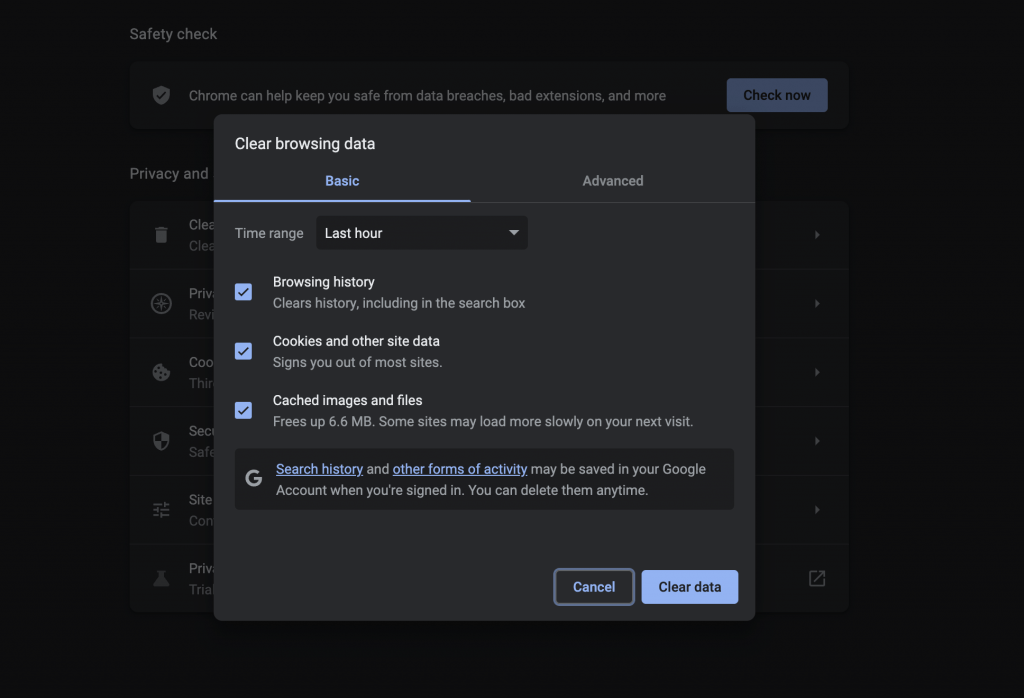
Fix 8 – Clear Browser Cache
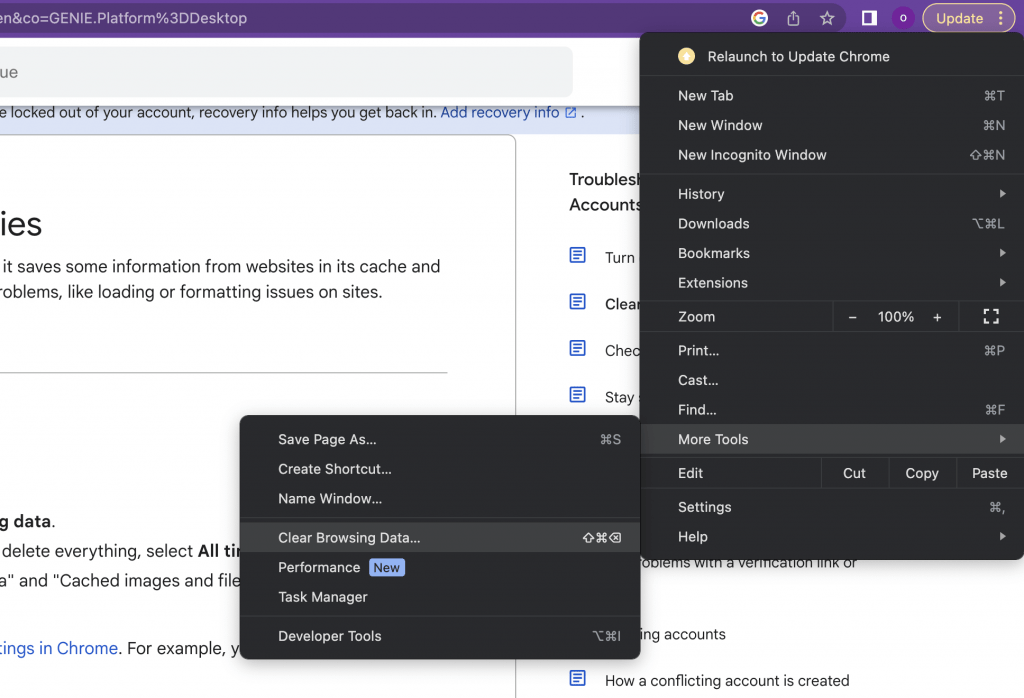
Cached files in the browser can sometimes conflict with the server, clearing the browser cache can help resolve this issue. In Google Chrome, you can remove cached files as in shown image below.
Fix 9 – Disable Browser Extensions
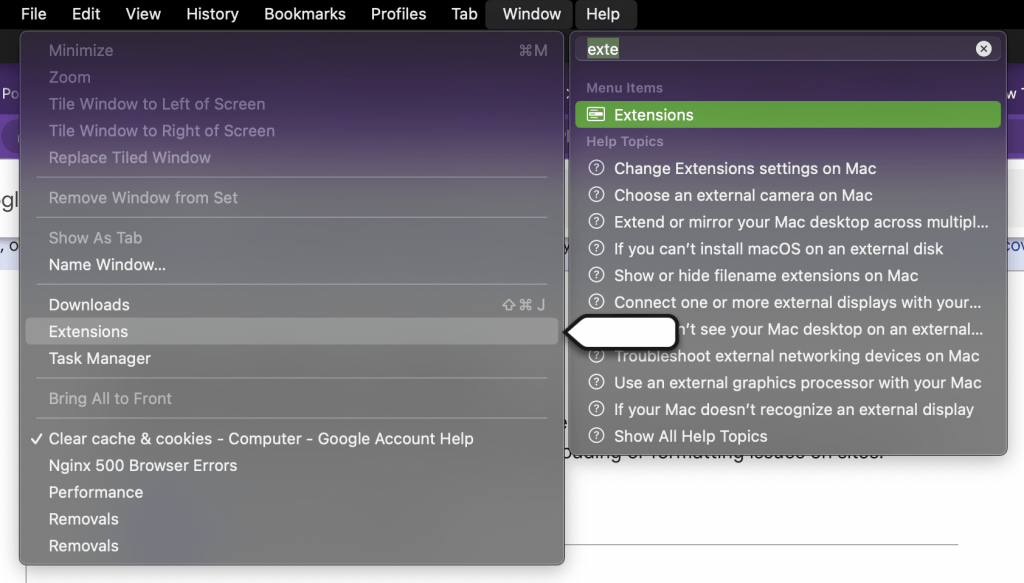
Some browser extensions, especially vpn related extensions, can block communication between the browser and the server. So, you can try disabling all extensions and then reload the webpage to see if the error persists. You can find your extensions on Google Chrome as shown below:
FAQ
How do I fix a Nginx 500 error on WordPress?
WordPress 500 errors on Nginx are most commonly caused by one of three things: incorrect file permissions, a misconfigured PHP-FPM connection, or a faulty plugin or theme.
Start by enabling WordPress debug mode in wp-config.php:
define('WP_DEBUG', true);
define('WP_DEBUG_LOG', true);
define('WP_DEBUG_DISPLAY', false);Code language: JavaScript (javascript)
Then check /wp-content/debug.log for the exact error. Also verify that PHP-FPM is running and that wp-content/uploads has the correct permissions (755, owned by www-data). If the error appeared after installing a plugin or theme, deactivate it by renaming its folder via SSH:
mv /var/www/example.com/wp-content/plugins/plugin-name /var/www/example.com/wp-content/plugins/plugin-name.bakCode language: JavaScript (javascript)Why does Nginx return a 500 error only under high traffic?
This usually means your server is hitting a resource limit under load — not a configuration error. The most common causes are: PHP-FPM running out of worker processes, the backend application timing out, or the Linux OOM Killer terminating processes due to low RAM.
Check your PHP-FPM pool settings in /etc/php/8.2/fpm/pool.d/www.conf and increase the number of workers if needed:
pm = dynamic
pm.max_children = 50
pm.start_servers = 10
pm.min_spare_servers = 5
pm.max_spare_servers = 20
Also add request timeout directives to your Nginx config to prevent hanging connections from accumulating:
nginx
proxy_read_timeout 120s;
proxy_connect_timeout 60s;
How to fix a Nginx 500 error after SSL certificate renewal?
After renewing an SSL certificate, a 500 error usually means Nginx is still pointing to the old certificate path, or the new certificate file has incorrect permissions.
Verify the certificate path in your Nginx config:
grep -r "ssl_certificate" /etc/nginx/Code language: JavaScript (javascript)Then test the configuration and reload:
nginx -t && nginx -s reloadIf you use Certbot, make sure the renewal hook reloads Nginx automatically by checking /etc/letsencrypt/renewal-hooks/deploy/.
How do I enable detailed error messages in Nginx for debugging?
By default, Nginx shows a generic 500 page without revealing the internal error. To get more detail, set the error log level to debug temporarily in your nginx.conf:
error_log /var/log/nginx/error.log debug;Code language: JavaScript (javascript)Then reload Nginx and reproduce the error:
nginx -s reload
tail -f /var/log/nginx/error.logCode language: JavaScript (javascript)
Important: revert the log level back to warn or error after debugging, as debug mode generates very large log files and can impact performance on busy servers.
Are there other less common causes for the NGINX 500 Internal Server Error?
Yes. Some additional causes worth investigating include:
- PHP configuration issues: memory limits, incompatible modules, or incorrect
php.inisettings can trigger a 500 error. Check the PHP error logs and ensure settings align with your application’s requirements. - Faulty upstream server: if Nginx is proxying to an upstream backend that is down or unresponsive, it will return a 500 error. Test the upstream directly with
curl http://127.0.0.1:PORTto isolate the issue. - SELinux or AppArmor blocking access: on RHEL/CentOS or Ubuntu 22.04+, security modules can silently deny Nginx access to files even when Unix permissions are correct. Check with
ausearch -m avc -ts recent(SELinux) ordmesg | grep apparmor(AppArmor). - Resource limitations: insufficient CPU, RAM, or disk space. Monitor with
htop,free -h, anddf -h, and check if the OOM Killer has been active withdmesg | grep -i killed.
A related timeout error is the 504 Gateway Timeout, which appears when Nginx waits too long for the upstream.
Is NGINX a reliable web server? Or is this error frequent?
Yes, NGINX is widely regarded as a reliable and high-performance web server. It uses an asynchronous, event-driven architecture that handles thousands of concurrent connections efficiently, making it a popular choice for high-traffic websites and applications.
NGINX is highly scalable, stable under load, and has built-in support for load balancing, SSL termination, and reverse proxying. The 500 Internal Server Error is not a sign of an unreliable server — it is a generic catch-all status code that indicates something went wrong on the server side, most often in the application layer rather than Nginx itself. With proper configuration and monitoring, these errors are easy to prevent and diagnose.
Stability
NGINX is known for its stability and resilience. It has a small memory footprint, efficient memory management, and effective handling of connections, which contributes to its stability under high loads. NGINX’s modular architecture also allows for easy customization and configuration to meet specific requirements.
NGINX has a reputation for reliability and uptime. It has built-in features for load balancing, fault tolerance, and high availability, which help ensure continuous service even in the event of server failures or network issues.
NGINX has a large and active community of users and developers, which provides extensive support, documentation, and resources. The NGINX community actively contributes to the development and improvement of the web server, making it reliable and well-maintained.
While no web server is entirely immune to issues or vulnerabilities like the error 500, NGINX has proven to be a dependable choice for hosting websites and serving web content due to its performance, scalability, stability, and strong community support.
Conclusion
Nginx 500 Internal Server Error indicates that there are some problems with your server. In this article, we have discussed the possible causes of these problems, how to detect them and the steps needed to fix them. Remember, such errors prevent access to your website, so you should test your application step by step both while developing and publishing it to avoid such errors in production.
This error is one of several common WordPress and server errors — for the full picture, see our complete guide to common WordPress errors.
