
Every WordPress site has a login page — the gateway to the admin dashboard where you manage posts, plugins, themes, and settings. Yet finding the WordPress login URL, getting past a redirect loop, or recovering a lost password trips up beginners and pros alike. This guide covers everything: how to log in through wp-admin and wp-login.php, how to log in from your hosting panel, how to fix the most common login problems, and how to secure your login page against the brute-force bots that hammer every WordPress site.
Table of Contents
What is the WordPress login page (wp-admin vs wp-login.php)?
WordPress uses two URLs for admin access, and both work on every installation out of the box. Understanding the difference clears up most of the confusion.
wp-login.php is the actual login page. It’s a core file in the root of every WordPress install that displays the username and password form, processes authentication, and creates your session cookie. When you go to yoursite.com/wp-login.php, you land directly on the login screen.
wp-admin is the admin dashboard — the backend area where you manage your site. When you visit yoursite.com/wp-admin, WordPress checks whether you’re already logged in. If you are, it takes you straight to the dashboard. If you’re not, it automatically redirects you to wp-login.php first, then back to the dashboard after you authenticate. That’s why most people bookmark /wp-admin — it works either way.
There’s also a lesser-known shortcut: yoursite.com/login. WordPress registers a rewrite rule that points /login (and sometimes /admin) to wp-login.php. It works on most installs but isn’t guaranteed on every server configuration.
How to find your WordPress login URL
For a standard installation, add one of these to the end of your domain:
yoursite.com/wp-admin
yoursite.com/wp-login.php
yoursite.com/login
Any of these brings up the login screen, where you enter your username (or email) and password. Once authenticated, you land in the dashboard.
If WordPress is installed in a subdirectory — some sites live at yoursite.com/blog/ or yoursite.com/wordpress/ — the login URL includes that path: yoursite.com/blog/wp-admin. If you’re not sure of the install path, check your hosting panel: in cPanel, open the Softaculous or WordPress installer, which lists every installation and its exact location.
How to log in to WordPress: step by step
Logging in is simple once you know the URL. Here’s the full process:
- Open your browser and go to
yoursite.com/wp-admin. - WordPress shows the login form (this is
wp-login.php). - Enter your username or email and your password.
- Optionally check “Remember Me” to stay logged in for 14 days (more on that below).
- Click Log In. You’ll be taken to the WordPress dashboard.
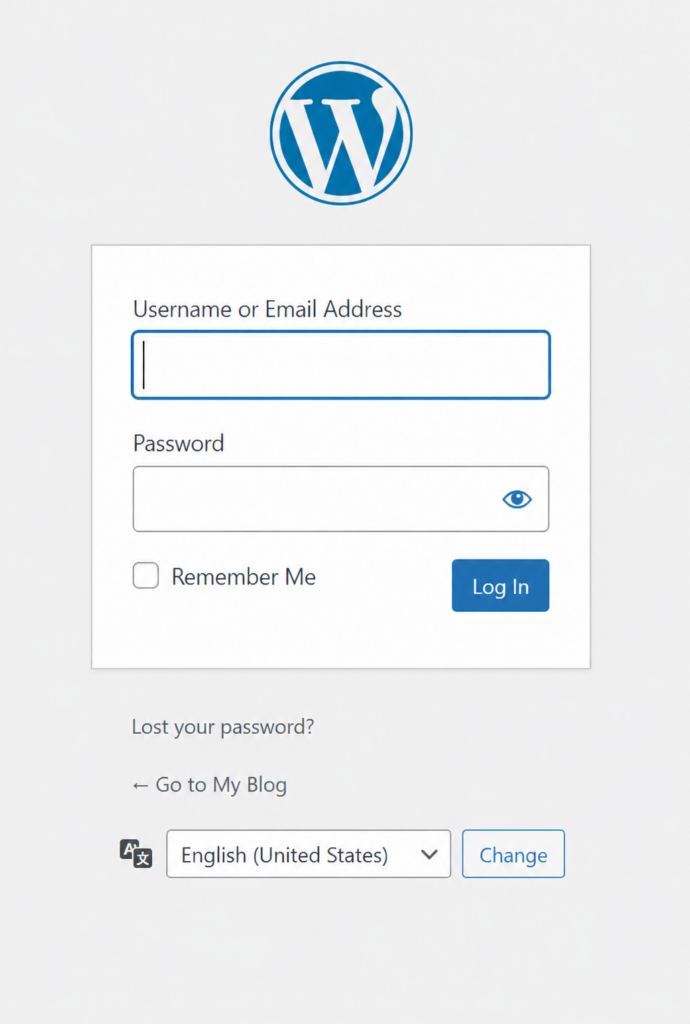
That’s it — you now have access to manage your entire site.
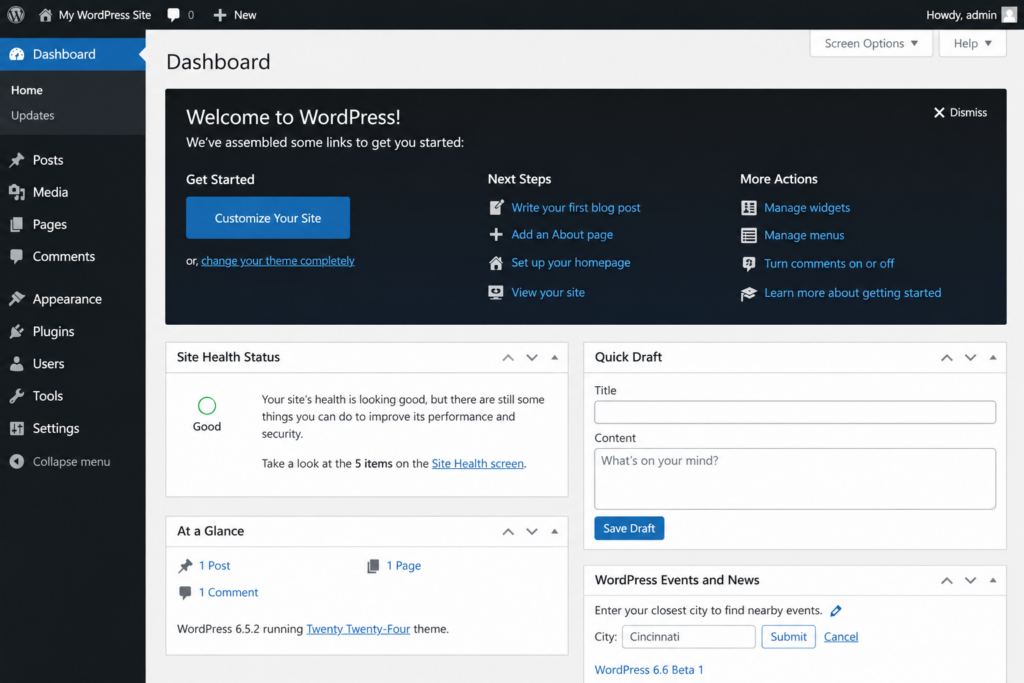
The single most common beginner mistake: using your hosting account credentials on the WordPress login page. They’re two completely separate systems. Your hosting login (cPanel, Copahost account) manages the server; your WordPress login manages the site. Changing one password never affects the other.
How to log in through your hosting panel
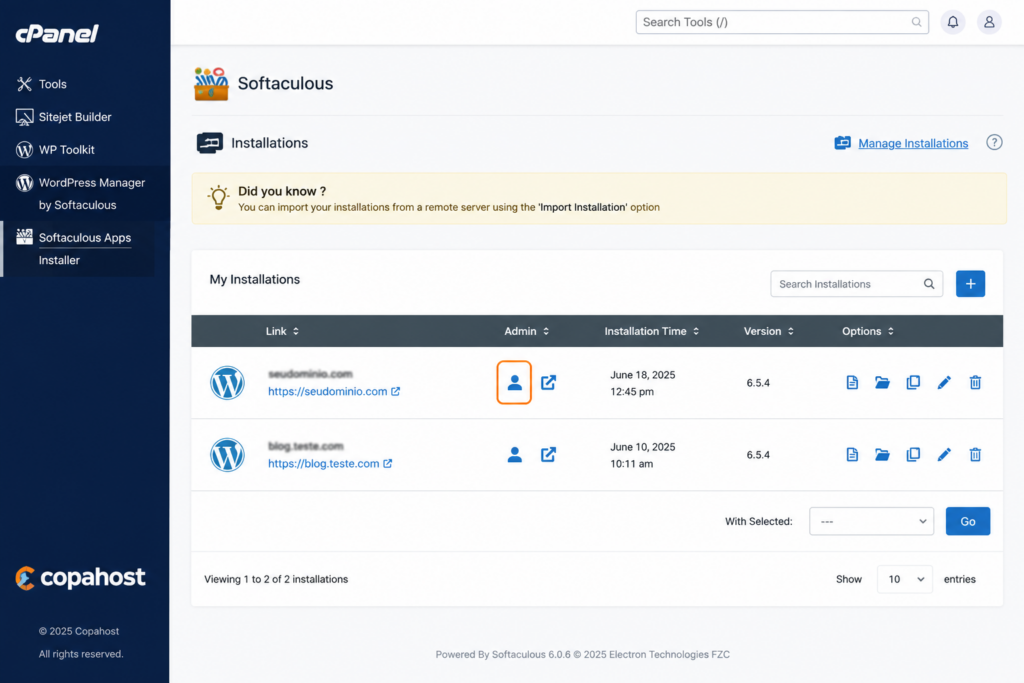
Many hosts let you skip the login form entirely and jump straight into the dashboard from your hosting control panel. On Copahost, using cPanel and Softaculous:
- Log in to your Copahost hosting account and open cPanel.
- Find the Softaculous Apps Installer (under the Software section).
- Open Softaculous and go to Installations — you’ll see every WordPress site on your account.
- Click the login/admin icon next to your installation, and you’re taken to the WordPress dashboard without typing your WordPress credentials.
This is handy when you’ve forgotten your WordPress password or just want quick access. It’s the same shortcut the big managed hosts market as “one-click” login.
Remember Me and bookmarking your login
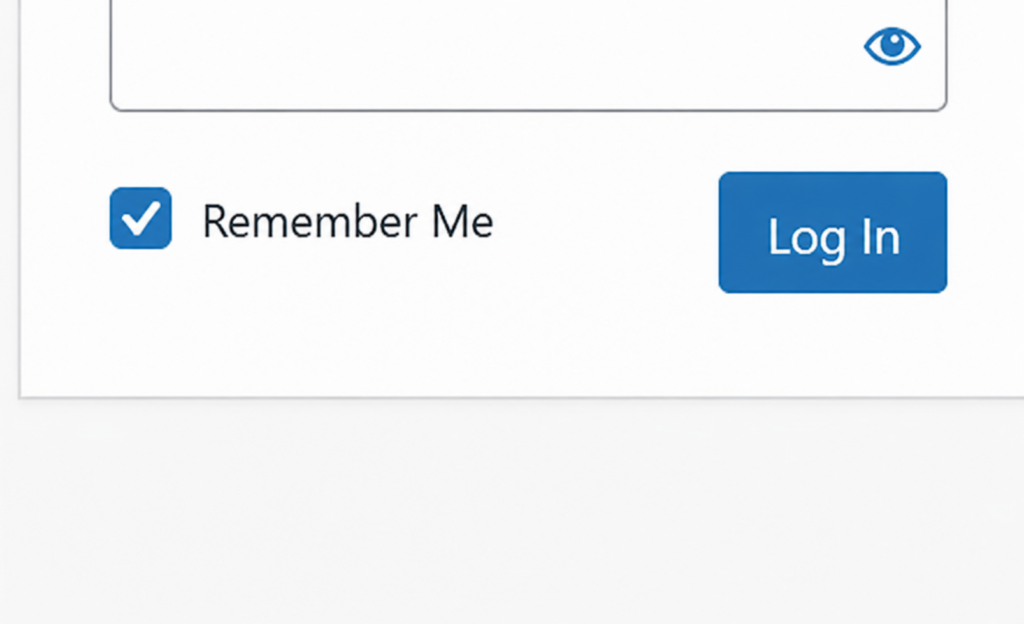
Two small habits make login painless. First, the “Remember Me” checkbox on the login form: leave it unchecked and your session ends when you close the browser; check it and WordPress keeps you logged in for 14 days via a persistent cookie. Only use it on your own devices — never on public or shared computers.
Second, bookmark your login URL. Visit yoursite.com/wp-admin and save it in your browser, or better, store your credentials in a password manager like Bitwarden, 1Password, or KeePass, which fills the form automatically and generates strong, unique passwords for each site you manage.
How to recover a lost WordPress password
If you’ve forgotten your password, you have a few options:
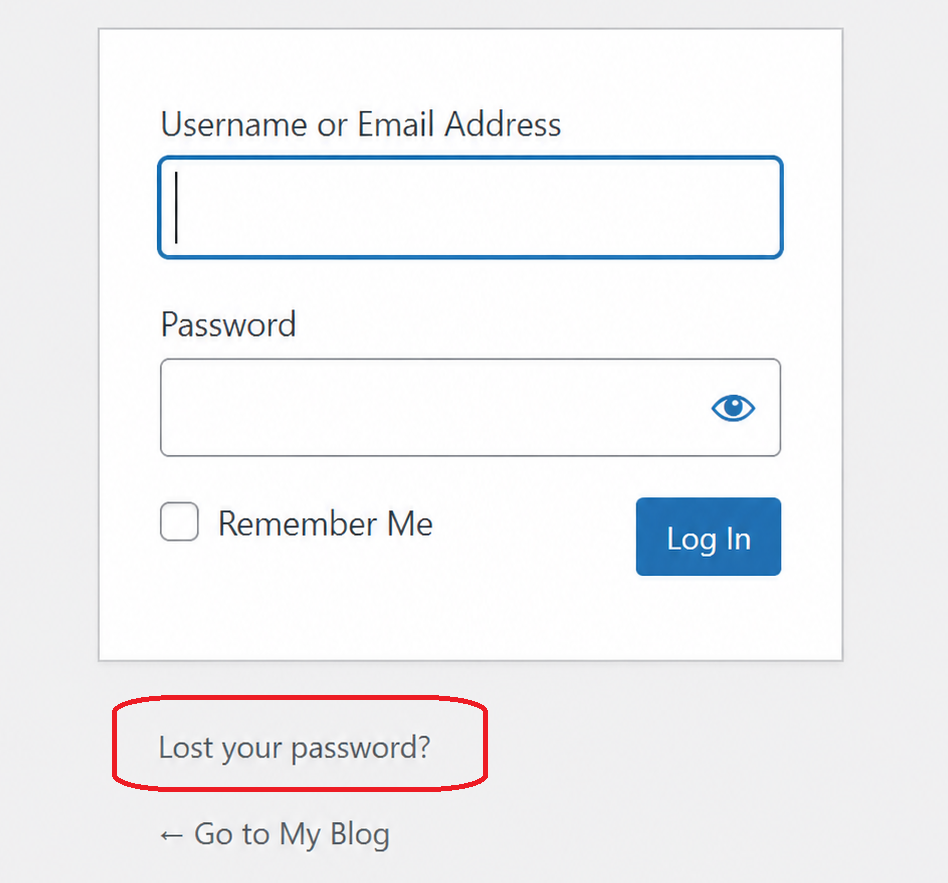
The Lost Password link. On the login page, click “Lost your password?”, enter your username or email, and WordPress emails a reset link within a few minutes (check spam if it doesn’t arrive). Open the link, set a new password, and log in.
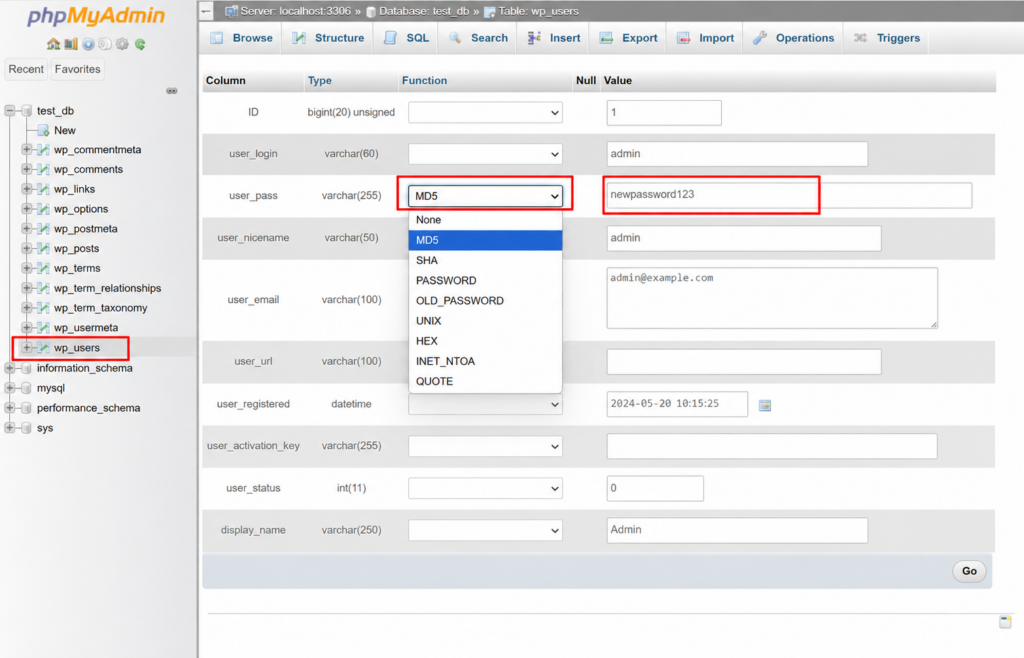
Via phpMyAdmin. If you can’t access the reset email, you can change the password directly in the database. In cPanel, open phpMyAdmin, select your WordPress database, find the wp_users table, edit the target user, and set a new value for user_pass — choosing MD5 in the function dropdown so the password is hashed. Save, and log in with the new password. Always back up the database before editing it.
Via your host / Softaculous. Some panels, including Softaculous, let you reset the admin password from the installation’s edit screen — no database editing required.
Fixing common WordPress login problems
The login page is simple until it isn’t. Here are the issues that lock people out most often, and how to solve them.
wp-admin returns a 404
Two likely causes: WordPress is installed in a subdirectory (so the real URL is yoursite.com/blog/wp-admin), or a security plugin changed the login URL and the old one now 404s. Check your install path in cPanel’s WordPress/Softaculous installer, and if a plugin like WPS Hide Login is active, use the custom URL you set (or disable the plugin via FTP to restore the default).
The login redirect loop
You enter correct credentials, the page reloads, and you’re back at the login screen with no error — an endless loop. This happens when WordPress sets the authentication cookie but can’t validate it on the next request. The usual culprits:
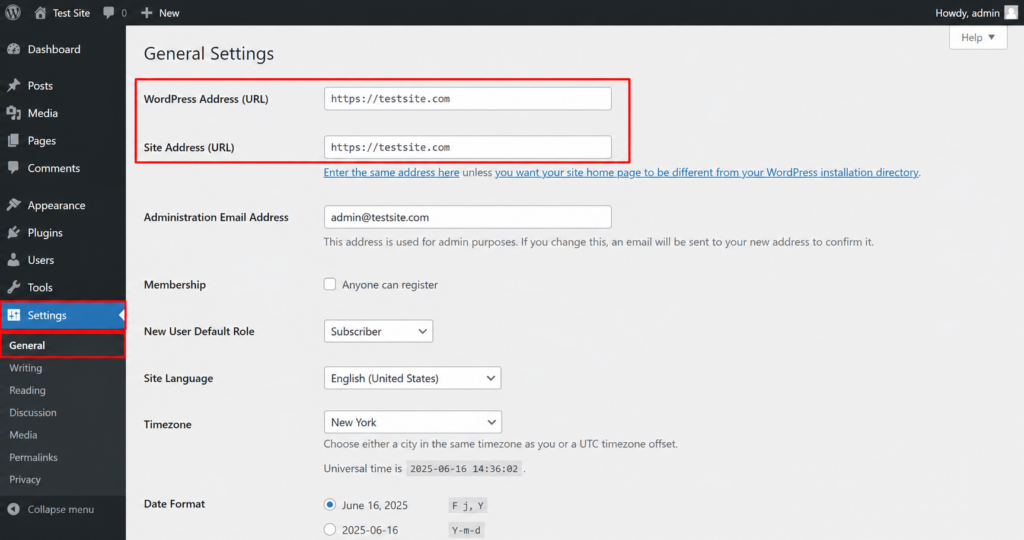
- Mismatched site URLs — the WordPress Address and Site Address (in Settings → General) don’t match, e.g. one has
wwwand the other doesn’t, or one ishttpand the otherhttps. - Browser cookies — clear your browser’s cache and cookies and try again.
- Caching plugins serving a cached version of the login page.
Start by clearing cookies. If that fails, check the site URLs — you can set them explicitly in wp-config.php with WP_HOME and WP_SITEURL (see our wp-config.php guide).
ERR_TOO_MANY_REDIRECTS
A browser-level version of the loop, almost always caused by the same WordPress Address / Site Address mismatch (www vs non-www, or HTTP vs HTTPS). Make both settings identical and consistent with your SSL setup. For every cause and fix in detail, see our complete guide to ERR_TOO_MANY_REDIRECTS.
“Cookies are blocked” error
WordPress needs cookies to keep you logged in. If the browser blocks them, login fails even with the right password. Enable cookies, try an incognito window, and disable privacy extensions one at a time to find the blocker.
WordPress keeps logging me out
If you’re logged out constantly — every time you change pages or after a short while — the cause is almost always the same as the redirect loop: a mismatch between your WordPress Address and Site Address, or a caching issue. WordPress ties your login session to the site URL, so if a page loads under www and another without it (or one over HTTP and one over HTTPS), the session cookie is seen as invalid and you’re logged out. Make both URLs in Settings → General identical, clear your cookies, and exclude the login page from any caching plugin. Checking “Remember Me” also extends the session to 14 days, reducing how often you need to sign back in.
Locked out by too many attempts
If you (or a security plugin) triggered a limit on failed login attempts, access is blocked temporarily. Wait out the lockout window, then log in with the correct credentials. If a 2FA or security plugin is the problem, deactivate it via FTP by renaming its folder in /wp-content/plugins/.
Still locked out
If nothing works, a plugin or theme conflict may be to blame. Connect via FTP or File Manager, go to /wp-content/ and rename the plugins folder to plugins_old to disable all plugins at once. If you get back in, rename it back and reactivate one by one to find the culprit. For a full breakdown of this folder and what’s safe to touch, see our guide to the wp-content folder.
A white screen or critical error at login usually points to that kind of conflict.
How to secure your WordPress login page
Because /wp-admin and /wp-login.php are universal, automated bots hammer them with brute-force attempts — testing thousands of username/password combinations. Securing the login page is basic responsible site ownership. The essential measures:
/wp-admin and /wp-login.php with a custom path, so bots hitting the default URLs get a 404. It eliminates the vast majority of automated noise.The number-one downside of hiding your login URL is locking yourself out. The moment you set a custom URL, bookmark it and store it in your password manager. If you lose it, you’ll need to disable the plugin via FTP to restore the default /wp-admin.
How to customize your WordPress login page
The default WordPress login screen is plain and shows the WordPress logo. If you run sites for clients — or just want your own branding — you can customize the login page to match your site: your logo, your colors, a custom background, and a redirect after login.
The easiest route is a plugin. LoginPress and SeedProd are the most popular options: both give you a visual editor to change the logo, background, form styling, and button colors without touching code. Custom Login Page Customizer is a lighter free alternative. After installing one, you configure everything from the WordPress dashboard and the changes apply to your /wp-login.php screen.
Beyond looks, a branded login page makes a site feel more professional and trustworthy to clients and team members who log in regularly. For a fully custom login and registration flow — with extra fields and roles — form plugins like WPForms let you build a dedicated login page hosted on your own URL.
How to add Google or social login
By default, WordPress only offers username-and-password login. But you can let users sign in with an existing account — Google, Facebook, Apple, or others — using a social login plugin. This speeds up access, reduces forgotten-password requests, and can improve sign-up rates on membership sites.
The most popular option is Nextend Social Login, which supports Google, Facebook, and more in its free version. After installing it, you register an app with the provider (for Google, in the Google Cloud Console), paste the resulting API keys into the plugin settings, and a “Sign in with Google” button appears on your login page. Other options include Super Socializer and the social login features built into some membership plugins.
One thing to keep in mind: social login is a convenience feature, not a security upgrade. Pair it with the measures below — and note that it doesn’t replace protecting the standard login page, since /wp-login.php still works.
Logging in to WordPress from your phone
You can manage WordPress from a mobile browser by visiting yoursite.com/wp-admin — the dashboard loads in a responsive layout, fine for publishing posts, moderating comments, or approving updates. For heavier work (page builders, WooCommerce), switch to desktop mode or use a computer.
There’s also the official WordPress mobile app (Android and iOS from Automattic). Open it, tap “Enter your existing site address,” type your domain, and enter the same credentials you use for wp-admin. The app requires the Jetpack plugin or XML-RPC enabled — most installs have XML-RPC on by default.
How to log out (and redirect after login)
Logging out is quick: in the dashboard, hover over your account name in the top-right corner of the admin bar, then click Log Out from the dropdown. You can also log out directly by visiting the logout URL:
yoursite.com/wp-login.php?action=logoutAlways log out when using a shared or public computer, especially if you didn’t check “Remember Me.”
Redirecting users after login is useful when you don’t want everyone landing on the dashboard. For example, you might send Subscribers or customers to a members page or their account area instead of wp-admin. This is done with a login-redirect plugin (such as LoginWP) or a snippet in your theme’s functions.php using the login_redirect filter, where you can route users to different pages based on their role.
Copahost WordPress hosting comes with Softaculous one-click access, free SSL, automatic backups, and cPanel — plus support that helps when you’re locked out or troubleshooting login issues.
See web hosting plansFrequently asked questions
What is the WordPress login URL?
For a standard install, it’s your domain followed by /wp-admin or /wp-login.php, for example yoursite.com/wp-admin. If WordPress is in a subdirectory, include that path, like yoursite.com/blog/wp-admin. A security plugin may have changed it to a custom URL.
What’s the difference between wp-admin and wp-login.php?
wp-login.php is the login page that processes authentication. wp-admin is the admin dashboard. If you visit wp-admin without being logged in, WordPress redirects you to wp-login.php first, then back to the dashboard after you sign in.
Why does wp-admin keep redirecting me to the login page?
This is the login redirect loop, usually caused by browser cookies or a mismatch between your WordPress Address and Site Address settings (www vs non-www, or HTTP vs HTTPS). Clear your cookies first, then check those URLs, setting them in wp-config.php if needed.
I forgot my WordPress password. How do I reset it?
Click “Lost your password?” on the login page and enter your username or email to get a reset link. If you can’t access the email, reset the password through phpMyAdmin in your hosting panel, or through Softaculous.
Why do I get a 404 at wp-admin?
Either WordPress is installed in a subdirectory (so the URL is yoursite.com/subfolder/wp-admin), or a security plugin changed the login URL. Check your install path in cPanel, and use the custom URL if a plugin like WPS Hide Login is active.
Is my hosting login the same as my WordPress login?
No. They’re separate systems. Your hosting login manages the server and cPanel; your WordPress login manages the site. Changing one password doesn’t affect the other.
Can multiple users log in to the same WordPress site?
Yes. WordPress supports multiple user accounts, each with its own login and a role that sets its access level: Administrator (full control), Editor (manage all content), Author (own posts), Contributor (draft posts), and Subscriber (profile only). You assign a role when you create each user under Users, Add New. Learn more in our guide to WordPress user roles and permissions.
Related guides
The WordPress login connects to several other configuration and troubleshooting topics — see our guides on the wp-config.php file, the .htaccess file, the white screen of death, and our hub of common WordPress errors.
Conclusion
Logging in to WordPress comes down to one simple URL — yoursite.com/wp-admin — but knowing how it works makes everything easier. You now know the difference between wp-admin and wp-login.php, how to log in from your hosting panel, how to recover a lost password, and how to fix the redirect loops and lockouts that catch people off guard. Just as important, you know how to protect that login page from the brute-force bots that target every WordPress site. Bookmark your URL, use a strong password with 2FA, and your dashboard is both easy to reach and locked down.
