
You click a link, the page tries to load, and instead you get “This site can’t be reached” with the code ERR_CONNECTION_REFUSED. Unlike a slow page or a “not found” message, this one is blunt: the connection wasn’t lost or timed out — it was actively refused. Something said “no” before the page could even start loading.
This guide explains exactly what that means, helps you tell in under a minute whether the problem is on your side or the website’s, and then walks through every fix that works — for everyday visitors on Windows, macOS, Android, and iOS, and for website owners and developers who need to chase it down to the server.
Quick answer: ERR_CONNECTION_REFUSED means your browser reached the server (or something on the path to it) and the connection was deliberately rejected — usually because the web service is down, a firewall is blocking the port, or a setting on your own device (proxy, VPN, DNS, antivirus) is getting in the way.
Table of Contents
What ERR_CONNECTION_REFUSED actually means
When you open a website, your browser tries to open a TCP connection to the server on a specific port (usually 443 for HTTPS or 80 for HTTP). Normally the server accepts and the page loads. ERR_CONNECTION_REFUSED (older builds called it Error 102) appears when that connection attempt is actively rejected instead of accepted.
The key is the word refused. There’s a meaningful difference between the three “site can’t be reached” errors:
- Refused — something is there and it said “no.” A service rejected the connection, or a firewall blocked the port.
- Timed out — nobody answered at all. The request went out and got silence (slow or unreachable server).
- Reset — the connection opened, then was cut mid-transfer.
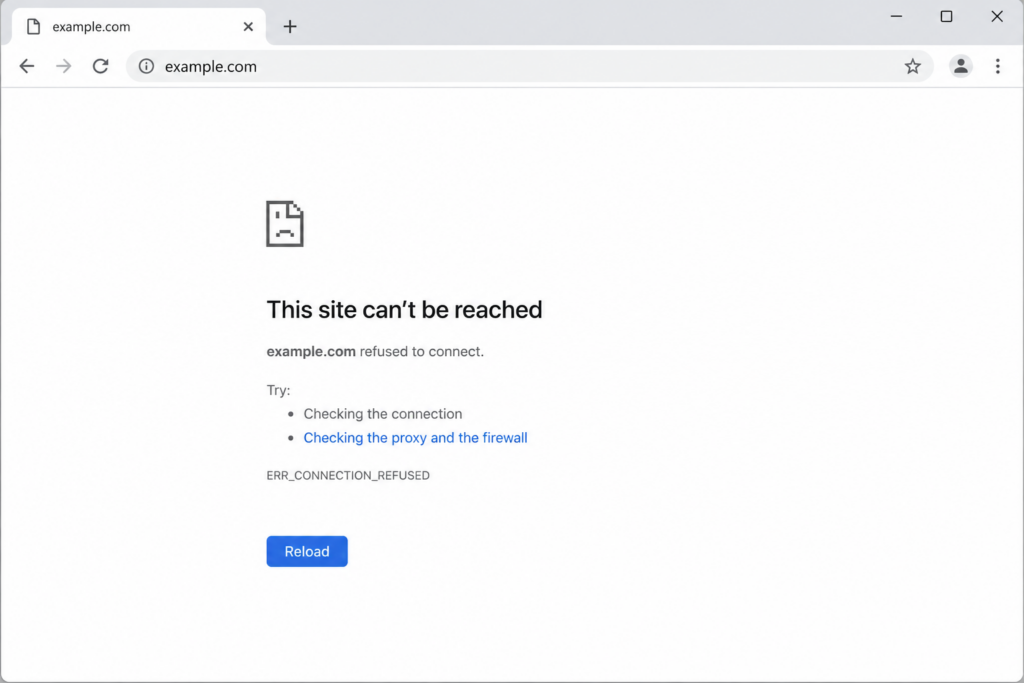
So the troubleshooting question is simple: why is the connection being rejected? And the answer is on one of two sides — your device, or the server.
A note on localhost refused connections. Developers often hit this on localhost or 127.0.0.1 while running a local server. The cause is the same idea — nothing is accepting the connection — but local: your dev server (Apache, Nginx, Node, XAMPP, php artisan serve) isn’t running, is listening on a different port than the one you typed, or a local firewall is blocking it. Confirm the server is started, check the exact port, and try http://127.0.0.1:PORT directly.
First: is it you or the website? (60-second triage)
Before changing any settings, find out which side the problem is on. This one step saves most people a lot of wasted effort.
- Open the site on another device or network. Switch from Wi-Fi to mobile data, or try another computer. If it loads elsewhere, the problem is almost certainly on your device or network — go to the client-side fixes. If it fails everywhere, it’s likely the server.
- Check whether the site is down for everyone. Use a service such as Down for Everyone or Just Me or Is It Down Right Now, which test the site from multiple locations. If it’s down globally, there’s nothing to fix on your end — only the site owner or host can resolve it.
- Try another browser. If it fails in Chrome but works in Firefox or Edge, the cause is browser-specific (an extension, cache, or profile) rather than your network or the server.
- On a work, school, or public network, the ISP or network admin may block the site outright — try mobile data to rule this out.
Once you know which side you’re on, work through the matching section below.
Client-side fixes (for visitors)
These are ordered from quickest and most common to more advanced. Re-test the site after each step.
1. Check your connection and restart your router
Start with the obvious: confirm other sites load. A weak or unstable connection can cause refused connections. Unplug your router (and modem) for at least 30 seconds, plug it back in, let it fully reconnect, and try again.
2. Run the network troubleshooter
Before digging into individual settings, let your system’s built-in network diagnostics take a pass — they catch and fix common connection problems automatically. On Windows, go to Settings → Network & internet → Advanced network settings → Network troubleshooter (or Network reset to rebuild adapters from scratch). On macOS, run Apple Diagnostics: shut down, then power on while holding D, and follow the prompts. Apply any suggested fix and reload the site.
3. Clear your browser cache and cookies
Corrupted cached data can break the connection setup. In Chrome: three-dot menu → Delete browsing data (or Ctrl+Shift+Delete / Cmd+Shift+Delete) → set range to All time → tick Cookies and Cached images and files → Delete data. The same shortcut works in Edge and Firefox.
4. Flush the DNS cache
A stale or corrupted DNS cache can point your browser at the wrong place and get the connection refused.
- Windows: open Command Prompt and run
ipconfig /flushdns. - macOS: run
sudo dscacheutil -flushcache; sudo killall -HUP mDNSResponderin Terminal. - Chrome’s own cache: visit
chrome://net-internals/#dnsand click Clear host cache.
5. Change your DNS servers
If your ISP’s DNS is unreliable, switch to a public resolver — Google (8.8.8.8 / 8.8.4.4) or Cloudflare (1.1.1.1 / 1.0.0.1). On Windows: adapter properties → Internet Protocol Version 4 (TCP/IPv4) → Use the following DNS server addresses. On Mac: System Settings → Network → Details → DNS. (If you already use a public resolver, try switching back to your ISP’s default.)
6. Disable your proxy
A misconfigured proxy is a classic cause. Windows: Settings → Network & internet → Proxy → turn off Automatically detect settings and any manual proxy. macOS: System Settings → Network → Details → Proxies → uncheck all protocols.
7. Turn off your VPN temporarily
VPNs reroute traffic and can get connections refused. Disconnect it and retry; if that’s the cause, switch its protocol or server.
8. Temporarily disable firewall and antivirus (then re-enable)
Security software sometimes blocks a legitimate connection. As a test only, briefly disable your third-party antivirus and the system firewall, then load the site. If that fixes it, don’t leave protection off — add the site to the allow-list instead and turn protection back on.
9. Disable browser extensions
Ad blockers, privacy tools, and VPN add-ons can refuse connections. Open an Incognito window (extensions are off by default); if the site works there, go to chrome://extensions, disable all, and re-enable one at a time to find the culprit.
10. Reset or reinstall your browser
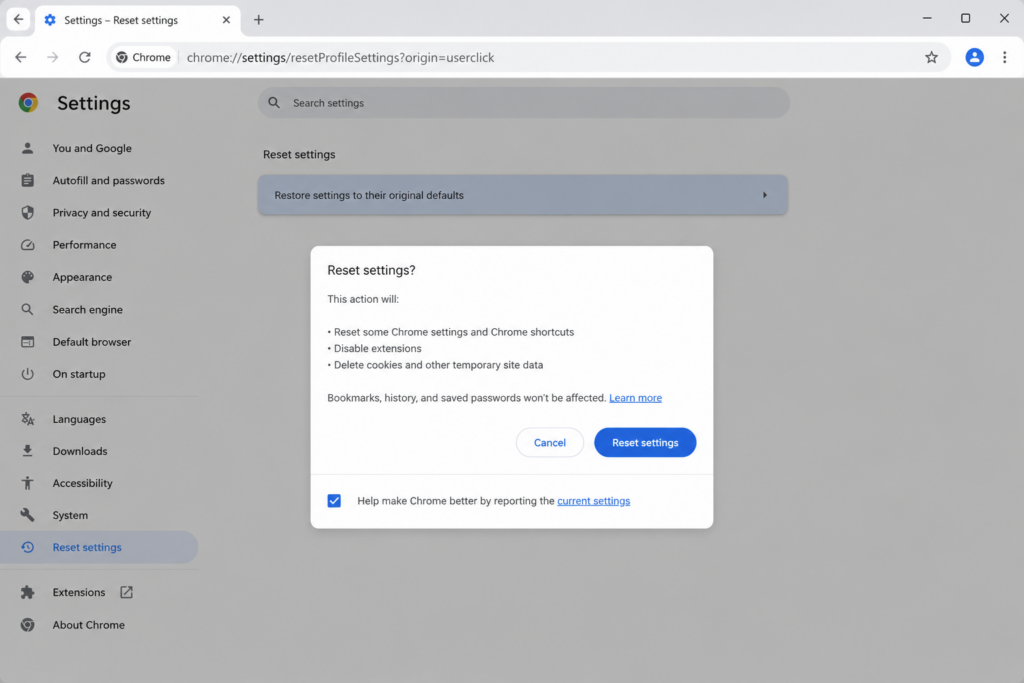
If the error follows you across sites but only in one browser, its profile or settings may be corrupted. First, reset Chrome to defaults: Settings → Reset settings → Restore settings to their original defaults (this clears misconfigurations and disables extensions without deleting bookmarks or passwords). If that doesn’t help, reinstall the browser entirely — uninstall it, download a fresh copy from the official site, and reinstall.
11. Check your hosts file
A leftover or malicious entry in your hosts file can block a domain. On Windows it’s at C:\Windows\System32\drivers\etc\hosts; on macOS/Linux at /etc/hosts. Open it as administrator and remove any line pointing the site’s domain to 127.0.0.1 or another address.
12. Reset the TCP/IP stack (Windows)
If it still fails, rebuild the network stack. Open Command Prompt as administrator and run, one at a time:
netsh winsock reset
netsh int ip reset
ipconfig /release
ipconfig /renew
ipconfig /flushdns
Restart and retest. This clears a large share of stubborn cases on Windows.
Server-side fixes (for website owners and hosting clients)
If the error shows up for your visitors — or for everyone, everywhere — the problem is on the server, and no amount of cache-clearing on a visitor’s end will help. This is where the real fix often lives, and it’s the part most guides skip.
1. Confirm the web service is actually running
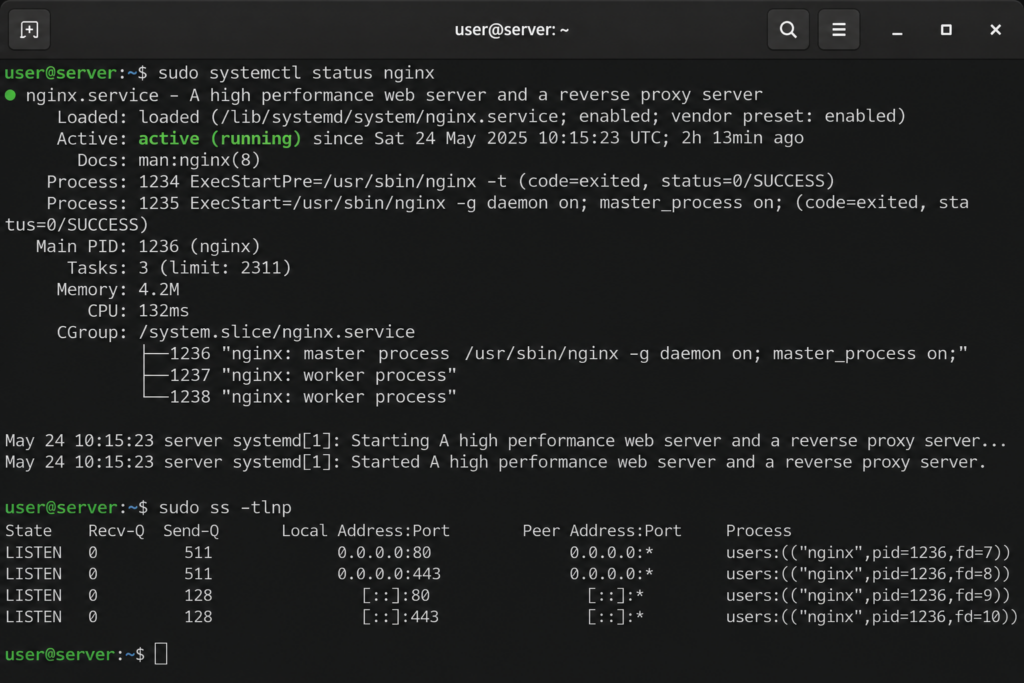
A refused connection almost always means nothing is listening on the port. The web server (Apache, Nginx, LiteSpeed) may have crashed or stopped. On a server you manage, check and restart it — for example sudo systemctl status nginx then sudo systemctl restart nginx (or apache2). On shared or managed hosting you can’t do this directly; contact support to confirm the service is up.
2. Check the right port is open and listening
The service must be listening on the correct port (80 for HTTP, 443 for HTTPS) and that port must be reachable. A service bound to the wrong port, or a port closed at the firewall, produces a refused connection. On a VPS, sudo ss -tlnp (or netstat -tlnp) shows what’s listening on which port.
3. Review the server firewall and security rules
Server-level security commonly refuses connections it wrongly flags:
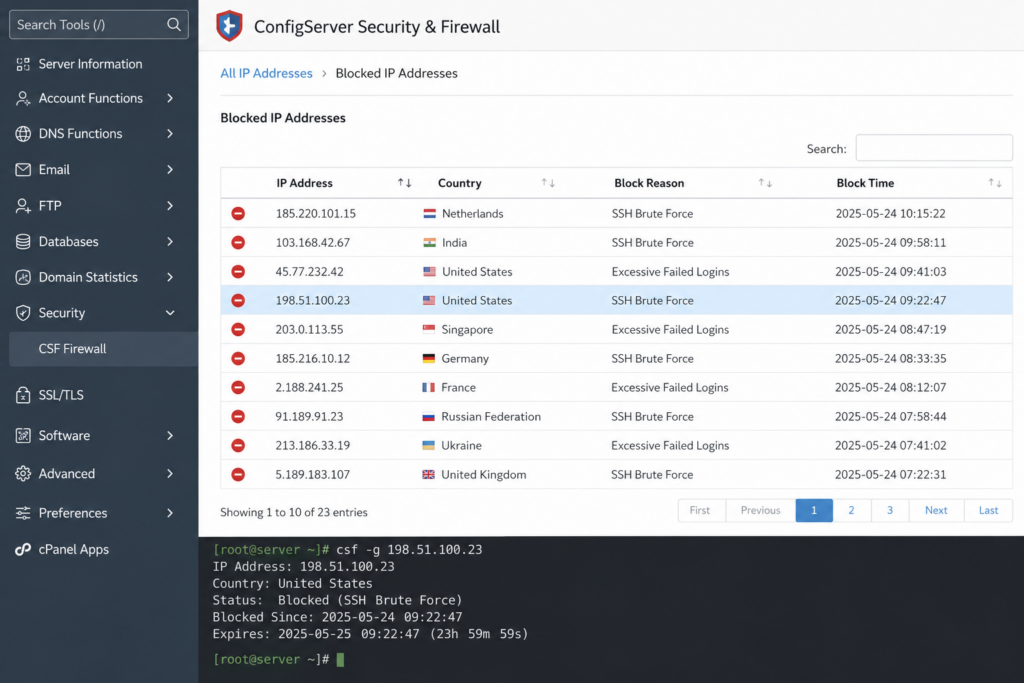
- CSF/LFD or fail2ban may have banned a visitor’s IP after misreading activity as suspicious — check and whitelist it.
- ModSecurity (WAF) or a cloud firewall may block requests or whole IP ranges.
- A misconfigured
iptables/ufwrule can close the web port entirely.
If only some visitors are refused, an IP ban is the usual cause; if everyone is, suspect the service or the port.
4. Check server load and resources
A server out of CPU, RAM, or available connections can start refusing new ones. Review your hosting metrics for spikes, runaway processes, or a plan you’ve outgrown. If the site has genuinely outgrown shared hosting, moving to a VPS or cloud plan with real headroom is the durable fix.
5. WordPress-specific checks
On WordPress, a refused or failed connection can trace to a plugin conflict, a broken theme, or a PHP timeout. Disable plugins (rename the plugins folder via FTP), switch to a default theme, and check your error logs. If the database is the real culprit, you may instead be looking at an error establishing a database connection rather than a refused connection.
6. Read your server logs
Your access and error logs are the ground truth. Look for the service failing to start, port binding errors, or firewall bans, and correlate timestamps with the failures. Logs usually point straight at the offending service.
ERR_CONNECTION_REFUSED vs. similar errors
Chrome’s connection errors look alike but mean different things — and knowing the difference points you to the right fix.
For the full breakdown of the cut-mid-transfer case, see our guide to ERR_CONNECTION_RESET. When the server never answers at all rather than refusing, see our guide to the ERR_CONNECTION_TIMED_OUT error.
Aqui está o bloco “se nada funcionou”, pronto para colar. Sugiro inseri-lo após a seção “Server-side fixes” e antes de “How to prevent ERR_CONNECTION_REFUSED” — é a transição natural: esgotou as correções, eis o que fazer em seguida, depois como prevenir.
If nothing works: next steps
Worked through both checklists and still stuck? A few final moves usually settle it — and, just as important, point you to who can actually fix it.
Rule out the basics one more time:
- Try a different browser and device. If it fails everywhere, the problem isn’t your browser — move on to the support contacts below.
- Restart the computer. A full reboot clears temporary system and network glitches that individual fixes can miss.
- Update your browser and operating system. Outdated software causes connectivity bugs and TLS incompatibilities; install pending updates and retry.
- Test on another network. Switch to mobile data or a different Wi-Fi. If the site loads elsewhere, your original network — or its ISP — is blocking it.
Then contact the right party — matching the symptom to who can solve it saves hours:
- If many sites are affected → your internet provider (ISP). The block or routing problem is on their end, or on your local network’s admin (common on work, school, or public Wi-Fi).
- If only one site you don’t own is affected → the website’s owner. Their server or firewall is refusing connections and only they can adjust it.
- If it’s your own website → your hosting provider. They have server-level access to confirm the web service is running, the port is open, and no firewall rule is banning visitors — the things you can’t always see from outside.
Most refused-connection cases are resolved well before this point. When they aren’t, it’s almost always because the fix lives somewhere only the network operator or host can reach — which is exactly why a host with responsive, log-level support matters.
How to prevent ERR_CONNECTION_REFUSED
For visitors: keep your browser and OS updated, be selective with extensions and VPN apps, restart your router periodically, and add trusted sites to your antivirus exceptions instead of fighting repeated blocks.
For website owners: monitor that your web service stays up and set alerts before you hit resource limits; tune your WAF and firewall (CSF, fail2ban, ModSecurity) to minimize false-positive IP bans; keep the correct ports open; and choose a host with the headroom and log visibility to catch a stopped service before your visitors do. Most chronic, site-wide refused-connection problems trace back to a crashed service, a firewall rule, or resource exhaustion — all preventable with the right hosting setup.
Quick answers about the ERR_CONNECTION_REFUSED error.
?What does ERR_CONNECTION_REFUSED mean?
?Is it a problem with my computer or the website?
?How do I fix ERR_CONNECTION_REFUSED quickly?
?What’s the difference between connection refused and timed out?
?I’m the site owner — why are visitors getting it?
?Can antivirus or a VPN cause it?
A crashed service, a closed port, or an over-eager firewall can take your site offline. Copahost gives you the resources, firewall control, and support that reads your server logs and keeps your site accepting visitors.
Explore Copahost hostingConclusion
ERR_CONNECTION_REFUSED is blunt but rarely mysterious once you know the method: first work out whether the rejection is coming from your side or the website’s, then work the matching checklist. For visitors, the wins usually come from flushing DNS, disabling a proxy/VPN or extension, checking the hosts file, or resetting the Windows network stack. For site owners, they come from restarting the web service, opening the right port, and clearing an over-eager firewall ban.
If you run a site and these refusals keep coming back, the underlying issue is usually the hosting environment — a service that crashes under load, a firewall you can’t fully control, or a plan without enough resources. A reliable host with proper headroom, sane firewall defaults, and transparent logs removes most of these at the root.
Tired of connection errors taking your site offline? Explore Copahost’s hosting — with the resources, firewall control, and support to keep your server accepting connections.
