
You built your website. Now you need people to find it.
The common assumption is that Google will eventually crawl and index your site on its own — and that’s partially true. But “eventually” can mean weeks or months. If you want to appear in search results faster, you need to submit your site manually.
This guide covers everything: how to add your site to Google, how to submit it to other major search engines, what a sitemap is and why it matters, and how to check whether your pages are actually indexed.
Table of Contents
Does Google Automatically Index My Website?
Yes — but only if it can find it.
Google discovers new pages by following links from other pages it already knows. If your site has no external links pointing to it, Google’s crawler (Googlebot) may never stumble upon it.
Even when it does find your site, crawling and indexing are not the same thing. Googlebot visits your page, processes its content, and then decides whether to include it in the index. That process can take days or weeks.
Submitting your site manually tells Google your website exists right now — no waiting required.
💡 Quick Note: What’s the Difference Between Indexing and Ranking?
These two terms get confused constantly:
- Indexing = Google adds your page to its database. It can appear in search results.
- Ranking = Google decides where your page appears for a given search query.
You need indexing first. Ranking comes later, through SEO. This guide covers indexing.
How to Add Your Website to Google: Step by Step
The right tool for this is Google Search Console — Google’s free platform for monitoring and managing your site’s presence in search results.
Step 1: Go to Google Search Console
Visit search.google.com/search-console and sign in with your Google account.
Step 2: Add Your Property
Click “Add property” and choose one of two options:
| Option | What it covers | Best for |
|---|---|---|
| Domain | All URLs across all subdomains and protocols (http, https) | Most website owners |
| URL prefix | Only the exact URL prefix you enter | Specific subdomains or subdirectories |
For most people, the Domain option is the better choice — it tracks everything under your domain in one place.
Step 3: Verify Ownership
Google needs to confirm you actually own the domain. The verification methods vary depending on which property type you chose:
For Domain properties:
- Add a TXT record to your DNS configuration (recommended — done through your domain registrar or hosting control panel)
For URL prefix properties:
- HTML file upload to your server
- HTML meta tag added to your homepage
- Google Analytics tracking code (if already installed)
- Google Tag Manager container snippet
The DNS TXT record method is the most reliable. If you’re on cPanel or a similar hosting panel, you can add DNS records directly from there.
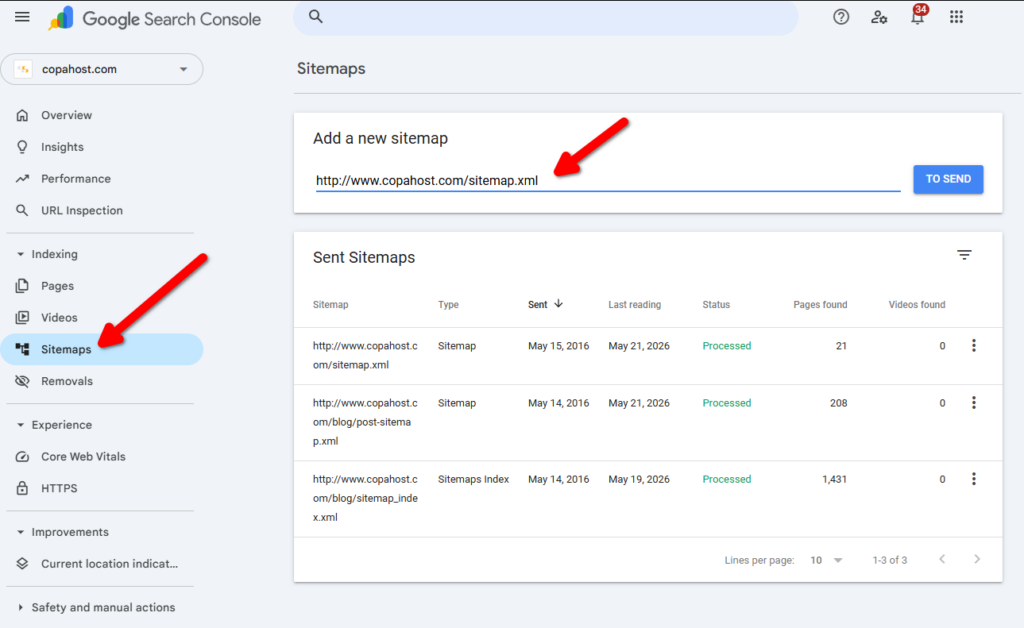
Step 4: Submit Your Sitemap
Once verified, go to Sitemaps in the left sidebar and submit your sitemap URL.
A sitemap is an XML file that lists all the pages on your site, helping Google understand your site’s structure and prioritize which pages to crawl.
Most website platforms generate sitemaps automatically:
| Platform | Default sitemap URL |
|---|---|
| WordPress (with Yoast or RankMath) | yourdomain.com/sitemap.xml |
| WordPress (default, Gutenberg) | yourdomain.com/wp-sitemap.xml |
| Wix | yourdomain.com/sitemap.xml |
| Squarespace | yourdomain.com/sitemap.xml |
| Shopify | yourdomain.com/sitemap.xml |
If you’re not sure where your sitemap is, try adding /sitemap.xml to the end of your domain. If that returns a page of XML code, that’s it.
Step 5: Request Indexing for Specific Pages
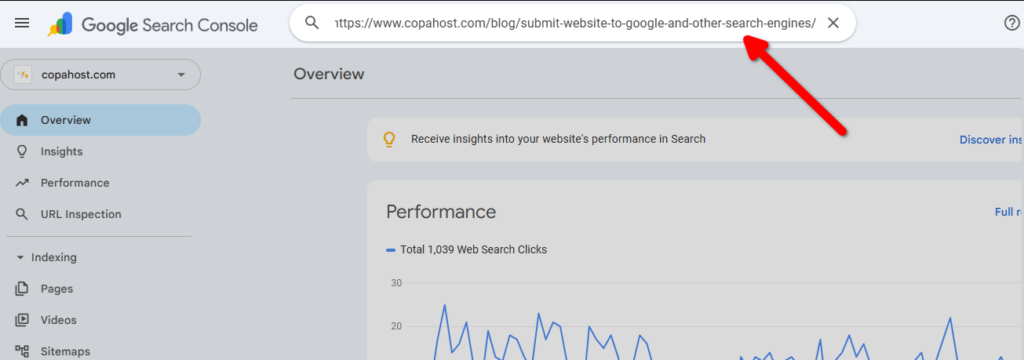
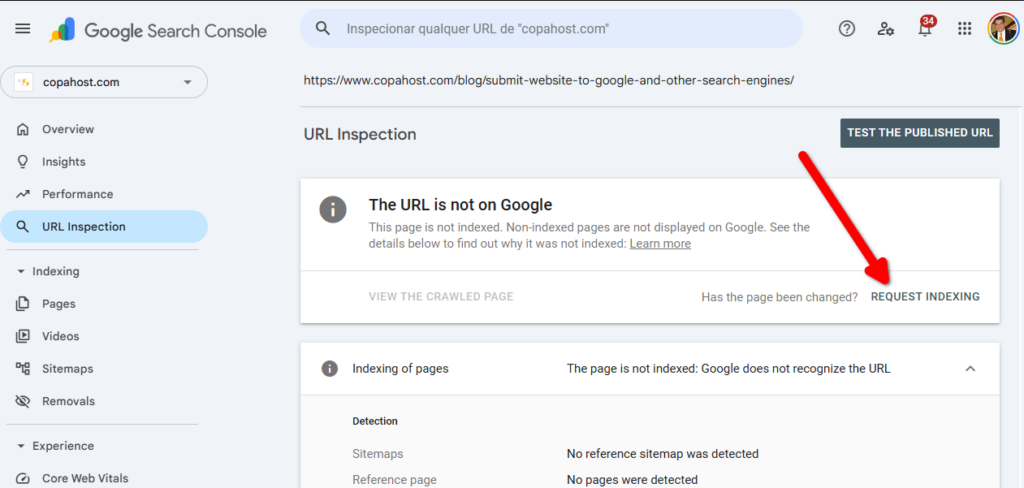
For individual pages you want indexed quickly, use the URL Inspection tool in Search Console:
- Paste the full URL of the page in the search bar at the top
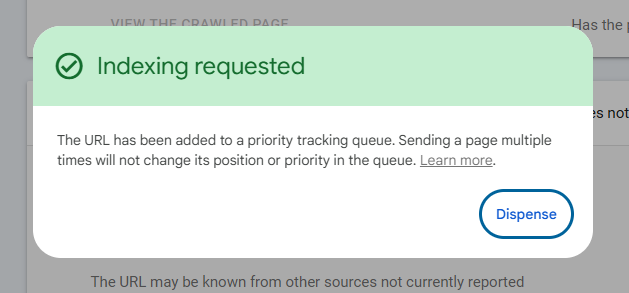
- Click “Request Indexing”
- Google will add it to the crawl queue — usually processed within a few hours
How to Check If Your Website Is Already Indexed
Before submitting anything, check whether Google already knows about your site.
Open Google and search:
site:yourdomain.com
If results appear, your site (or at least some pages) are already indexed. If nothing comes up, you’re starting from scratch.
You can also use the URL Inspection tool in Search Console for a more detailed status on any specific page.
How to Submit Your Website to Other Search Engines
Google handles around 90% of global search traffic, but the other 10% still matters — especially Bing, which also powers Yahoo, DuckDuckGo, and several other engines.
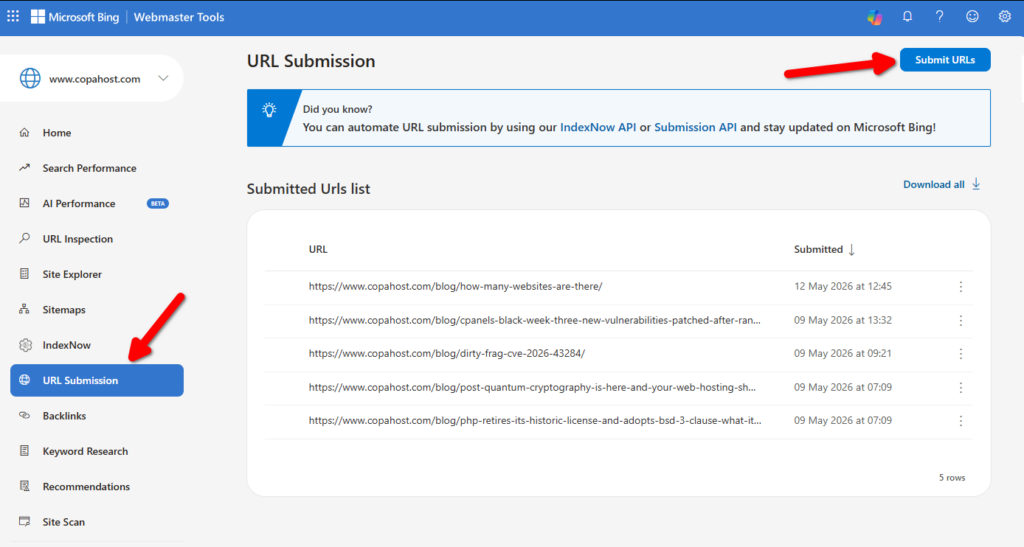
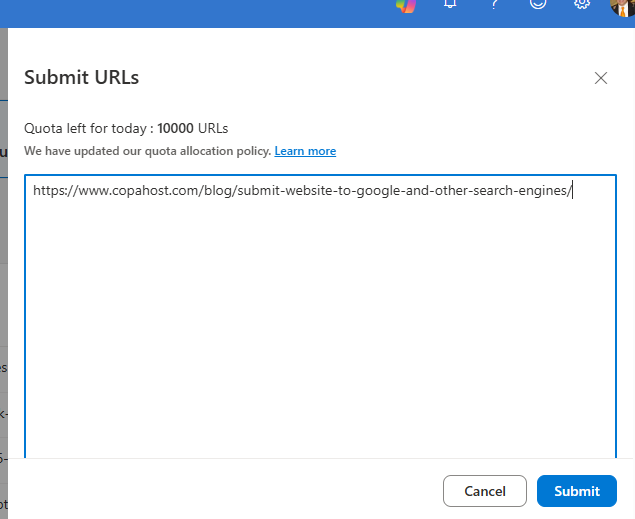
Bing Webmaster Tools
Bing has its own verification and sitemap submission tool at bing.com/webmasters.
The process is nearly identical to Google Search Console:
- Sign in with a Microsoft account
- Add your site and verify ownership (also supports DNS TXT records)
- Submit your sitemap
Useful shortcut: Bing Webmaster Tools has an option to import your sites directly from Google Search Console. If you’ve already set up GSC, this takes about 30 seconds.
Yandex
If you have traffic from Russia or Eastern Europe, Yandex is worth submitting to. Use webmaster.yandex.com.
DuckDuckGo
DuckDuckGo does not have a submission tool. It pulls results from Bing, so getting indexed by Bing is enough.
Yahoo
Same situation — Yahoo Search is powered by Bing. No separate submission needed.
How Long Does It Take Google to Index a New Website?
There’s no fixed timeline. Google itself says it can take “anywhere from a few days to a few weeks.”. By submitting a URL manually, Google usually indexes within a few hours.
In practice:
- Pages submitted via URL Inspection in Search Console: a few days
- Sites with a sitemap submitted via Search Console: 1–2 weeks
- Sites discovered organically through links: weeks to months
- Sites with no external links and no Search Console submission: unpredictable
The single most effective way to speed up indexing is to get at least one external link pointing to your site. When Googlebot crawls a page that links to yours, it follows that link — and finds you.
Common Indexing Problems and How to Fix Them
If your site isn’t getting indexed even after submission, these are the most common causes:
1. Robots.txt is blocking Google Check your yourdomain.com/robots.txt file. If it contains Disallow: /, Google is being told not to crawl your site. This is a common mistake on staging sites that get pushed to production without updating the robots file.
2. Noindex tag on your pages Some pages have a <meta name="robots" content="noindex"> tag in the HTML. This tells Google explicitly not to index the page. Use the URL Inspection tool in Search Console to check whether this is the case.
3. Your site has no content yet Google won’t index pages with thin or empty content. Make sure each page you want indexed has real, useful text.
4. Your site is very new and has no links New domains with zero backlinks take longer to get noticed. Consider getting listed in a directory, mentioned on a forum, or linked from a social profile to give Google a first entry point.
5. Crawl budget issues (for large sites) For sites with thousands of pages, Google may not crawl everything at once. Optimizing your internal linking and sitemap helps prioritize important pages.
Summary
| Task | Tool | Time to complete |
|---|---|---|
| Add site to Google | Google Search Console | 10–15 minutes |
| Submit sitemap | Google Search Console → Sitemaps | 2 minutes |
| Request indexing for a page | URL Inspection tool | 2 minutes |
| Add site to Bing/Yahoo/DuckDuckGo | Bing Webmaster Tools | 5 minutes |
| Check if site is indexed | site:yourdomain.com in Google | 30 seconds |
Getting your site indexed is the first step — it’s the foundation everything else in SEO builds on. Once your pages are in Google’s index, you can start focusing on ranking: content quality, backlinks, page speed, and everything else that moves you up the results page.
Need reliable hosting to get your site online before submitting it to Google? Check out CopaHost’s web hosting plans — fast NVMe servers, free SSL, and 24/7 support.
