
When you set up an email account on a phone, desktop client, or third-party app, you’ll almost always be asked to choose between two protocols: IMAP and POP3.
Most people pick one without fully understanding what they’re choosing — and that decision can cause real problems later, like emails disappearing from one device or never syncing across devices at all.
This guide explains what IMAP and POP3 are, how each one works, and which one you should use depending on your situation.
Table of Contents
What Are POP and IMAP?
Both POP3 and IMAP are incoming mail protocols — they define how your email client (like Outlook, Thunderbird, or Apple Mail) retrieves messages from your mail server.
They are not the same as SMTP, which handles sending emails. POP3 and IMAP only deal with receiving them.
| Protocol | Full name | Purpose |
|---|---|---|
| POP3 | Post Office Protocol version 3 | Downloads emails from server to device |
| IMAP | Internet Message Access Protocol | Syncs emails between server and devices |
| SMTP | Simple Mail Transfer Protocol | Sends outgoing emails (unrelated to this comparison) |
What Is POP3?
POP3 is the older of the two protocols, first defined in 1984. The concept is simple: your email client connects to the mail server, downloads all new messages to your device, and (by default) deletes them from the server.
Think of it like a physical mailbox. The mail carrier (the server) delivers your letters, you pick them up (download), and the mailbox is empty again.
How POP3 works:
- Your email client connects to the mail server on port 110 (or port 995 with SSL/TLS)
- It downloads all new messages to your local device
- It deletes them from the server (unless configured otherwise)
- The connection closes
POP3 default behavior by client:
Most modern email clients let you configure POP3 to keep a copy on the server for a certain number of days, but the default is still deletion after download.
What Is IMAP?
IMAP was designed to solve the limitations of POP3, and it works in a fundamentally different way. Instead of downloading emails and removing them from the server, IMAP keeps everything on the server and syncs your email client with it.
When you read, delete, move, or flag an email via IMAP, that action is reflected on the server — and therefore on every other device connected to the same account.
How IMAP works:
- Your email client connects to the mail server on port 143 (or port 993 with SSL/TLS)
- It displays the emails stored on the server without downloading them permanently
- Any action you take (read, delete, move to folder) is synced back to the server
- The connection stays active while you’re using the client
IMAP vs POP3: Side-by-Side Comparison
| Feature | IMAP | POP3 |
|---|---|---|
| Email storage | On the server | On your local device |
| Multi-device sync | Yes — all devices stay in sync | No — emails only on the device that downloaded them |
| Offline access | Limited (only cached emails) | Full (all downloaded emails available offline) |
| Server storage usage | High (emails stay on server) | Low (emails removed after download) |
| Folder sync | Yes | No |
| Read/unread status sync | Yes | No |
| Best for | Multiple devices, modern use | Single device, limited server storage |
| Default port | 143 (993 with SSL) | 110 (995 with SSL) |
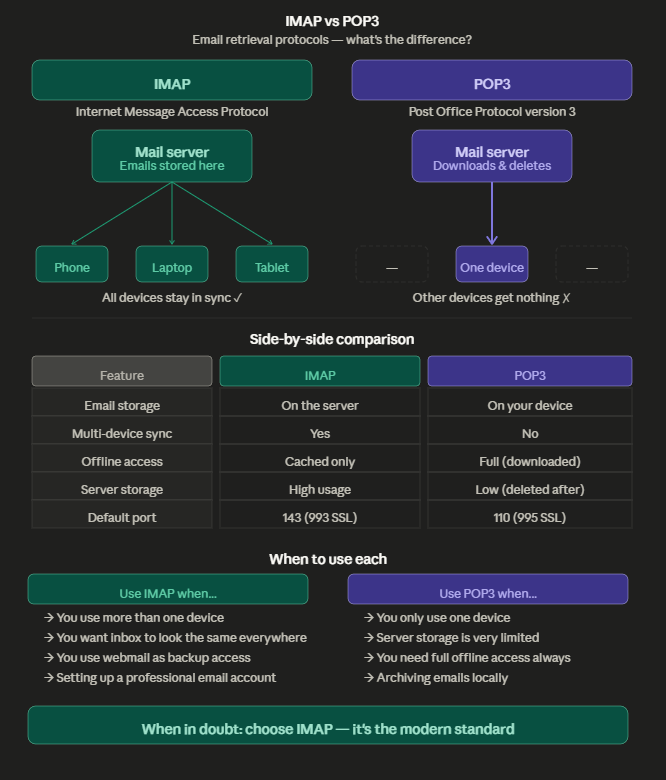
The Key Difference: Where Your Emails Live
This is the core of the IMAP vs POP3 debate.
With POP3, your emails live on your device. Once downloaded, they’re gone from the server (unless you configure it otherwise). If your device breaks, is stolen, or you get a new phone, those emails are gone too — unless you had a local backup.
With IMAP, your emails live on the server. Your devices are just windows into that server. You can access the same inbox from your phone, laptop, work computer, and webmail — and everything stays perfectly in sync. Delete an email on your phone, and it’s gone on your laptop too.
When to Use IMAP
Use IMAP in almost every modern scenario:
- You check email on more than one device (phone + laptop, for example)
- You want your inbox to look the same everywhere
- You use webmail as a backup access method
- You don’t want to worry about losing emails if a device fails
- You’re setting up a professional email account for a business
IMAP is the standard for a reason. Gmail, Outlook, and every major email provider defaults to IMAP for a good reason — it just works the way people expect email to work today.
When POP3 Still Makes Sense
POP3 isn’t obsolete — it’s just better suited to specific situations:
- You only ever check email from one device, and that won’t change
- Your mail server has very limited storage and you need to keep it clean
- You need full offline access to all emails without relying on a server
- You’re in a low-connectivity environment and need local copies of everything
- You’re archiving emails locally for compliance or record-keeping purposes
Some IT administrators still use POP3 for dedicated email archiving setups, where the goal is to pull everything off the server and store it locally in a controlled way.
IMAP vs POP3: Which One Should You Choose?
The short answer: use IMAP.
Unless you have a specific reason to use POP3 — limited server storage, single-device setup, or offline archiving needs — IMAP is the right choice for the vast majority of users in 2026.
The multi-device world we live in makes IMAP the only protocol that actually matches how people use email today. Most people check email on at least two devices (phone and computer), and POP3 simply wasn’t built for that.
Common Issues and How to Avoid Them
“My emails disappeared after setting up a new email client”
This almost always happens when someone accidentally configured POP3 instead of IMAP. POP3 downloaded and deleted the emails from the server. Check your email client settings and switch to IMAP. If the emails were deleted from the server, you may be able to recover them from the local mail storage on the original device.
“My inbox looks different on my phone vs my computer”
This is a classic POP3 symptom. Emails downloaded to one device don’t appear on the other. Switching both devices to IMAP and reconfiguring them will resolve this.
“IMAP is using too much server storage”
This is a legitimate issue with IMAP, especially if you receive large attachments or never archive old emails. The solution is to either upgrade your mailbox storage, regularly archive or delete old emails, or set up an auto-archive rule in your email client.
IMAP and POP3 Ports: Quick Reference
| Protocol | Standard port | SSL/TLS port |
|---|---|---|
| IMAP | 143 | 993 |
| POP3 | 110 | 995 |
| SMTP (outgoing) | 25 / 587 | 465 |
Always use the SSL/TLS ports when available — they encrypt the connection between your email client and the server, protecting your credentials and email content in transit.
Summary
POP3 and IMAP both retrieve emails from a mail server, but they work in opposite ways. POP3 downloads emails to your device and removes them from the server. IMAP keeps emails on the server and syncs your devices with it.
For most people in 2026, IMAP is the right choice — it works across multiple devices, keeps everything in sync, and doesn’t risk losing emails if a device is lost or replaced.
POP3 still has its place in specific scenarios, particularly for single-device setups or when local archiving is the goal.
When in doubt: if you’re setting up a new email account and don’t have a specific reason to use POP3, choose IMAP.
Setting up professional email for your domain? CopaHost’s web hosting plans include email hosting with full IMAP and POP3 support, SSL encryption, and webmail access included.
