
Creating a DNS server means installing software that answers name-resolution queries, configuring which queries it accepts, and — the part most guides underplay — making sure it doesn’t become a weapon.
This guide covers the real setup on Ubuntu and Debian, with BIND9 and Unbound, the DNS configuration for each, how to test it, and how to troubleshoot when it doesn’t answer.
It also covers the question that should come first: whether you need one at all. Most people searching for this don’t — and the honest answer costs nothing to read.
| Software | BIND9 for authoritative, Unbound for caching |
| Port | 53, both UDP and TCP |
| The first obstacle | systemd-resolved already occupies port 53 |
| The dangerous mistake | Leaving recursion open to the internet |
| Should you? | For a public domain, usually not |
Table of Contents
First: do you actually need to run one?
Before the commands, the question that saves the most time.
There are three reasons people search for this, and only two of them lead to a good outcome.
The good reasons
You’re learning. Building a DNS server teaches you more about how the internet works than any amount of reading. A VPS and an afternoon is a genuinely good use of time.
You need internal name resolution. A local network, a lab, a set of containers that need to find each other by name. This is the most common legitimate case, and it’s what dnsmasq and Unbound do well.
Or you need a caching resolver on your own server to speed up outbound lookups from an application. Also legitimate, and it’s the easiest of the three.
The reason that usually ends badly
You want to run authoritative DNS for a public domain, to save money or have control.
Here’s what that actually requires:
At least two nameservers, on separate networks, because a single point of failure means your domain disappears when the machine reboots.
Near-perfect uptime. If your DNS is down, your website, your email and everything on the domain are unreachable — even though the web server is fine.
DDoS resilience. Authoritative nameservers are attack targets, and absorbing that traffic is not something a small VPS does.
And ongoing maintenance. DNSSEC keys rotate, software has vulnerabilities, and zone files drift.
The alternative costs nothing. Cloudflare, your registrar and your hosting provider all offer authoritative DNS hosting for free, on anycast networks spanning dozens of locations, with DDoS absorption included.
⚠️ The honest recommendation: run a DNS server to learn, to serve a private network, or to cache locally. For a public domain, use managed DNS hosting — the free tier of a serious provider outperforms anything you’ll build on one machine.
The two kinds of DNS server
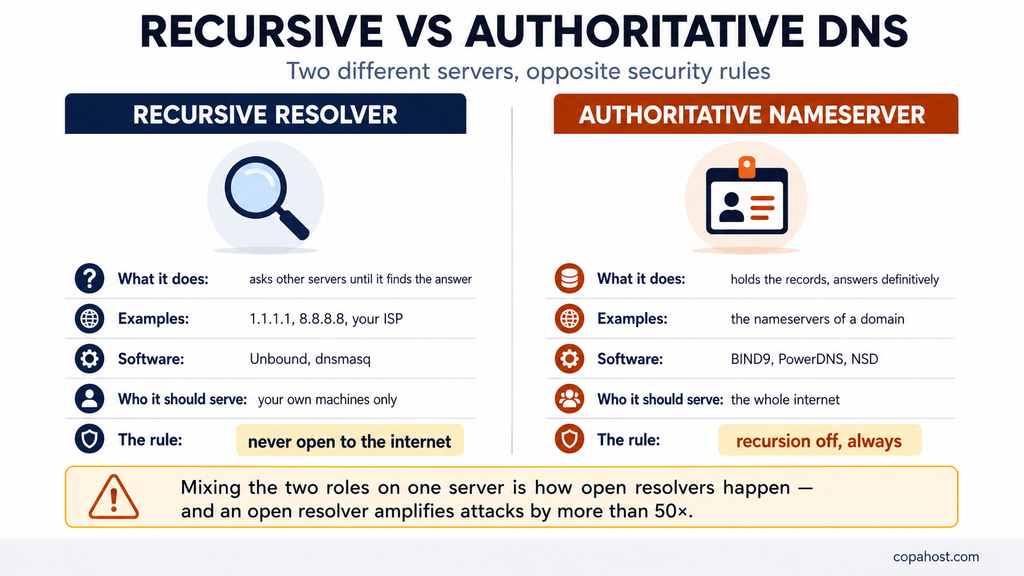
This distinction determines everything about the configuration, and confusing the two is the source of most misconfigurations.
Recursive resolver
Answers questions on behalf of clients, by asking other servers until it finds the answer, then caching it.
This is what your ISP runs, and what 1.1.1.1 and 8.8.8.8 are — our comparison of the best DNS servers covers how they differ.
Software: Unbound, dnsmasq, or BIND in recursive mode.
Who it serves: your own machines. Never the open internet — more on that below.
Authoritative nameserver
Holds the actual records for a domain and answers questions about it definitively. It doesn’t ask anyone else.
This is what you’d run to control yourdomain.com yourself.
Software: BIND9, PowerDNS, NSD, Knot DNS.
Who it serves: the whole internet — that’s the point.
A server can do both, and in most setups it shouldn’t. Mixing roles is how open resolvers happen.
What you need before starting
A Linux server with root access. Shared hosting won’t do — you need to bind to port 53 and edit system configuration. A VPS is the practical minimum.
A static IP. DNS servers can’t move.
Port 53 open, on both UDP and TCP — see our reference on common TCP ports for where it sits among the others.
And a firewall you understand, because the security section below depends on it.
The obstacle nobody warns you about
⚠️ On Ubuntu 18.04 and later, port 53 is already taken.
systemd-resolved runs a local stub resolver on 127.0.0.53:53. Install BIND or Unbound and it fails to start, with an error about the address being in use.
Check first:
sudo ss -tlnp | grep :53If systemd-resolved appears, you have two options.
Option 1 — disable the stub listener and keep systemd-resolved for other functions. Edit /etc/systemd/resolved.conf:
[Resolve]
DNSStubListener=no
Then relink the resolv.conf and restart:
sudo ln -sf /run/systemd/resolve/resolv.conf /etc/resolv.conf
sudo systemctl restart systemd-resolved
Option 2 — disable it entirely, which is cleaner on a dedicated DNS server:
sudo systemctl stop systemd-resolved
sudo systemctl disable systemd-resolved
⚠️ After disabling, /etc/resolv.conf may end up empty and the server loses its own name resolution — which breaks apt, curl and everything else. Write a resolver into it before rebooting:
echo "nameserver 1.1.1.1" | sudo tee /etc/resolv.confThis single step is where most tutorials leave people stranded.
Option A: a caching resolver with Unbound
Start here if you want speed for your own applications, or a resolver for a private network. It’s the simplest of the three and the hardest to get dangerously wrong.
Installation
sudo apt update
sudo apt install unbound -y
DNS configuration
Create /etc/unbound/unbound.conf.d/local.conf:
server:
    interface: 0.0.0.0
    port: 53
    do-ip4: yes
    do-udp: yes
    do-tcp: yes

    # WHO may query — the most important line in this file
    access-control: 0.0.0.0/0 refuse
    access-control: 127.0.0.0/8 allow
    access-control: 192.168.0.0/16 allow

    # Cache and performance
    cache-min-ttl: 300
    cache-max-ttl: 86400
    prefetch: yes

    # Hardening
    hide-identity: yes
    hide-version: yes
    harden-glue: yes
    harden-dnssec-stripped: yes
The access-control lines are the whole security model. The first refuses everyone; the next two allow localhost and a private range. Adjust the range to your network — and never replace it with a blanket allow.
Test the configuration and start
sudo unbound-checkconf
sudo systemctl restart unbound
sudo systemctl enable unbound
unbound-checkconf validates before you restart, which saves you from taking the resolver down with a typo.
A local caching resolver is also the biggest single improvement available when DNS lookups are slow on a server that makes frequent external calls.
Option B: an authoritative nameserver with BIND9
This is the classic Linux DNS server setup — and the one to use if you’re learning how authoritative DNS works.
Installation
sudo apt update
sudo apt install bind9 bind9utils bind9-doc -y
Configuration lives in /etc/bind/.
Step 1 — global DNS settings
Edit /etc/bind/named.conf.options:
options {
    directory "/var/cache/bind";

    # Recursion OFF — this is an authoritative server
    recursion no;
    allow-query { any; };
    allow-transfer { none; };

    dnssec-validation auto;
    listen-on-v6 { any; };
};
⚠️ recursion no is the single most important line in this file. An authoritative server has no business answering recursive queries, and leaving it on creates an open resolver — explained in the security section.
Step 2 — declare the zone
Edit /etc/bind/named.conf.local:
zone "example.com" {
    type master;
    file "/etc/bind/db.example.com";
};
Step 3 — write the zone file
Create /etc/bind/db.example.com:
$TTL    3600
@       IN      SOA     ns1.example.com. admin.example.com. (
                        2026082201  ; Serial — increment on every change
                        3600        ; Refresh
                        1800        ; Retry
                        604800      ; Expire
                        86400 )     ; Negative cache TTL

; Nameservers
@       IN      NS      ns1.example.com.
@       IN      NS      ns2.example.com.

; Records
@       IN      A       192.0.2.10
www     IN      A       192.0.2.10
ns1     IN      A       192.0.2.10
ns2     IN      A       192.0.2.11
mail    IN      A       192.0.2.20
@       IN      MX  10  mail.example.com.
@       IN      TXT     "v=spf1 mx -all"
Three things that trip people up in zone files:
The trailing dots. ns1.example.com. with a dot is absolute; without it, BIND appends the zone name and you get ns1.example.com.example.com. This is the most common zone file error there is.
The serial number. It must increase on every edit, or secondary servers won’t pick up the change. The YYYYMMDDNN convention makes this easy to track.
And the @, which means “this zone” — a shorthand for example.com..
Step 4 — validate before restarting
sudo named-checkconf
sudo named-checkzone example.com /etc/bind/db.example.com
sudo systemctl restart bind9
named-checkzone catches the missing-dot error and most syntax mistakes. Run it every time.
Option C: dnsmasq for small networks
For a home lab or a small internal network, dnsmasq is lighter than both and does DNS plus DHCP in one process.
sudo apt install dnsmasq -yConfiguration in /etc/dnsmasq.conf, and local names can go straight into /etc/hosts. It’s the least powerful and the least work — which is the right trade for a lab.
⚠️ The security section: open resolvers
This is the part that separates a DNS server from a liability, and it deserves more attention than any tutorial usually gives it.
What an open resolver is
A recursive DNS server that answers queries from anyone on the internet.
If you install Unbound or BIND with recursion enabled and no access control, you’ve created one. It works perfectly — that’s the problem.
Why it’s dangerous
DNS amplification attacks. An attacker sends your server a small query with a forged source address — the victim’s. Your server dutifully sends a much larger response to that address.
The amplification factor can exceed 50×. A few thousand open resolvers turn a modest attack into a flood, and your server is the weapon.
The consequences reach you too: your IP ends up on abuse lists, your provider gets complaints, and depending on the terms of service, your server gets suspended.
How to not do this
Never enable recursion on an authoritative server. recursion no in named.conf.options.
On a recursive resolver, restrict by source. The access-control lines in Unbound, or allow-recursion { 127.0.0.1; 192.168.0.0/16; }; in BIND.
Firewall port 53 to the networks that need it:
sudo ufw allow from 192.168.0.0/16 to any port 53And enable rate limiting on authoritative servers, in named.conf.options:
rate-limit {
    responses-per-second 10;
};
Then verify from outside. Open resolver test tools exist for exactly this — run one against your IP after setup, every time.
Testing your DNS server
dig @your-server-ip example.comRead three things in the output:
The status. NOERROR means it answered. SERVFAIL means it tried and failed. REFUSED means your access control is working — which is correct if you’re testing from outside an allowed range.
The flags. aa means authoritative answer. ra means recursion available — and if you see ra on a server that should be authoritative-only, you have an open resolver.
And the query time, at the bottom, in milliseconds.
Test recursion specifically:
dig @your-server-ip google.comIf your server is authoritative-only and this returns an answer, recursion is on when it shouldn’t be.
From a client machine, point the resolver at your server temporarily and confirm normal browsing works before making it permanent.
DNS troubleshooting: the five common failures
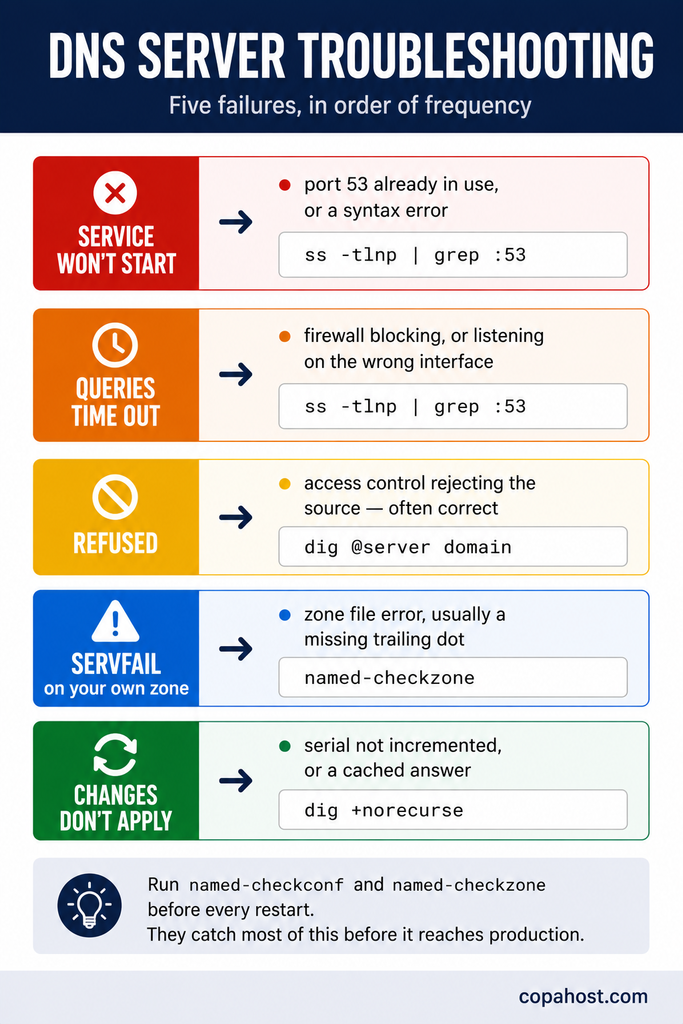
The service won’t start. Almost always port 53 already in use — see the systemd-resolved section — or a syntax error. Run named-checkconf and read journalctl -u bind9 -n 50.
Queries time out. The firewall is blocking port 53, or the service isn’t listening on the right interface. Check with sudo ss -tlnp | grep :53 — if it shows 127.0.0.1:53 and you’re querying from elsewhere, that’s your answer.
REFUSED responses. Access control is rejecting the source. Expected behaviour if you’re outside the allowed range; a configuration error if you’re inside it.
SERVFAIL on your own zone. Usually a zone file error — a missing trailing dot, or a serial that didn’t increment. named-checkzone finds it.
Changes don’t take effect. Either the serial wasn’t incremented, or you’re seeing a cached answer. Query with +norecurse to bypass caching, and remember that DNS propagation applies to anything already published.
DNS management over time
Setting it up is a day. Running it is ongoing, and the tasks are predictable.
Increment the serial on every zone change. Forgetting this is the most common operational error, and the symptom — secondaries serving old data — is confusing.
Keep TTLs deliberate. Low TTL means faster changes and more query load; high TTL means the opposite. Lower the TTL a day before a planned migration, then raise it after.
Watch the logs. A sudden spike in queries from unfamiliar addresses is either an attack or a misconfiguration. /var/log/syslog on Debian-based systems.
Update the software. BIND has a long history of vulnerabilities, several of them remotely exploitable. This is not optional.
And keep a secondary. A single authoritative nameserver is a single point of failure for everything on the domain — website, email, all of it.
When managed DNS hosting is the better answer
For most public domains, it is.
DNS hosting — the managed kind — gives you an anycast network with dozens of locations, DDoS absorption, an interface instead of zone files, and no software to patch.
And the free tiers are genuinely good. Cloudflare, your registrar, and your hosting provider all offer this at no cost, with performance a single VPS can’t approach.
Where running your own still makes sense:
Internal networks, where the names shouldn’t be public at all.
Caching resolvers, to speed up an application’s outbound lookups.
Learning, which is worth doing precisely because DNS is invisible until it breaks.
And specific compliance requirements that mandate self-hosting.
Everything else is better served by managed DNS — and this is one of the few cases where the free option is also the technically superior one.
Everything on this page needs a server you fully control. Copahost VPS plans give you root access, a dedicated static IP, and no restriction on which ports you bind — plus a control panel, snapshots, and support that reads the logs with you. From €3.99/month, with the OS of your choice.
See VPS plansFrequently asked questions
How do I create a DNS server on Linux?
Install BIND9 for an authoritative server or Unbound for a caching resolver, configure which queries it accepts, define your zones, and open port 53 on UDP and TCP. On Ubuntu 18.04 and later, you must first free port 53 from systemd-resolved, which occupies it by default.
What software should I use for a DNS server?
BIND9 for authoritative DNS — it’s the reference implementation and the most documented. Unbound for a recursive resolver, because it’s lighter and secure by default. dnsmasq for small internal networks where you also want DHCP. PowerDNS and Knot are strong alternatives for authoritative use with database backends.
Why won’t BIND start on Ubuntu?
Almost always because systemd-resolved already holds port 53. Check with sudo ss -tlnp | grep :53. Either disable the stub listener by setting DNSStubListener=no in /etc/systemd/resolved.conf, or disable systemd-resolved entirely — and write a nameserver into /etc/resolv.conf before rebooting, or the server loses its own name resolution.
What’s the difference between a recursive and an authoritative DNS server?
A recursive resolver answers on behalf of clients by asking other servers, then caches the result — that’s what 1.1.1.1 and your ISP run. An authoritative nameserver holds the actual records for a domain and answers definitively. Mixing the two roles on one server is how open resolvers happen.
What is an open resolver and why does it matter?
A recursive DNS server that answers queries from anyone on the internet. Attackers use them for amplification attacks: a small forged query produces a large response sent to a victim, with amplification factors above 50×. Your server becomes the weapon, your IP lands on abuse lists, and your provider may suspend the service. Always restrict recursion by source address.
Which port does DNS use?
Port 53, on both UDP and TCP. UDP handles most queries; TCP handles responses too large for a single UDP packet and zone transfers. Blocking TCP causes intermittent failures that are hard to diagnose — open both.
How do I test my DNS server?
dig @your-server-ip example.com. Read the status — NOERROR means it answered, REFUSED means access control rejected the source, SERVFAIL means it failed. And check the flags: aa means authoritative, and ra on a supposedly authoritative-only server means recursion is on when it shouldn’t be.
Why does my zone file fail validation?
The most common cause is a missing trailing dot. ns1.example.com. with the dot is absolute; without it, BIND appends the zone name and produces ns1.example.com.example.com. Run named-checkzone before every restart — it catches this and most other syntax errors.
My DNS changes aren’t taking effect. Why?
Either the serial number wasn’t incremented in the zone file — secondaries won’t pick up changes without it — or you’re seeing a cached answer. Query with +norecurse to bypass the cache, and remember that anything already published is subject to propagation delays.
Do I need two DNS servers?
For a public domain, yes. A single authoritative nameserver is a single point of failure for everything on the domain — website, email, subdomains. If it goes down, none of it resolves, regardless of whether the web server is fine. Registrars typically require at least two nameservers for this reason.
Should I run my own DNS or use DNS hosting?
For a public domain, use managed DNS hosting. Free tiers from Cloudflare, registrars and hosting providers give you an anycast network across dozens of locations with DDoS absorption — performance a single server can’t match. Run your own for internal networks, local caching, learning, or specific compliance requirements.
Can I run a DNS server on shared hosting?
No. You need root access to bind to port 53 and edit system configuration, and shared hosting provides neither. A VPS or dedicated server is the minimum.
Conclusion
Creating a DNS server is a two-hour job and a permanent responsibility — and the gap between those two things is where most self-hosted DNS goes wrong.
Three things carry the whole setup. Knowing whether you’re building a recursive resolver or an authoritative nameserver, because the configuration and the risks are opposite. Freeing port 53 from systemd-resolved, which is where most Ubuntu attempts stop before they start. And restricting who may query, because a recursive server open to the internet doesn’t fail — it works, and becomes someone else’s attack tool.
And the honest close: for a public domain, managed DNS hosting is not the compromise. It’s the better option, and it’s free at the tier most sites need. Run your own to learn how DNS works, to serve a private network, or to cache locally — all three are worth doing.
Just don’t put your domain’s availability on one machine because it seemed like the more serious choice.
