
A home server is any computer in your house that runs services for your other devices instead of for you directly. It can be a €150 mini PC on a shelf, an old laptop with the lid closed, or a rack in a basement — the hardware matters far less than what you point it at.
The appeal is straightforward: your files, your media and your data stay in your house, on hardware you own, with no subscription and no company deciding what happens to them.
This guide covers what people actually run on a home server, what hardware and operating system to choose, what it costs to leave running, and — the part most guides skip — the things a home server does badly enough that you shouldn’t try.
| Cheapest sensible start | A used mini PC, €100–200 |
| Operating system | Debian or Ubuntu Server, or a NAS OS like TrueNAS |
| Running cost | €3–10/month in electricity, depending on hardware |
| Most common uses | Media, file storage, backups, home automation |
| Do badly at home | Public websites, email sending, anything needing uptime |
Table of Contents
What is a home server?
A home server is a computer that stays on and provides services to the rest of your network. That’s the whole definition — there’s no minimum specification and no certification.
What separates it from a normal desktop is role rather than hardware. A server runs headless (no monitor attached), stays on continuously, and is accessed from other devices rather than used directly. An old laptop doing this is a home server. So is a €1,500 rack machine.
Three things make one useful:
It stays on. Whatever it provides is available whenever another device asks — at 3am, from your phone, without anyone waking a desktop.
It’s shared. Every device on the network uses it. Files on a laptop are on that laptop; files on the server are everywhere.
You control it. No terms of service, no per-user pricing, no company deciding to discontinue the product.
What can you use a home server for?
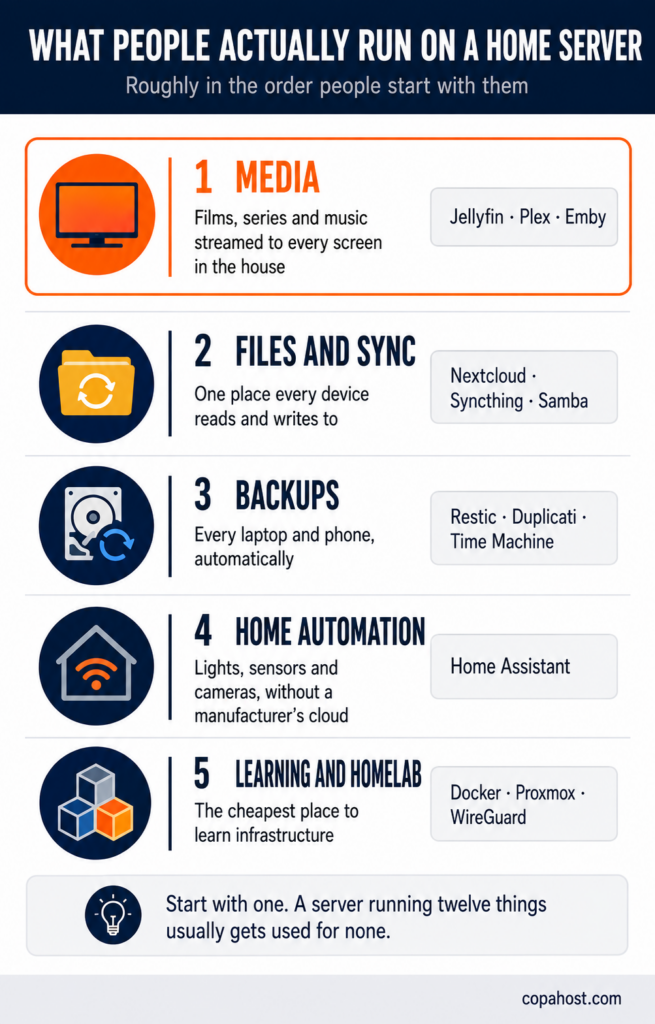
The uses cluster into five groups, roughly in order of how often people start with them.
Media
The most common first project. A server holding your films, series and music, streaming to televisions, phones and tablets in the house. Plex, Jellyfin and Emby are the three options — Jellyfin is fully open source and free, Plex is more polished with a paid tier, Emby sits between them.
This is also the use that most benefits from being local: streaming a 4K file over your own network has none of the bandwidth constraints of streaming it over the internet.
File storage and sync
A NAS role — network attached storage. Every device in the house reads and writes to the same place, and you stop emailing files to yourself.
Nextcloud adds a Dropbox-like layer on top: sync clients, shared folders, mobile apps, calendar and contacts. It’s the single most common reason people move away from cloud storage subscriptions.
Backups
Every laptop and phone in the house backing up to one machine, automatically. This is the use with the clearest value and the least excitement, which is why it’s usually the second project rather than the first.
Worth saying plainly: a backup on a server in your house is not a complete backup. Fire, theft and flood take both copies. The rule is three copies, two media, one off-site — and the off-site part usually means renting space somewhere.
Home automation
Home Assistant running locally, controlling lights, sensors, thermostats and cameras without any of it passing through a manufacturer’s cloud. For anyone uncomfortable with a camera company holding footage of their living room, this is the argument that settles it.
The practical benefit is that automations keep working when your internet doesn’t.
Learning and homelab
Running Docker, a hypervisor, a reverse proxy, a VPN, monitoring — a home server is the cheapest environment in which to learn infrastructure that is otherwise only accessible at work.
“Homelab” is the term for a home setup used primarily for this, and it’s a substantial community. The hardware often becomes an interest of its own.
Home server hardware
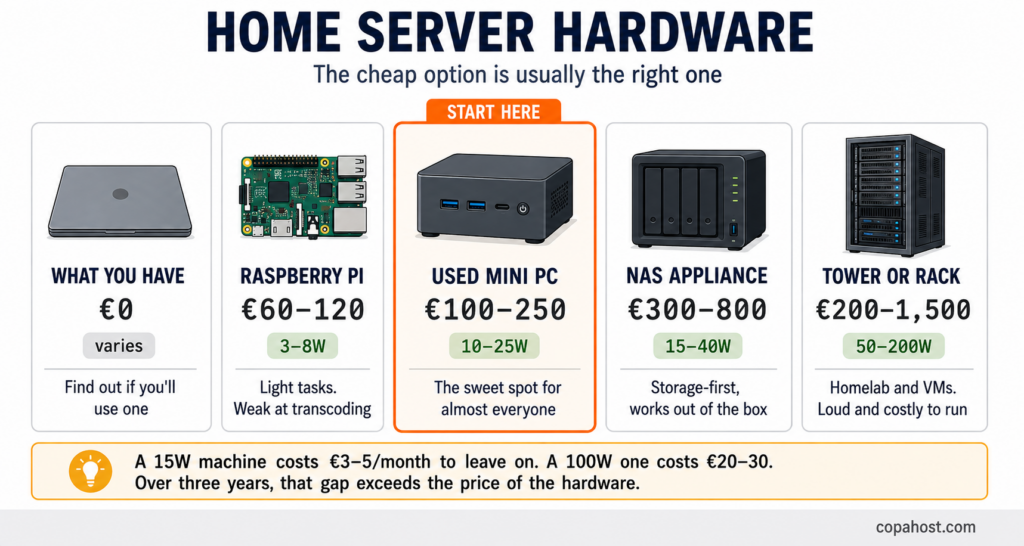
The honest advice: start with what you already have, or spend €150. Home server hardware is the area where people over-buy most, and where the used market is unusually good.
| Option | Cost | Power draw | Best for |
|---|---|---|---|
| An old laptop or desktop | €0 | Varies | Finding out whether you’ll actually use one |
| Raspberry Pi | €60–120 | 3–8W | Home automation, ad blocking, light services. Weak at media transcoding — we tested one as a web server, and the limits it hit are the same ones you’ll meet today |
| Used mini PC | €100–250 | 10–25W | The sweet spot. Ex-office Dell, HP or Lenovo machines are plentiful and cheap |
| Purpose-built NAS | €300–800 | 15–40W | Storage-first setups where you want it to just work |
| Tower or rack server | €200–1,500 | 50–200W | Homelab, virtualisation, many drives. Loud, and expensive to leave on |
The mini PC is usually the answer
Ex-corporate mini PCs — the Dell OptiPlex Micro, HP EliteDesk Mini and Lenovo ThinkCentre Tiny families — are the best value in home servers, and it isn’t close. Companies replace them on three-year cycles, so the used market is flooded. A machine with an Intel i5, 16GB of RAM and an SSD costs €120 to €200, draws 10 to 20 watts, fits in a hand, and makes no noise.
One specific advantage worth knowing: Intel chips from the 8th generation onward include Quick Sync, which handles video transcoding in hardware. For a media server, that single feature matters more than CPU cores — it’s the difference between transcoding four streams silently and one stream with the fan at full speed.
About cases and racks
If you’re building rather than buying, the case question comes down to how many drives you need. Compact cases like the Fractal Node 304 or Jonsbo N-series take four to eight drives in a small footprint; a standard mid-tower is cheaper and larger.
A rack is a hobby decision, not a technical one. A 12U wall-mounted rack looks superb and organises cables properly. It also costs several hundred euros and solves a problem — physical organisation — that a shelf also solves. Worth doing if you enjoy it; not worth doing because a guide implied it was necessary.
Storage
Two drives minimum if the data matters. A single drive is a single point of failure, and drives fail without warning.
RAID is not a backup. It protects against a drive dying, not against deleting a folder, ransomware, or the machine catching fire. Treat it as uptime insurance and keep real backups separately.
Which operating system for a home server?
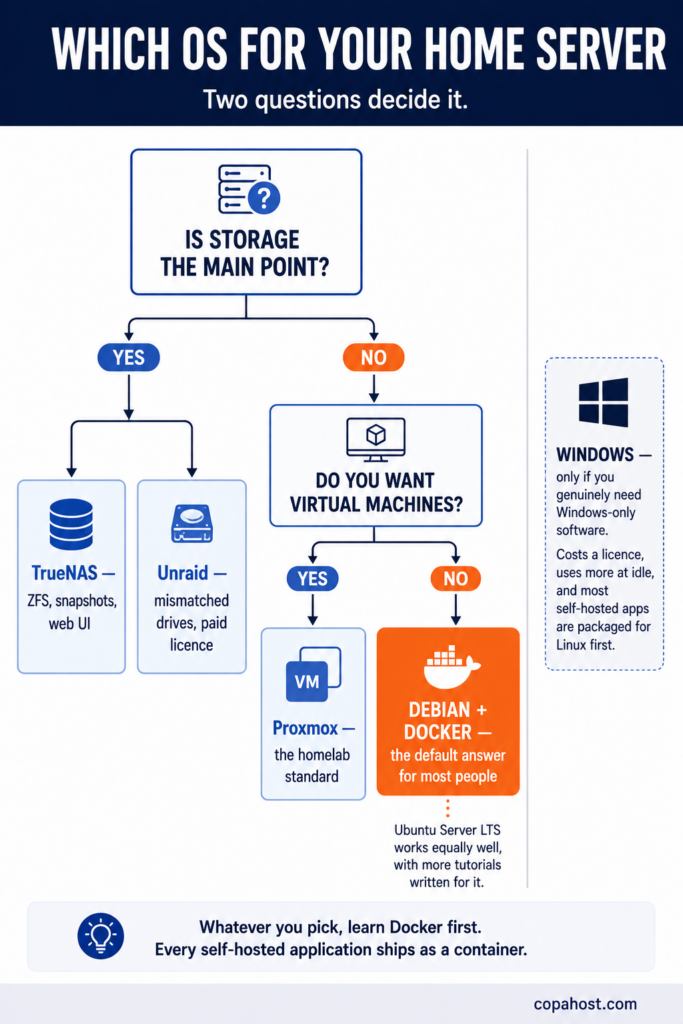
| OS | Difficulty | Choose it if |
|---|---|---|
| Debian | Medium | You want stability and minimal surprises. The most common homelab choice |
| Ubuntu Server LTS | Medium | You want the largest volume of tutorials written for your exact system |
| TrueNAS | Low–medium | Storage is the point. ZFS, snapshots, a web UI for everything |
| Unraid | Low | Mismatched drives and a friendly interface. Paid licence, and worth it for many |
| Proxmox | Medium–high | You want virtual machines and containers. The homelab standard |
| Windows | Low | You genuinely need Windows-only software. Otherwise a poor fit |
The default recommendation is Debian, with Docker on top. It’s stable, undemanding, well documented, and every self-hosted application publishes a container image.
Choose a NAS OS instead — TrueNAS or Unraid — if storage is the main purpose and you’d rather manage it through a web interface than a terminal.
Choose Proxmox if you want to run several isolated systems on one machine, which is what most homelabs eventually want.
Windows is rarely the right answer. It costs a licence, uses more resources at idle, and almost every self-hosted application is packaged for Linux first. The exception is genuinely needing Windows-only software.
Home server software worth knowing
The catalogue is enormous. These are the ones that come up most:
Media: Jellyfin (free, open source), Plex (polished, paid tier), Emby.
Files and sync: Nextcloud, Syncthing, Samba for plain network shares.
Backups: Restic, Duplicati, Proxmox Backup Server, Time Machine over the network.
Home automation: Home Assistant.
Network: Pi-hole or AdGuard Home for ad blocking, WireGuard for VPN access from outside.
Management: Portainer for Docker, Nginx Proxy Manager or Traefik for routing, Uptime Kuma for monitoring.
Almost all of it runs in Docker, which is why Docker is worth learning first. One docker compose file per application, no dependency conflicts, and moving to new hardware means copying a folder.
NAS vs home server: what’s the difference?
The terms overlap, and the distinction is mostly about scope.
A NAS is a home server with one job: storage. Purpose-built units from Synology or QNAP arrive with an operating system, a web interface and drive bays, and they do file storage extremely well with minimal setup.
A home server is the general case. It might do storage, but also media, automation, virtual machines and whatever else.
In practice they converge. Modern NAS units run Docker and applications; home servers with TrueNAS do storage as well as any appliance. The real question is whether you want something that works out of the box with less flexibility, or something flexible that takes a weekend.
Buy a NAS if storage is the point and you want it to just work. Build a server if you want to run things, or if you enjoy the building.
What it costs to run
The purchase price is the visible number; the electricity is the one that accumulates.
A mini PC drawing 15W costs roughly €3 to €5 a month to leave on, depending on local rates. A tower server drawing 100W costs €20 to €30. Over a few years, that difference exceeds the price of the hardware.
This is the strongest argument for the mini PC, and the reason experienced homelabbers often downsize rather than upgrade. An old tower with server-grade hardware is free to acquire and expensive to keep.
Also worth budgeting: drives, which are the real cost in a storage setup, and a UPS if the machine holds anything you’d miss after a power cut.
What a home server does badly

This is the section most guides skip, and it’s the one that saves people weeks.
Public websites. Technically possible, practically frustrating. Residential connections have asymmetric upload, dynamic IPs that change without warning, and terms of service that frequently prohibit running servers. Add that your site goes down whenever your internet does — including while you’re away.
Sending email. Effectively impossible from a residential connection. Port 25 is blocked by nearly every ISP, residential IP ranges are distrusted by every major mailbox provider, and you can’t set the PTR record on an IP you don’t own. Our guide on self-hosted email servers covers what this actually requires — and it starts with not being at home.
Anything needing real uptime. A home server is offline during power cuts, ISP outages, and whenever you unplug something to vacuum. That’s fine for a media library and unacceptable for anything other people depend on.
Off-site backup. By definition. Your backup and your original are in the same building, exposed to the same fire.
Most people who run a home server for a few years end up splitting: media, files, automation and backups at home, where local speed and privacy are the point — and anything public-facing on a rented server, where a static IP, real uptime and a proper connection are the point. That isn’t a compromise; it’s using each for what it’s actually good at.
Setting up a home server: the order that works
1. Decide what it’s for, at least roughly. Media, files and automation lead to different choices.
2. Use hardware you already have for the first month. The most common outcome of buying hardware first is hardware sitting unused.
3. Install Debian or Ubuntu Server, headless. No desktop environment — you’ll access it over SSH.
4. Set up SSH access with keys rather than a password, and a static local IP so it doesn’t move.
5. Install Docker, and learn docker compose before installing anything else. Every application after this becomes a small file.
6. Add one service, and use it for a week before adding another. This is the step people skip, and it’s why so many home servers run twelve things and get used for none.
7. Set up backups before you have data you’d miss.
8. Add remote access last, and via WireGuard rather than by opening ports. Exposing services directly to the internet is how home servers end up compromised.
Public sites, outbound email, off-site backups and anything that needs to be reachable while you’re away. Copahost VPS plans start at €3.99/month with full root access, a static IP, reverse DNS you set yourself, and a connection that doesn’t go down when someone unplugs the router.
See VPS plansFrequently asked questions
What is a home server?
A computer in your house that stays on and provides services to your other devices — media streaming, file storage, backups, home automation. It’s defined by its role rather than its hardware: an old laptop running headless is a home server, and so is a rack machine.
What can I use a home server for?
The five common uses are media streaming with Plex or Jellyfin, file storage and sync with Nextcloud, automatic backups for every device in the house, home automation with Home Assistant, and learning infrastructure. Most people start with media and add the rest gradually.
What hardware do I need for a home server?
Less than you’d expect. A used mini PC — an ex-office Dell, HP or Lenovo — costs €100 to €250, draws 10 to 20 watts and handles most home server work comfortably. A Raspberry Pi suits light tasks like ad blocking and automation. Start with hardware you already own before buying anything.
Is a mini PC good enough for a home server?
For most people, it’s the best option rather than a compromise. Ex-corporate mini PCs are plentiful and cheap on the used market, silent, and cheap to run. Intel chips from the 8th generation onward include Quick Sync, which handles video transcoding in hardware — the single most useful feature for a media server.
What is the best operating system for a home server?
Debian for most cases: stable, well documented, and every self-hosted application ships as a Docker container. Ubuntu Server LTS if you want the largest volume of tutorials. TrueNAS or Unraid if storage is the main purpose. Proxmox if you want virtual machines. Windows rarely, and only if you need Windows-only software.
What’s the best Linux distro for a home server?
Debian and Ubuntu Server dominate, for the same reason: stability plus documentation. Debian is more conservative and leaner; Ubuntu has more tutorials written specifically for it. Either is a sound choice, and the difference matters far less than what you run on top.
How much does it cost to run a home server?
Electricity is the ongoing cost. A mini PC drawing 15W costs roughly €3 to €5 a month; a tower server drawing 100W costs €20 to €30. Over a few years the difference exceeds the hardware price, which is why efficient hardware usually beats free hardware.
Can I build a cheap home server?
Yes, and cheap is usually the right call. A used mini PC at €120, an old drive you already have, and free software gets you a working server. The expensive parts are drives and, in the long run, electricity — not the machine.
What’s the difference between a NAS and a home server?
A NAS is a home server specialised in storage, usually sold as an appliance with its own OS and web interface. A home server is the general case and might run anything. In practice they overlap: modern NAS units run Docker, and a home server with TrueNAS does storage as well as an appliance does.
Can I run a website from a home server?
Technically yes, practically it’s frustrating. Residential connections have limited upload, dynamic IPs, and terms that often prohibit running servers — and the site goes down whenever your internet does. For anything public-facing, a small VPS costs a few euros a month and removes all of it.
Can I send email from a home server?
Effectively no. Port 25 is blocked by nearly every residential ISP, residential IP ranges are distrusted by all major mailbox providers, and you can’t set the PTR record on an IP you don’t own. Receiving mail at home is possible; sending isn’t.
Do I need a rack for a home server?
No. A rack organises cables and looks impressive, and it costs several hundred euros to solve a problem a shelf also solves. Buy one because you want one, not because a guide implied it was required.
Is RAID a backup?
No, and treating it as one is the most common mistake in home storage. RAID protects against a drive failing. It does nothing about deleting a folder, ransomware, or the machine being stolen. Keep separate backups, and at least one copy outside the building.
See also
For hosting a public site rather than a home service, see hosting requirements and costs for a small self-hosted setup. On the email side, see self-hosted email servers. And for the ports involved in exposing anything, see common TCP and UDP ports.
Conclusion
A home server is one of the few technology projects where the cheap version is also the right version. A used mini PC, Debian, Docker, and one service you actually use beats a rack of hardware running twelve things nobody opens.
Three things decide whether it sticks. Start with what you have, because the most common failure is buying hardware for a hobby you haven’t tried. Add one service at a time, because a server running everything usually gets used for nothing. And set up backups before you have data worth losing, since the moment you need them is the moment it’s too late to start.
And be clear about the split. Media, files, automation and local backups belong at home — that’s where the privacy and the speed are. Public sites, outbound email and off-site copies belong somewhere with a static IP and a connection that doesn’t depend on your router. Nearly everyone who runs a home server for long arrives at that division, usually after trying to do all of it at home first.
