
A 504 Gateway Timeout error means that one server, acting as a gateway or proxy, waited too long for a response from another server it depends on — and gave up. It’s a server-side timeout: the request reached the infrastructure, but an upstream server didn’t reply in time.
If you’re seeing “504 Gateway Timeout” — whether you’re a visitor who can’t reach a site or an owner whose site is down — this guide covers every cause and every fix, in order. We’ll start with the quick checks anyone can do, then move to the server-side fixes that resolve the overwhelming majority of cases, because a 504 is usually the website’s problem to solve, not yours.
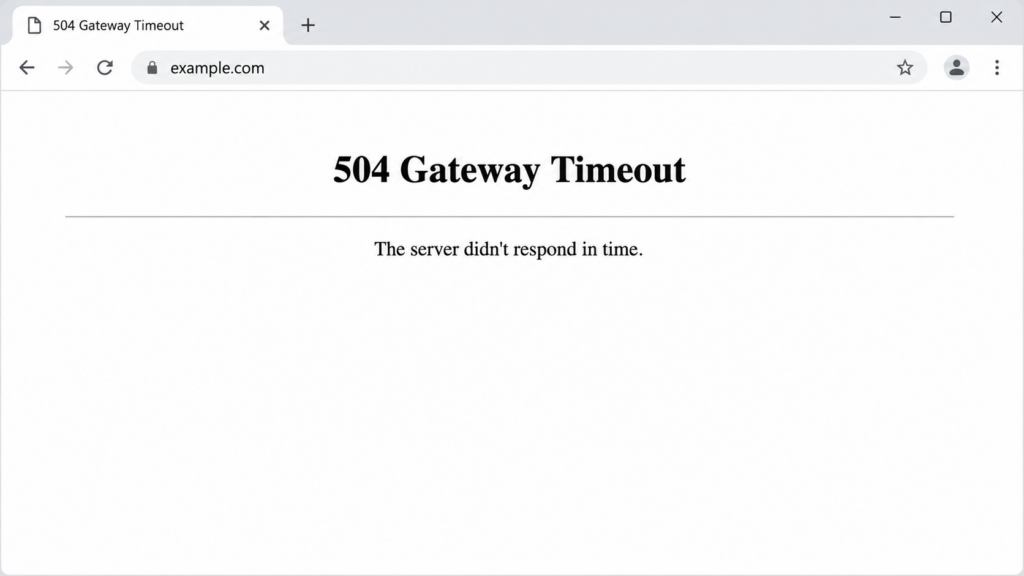
Table of Contents
What is a 504 Gateway Timeout error?
When you load a website, your request often doesn’t go straight to the server that holds the content. It passes through one or more intermediary servers — a reverse proxy, a load balancer, or a CDN edge node — that act as a “gateway.” That gateway forwards your request to the upstream server (the one that actually processes it) and waits for a reply.
A 504 Gateway Timeout error occurs when a server, acting as a gateway or proxy, fails to receive a timely response from an upstream server. The gateway did its job and asked, but the upstream server took too long, so the gateway gives up and returns the 504 status code. Represented by HTTP status code 504, this error typically indicates network-related delays or an overloaded upstream server rather than a problem on the visitor’s side.
The key insight, and the reason this guide is structured the way it is: a 504 is almost always a server-side problem. Because the issue lives in the server infrastructure, in roughly 70% of cases it’s the site administrator’s responsibility to investigate and resolve — not the visitor’s.
A 504 happens between servers — the gateway gives up waiting for the upstream.
Other names and variations of this error
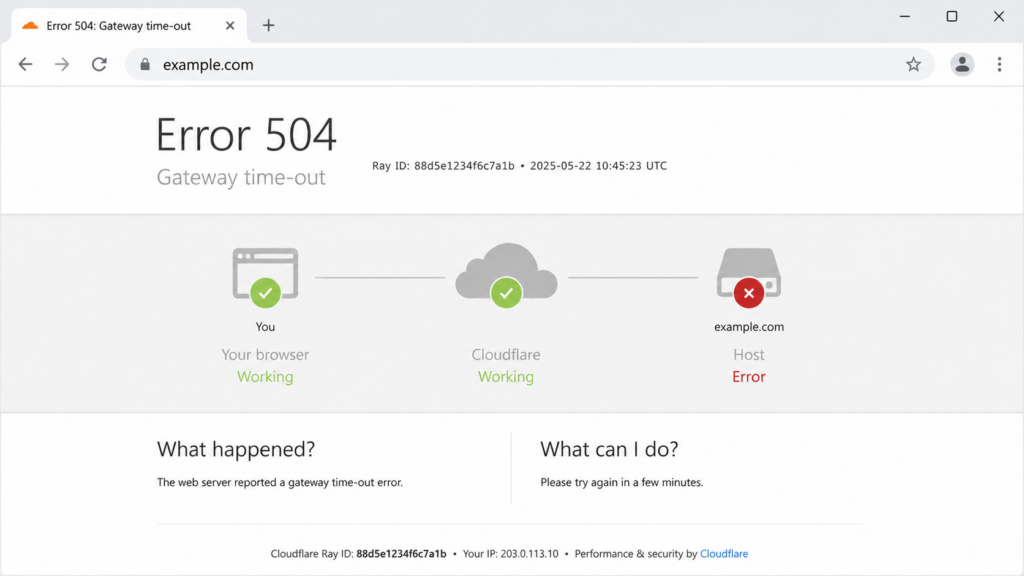
The same error appears with different wording depending on the server and CDN. You might see “504 Gateway Timeout”, “HTTP Error 504”, “Gateway Timeout Error”, “504 Gateway Time-out” (the Nginx spelling), “Error 504”, or — behind Cloudflare — “504 Gateway Time-out” on a Cloudflare-branded page. WordPress sites may show it inside a maintenance-style page. They all mean the same thing: an upstream server didn’t respond in time.
What causes a 504 Gateway Timeout error?
Most causes sit on the server side, but a few can be local to the visitor. Here are the main ones, grouped by where they live.
On the server side (the website’s infrastructure): an overloaded or under-resourced hosting server, slow database queries or long-running scripts that exceed the timeout, a PHP script timeout (often from a heavy plugin or theme on WordPress), misconfigured timeout values in Nginx or Apache, firewall or security rules blocking communication between servers, and CDN or proxy nodes (like Cloudflare) failing to reach the origin in time.
On the visitor’s side (less common): a temporary network glitch, a local DNS cache problem, corrupted browser cache, or a misbehaving proxy or VPN.
The table below maps each cause to how you’d recognize it and where to fix it.
How a 504 differs from 502, 503, and 500
These status codes look similar and get confused constantly, but they point to different problems — and knowing the difference speeds up diagnosis.
In short: a 504 is specifically a timeout between servers — the upstream didn’t answer in time. A 502 means the upstream answered, but with an invalid response. A 503 means the server is temporarily unavailable (overloaded or in maintenance). And a 500 is a generic internal failure with no specific category.
How to fix the 504 error (quick checks first)
Even though a 504 is usually server-side, a few quick checks rule out a temporary or local issue in seconds. Start here.
1. Reload the page and wait a moment
A 504 is often temporary, caused by a brief spike in traffic or a momentary upstream delay. Refreshing the web page is the simplest first step: it forces the browser to make a fresh request, which can succeed once the upstream server catches up. Wait a minute, then reload (press Ctrl + R, or Cmd + R on Mac).
2. Try a different browser or device
This rules out issues caused by browser settings, cache, or extensions. Open the site in another browser, an incognito window, or on your phone. If it works elsewhere, the problem may be local to your original browser.
3. Clear your browser cache and flush your DNS
A corrupted browser cache or a stale local DNS entry can occasionally cause a 504. Clear your browser’s cached data, then flush your DNS cache — on Windows, run ipconfig /flushdns in Command Prompt; on Mac, run sudo dscacheutil -flushcache; sudo killall -HUP mDNSResponder in Terminal. Then reload the site.
4. Restart your network devices
A simple restart of your router and modem can resolve transient network issues by renewing the connection with your ISP. Power them off, wait about 30 seconds, and turn them back on. Also try disabling any VPN or proxy temporarily, since these can interrupt the connection.
5. Check whether the site is down for everyone
If the steps above don’t help, confirm whether the problem is just you or everyone. Use a tool like DownDetector or a “is it down” checker, or try the site on mobile data. If the site is down for everyone, the cause is on the server — and if it’s not your site, all you can do is wait for the owner to fix it.
How to fix the 504 error (server side, for site owners)
This is where most 504s are actually solved. Work through these in order.
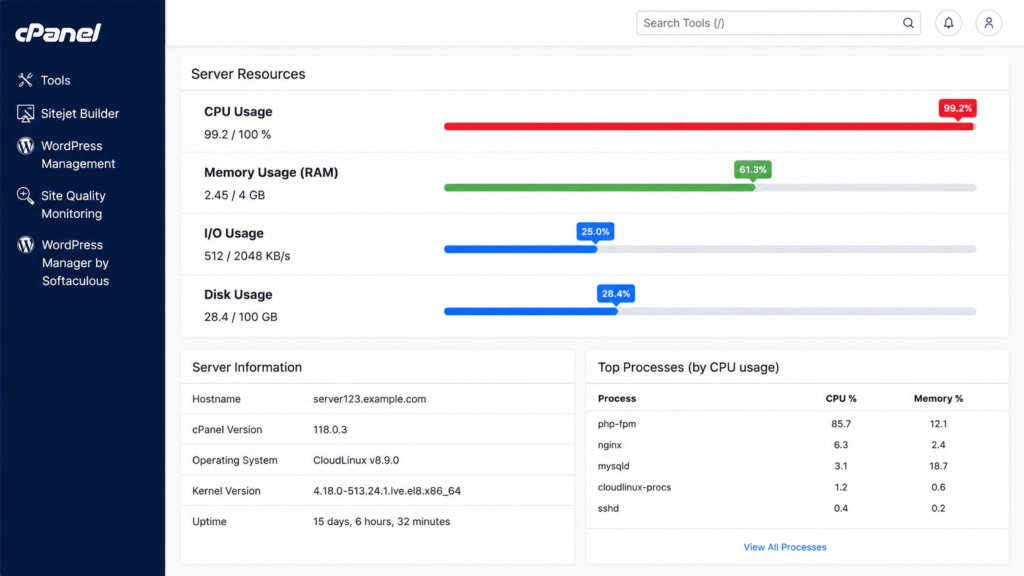
Check if your server is overloaded
An overloaded or under-resourced server is the most common cause. If your traffic spiked, or your plan’s CPU and memory limits are maxed out, the upstream server can’t respond in time. Check your hosting resource usage in your control panel. If you’re consistently near the limit, you likely need to optimize your site or upgrade your plan.
Increase the timeout values in Nginx or Apache
If a legitimate request simply takes longer than the configured limit, raising the timeout fixes it. Incorrect or too-short timeout settings in your web server are a frequent trigger. On Nginx, increase proxy_read_timeout, proxy_connect_timeout, and fastcgi_read_timeout. On Apache, raise the Timeout directive and, if using PHP-FPM, the ProxyTimeout. After editing, restart the web server.
# Nginx example (in the server or location block)
proxy_connect_timeout 300;
proxy_read_timeout 300;
fastcgi_read_timeout 300;Code language: PHP (php)
Expert tip: raising the timeout is usually the wrong fix. A higher timeout treats the symptom, not the cause — it just makes the gateway wait longer for a response that’s still too slow. Nine times out of ten, the real problem is why the upstream is slow: a heavy database query, an N+1 query pattern, an external API that hangs, or a long-running task that should be a background job. Raise the timeout only to buy breathing room while you investigate; the lasting fix is making the upstream respond faster. If a normal page needs a 300-second timeout, that’s a signal to optimize the code or query — not to wait longer.
Raise the PHP execution time
Long-running PHP scripts that exceed max_execution_time are a classic 504 cause, especially during imports, backups, or heavy queries. Increase max_execution_time in your php.ini (for example, to 300 seconds), or through your hosting panel’s PHP settings.
max_execution_time = 300Check for exhausted PHP-FPM or application workers
Modern setups don’t process requests with unlimited capacity — they use a fixed pool of “workers.” If every worker is busy, new requests have to wait in a queue, and if they wait longer than the gateway’s timeout, the result is a 504. This is a common cause on busy sites and is easy to miss, because each individual request might be fast — there simply aren’t enough workers to go around.
On PHP sites running PHP-FPM, the limit is set by pm.max_children in your PHP-FPM pool configuration. If your error log shows messages like “server reached pm.max_children”, that’s your culprit: raise the value (carefully — each worker consumes memory, so don’t set it higher than your RAM allows), or reduce how long each request holds a worker by fixing slow operations.
On Node.js applications, the equivalent is a process that’s blocked or a worker pool that’s saturated — a single long synchronous operation can stall the event loop and make every request behind it time out. Run multiple instances (for example, with a process manager like PM2 in cluster mode) and move heavy work off the main thread.
In both cases, the principle is the same as with timeouts: more workers buys capacity, but if requests are slow because of the code or the database, the real fix is upstream — make each request finish faster so workers free up sooner.
Look for slow database queries and heavy scripts
Faulty scripts, poor API integrations, or database queries that run too slowly delay the upstream response until the gateway times out. Review your slowest queries (many panels offer a slow-query log), optimize or index them, and audit any external API calls that might hang. On a database that’s corrupted, repair it through your panel or with a repair tool.
Check your CDN or proxy (Cloudflare)
If your site sits behind a CDN, a misconfigured or overloaded CDN node can fail to pass the request to your origin server in time, producing a 504 at the edge. On Cloudflare specifically, a 504 usually means the origin didn’t respond within Cloudflare’s timeout. Check that your origin is healthy and reachable, and review the CDN’s timeout settings. Temporarily pausing the CDN can confirm whether it’s the source.
Review firewall and security rules
Firewalls can sometimes block legitimate requests between servers, causing a 504. To test, temporarily review (not permanently disable) your firewall or security plugin rules and check the logs for blocked internal requests. If a rule is the cause, adjust it rather than turning protection off.
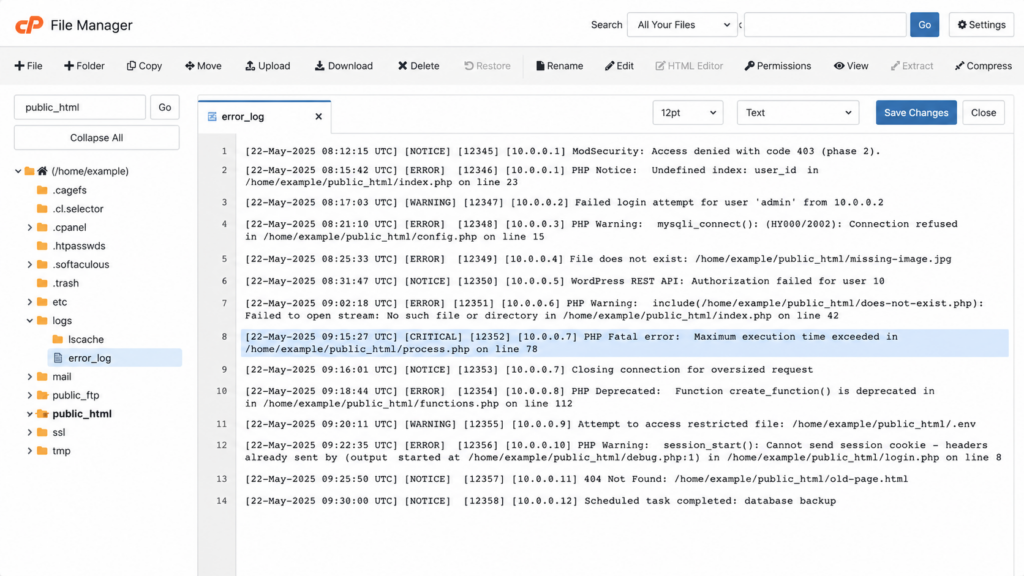
Check the server error logs
When the cause isn’t obvious, the logs usually reveal it. In your hosting panel, open the error log (on many servers, PHP errors are stored in a php_errorlog or error_log file in your site’s root folder). The entries logged at the time of the 504 often point straight to the slow script, query, or upstream failure responsible.
How to fix a 504 error on WordPress
WordPress sites have a few extra, common culprits worth checking directly.
A heavy or poorly coded plugin is the most frequent WordPress trigger. Deactivate all plugins — if you can’t reach the dashboard, rename the wp-content/plugins folder via FTP to deactivate them all at once — then reload. If the 504 clears, reactivate them one by one to find the offender. If plugins aren’t the cause, switch to a default theme (rename the active theme’s folder via FTP, or change it through the database with phpMyAdmin if the dashboard is locked). Finally, enable WordPress debug mode (WP_DEBUG_LOG) so errors are recorded to a log you can inspect for the real cause.
The business impact of a 504 error
A 504 isn’t just a technical nuisance. When a visitor tries to reach your site and hits a 504, it creates frustration and damages trust — and for a site owner, it can mean lost traffic, lost customers, and a direct hit to revenue. Worse, this status code may negatively affect your SEO: if search engine crawlers repeatedly encounter 504s, they can’t index your pages and may crawl your site less often. That’s why a recurring 504 should be treated as a priority, not ignored as an occasional blip.
How to prevent 504 errors
Prevention is far cheaper than firefighting. Keep your site optimized so requests resolve quickly: cache aggressively, optimize images, and clean up slow database queries. Audit plugins and scripts, removing anything heavy or unmaintained. Set sensible timeout values that match your legitimate workloads.
If you use a CDN, configure its timeouts to match your origin. And most importantly, choose hosting with enough resources and headroom for your traffic — many 504s trace back to overcrowded, under-resourced servers that buckle under normal load.
Tired of timeouts slowing your site down?
Most 504 errors come from overloaded, under-resourced servers that can’t respond in time. Copahost hosting gives your site the resources, optimized configuration, and headroom it needs to keep responses fast — so your visitors never hit a gateway timeout.
See Copahost hosting plansConclusion
A 504 Gateway Timeout error looks alarming, but it tells you something specific: a server waited too long for another server and gave up. For visitors, the quick checks — reload, try another browser, flush DNS, restart the router — rule out the rare local cause in minutes. For site owners, where the fix almost always lives, the path is methodical: check server load, raise the timeout and PHP limits, hunt down slow queries and heavy plugins, and review your CDN and firewall.
Because a 504 is overwhelmingly a server-side problem, the most reliable long-term fix is infrastructure: fast, well-resourced hosting with sensible timeouts and a healthy origin keeps upstream responses quick — and keeps your visitors from ever seeing a gateway timeout.
Frequently asked questions about the 504 Gateway Timeout error
What does a 504 Gateway Timeout error mean?
It means one server, acting as a gateway or proxy (like Nginx, a load balancer, or a CDN), waited too long for a response from another server it depends on, called the upstream server, and gave up. The request reached the infrastructure, but the upstream didn’t reply in time, so the gateway returns the 504 status code.
Is a 504 error my fault or the website’s?
Almost always the website’s. A 504 is a server-side error, and in roughly 70% of cases it’s the site administrator’s responsibility to fix. If the site is down for everyone, the cause is the server. The error is rarely on the visitor’s side, though a temporary network glitch, a VPN, or a local DNS issue can occasionally cause it — which you can rule out by trying another device or network.
How long does a 504 Gateway Timeout last?
It depends on the cause. A 504 from a brief traffic spike or a momentary upstream delay can clear in seconds once you reload. But a 504 caused by an overloaded server, a slow query, or a misconfiguration will persist until someone fixes the underlying problem. If a site is consistently returning 504s, it won’t resolve on its own.
How do I fix a 504 error as a visitor?
Try the quick checks: reload the page after waiting a moment, open the site in a different browser or an incognito window, clear your browser cache and flush your DNS, and restart your router. Disabling a VPN or proxy can also help. If the site still fails on other devices and networks, the problem is on the server and only the owner can fix it.
How do I fix a 504 error on my own website?
Work through the server-side causes: check whether your server is overloaded (CPU and memory), increase the timeout values in Nginx or Apache and the PHP max_execution_time, find and optimize slow database queries or heavy scripts, review your CDN and firewall settings, and check the server error logs for the exact cause. On WordPress, also test by deactivating plugins and switching to a default theme.
What does a 504 error mean in Nginx?
In Nginx, a 504 means Nginx, acting as a reverse proxy, waited longer than its configured timeout for a response from the upstream server (such as PHP-FPM or an application server). The relevant setting is proxy_read_timeout (and fastcgi_read_timeout for PHP), whose default is 60 seconds. Raising it can help, but the better fix is usually finding why the upstream is slow.
What causes a 504 error on Cloudflare?
Behind Cloudflare, a 504 almost always means Cloudflare’s edge couldn’t get a response from your origin server within its timeout. The origin is too slow, overloaded, or unreachable. Check that your origin server is healthy and responding quickly, review its timeout settings, and confirm a firewall isn’t blocking Cloudflare. Temporarily pausing Cloudflare confirms whether the edge or the origin is at fault.
What’s the difference between a 502 and a 504 error?
Both involve a gateway and a failing upstream server, which is why they’re easy to confuse. A 502 Bad Gateway means the upstream replied, but with an invalid response or by refusing the connection. A 504 Gateway Timeout means the upstream stayed silent too long — it didn’t reply at all within the time limit. In short: 502 is a bad answer, 504 is no answer in time.
What’s the difference between a 503 and a 504 error?
A 503 Service Unavailable means the server explicitly says it can’t handle the request right now, usually due to overload or maintenance, and it’s often intentional and temporary. A 504 Gateway Timeout means a gateway waited for an upstream server that never responded in time. A 503 is the server saying “not now”; a 504 is the gateway giving up after silence.
Why do I get a 504 error on WordPress?
On WordPress, the most common cause is a heavy or poorly coded plugin, or a theme, that makes a request take longer than the server’s timeout. Slow database queries and an under-resourced server are also frequent. To diagnose, deactivate all plugins (rename the plugins folder via FTP if you can’t log in), switch to a default theme, and enable WP_DEBUG_LOG to capture the exact error.
Why does a 504 happen only on one page or action?
When the 504 appears only on a specific page or action — a search, a checkout, an import, or an API call — it usually points to a single slow operation: a heavy database query, an external API that hangs, or a long-running script that exceeds the timeout. The fix is to optimize that specific operation, or move long tasks to a background job, rather than raising timeouts globally.
Does a 504 error affect SEO?
A rare, brief 504 won’t hurt your rankings. But if search engine crawlers repeatedly hit 504s, they can’t access your pages, which can harm indexing and rankings over time, and crawlers may visit less often. Because a 504 also frustrates visitors and can cost sales, a recurring one should be fixed promptly rather than ignored.
