
The IMAP path prefix — also called the root folder path — tells your mail client where on the server your folders live. On many servers, folders like Sent, Drafts and Trash are stored inside the INBOX, and if your client doesn’t know that, they either don’t appear at all or show up duplicated. Setting the prefix to INBOX fixes it on those servers. But on servers that keep folders at the top level, setting it is exactly what breaks things.
That’s the part most guides leave out. This field isn’t a universal “type INBOX and you’re done” — the right value depends on how your mail server organizes folders. Here’s how to tell which case you’re in, what to enter, and where to find the setting in each mail app.
The IMAP path prefix tells your mail client which folder on the server to treat as the root of your mailbox. If your Sent, Drafts and Trash folders are missing or duplicated, set it to INBOX (uppercase) — this is correct for most cPanel and Dovecot-based mail servers, where folders are stored as INBOX.Sent, INBOX.Drafts and so on. If your folders already display correctly, leave the field empty: setting it unnecessarily is a common cause of duplicated folders.
What the IMAP path prefix actually does
When your mail client connects over IMAP, it has to ask the server a basic question: where do the folders start? Different servers answer differently.
Some servers keep the standard folders at the top level, side by side with the inbox:
INBOX
Sent
Drafts
Trash
Others nest everything inside the INBOX, using a dot as separator:
INBOX
INBOX.Sent
INBOX.Drafts
INBOX.Trash
The path prefix is how you tell the client which layout to expect. Set it to INBOX, and the client treats the inside of the INBOX as the root of your mailbox — which is exactly right for the second layout, and wrong for the first.
Most clients try to figure this out on their own, using an IMAP command called NAMESPACE, where the server declares its folder structure. Thunderbird, for instance, usually detects it correctly with no input. The field exists for the cases where autodetection fails or the server doesn’t answer clearly — and Apple Mail is the client where that happens most often.
Symptoms: when you need to set it
You probably need to adjust the path prefix if you see any of these:
- Sent, Drafts, Trash or Junk are missing from your mail app, even though they exist in webmail.
- Folders appear duplicated — the same folder at the top level and again nested under the Inbox.
- Sent mail doesn’t sync. You send from your phone, and it never shows up in Sent on your desktop.
- The client created its own local folders (“Sent Messages”, “Deleted Messages”) alongside the server ones, so your outgoing mail ends up split between two places. In Outlook these appear labeled “(This Computer Only)” — a clear sign it didn’t find the server’s folders.
- Custom folders don’t show up at all on one device.
All of these come down to the same thing: the client is looking in the wrong place, so it either finds nothing or maps things twice.
What value should you use?
There are only two realistic answers, and the right one depends on your server:
| Value | Use it when |
|---|---|
INBOX (uppercase) | Your folders live inside the inbox (INBOX.Sent style). Standard on most cPanel / Dovecot mail servers. |
| Empty (blank) | Your folders sit at the top level next to the inbox. Standard for Gmail, Outlook.com and many modern providers. |
Write it in uppercase — INBOX, not Inbox or inbox. IMAP treats the inbox name as case-insensitive by convention, but some clients are fussy about it, and uppercase is the form every provider documents.
Filling in INBOX on a server that keeps folders at the top level is one of the most common causes of duplicated folders — the client starts looking inside the inbox for folders that live outside it, and ends up mapping some twice. If your mail already syncs correctly, leave the field empty. Only change it when you have one of the symptoms above.
Not sure which layout your server uses? Open your webmail and look at the folder list. If Sent and Trash appear indented under the Inbox, your server nests them and INBOX is the right prefix. If they sit at the same level as the Inbox, leave the field blank.
If you use Outlook, there’s a second way to check: right-click the IMAP account in the folder pane, choose IMAP Folders, and click Query. That lists the real folder names on the server. If they all start with the same word followed by a dot (INBOX.Sent, INBOX.Drafts), that word is your root path.

Where to find the setting in each client
The field has different names depending on the app — “IMAP Path Prefix”, “Root Folder Path”, or “IMAP prefix” — but it does the same thing everywhere.
iPhone and iPad
Go to Settings → Apps → Mail → Mail Accounts, select your account, tap the account name again, then Advanced → IMAP Path Prefix. Enter INBOX and tap Done — the change isn’t saved unless you confirm it. Then close and reopen Mail so it re-reads the folder list.
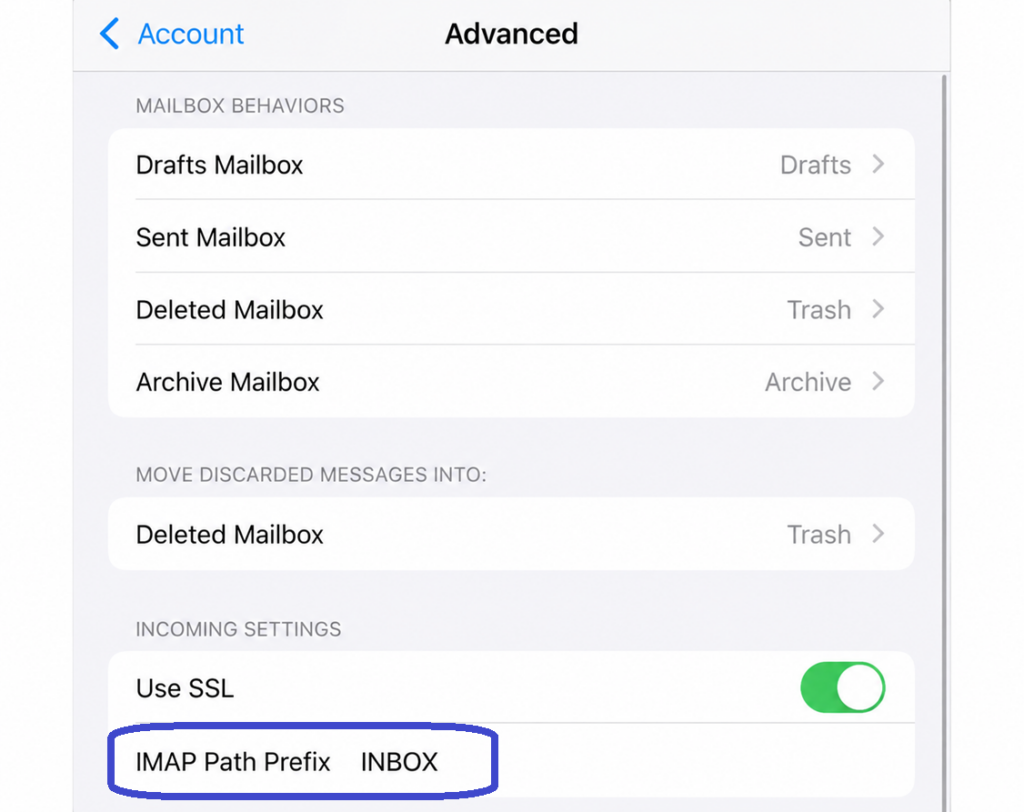
Apple Mail (Mac)
Open Mail → Settings → Accounts, select the account, go to Server Settings, and open the advanced IMAP settings. Enter INBOX in the IMAP Path Prefix field and save. Quit Mail completely and reopen it — the new folder mapping only applies after a restart.
Outlook (classic desktop)
Go to File → Account Settings → Account Settings, select the account, click Change → More Settings → Advanced, and use the Root folder path field. That’s Outlook’s name for the same setting. Enter INBOX and confirm.
Thunderbird
Account Settings → Server Settings → Advanced, in the IMAP server directory field. Thunderbird usually detects the namespace on its own, so you rarely need to touch this.
Android
The field appears in the incoming server settings when you add the account manually — often labeled IMAP path prefix. Some Android mail apps hide it entirely and rely on autodetection.
After changing the prefix in any client, give it a minute to re-sync, and don’t panic if a folder briefly seems to move — the client is re-mapping the whole tree.
If folders still look wrong
A few things to check when the prefix alone doesn’t fix it:
- Restart the app. Most clients only re-map folders on relaunch. On Apple Mail, a full quit (not just closing the window) is required.
- Check the folder mapping. Many clients let you assign which server folder is used for Sent, Drafts and Trash. If the client created local folders, point it at the server ones instead.
- Confirm the account is IMAP, not POP. The path prefix doesn’t exist for POP3, since POP only ever downloads the inbox. If the field isn’t there, the account may be set up as POP — our IMAP vs POP3 guide explains the difference, and what an IMAP account is covers the basics.
- Look for leftover local folders. After fixing the prefix, old duplicates created by the client may remain. Move any messages you need out of them, then remove them.
- Match the setting across devices. If you change the prefix on your desktop, apply the same value on your phone and tablet. Different prefixes on different devices for the same account re-create the very duplicates you’re trying to fix.
Folders missing for a different reason: subscription
There’s a second, unrelated cause of missing folders that the path prefix won’t fix: subscription. IMAP lets a client “subscribe” only to some of the folders that exist on the server, and an unsubscribed folder simply won’t be displayed — even with the prefix set correctly.
In Outlook, right-click the IMAP account in the folder pane and choose IMAP Folders, then click Query to list every folder that exists on the server. Select the ones that aren’t showing and click Subscribe. In Thunderbird and Apple Mail, the equivalent is usually a “Subscribe” or “Get account list” option on the account’s context menu.
If a folder appears in webmail but not in your client, and the path prefix is already correct, subscription is almost always the reason.
Copahost hosting includes email at your own domain with full IMAP support, webmail, and the exact server settings available in your control panel — plus support in case a folder ever misbehaves.
See hosting plans with emailFrequently asked questions
What is the IMAP path prefix?
It is a setting in your mail client that tells it which folder on the server to treat as the root of your mailbox. Some servers store Sent, Drafts and Trash inside the INBOX, and the prefix tells the client to look there. It is also called the root folder path or IMAP server directory, depending on the app.
What should I put in the IMAP path prefix?
Enter INBOX in uppercase if your folders are stored inside the inbox, which is standard on Dovecot-based mail servers, used by both cPanel and DirectAdmin. Leave the field empty if your folders sit at the top level next to the inbox, as with Gmail and Outlook.com. Check your webmail folder list to see which layout your server uses.
Why are my email folders duplicated?
Usually because the path prefix does not match your server’s layout. If the client is told to look inside the INBOX on a server that keeps folders at the top level, it can map some folders twice. Correcting the prefix, then restarting the app, resolves it.
Why is my Sent folder not syncing?
The client is likely saving sent mail to a local folder instead of the server one, which happens when it cannot find the server’s Sent folder. Setting the path prefix correctly usually fixes it, and you may also need to reassign which server folder is used for sent messages in the account settings.
Why does a folder show in webmail but not in my mail client?
Almost always because that folder is not subscribed in your client. IMAP lets a client subscribe to only some of the folders that exist on the server, and unsubscribed folders are simply not displayed, even with the path prefix set correctly. In Outlook, right-click the account, choose IMAP Folders, click Query, select the missing folders and click Subscribe. Thunderbird and Apple Mail offer an equivalent subscribe option.
Where is the IMAP path prefix on iPhone?
Open Settings, go to Mail and then your mail accounts, select the account, tap Advanced, and you will find IMAP Path Prefix. Enter INBOX in uppercase and tap Done to save. Reopen the Mail app afterwards so it refreshes the folder list.
Does the IMAP path prefix exist for POP3?
No. POP3 only retrieves messages from the inbox and does not manage server folders, so there is no folder hierarchy to point at. If your client is not showing the field, the account may be configured as POP3 rather than IMAP.
Conclusion
The IMAP path prefix is a small field with an outsized effect: it decides where your mail client looks for folders. On servers that nest everything inside the inbox — the norm on cPanel and Dovecot setups — setting it to INBOX makes Sent, Drafts and Trash appear and sync properly. On servers that keep folders at the top level, the same value causes the duplicates it’s supposed to prevent. So check your webmail first, set the prefix to match, restart the app, and the folder tree falls into place. And if everything already syncs correctly, the best thing you can do with this field is leave it alone.
